How to Safely Compress Sensitive PDF Documents
Summary
Compress sensitive PDFs, bank statements, contracts, medical records, without uploading them. Learn how to shrink them safely, right in your browser.
PDFs are the universal container for sensitive documents, tax returns, employment contracts, medical reports. When those files are large, the temptation is to drag them into the first online compressor that appears in search results. This is a risk most people don't consciously take.
PDF is a complex format. A single file can contain embedded images, fonts, form data, digital signatures, and metadata layers. When you upload one to a third-party compressor, you're handing over all of that, including content that's not visible on any printed page.
Why a PDF Holds More Than the Page Shows
A PDF is not a flat picture of a document, it's a container. Beyond the text and images you can see, a single file routinely carries layers that never appear on a printout:
- ●Document metadata, author name, organisation, the software used, and creation/modification timestamps
- ●Revision history, earlier versions of edited text can linger inside the file structure
- ●Form-field data, values typed into interactive forms, sometimes including data you thought you cleared
- ●Digital signatures and certificates, which can embed identity details
- ●Embedded fonts and full-resolution images, even where the visible page is cropped or downscaled
When you upload that file to a server-side compressor, every one of those layers goes with it, not just the page you wanted to shrink.
Why PDFs Get So Large in the First Place
Before you compress, it helps to know what you're compressing. Most oversized PDFs aren't bloated by text, text is tiny. They're heavy because of what's embedded around it:
- ●Scanned pages stored as full-resolution images, a single 300 DPI A4 scan can be several megabytes on its own
- ●High-resolution photos dropped in at print quality when screen quality would do
- ●Embedded fonts, sometimes several full families when only a handful of characters are used
- ●Duplicate or uncompressed image streams left behind by the software that generated the file
Compression targets exactly these: it re-samples images to a sensible resolution and re-encodes them efficiently. That's why image-heavy and scanned PDFs shrink dramatically while clean, text-only files barely move.
What Actually Happens When You Upload to a Server-Side Tool
- ●The PDF is transmitted in full over HTTPS to a remote server
- ●The server decompresses and recompresses embedded images (typically to JPEG)
- ●Most tools log the filename, file size, and your IP address for every upload
- ●The file sits in a temp directory for 1–24 hours after processing
- ●Embedded metadata, including author name, modification history, and software version, is often preserved, not stripped
PDF/A documents (used for legal archiving) embed additional metadata including modification timestamps and creator identity. Most online compressors preserve this rather than strip it.
The Real Risks of Uploading a Sensitive PDF
For a holiday flyer, none of this matters. For a document tied to your money, health, or legal standing, the exposure is concrete:
- ●Data breaches: if the compressor's servers are compromised, every PDF ever uploaded is exposed, and breach dumps regularly contain documents from free tools.
- ●Retention you can't verify: files commonly sit in temp storage for 1–24 hours, and "auto-delete" promises can't be independently confirmed.
- ●Compliance violations: uploading patient or personal data to an unknown server can breach regulations like HIPAA or the EU's GDPR.
- ●Jurisdiction: your file lands on a physical server in some country, subject to that country's disclosure laws regardless of where you live.
The rule of thumb: if you wouldn't email the document to a stranger, it shouldn't go to an anonymous compressor either. We unpack how to spot risky tools in how to check if an online file converter is safe.
How Browser-Based PDF Compression Works
It might sound implausible that a browser tab could compress a multi-megabyte PDF without a server doing the heavy lifting. A few years ago it was. Today, WebAssembly lets battle-tested native libraries run at near-native speed directly in the page, so the same engines that power server-side compressors can execute on your own machine instead.
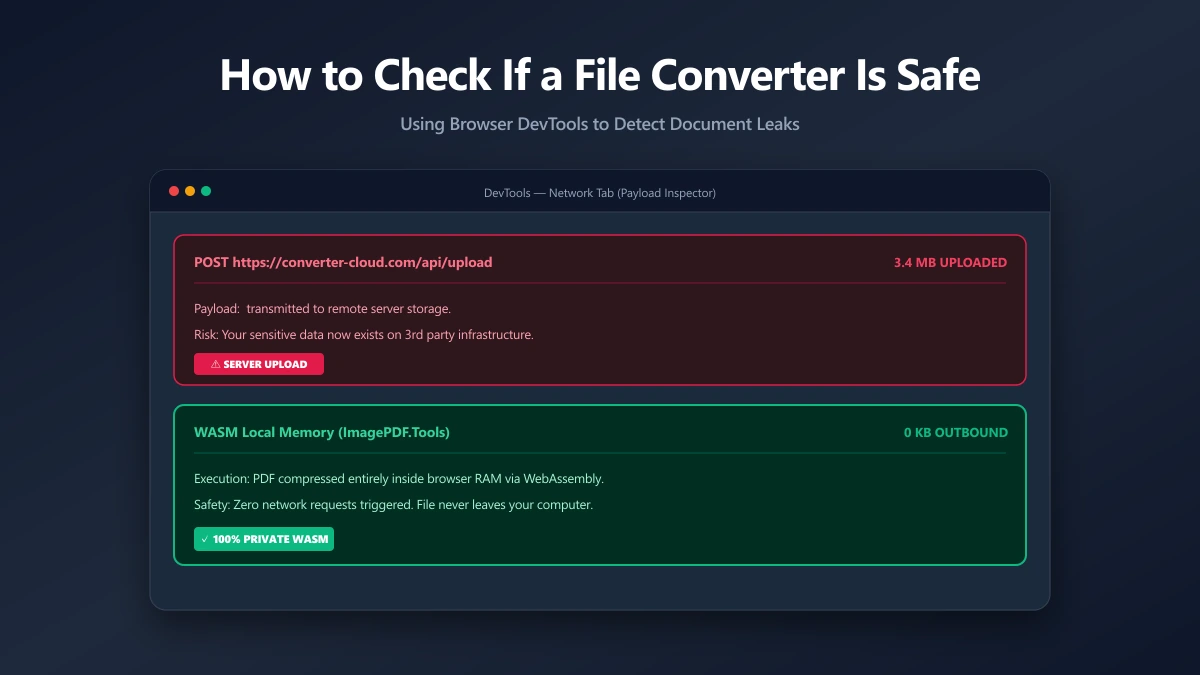
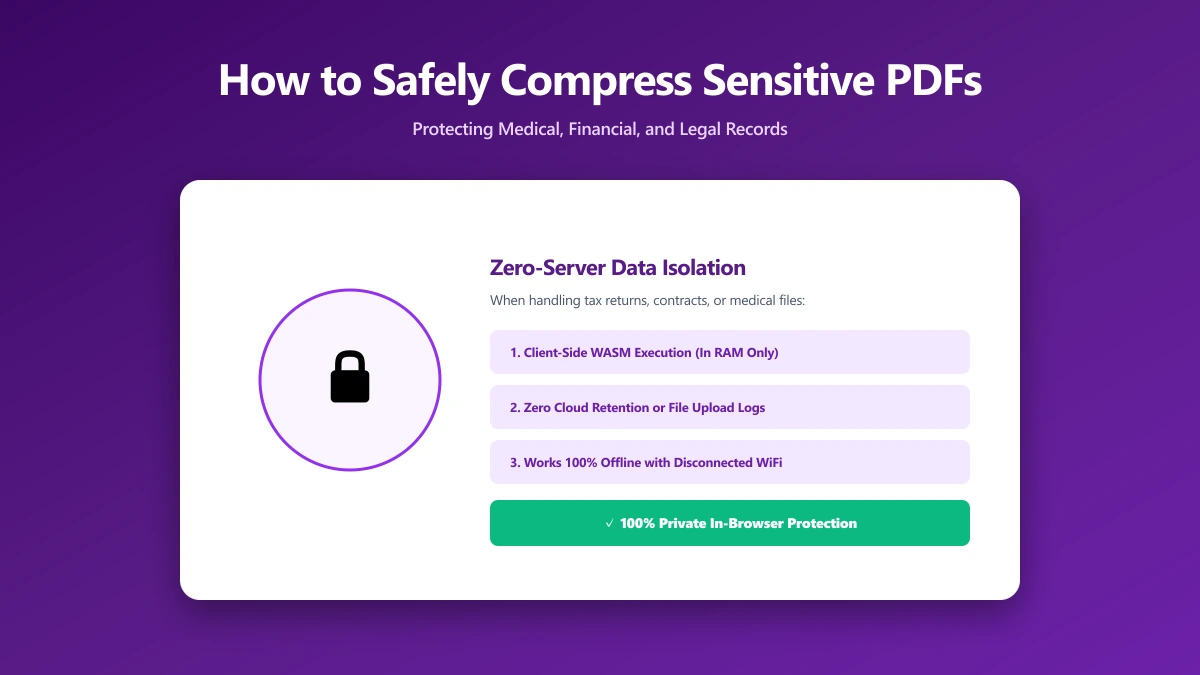
Compressing a PDF in-browser uses WebAssembly builds of tools like Ghostscript. The WASM binary is downloaded once (and cached), then executes locally inside your browser tab. The PDF content never crosses the network.
// Simplified: Ghostscript WASM running entirely in-browser
import { createGhostscript } from 'ghostscript-wasm';

const gs = await createGhostscript();
const pdfBytes = new Uint8Array(await file.arrayBuffer()); // stays in memory

gs.FS.writeFile('/input.pdf', pdfBytes);
gs.callMain([
  '-sDEVICE=pdfwrite',
  '-dPDFSETTINGS=/ebook',   // 150 DPI, good quality, significant size reduction
  '-o', '/output.pdf',
  '/input.pdf',
]);

const result = gs.FS.readFile('/output.pdf');
// result is a Uint8Array, download it directly, nothing sent to a server
Lossy vs. Lossless: What PDF Compression Actually Does
Lossless optimisation removes redundancy, duplicate objects, unused data, inefficient encoding, with zero impact on how the file looks. It always helps, but the savings are usually modest.
The big reductions come from lossy image compression: downsampling embedded images to a lower resolution and re-encoding them as JPEG. This is where you trade a little visual fidelity for a much smaller file. The skill is choosing a level where the loss is invisible at the size the document will actually be viewed, 150 DPI looks crisp on screen, while 72 DPI can show softness if the page is zoomed or printed. (For a deeper look, see lossy vs. lossless compression.)
Server-Side vs. In-Browser PDF Compression
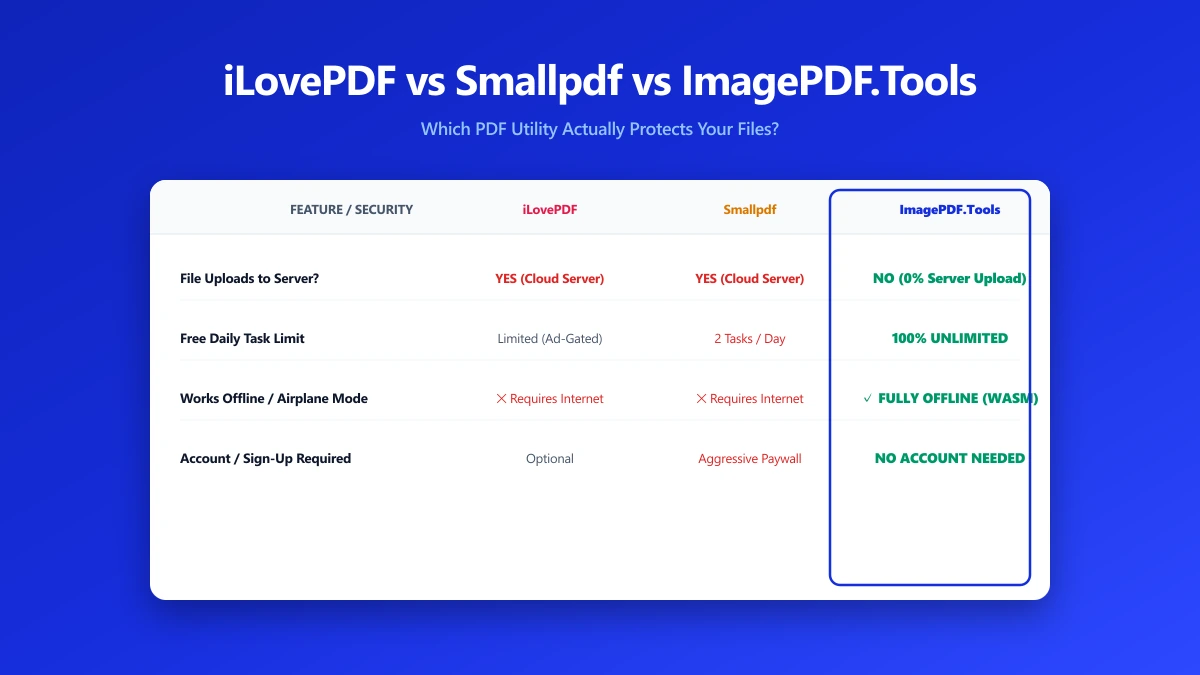
| Factor | Server-side compressor | In-browser (client-side) |
|---|---|---|
| Where the PDF goes | Uploaded to a remote server | Stays in the browser tab |
| Metadata exposure | Whole file, including hidden layers | Never transmitted |
| Compliance (HIPAA/GDPR) | Risky, counts as a transfer | No transfer occurs |
| Verifiable privacy | No, you trust the policy | Yes, DevTools shows no upload |
| Works offline | No | Yes, after first load |
Practical Guide: Compressing Sensitive PDFs Safely
- 1.Choose a client-side tool, verify with DevTools → Network tab that no upload occurs during processing.
- 2.Pick the right compression level, /screen (72 DPI) for email; /ebook (150 DPI) for general use; /printer (300 DPI) for printing.
- 3.Verify the output, open the compressed file and confirm all text is legible and form fields are intact.
- 4.Clear your downloads folder on shared machines, temporary files can persist even after you close the tab.
| Preset | Resolution | Best for |
|---|---|---|
| /screen | 72 DPI | Email and web upload, smallest size |
| /ebook | 150 DPI | General sharing, best size/quality balance |
| /printer | 300 DPI | Documents you intend to print |
| /prepress | 300 DPI+ | Professional printing, largest, highest fidelity |
How Much Smaller Can a PDF Get?
Expectations matter, so here's a realistic picture. A scanned, image-based document compressed from print resolution down to /ebook (150 DPI) commonly drops 60–80%, a 12 MB scan landing around 2–4 MB. A photo-rich brochure sees similar gains.
A text-only PDF exported cleanly from a word processor is a different story: it may only shrink 5–15%, because there are no oversized images to re-sample. If a compressor claims to halve a text-only PDF, it is usually degrading embedded fonts or stripping content you may want to keep. When a file is already small and text-based, the honest answer is that there is little left to compress.
How to Confirm the PDF Never Left Your Browser
You don't have to take a "private" label on faith. With the file open in the tool, press F12, open the Network tab, tick "Preserve log", and run the compression. Watch the request list: a large outbound POST or PUT request the size of your PDF means the file was uploaded. If the only traffic is small scripts and assets, the work happened locally. The check takes about 30 seconds and works in any modern browser.
Desktop Alternatives for Maximum Security
- ●Ghostscript, free, open-source, industry-standard, runs entirely offline
- ●LibreOffice Draw, can open and re-export PDFs with image compression settings
- ●qpdf, command-line tool that linearises, strips metadata, and removes restrictions
- ●Adobe Acrobat (paid), the reference tool with clear and auditable data handling policies
Browser Tool or Fully Offline: Which Should You Use?
Both keep your file off third-party servers, so the choice is really convenience versus belt-and-braces caution. A verified browser-based compressor is ideal for the everyday case: a contract you need to email, a statement you're archiving, a scanned form that's too big to attach. It's instant, needs no install, and you can confirm it uploads nothing.
Reach for a fully offline desktop tool, Ghostscript, qpdf, or LibreOffice, when the document is governed by strict rules (health records, privileged legal files) or when you're on a machine where you can't inspect network traffic. Offline removes even the theoretical possibility of transmission, at the cost of a little setup.
Common Mistakes to Avoid
- ●Compressing the signed copy: recompressing after signing invalidates the signature, compress first.
- ●Over-compressing for the medium: /screen quality looks fine on a phone but turns blurry in print. Match the preset to how the document will be used.
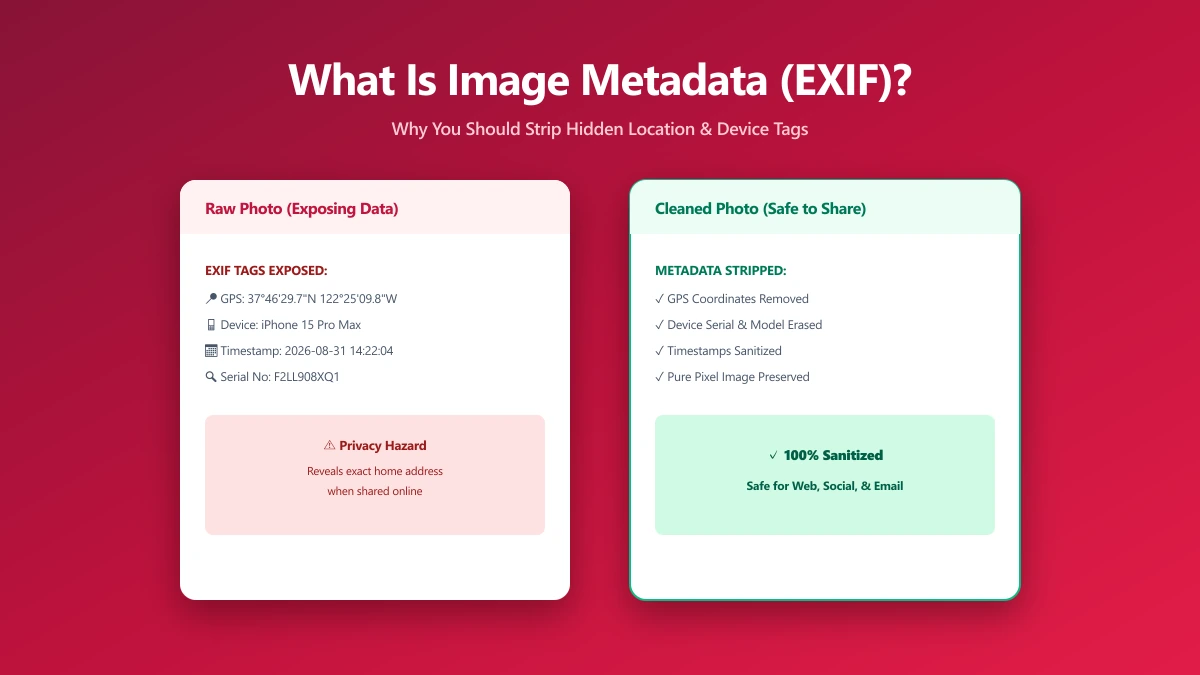
- ●Assuming compression strips metadata: it usually doesn't. Remove sensitive metadata as a separate, deliberate step.
- ●Uploading "just this once": the one time you upload a contract to a random server is the time it matters. Habits beat exceptions.
- ●Skipping the output check: always open the compressed file and confirm text is sharp and form fields survived before you send it.
What About Password-Protected or Signed PDFs?
Encrypted PDFs must be unlocked before they can be recompressed, a browser tool can do this locally once you supply the password, with no upload. Be aware that recompressing a digitally signed PDF will invalidate the signature, because the file's bytes change. If a signature must stay valid, compress the source document before signing, not after. You can remove a known password locally with Unlock PDF, then re-secure the result with Protect PDF.
The Bottom Line
Compressing a sensitive PDF doesn't require trusting a server. Browser-based tools shrink the file on your own device, so bank statements, contracts, and medical records never leave your custody. Verify the tool with DevTools, choose the right compression preset for your use case, and clear your downloads folder on shared machines. If the document is highly regulated, a fully offline desktop tool is the safest option of all.
For everyday documents that aren't highly sensitive, a good browser-based tool is fast, convenient, and safe. Try our PDF compressor, everything stays in your browser tab, or strip image metadata before it ever reaches a document.
Frequently asked questions
Is it safe to compress a PDF online?
Does compressing a PDF remove its metadata?
How much can I compress a PDF without losing quality?
Will compressing a PDF break a digital signature?
What is the safest way to compress a confidential PDF?
Sources & references
This article was researched and written by Nikola, drawing on the following primary sources and documentation:
Ready to try it?
All tools run entirely in your browser, no uploads, no account required.
Compress PDF