
Rotate Image Online for Free
or drop files here
Rotate 90°, 180°, or 270°, or set a custom angle. Supports JPEG, PNG and WebP. Everything runs in your browser, no upload ever.
Three steps. Done in your browser.
Drop your image
Drag any JPEG, PNG, or WebP onto the rotate zone, or click to browse from your device. All processing is local.
Choose rotation angle
Click Rotate Left or Rotate Right to step in 90° increments. For 180°, click twice. Or type any custom angle.
Save the rotated image
Your rotated image is ready instantly. Orientation baked into pixels, no EXIF ambiguity, no upload ever.
When you need to rotate an image.
Rotation permanently bakes the correct pixel orientation into the file, eliminating display inconsistencies across every viewer and platform.
EXIF orientation compatibility
Photos stored rotated with an EXIF orientation tag appear sideways on websites and older software that ignores EXIF. Rotating bakes the correct orientation into the file permanently.
Scanned documents and photos
Flatbed scanners frequently produce images rotated 90° or 180° depending on how the original was placed. Rotating the scan corrects this without quality loss for PNG output.
Landscape photos taken sideways
If you held your phone sideways or the shutter triggered during reorientation, the resulting image may be 90° off. One click corrects it without touching a single pixel of content.
Social media and CMS uploads
Many CMS platforms and social networks do not correctly interpret EXIF orientation. Uploading a pixel-level rotated image guarantees it displays correctly everywhere.
Email and messaging apps
Outlook, Gmail, and many messaging platforms do not reliably preserve EXIF orientation. Rotating before sending ensures the recipient sees the image correctly.
Print preparation
Printing services and design software sometimes import images with the wrong orientation relative to the page layout. Pre-rotating ensures correct positioning in the final print.
How rotation works under the hood.
Rotation is handled by the browser's Canvas 2D context transform system. For 90°, 180°, and 270° steps the tool applies a precise rotate() transform and adjusts the canvas dimensions so the image fits perfectly without clipping or padding.
For custom angles, the canvas is expanded to fit the rotated bounding box, and corner fill colour is white for JPEG or transparent for PNG. The result is exported as a Blob URL and saved directly to your device with the correct orientation baked into every pixel.
Questions answered.
Why is my photo showing sideways on some devices but correctly on others?
Does rotating reduce image quality?
Can I rotate by a custom angle like 45°?
Does rotating strip EXIF metadata?
Will rotating affect the file size?
Can I rotate a PNG without quality loss?
What happens to background areas when I rotate by a custom angle?
Is my image uploaded to a server?
More tools you might need.
Related Guides & Tutorials
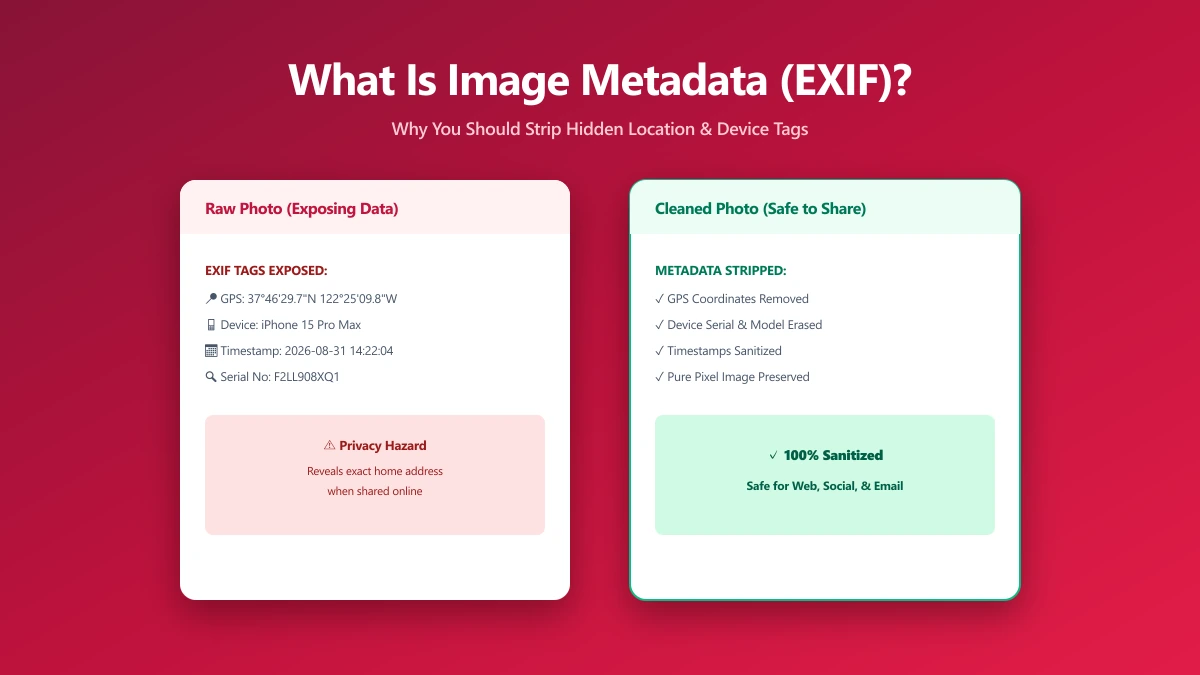
What Is Image Metadata? (And Why You Should Remove It Before Sharing)
Every JPEG you share embeds hidden EXIF data, GPS location, device model, timestamp. Learn what image metadata reveals and how to strip it in seconds.
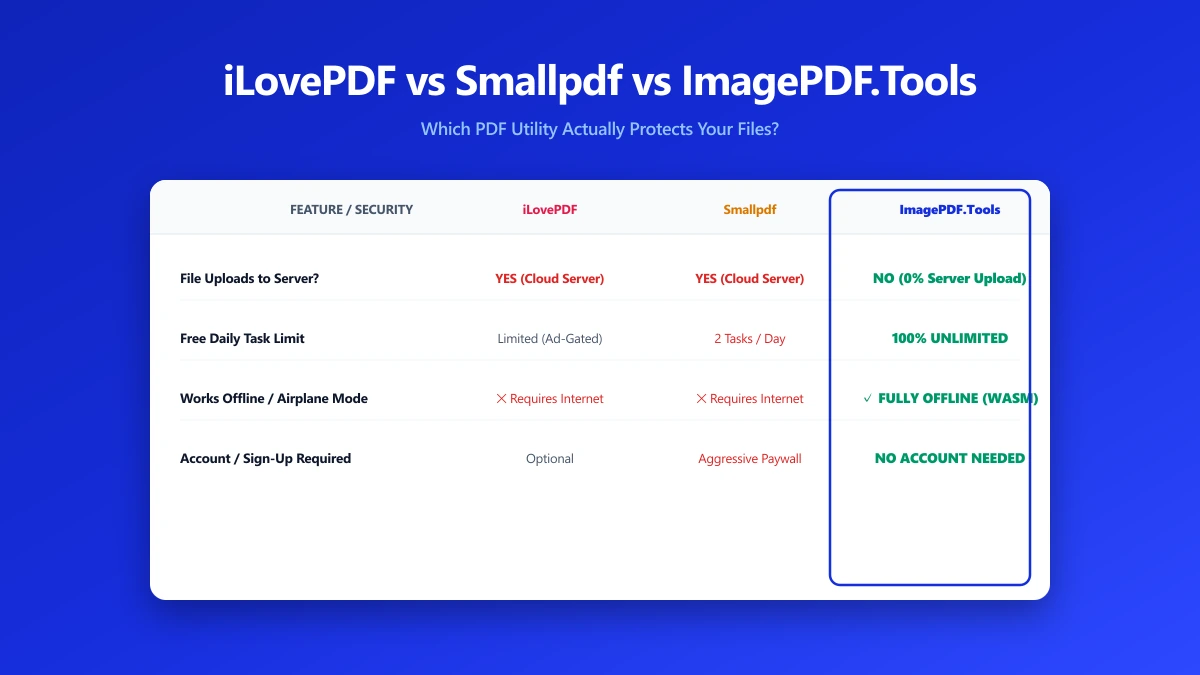
iLovePDF vs Smallpdf vs ImagePDF.Tools: Which One Actually Protects Your Files?
iLovePDF vs Smallpdf vs ImagePDF.Tools compared on price, watermarks, and what happens to your file. See why ImagePDF.Tools is the only one that never uploads it.
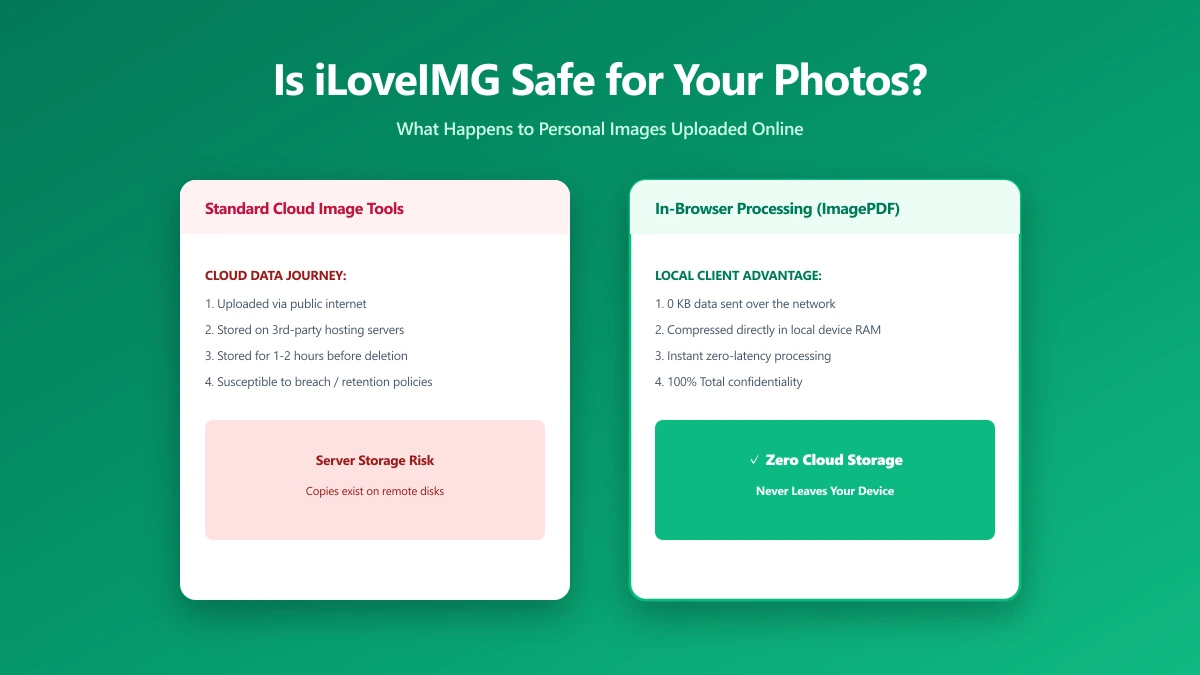
Is iLoveIMG Safe? What Actually Happens to Your Photos When You Upload Them
Is iLoveIMG safe to use? Here is exactly what happens when you upload a photo, what travels with it, and how to check any image tool yourself in 30 seconds.