
OCR PDF - Make Scanned PDF Searchable Online
or drop files here
Zero upload · 300 DPI render · Tesseract OCR · Searchable PDF output
Run Tesseract OCR on any scanned PDF. Adds a text layer so you can select, copy, and search the content. Entirely in your browser.
Three steps. Fully searchable.
Upload your scanned PDF
Drop any scanned PDF: receipts, contracts, books, or forms. Works with any scan quality.
OCR runs in your browser
Tesseract OCR reads every page, detecting words, their positions, and confidence scores. No upload required.
Save your searchable PDF
Save a PDF with an invisible text layer. Looks like the original, but text is now selectable and searchable.
Who needs searchable PDFs?
OCR unlocks the content trapped inside scanned documents, making them useful for search, accessibility, and further processing.
Scanned contracts and agreements
Make signed contracts searchable so you can find specific clauses, dates, and names with Ctrl+F instead of reading every page.
Archiving physical documents
Digitised paper records become far more useful with OCR. Full-text search across your entire archive in seconds.
Accessibility for screen readers
Screen readers need actual text, not images. OCR creates a proper text layer so visually impaired users can read the document.
Scanned receipts and invoices
Extract amounts, dates, and vendor names from scanned receipts. Searchable invoices make expense reporting much faster.
Books and academic papers
Scanned textbooks and research papers become truly useful once OCR lets you search for terms and copy quotes directly.
Multi-language document processing
Support for 12 languages means OCR works accurately on documents in Spanish, French, German, Japanese, Arabic, and more.
How OCR works under the hood.
Each page of your PDF is rendered as an image using PDF.js (Mozilla's open-source renderer). That image is then passed to Tesseract.js, which runs the OCR engine entirely in a browser Worker thread, detecting every word and its position on the page.
The recognised text is embedded as an invisible layer using pdf-lib, placed precisely over the original scan. The result looks identical to the input but the text is now fully selectable and searchable. Nothing is sent to any server at any point.
Questions answered.
What is OCR?
Is my PDF uploaded to a server?
What is a searchable PDF?
What languages are supported?
Can I convert the result to Word?
How accurate is the OCR?
How long does OCR take?
Does OCR work on handwritten text?
More tools you might need.
Related Guides & Tutorials
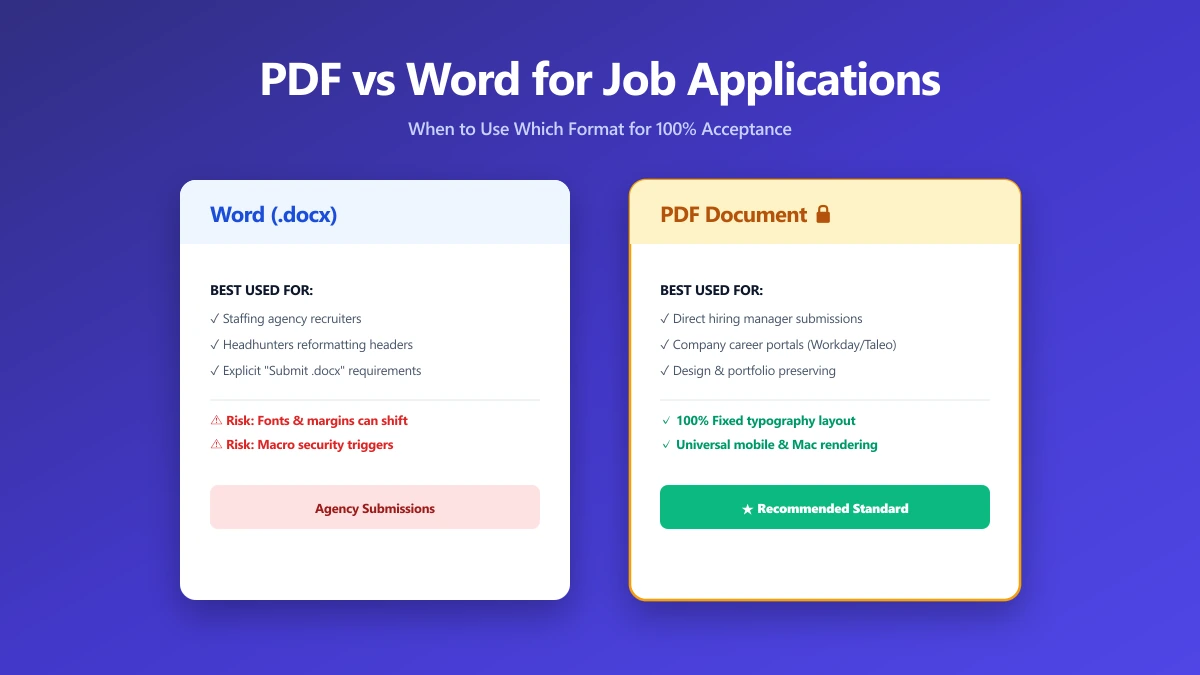
Should I Use PDF or Word for Job Applications?
PDF protects your layout, Word is sometimes required. A decision guide by employer type, plus what to do when the posting does not say either way.
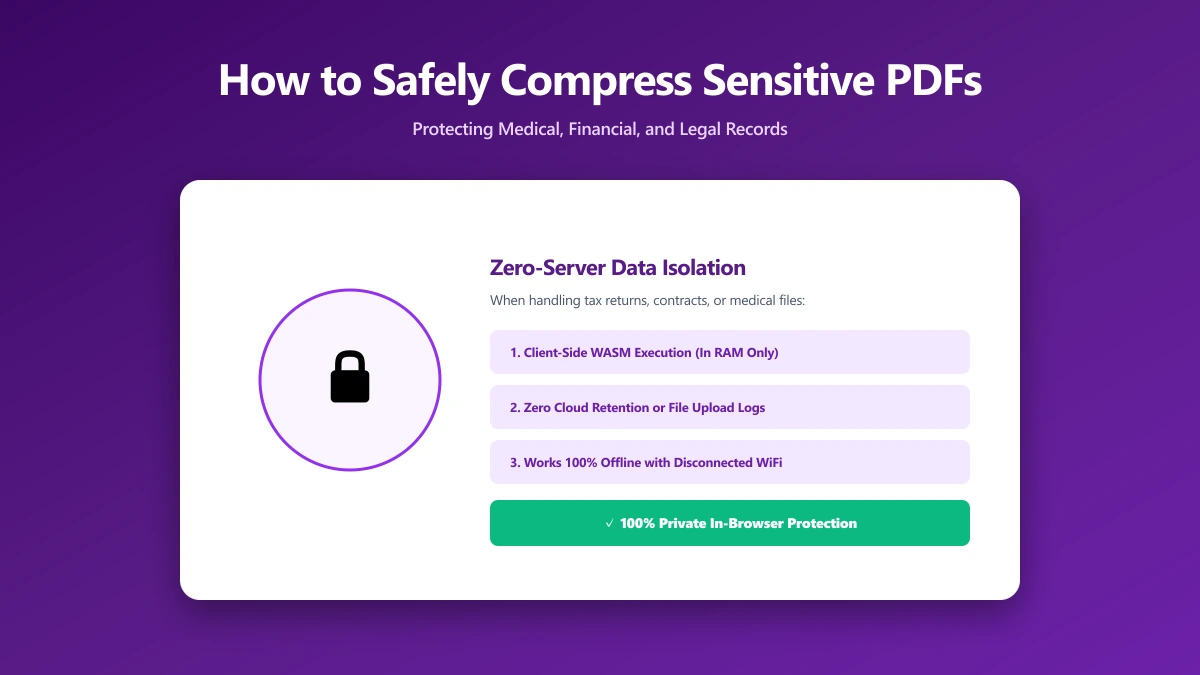
How to Safely Compress Sensitive PDF Documents
Compress sensitive PDFs, bank statements, contracts, medical records, without uploading them. Learn how to shrink them safely, right in your browser.
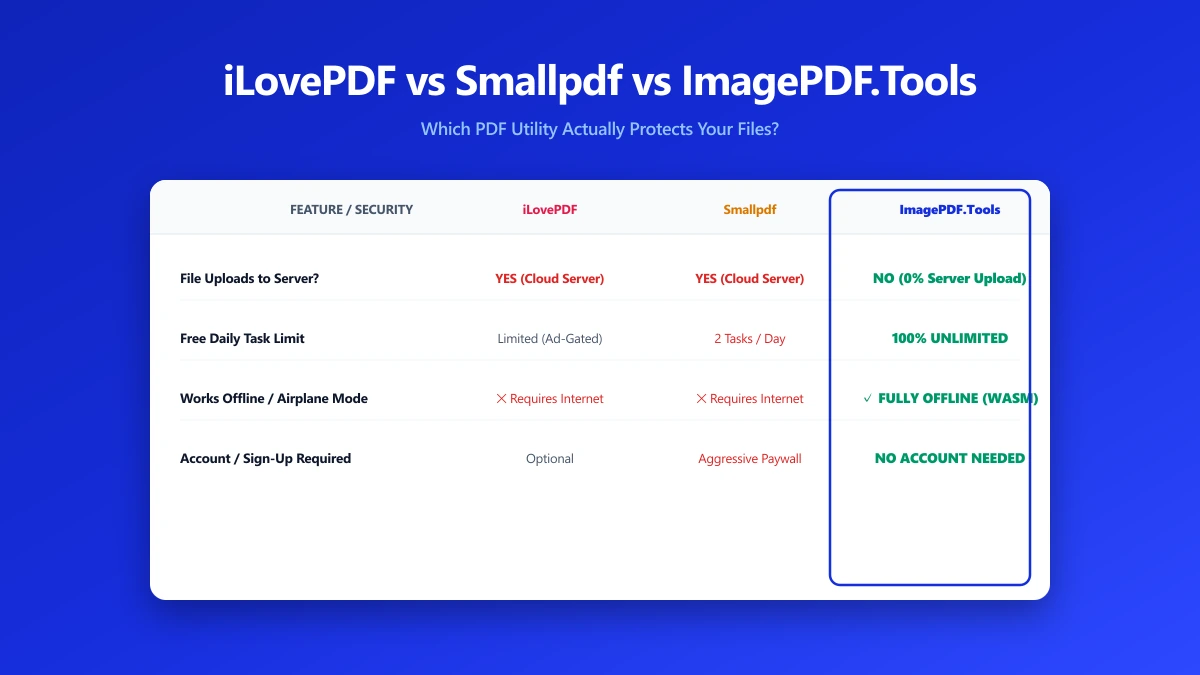
iLovePDF vs Smallpdf vs ImagePDF.Tools: Which One Actually Protects Your Files?
iLovePDF vs Smallpdf vs ImagePDF.Tools compared on price, watermarks, and what happens to your file. See why ImagePDF.Tools is the only one that never uploads it.