How to Convert Multi-Page TIFF Fax Documents to Searchable PDF With OCR
Summary
Turn multi-page TIFF faxes into searchable PDFs: get every page into the PDF, fix squashed fax pages, keep files small, then add an OCR text layer.
Converting a fax TIFF to a searchable PDF is two jobs. First, turn the TIFF into a PDF that contains every page. Second, run OCR on that PDF so it gets a hidden layer of real text you can search and copy. Acrobat Pro does both in one session. With free tools, convert with your computer's print to PDF or ImageMagick, then OCR the result with OCRmyPDF or a browser tool.
Fax files have three quirks that trip up general converters: several pages packed into one file, pixels that are twice as tall as they are wide, and a black and white compression that becomes huge if a tool turns it into color. Knowing those saves you from half-converted, squashed or bloated PDFs.
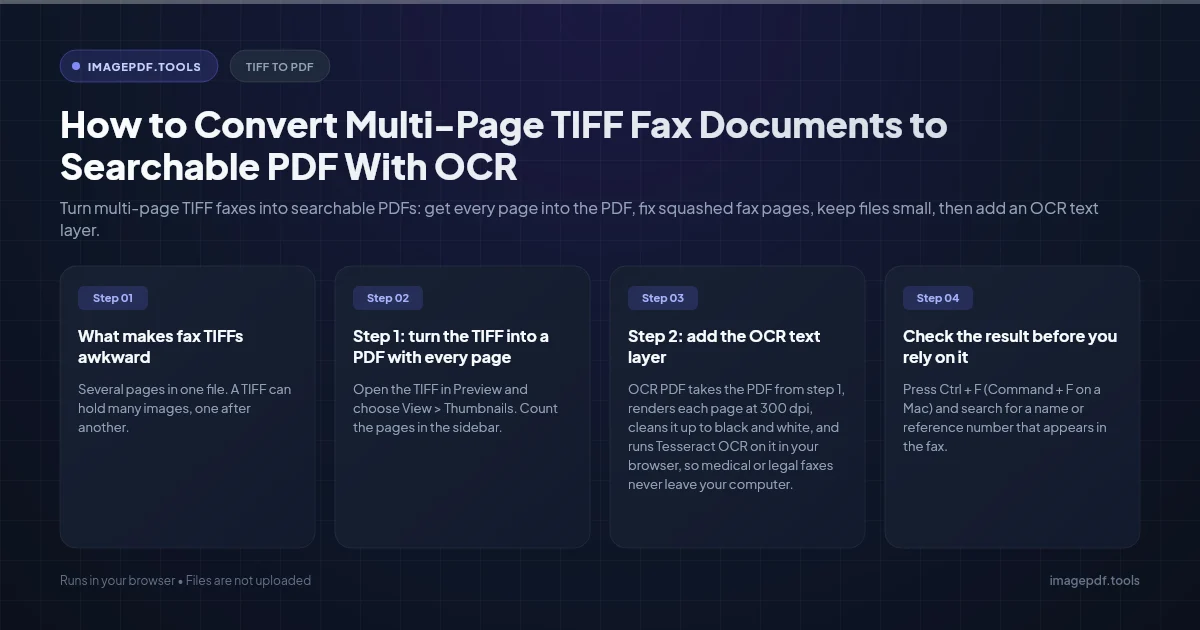
What makes fax TIFFs awkward
- ●Several pages in one file. A TIFF can hold many images, one after another. Plenty of viewers and converters read only the first one, so a ten page fax becomes a one page PDF and nobody notices until later.
- ●Non-square pixels. Standard resolution faxes are about 204 dots per inch across but only about 98 down. Fine mode is about 204 by 196. A tool that ignores those resolution tags draws the page at half its proper height, so text looks squashed.
- ●1-bit compression. Fax pages are pure black and white, usually stored with CCITT Group 4 compression, which makes a page only a few tens of kilobytes. Converted to a grayscale or color JPEG, the same page can be ten times bigger and slightly blurred.
- ●Low resolution for OCR. OCR engines are tuned for scans around 300 dpi. At fax resolution, small print and smudged characters cause more mistakes, so expect to proofread names and numbers.
Step 1: turn the TIFF into a PDF with every page
On a Mac with Preview
- 1.Open the TIFF in Preview and choose View > Thumbnails. Count the pages in the sidebar.
- 2.Choose File > Print, open the PDF menu at the bottom left and pick Save as PDF.
- 3.Open the saved PDF and confirm it has the same number of pages.
On Windows
Open the fax in a viewer that shows all its pages, such as the Windows Fax and Scan app where the fax arrived, then print it and choose Microsoft Print to PDF as the printer. Check the page count afterward, because some viewers print only the page on screen. If yours does, use the command line route below.
Any system, from the command line
ImageMagick reads every page of a multi-page TIFF and can keep the compact fax compression:
magick fax.tif -compress Group4 fax.pdfFor a fully lossless conversion, split the pages and pass them to img2pdf, which embeds Group 4 fax images directly without re-encoding them:
magick fax.tif -compress Group4 page-%03d.tif
img2pdf page-*.tif -o fax.pdfIf the pages come out squat and wide, your converter treated the pixels as square. Fix the TIFF first with magick fax.tif -resample 204 fixed.tif, which stretches each page to the same resolution in both directions, then convert fixed.tif instead.
Step 2: add the OCR text layer
In your browser
OCR PDF takes the PDF from step 1, renders each page at 300 dpi, cleans it up to black and white, and runs Tesseract OCR on it in your browser, so medical or legal faxes never leave your computer. Pick the document language from the list first. You save a searchable PDF with an invisible text layer, and you can also copy or save the recognized text on its own.
One trade-off: it rebuilds each page as a fresh image, so the saved file is usually larger than a Group 4 original. If you are archiving thousands of faxes and every kilobyte counts, OCRmyPDF is the better fit.
OCRmyPDF for batches
OCRmyPDF adds a Tesseract text layer while keeping the original page images, and it can straighten and auto-rotate pages, which helps with faxes fed in crooked or upside down:
ocrmypdf --deskew --rotate-pages -l eng fax.pdf fax-searchable.pdf

# or straight from split pages, with no intermediate file
img2pdf page-*.tif | ocrmypdf - fax-searchable.pdf
Loop over a folder in a short script and you can process a whole fax archive overnight.
Adobe Acrobat Pro
- 1.Choose Create PDF, select the TIFF and let Acrobat build the PDF. Acrobat reads multi-page TIFFs.
- 2.Open Scan & OCR and choose Recognize text, then In this file.
- 3.Set the document language in the settings, run it, and save.
Check the result before you rely on it
- ●Press Ctrl + F (Command + F on a Mac) and search for a name or reference number that appears in the fax. If nothing is found, the text layer is missing or the OCR misread it.
- ●Compare page counts between the TIFF and the PDF one last time.
- ●Spot-check numbers such as dates of birth, account numbers and dosages. Fax noise often turns 8 into 3 or 1 into l, and OCR cannot tell you when it guessed.
- ●Handwriting, signatures and stamps will not become usable text. They stay visible in the page image but will not be found by search.
Frequently asked questions
Why does my converted PDF have only the first page of the fax?
Can I OCR the TIFF directly without making a PDF first?
Should I keep the original TIFF after converting?
Will OCR change what the pages look like?
Sources & references
This article was researched and written by Nikola, drawing on the following primary sources and documentation: