
Convert PDF to Word Online for Free
or drop files here
Works best for text-based PDFs. Scanned PDFs require OCR first. Complex multi-column layouts may need cleanup.
Zero upload, PDF processed entirely in your browser
Extract editable content from any PDF and save as a .docx file. Re-use PDF text in Word, all browser-based, no upload, no limits.
Three steps. Editable in seconds.
Drop your PDF
Upload a text-based PDF: reports, letters, contracts, essays. Scanned documents are not supported (no OCR).
Preview the extracted text
See the extracted text before saving. Headings and paragraph structure are detected automatically from the PDF.
Save the DOCX
Click Save DOCX. Open in Microsoft Word, Google Docs, or LibreOffice, fully editable and ready to use.
When you need to edit a PDF.
PDFs you receive are often not editable. Converting to Word gives you back full control over the content in seconds.
Editing locked documents
PDFs you receive from colleagues, clients, or portals are often not editable. Converting to Word lets you make revisions and send back a clean document.
Repurposing content
Pull text from a PDF report, whitepaper, or guide into a Word document for editing, reformatting, or incorporating into a new piece.
Updating old PDF contracts
Contracts saved as PDF years ago can be converted back to Word for amendment or re-use as a template for new agreements.
Extracting text from reports
Annual reports, research papers, and policy documents are often distributed as PDF. Converting to Word makes the text searchable and freely editable.
Reusing form templates
If a PDF form contains standard text you want as a Word template, conversion is faster than retyping everything from scratch.
Translating documents
Translation tools like DeepL and Google Translate work better with Word documents than PDFs. Converting first gives cleaner, more accurate results.
How it works under the hood.
When you drop a PDF, PDF.js(Mozilla's open-source engine) runs entirely in your browser tab to extract text content, page by page, without transmitting any data over the network.
The extracted text is then assembled into a .docx file using the docx library, preserving headings and paragraph structure detected from the PDF layout. The result is a standard Word document you can open and edit immediately.
No server is involved. Closing the tab clears all data from memory.
Questions answered.
Does this upload my PDF to a server?
What is the output file format?
Does it work with scanned PDFs?
How accurate is the conversion?
Will tables be preserved?
Is there a page limit?
More tools you might need.
Related Guides & Tutorials
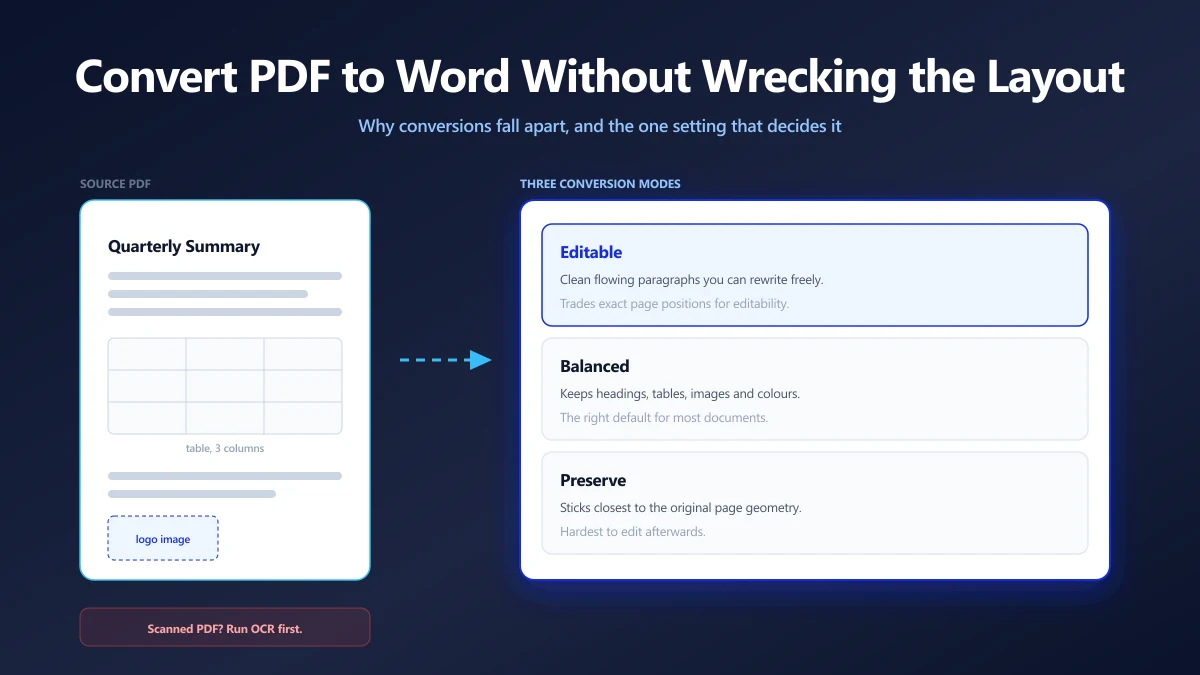
How to Convert a PDF to Word Without Wrecking the Formatting
PDF to Word conversions fall apart for a reason rooted in how PDF stores text. Here is why, which setting decides the outcome, and what to fix afterwards.
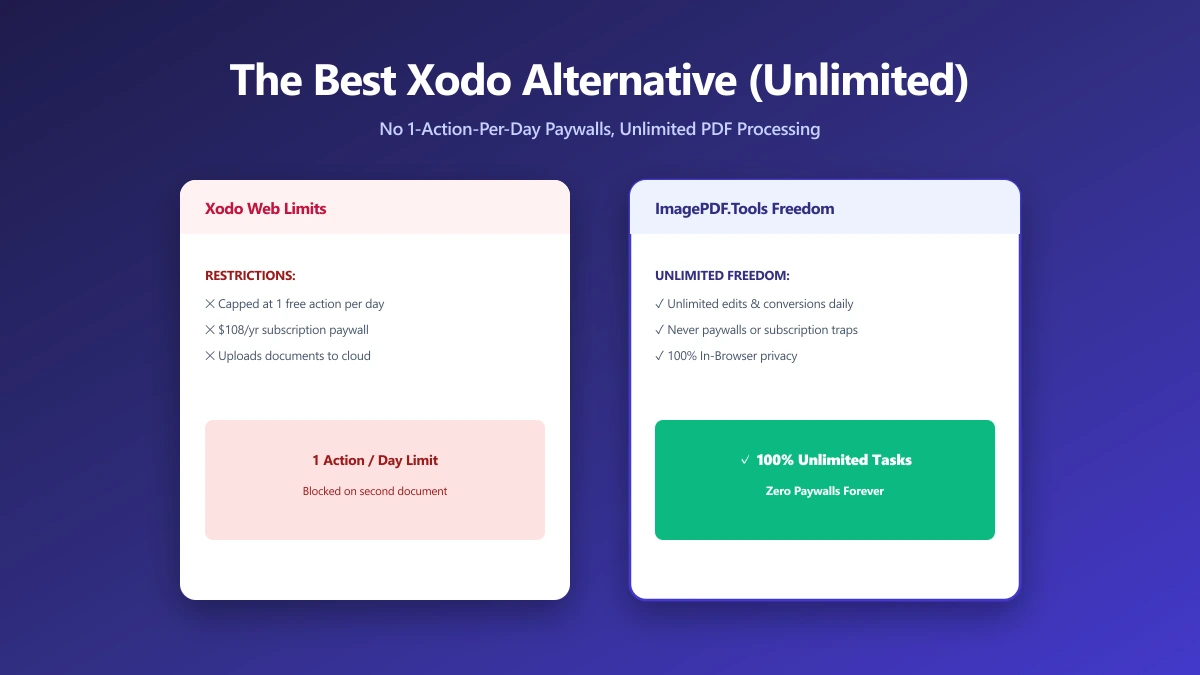
The Best Xodo Alternative If One Edit a Day Is Not Enough (2026)
Xodo is capable but cloud-backed. A browser-based alternative that merges, splits and compresses locally, with nothing uploaded and no sign-in.
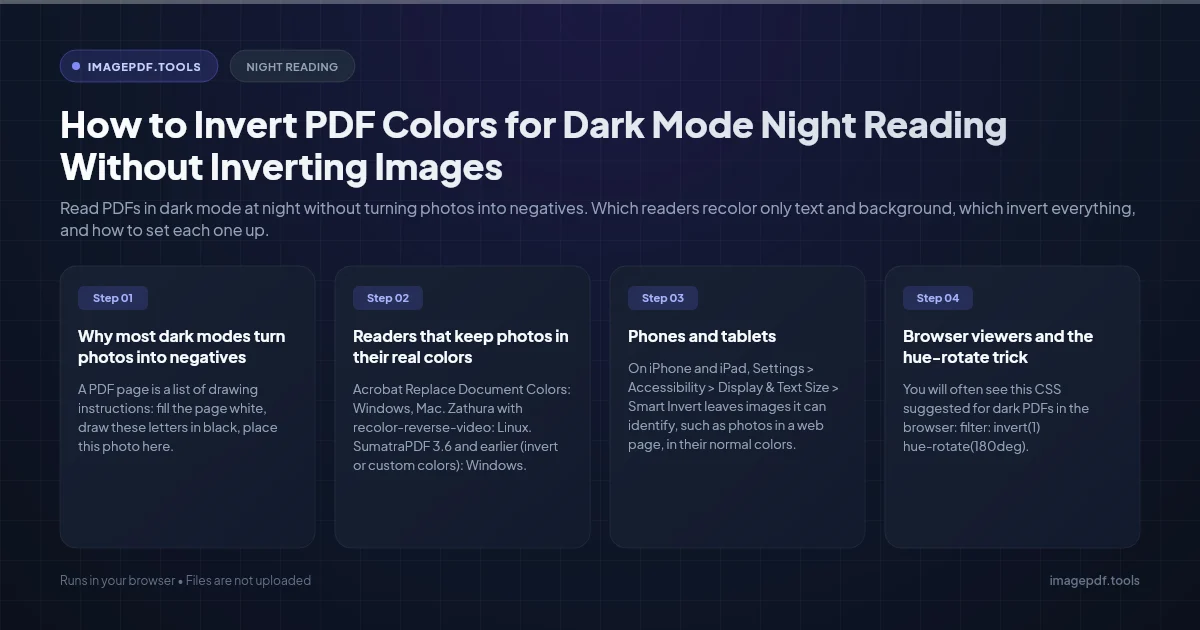
How to Invert PDF Colors for Dark Mode Night Reading Without Inverting Images
Read PDFs in dark mode at night without turning photos into negatives. Which readers recolor only text and background, which invert everything, and how to set each one up.