
Extract Images from a PDF at Full Resolution
or drop files here
Pull out the photos and scans a PDF really contains, at the pixel size they were stored at rather than the size they appear on screen. Every picture is decoded on your own device.
Every picture, pixel for pixel.
Add the PDF
Brochures, catalogues, slide decks and scanned documents all work. If the file is password protected, you type the password once and it is unlocked on your device.
Choose format and filter
PNG keeps every pixel and any transparency; JPEG keeps photo files small. Set a minimum size to skip icons and bullets, or search only certain pages.
Save one picture or a ZIP
Look over the thumbnails and their pixel sizes, then save. A single picture is saved as one file; several are packed into one ZIP named after your PDF.
Pictures trapped inside a PDF.
Screenshots shrink a picture to whatever your screen shows. Extracting gets the real file back, which matters in situations like these.
Recovering your own photos
The original files are long gone, but the brochure, newsletter or wedding programme you made still exists as a PDF. Get the photos back at the resolution the PDF kept, not as a blurry screen grab.
Product shots from a catalogue
When a supplier sends a catalogue and allows you to use its images for listing their products, pull every product shot in one pass instead of waiting for a separate image pack.
Figures for a presentation
Photos, micrographs and plots saved as pictures come out as clean files ready for slides, without the page margin a screenshot drags along. Vector charts need saving as a page image instead.
Checking resolution before printing
Every thumbnail is labelled with its width and height in pixels, so a 400 pixel logo about to be stretched across an A2 poster stands out before the print shop finds it.
Auditing a document before it goes out
See every picture a PDF carries, including ones that are cropped, pushed partly off the page or hidden behind other content, before you send it to a client or publish it.
Getting the scans out of a scanned PDF
A scanned PDF is usually one picture per page. Extracting hands you those page images at the resolution the scanning app stored, without rendering the page again at a size you have to guess.
Only extract pictures you own or have permission to reuse. Being able to open a PDF does not grant rights to the photos inside it.
Stored pixels versus the page you see.
Inside a PDF, each picture is kept once at a fixed pixel size, compressed with one of several codecs: JPEG, JPEG 2000, JBIG2, CCITT fax, Flate, LZW or run-length. The page then says where to draw it and how large. The same 3000 pixel photo can fill a two-inch box or a whole spread, and its pixels never change.
This tool asks pdf.js to decode those stored pictures, applies any soft mask so transparent edges survive, and writes each one out as a PNG or JPEG file. Files are named after the PDF, the page and the order on that page, so report-p3-2.png is the second saved picture on page 3 of report.pdf.
PDF to Image works the other way round: it renders the whole page, text and drawings included, at the DPI you pick. Use it for vector charts and logos, which are shapes rather than pictures and never show up here.
Worked example
A 2400 × 1600 pixel photo is placed 4 inches wide on a page.
- Extract Images saves a 2400 × 1600 file.
- PDF to Image at 144 DPI shows the photo 576 pixels wide (4 × 144).
- Print sharpness: 2400 ÷ 4 = 600 pixels per inch, comfortably above the 300 usually wanted for photos in print.
To check any picture, divide its pixel width by the inches it will occupy on paper.
| Extract Images | PDF to Image | |
|---|---|---|
| What you get | Each embedded picture as its own file | Each page as one picture |
| Pixel size | Whatever the picture was stored at | Set by the DPI you choose (72, 144 or 216) |
| Text and vector charts | Not included | Included, turned into pixels |
| A picture cropped by the page | The whole stored picture | Only the visible part |
| Transparency | Kept when saving as PNG | Flattened onto the page |
| Best for | Reusing photos, scans and artwork | Sharing or previewing complete pages |
Questions answered.
Why is the extracted picture larger than it looks in the PDF?
Should I save as PNG or JPEG?
Why is a chart or logo missing from the results?
Why does the image show more than I could see on the page?
Why are my extracted files bigger than the whole PDF?
What does "Skip small images" leave out?
Will a logo that appears on every page be saved again and again?
Why did some pictures come out black and white, or with slightly different colours?
Is the PDF uploaded to a server?
More tools you might need.
Related Guides & Tutorials
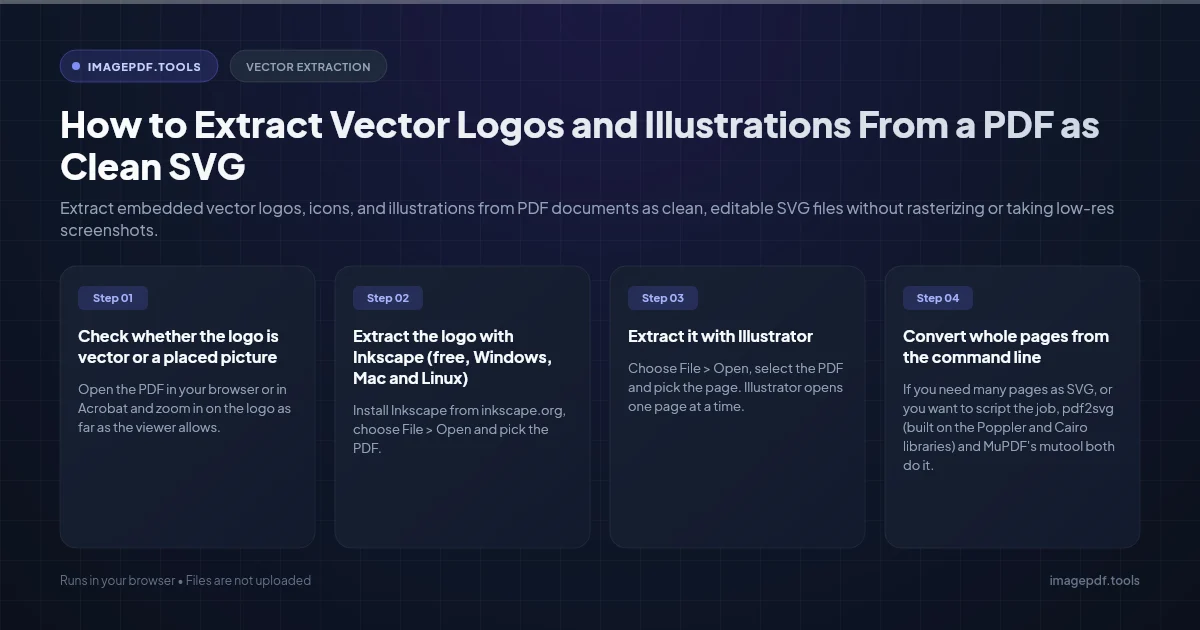
How to Extract Vector Logos and Illustrations From a PDF as Clean SVG
Extract embedded vector logos, icons, and illustrations from PDF documents as clean, editable SVG files without rasterizing or taking low-res screenshots.
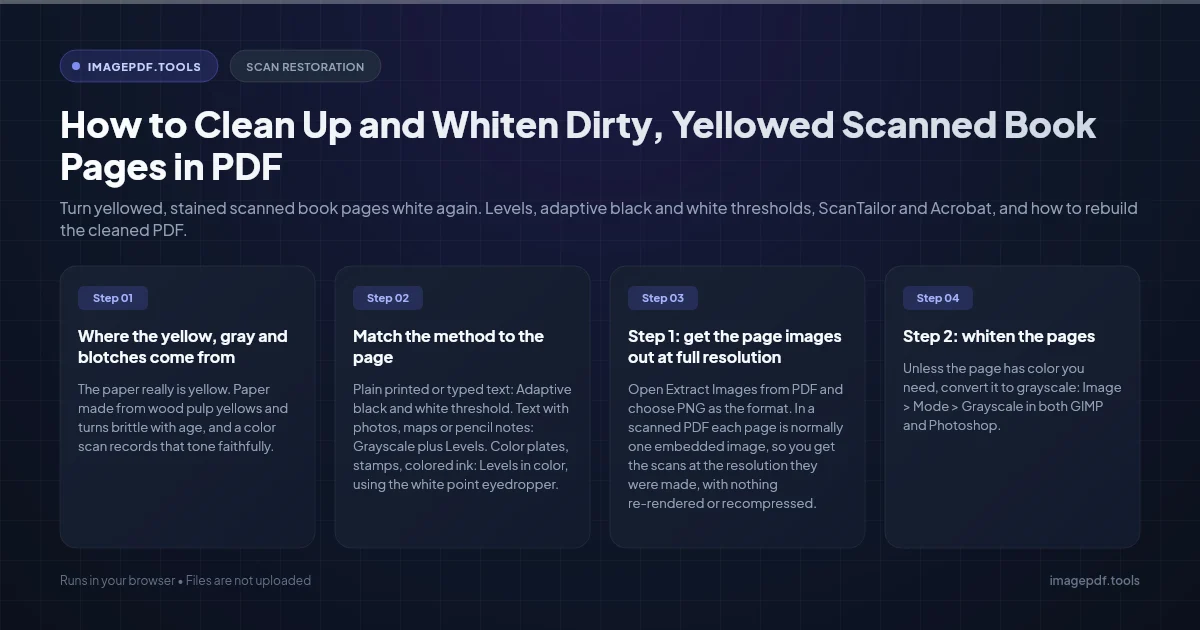
How to Clean Up and Whiten Dirty, Yellowed Scanned Book Pages in PDF
Turn yellowed, stained scanned book pages white again. Levels, adaptive black and white thresholds, ScanTailor and Acrobat, and how to rebuild the cleaned PDF.

How to Repair and Recover Corrupted PDF Files That Won't Open (Recovery Guide)
Why PDFs get damaged, how to tell whether a broken file can be saved, and how to rebuild a missing cross-reference table or end marker to get the pages back.