
Split a PDF into Parts Under a Size Limit
or drop files here
Tell the tool the biggest file you are allowed to send and it cuts the document into as few in-order pieces as possible, weighing each one before accepting it. Pages are copied untouched, and the PDF stays on your device.
Set a cap, let it measure, send the parts.
Add the oversized PDF
Drop in the scan, report or portfolio that a mail server or upload form keeps rejecting. A locked file asks for its password once, right here in the tab.
Pick the size cap
Choose 1, 5, 10 or 20 MB, or type your own figure such as 2.5 MB. The current size of the file sits beside the options for comparison.
Save the ZIP of parts
Every part carries its page range in the name, and the result lists each one with its measured size, so you can see what will go where.
When a file is fine, just too heavy.
The figures below are typical values people run into, not official numbers for any one service. Always check the limit printed on the form or in the error message, and set the cap to match.
Email attachments that bounce
Many email services cap attachments somewhere around 20 to 25 MB per message, and company servers are sometimes stricter. Send one part per email and each message stays under the cap.
Government and visa portals
Application portals often ask for something like 2 to 10 MB per file. When the form offers several generic upload slots, parts sized to that cap slot straight in, in page order.
Court and tender filings
Electronic filing systems frequently limit the size of each document while accepting several in one submission. Long exhibits and bid packs can go in as numbered parts that keep their sequence.
Helpdesk and contact forms
Support tickets, insurance claims and contact forms often accept only a few megabytes per attachment. Type the exact figure the form states as a custom limit and attach the parts one after another.
Coursework and LMS uploads
Learning platforms commonly set a ceiling on each submitted file. A lab report full of photos or a design portfolio can be handed in as two or three parts that each respect it.
Archiving huge scans
A folder of records scanned at high resolution can run to hundreds of megabytes in one file. Chunks of a predictable size are easier to back up, sync to cloud storage and open on a modest laptop.
Split or compress: which one fixes your file?
Both answer the same complaint, a PDF that is too big, but they pay for it differently. Splitting keeps every page exactly as it was and spreads the weight across several files. Compressing keeps one file and makes it lighter by re-encoding the pictures inside it, which costs some fine detail.
So the deciding question is simple: will the person or system on the other end take more than one file? If yes, split and lose nothing. If there is a single upload box, splitting cannot help, because the second part has nowhere to go, and Compress PDF is the right tool.
Email has one extra wrinkle. Attachments are encoded for the trip, which makes them roughly a third larger in transit, and some mail servers apply their limit to that larger figure. That is why a 10 MB part is a comfortable choice for a service that advertises 20 or 25 MB, as long as you send one part per message.
| Split by size | Compress PDF | |
|---|---|---|
| What happens to the pages | Copied exactly as stored | Images re-encoded at lower quality |
| Sharpness of scans and photos | Identical to the original | Softer, depending on the setting |
| Can you still select and search the text | Yes, if you could before | Yes, if you could before |
| Files you end up with | Several, each under the cap | One |
| Combined size | Close to the original, often a bit more | Smaller |
| Getting the original back | Merge the parts for the same pages | Removed detail is gone |
| Choose it when | The recipient accepts several files | Only one file is allowed |
A 48 MB scan and a 10 MB email cap
A 60-page contract scanned in colour at 300 dpi comes to 48 MB, and the firm's mail server refuses anything above 10 MB.
- Split at 10 MB: 48 divided by 10 means at least five parts, and usually five or six, because pages never divide perfectly evenly. Each is full scan quality. Send them as separate emails titled "Contract, part 2 of 6" and so on.
- Compress instead: scans often shrink a great deal when their images are re-encoded, possibly enough for one email, but small print, stamps and signatures lose some crispness.
- Do both: compress gently, then split whatever is still over the cap. Fewer emails, and the text stays easy to read.
A 14 MB application pack and a 5 MB portal
A visa or grant portal accepts files of up to 5 MB each, and your supporting documents are a single 14 MB PDF.
- One upload box: compress until the whole pack is under 5 MB. A second part would have nowhere to go.
- Generic slots such as "Additional document 1 to 5": split at 5 MB. Expect three or four parts, already numbered in page order.
- Slots named by document (passport, bank statement, letter): pick the page ranges yourself with Split PDF, so each document lands in its own box.
Why each part is weighed, not estimated
Pages in a PDF are not separate parcels. A typeface, a letterhead logo or a background image used throughout is normally stored once and shared by every page. Save one page alone and it must carry its own copy of all of that, so a page that adds 30 KB to the full document might weigh 400 KB by itself. Adding up single pages therefore overshoots badly.
Dividing the file size by the page count goes wrong the other way: a ten-page part still needs the whole font, so it comes out heavier than a tenth of the file. The only trustworthy number is the size of the part once it is actually written.
So every candidate part is built as a real PDF, saved, and compared with your cap. To keep that quick, the page count doubles on each try until one is too big, then the gap between the last fit and the first miss is halved until it closes. A part that ends up about 100 pages long needs around 14 trial saves rather than 100.
Example: part 1 settles at 11 pages after eight trial builds. Part 2 then starts on page 12 and the search repeats.
Questions answered.
How does the tool decide where each part ends?
Can a part end up over the limit?
What does 1 MB mean here?
Will the parts look any different from the original?
Why do the parts add up to more than the original file?
Why does it take longer on big scans?
How are the parts named?
What if my PDF is already under the limit?
Is my PDF uploaded to be split?
More tools you might need.
Related Guides & Tutorials

How to Repair and Recover Corrupted PDF Files That Won't Open (Recovery Guide)
Why PDFs get damaged, how to tell whether a broken file can be saved, and how to rebuild a missing cross-reference table or end marker to get the pages back.
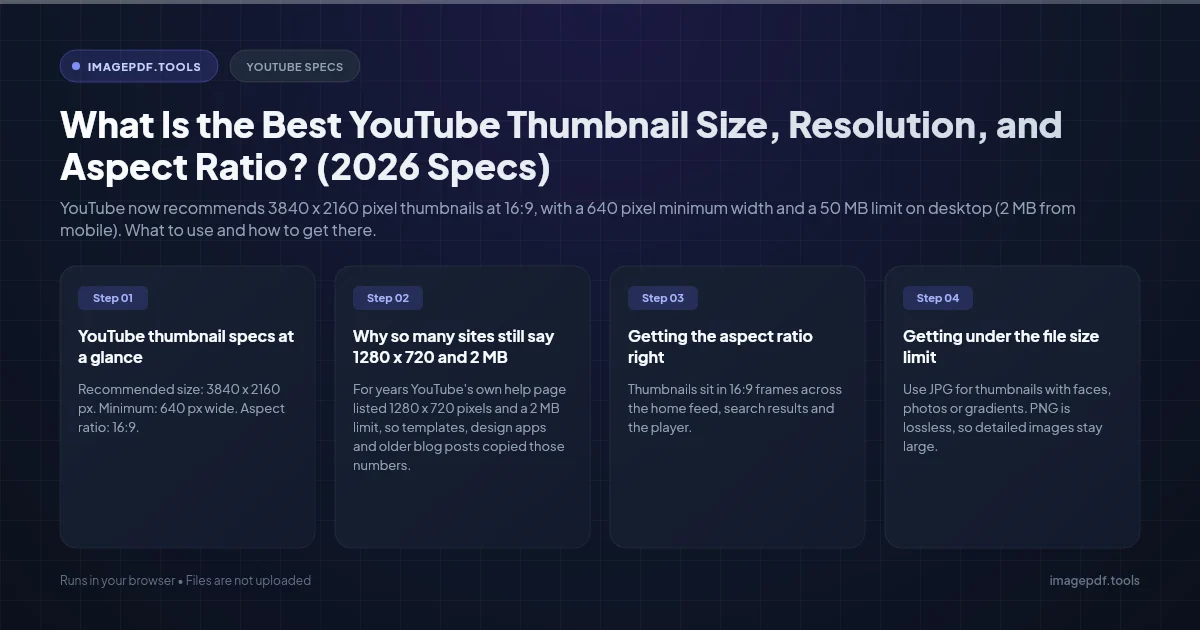
What Is the Best YouTube Thumbnail Size, Resolution, and Aspect Ratio? (2026 Specs)
YouTube now recommends 3840 x 2160 pixel thumbnails at 16:9, with a 640 pixel minimum width and a 50 MB limit on desktop (2 MB from mobile). What to use and how to get there.

How to Convert CMYK PDF to sRGB for Web and Social Media Sharing (True Color Guide)
Why a print-ready CMYK PDF looks off on screens and social media, and how to convert it to sRGB in InDesign, Illustrator, Acrobat Pro or Ghostscript, or export the pages as images.