
Image to Text Converter Online for Free
or drop files here
Pull readable text out of any image using Tesseract OCR, running entirely in your browser. No upload, no account, 100+ languages supported.
Three steps. Done in your browser.
Drop your image
Upload a JPEG, PNG, WebP, GIF, or BMP file by clicking or dragging onto the tool. Paste from clipboard also works.
OCR scans the image
Tesseract.js, a WebAssembly OCR engine, runs entirely in your browser. No upload happens. A progress bar shows extraction status.
Copy or save the text
The extracted text appears instantly. Copy it to your clipboard or save it as a .txt file. Process multiple images at once.
When you need text out of an image.
OCR turns any image containing text into editable, searchable content. Here are the most common situations where it saves significant time.
Screenshots you cannot select
Copying text from a screenshot of a locked PDF, website, or application is impossible without OCR. Drop the screenshot and get plain text in seconds.
Scanned documents and receipts
Digitise paper receipts, invoices, contracts, or scanned books. Extract the text and paste it directly into spreadsheets or documents.
Slides and handout photos
Photographed a conference slide or classroom handout? Extract every word for notes, summaries, or accessibility without manual retyping.
Business cards and contact info
Photograph a business card and extract the name, phone, email, and address directly. Saves manual entry when creating contacts.
Infographics and charts
Labels, axis values, and annotations inside charts or infographics are part of the image. OCR lifts them out so you can quote, reference, or analyse them.
Whiteboard and meeting photos
Convert a photo of a whiteboard session into typed notes. Works on printed handwriting, bullet lists, diagrams with labels, and URLs.
How it works under the hood.
Unlike cloud OCR services that upload your image to a remote server for processing, this tool runs Tesseract.js entirely inside your browser tab. Tesseract.js is a WebAssembly port of the open-source Tesseract OCR engine, originally developed at Hewlett-Packard and now maintained by Google.
The engine analyses pixel patterns against trained language models to identify characters, assembles them into words and lines, and returns extracted text with a confidence score per word. Language model data is fetched once from a CDN and cached in your browser for offline use thereafter.
Your image never leaves your device. There is no upload, no server, and nothing stored beyond your browser cache.
Questions answered.
What is OCR?
Which image formats are supported?
Which languages are supported?
Is my image uploaded to a server?
How accurate is the text extraction?
Can it extract text from screenshots?
Can it read handwritten text?
What output format is the extracted text?
More tools you might need.
Related Guides & Tutorials
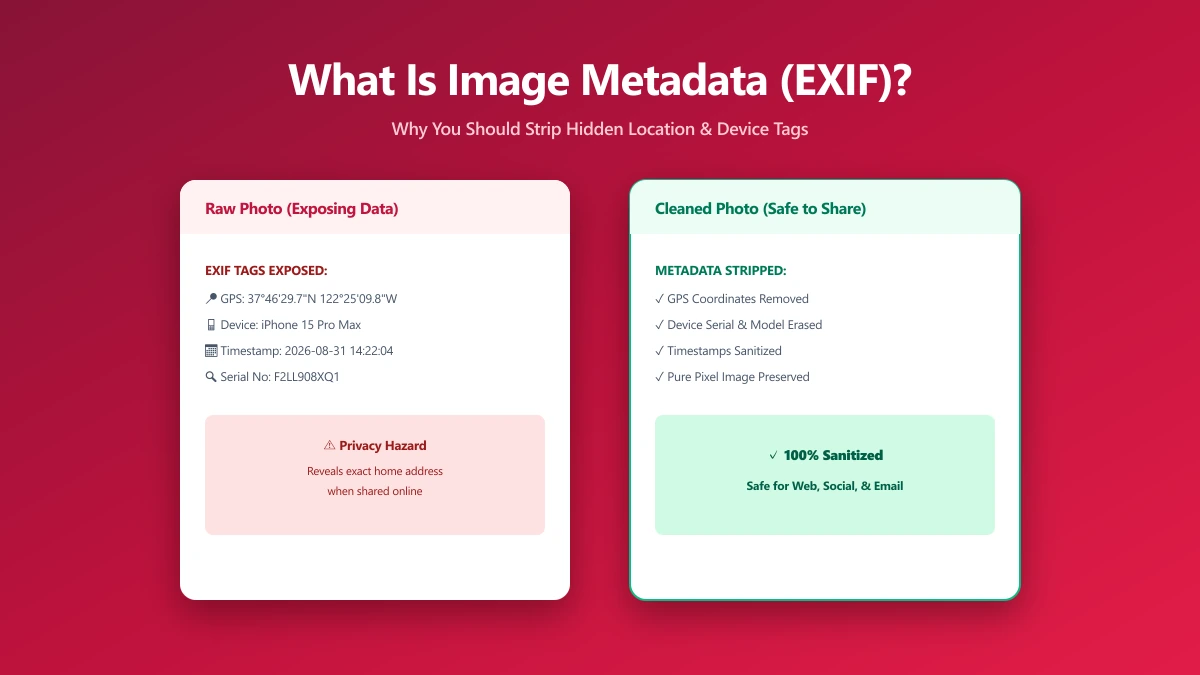
What Is Image Metadata? (And Why You Should Remove It Before Sharing)
Every JPEG you share embeds hidden EXIF data, GPS location, device model, timestamp. Learn what image metadata reveals and how to strip it in seconds.
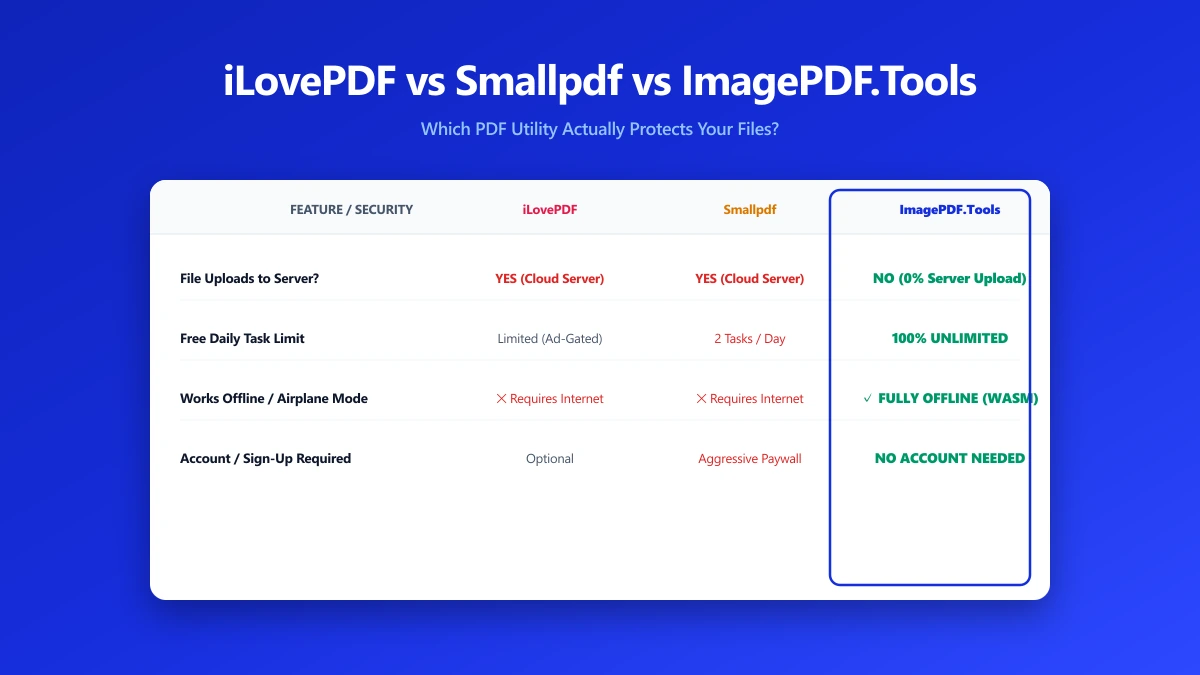
iLovePDF vs Smallpdf vs ImagePDF.Tools: Which One Actually Protects Your Files?
iLovePDF vs Smallpdf vs ImagePDF.Tools compared on price, watermarks, and what happens to your file. See why ImagePDF.Tools is the only one that never uploads it.
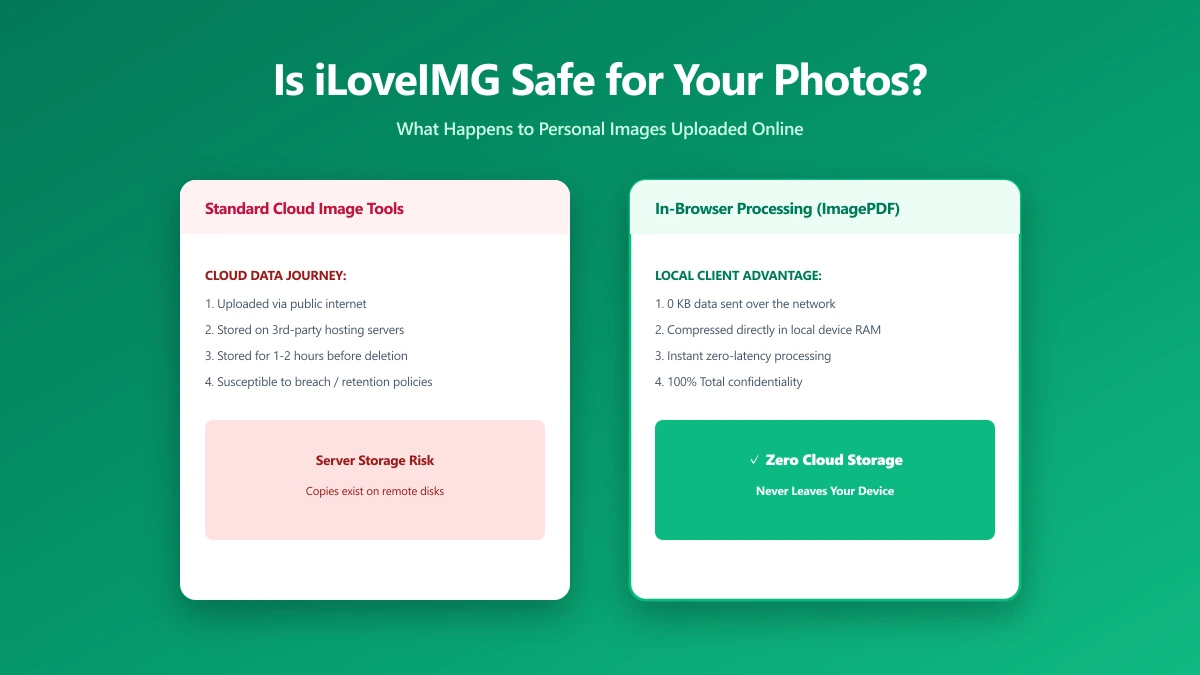
Is iLoveIMG Safe? What Actually Happens to Your Photos When You Upload Them
Is iLoveIMG safe to use? Here is exactly what happens when you upload a photo, what travels with it, and how to check any image tool yourself in 30 seconds.