
Convert WebP to JPG Online for Free
or drop files here
Convert WebP images to universally compatible JPEG format. Works with every app, device, and platform. All processing stays in your browser.
Three steps. Done in your browser.
Drop your WebP
Drag and drop WebP files onto the converter, or click to browse. No batch limit, convert as many files as you need.
Output format: JPEG
The output format is set to JPEG. Adjust the quality slider. Quality 85 gives the best balance of file size and visual fidelity for most uses.
Save your JPG
Your converted JPEG file is ready instantly. Save it directly to your device or get the whole batch as a ZIP.
Why convert WebP to JPG?
WebP is Google's efficient modern format, but modern also means it is not universally supported. Many apps, services, and workflows still require JPEG.
eBay and Amazon listings
Both platforms' listing systems require JPEG or PNG for product photos. WebP files are rejected at upload. Converting to JPEG solves this instantly.
Email attachments
Many email clients, particularly older Outlook versions on Windows, display WebP images as attachments rather than rendering them inline. JPEG displays correctly in all email clients.
Printing services
Online and local print labs typically accept JPEG and TIFF. Very few printing workflows handle WebP. Converting to JPEG before uploading prevents format errors.
Older Photoshop and Lightroom
Adobe Photoshop added WebP support in version 23.2 (early 2022). If you run an older version, you need JPEG to open and edit the image.
Sending to non-technical recipients
If you are not sure what software the recipient has, JPEG is always the safest choice. It has been universally supported for 30+ years across every device and OS.
Social media and niche platforms
While major platforms accept WebP, many older or niche platforms still require JPEG. Converting first avoids upload errors and reformatting artefacts on destination platforms.
How it works under the hood.
When you drop a WebP file, the browser decodes it natively and draws each frame onto an HTML Canvaselement. The canvas is then exported as JPEG using the browser's MozJPEG encoder compiled to WebAssembly. The quality slider controls the compression level directly.
The entire process runs locally in your browser tab. No data is sent to any server. There is no upload, no server-side processing, and no risk of your images being stored or accessed by anyone else.
Questions answered.
Why would I need to convert WebP to JPG?
Does converting WebP to JPG reduce quality?
Can I open a WebP file in Photoshop?
What JPEG quality should I use for printing?
Will the JPEG keep the same dimensions as the original WebP?
What happens to transparent areas when converting to JPEG?
Is my WebP file uploaded to a server?
Can I convert multiple WebP files at once?
More tools you might need.
Related Guides & Tutorials
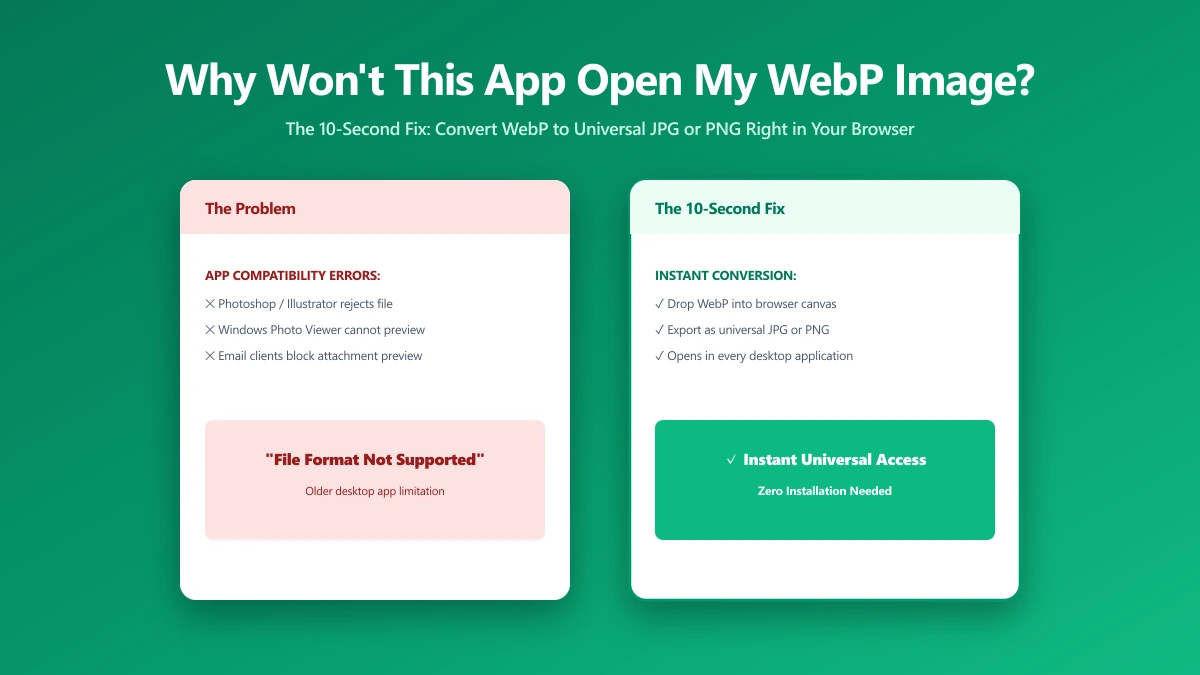
Why Won't This App Open My WebP Image? The 10-Second Fix
Saved an image from your browser and now Word or an older app refuses to open it? It is almost certainly a WebP file. Here is why, and the 10-second fix.
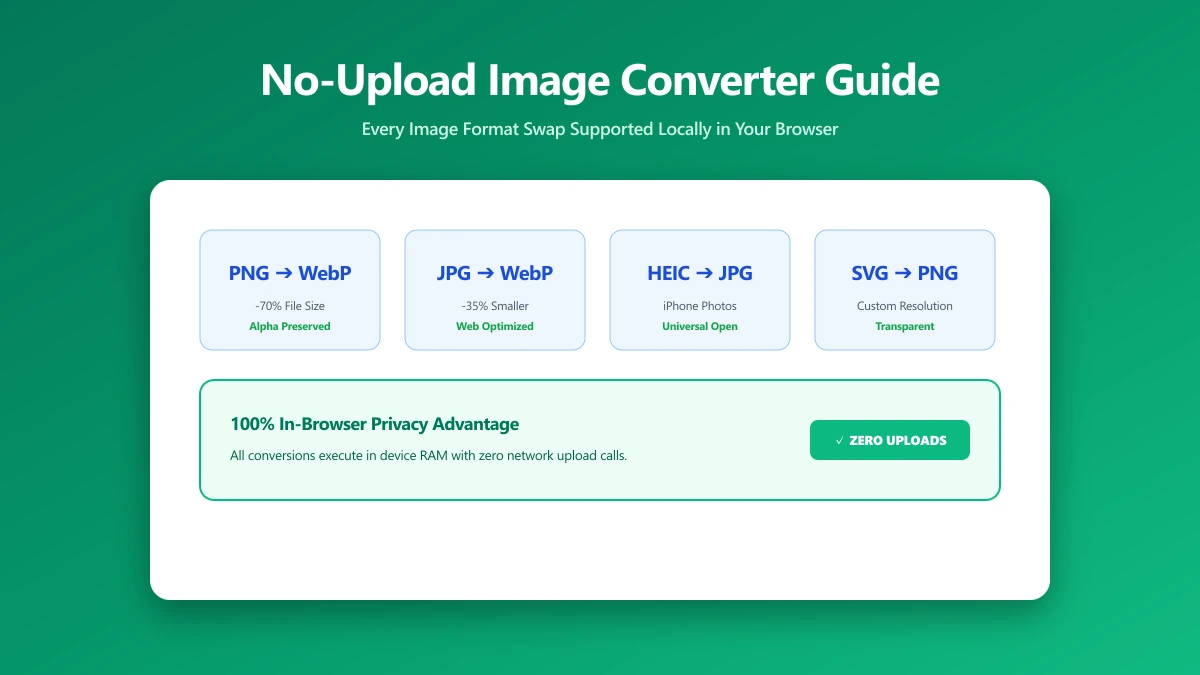
No-Upload Image Converter: Every Format Swap You Can Do Locally
Looking for a no-upload image converter? Here is exactly which image format conversions, JPG, PNG, WebP, SVG, and more, ImagePDF.Tools handles entirely in your browser.
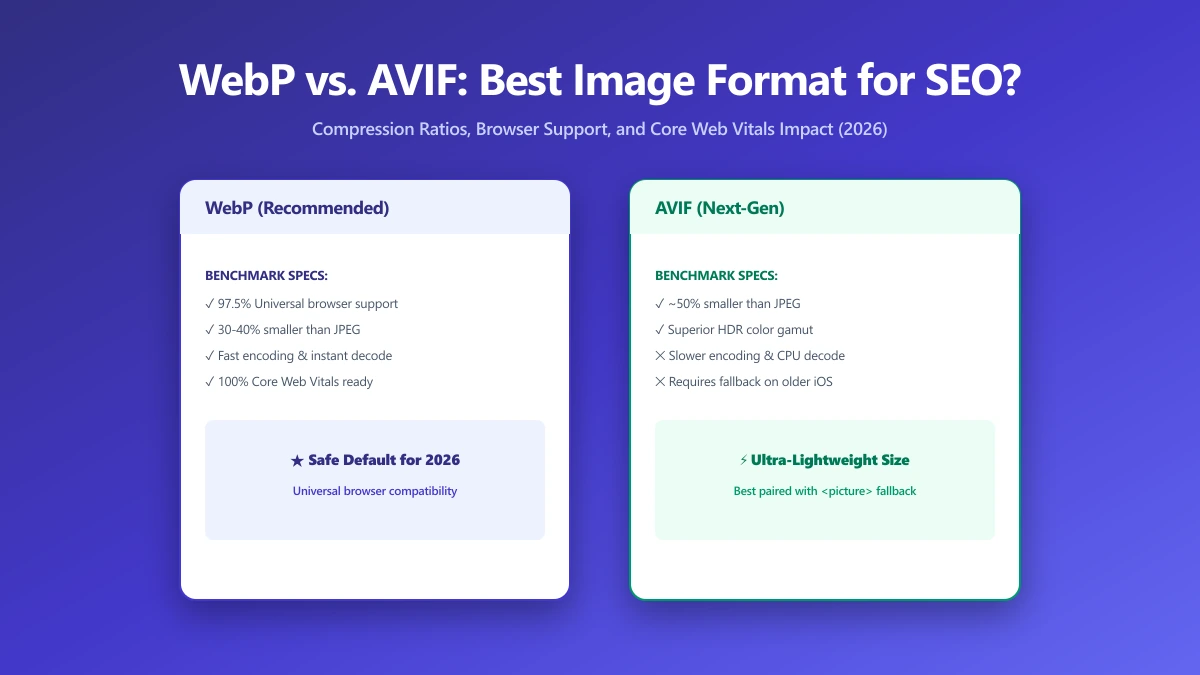
WebP vs. AVIF: Which Image Format Is Best for SEO in 2026?
AVIF compresses smaller than WebP but encodes 10× slower. Find out which format wins for LCP, CDN support, and real-world SEO in this 2026 comparison.