
No-Upload Image Converter: Every Format Swap You Can Do Locally
Summary
Which image conversions run entirely in your browser, covering JPG, PNG, WebP and SVG, with nothing uploaded and no account needed.
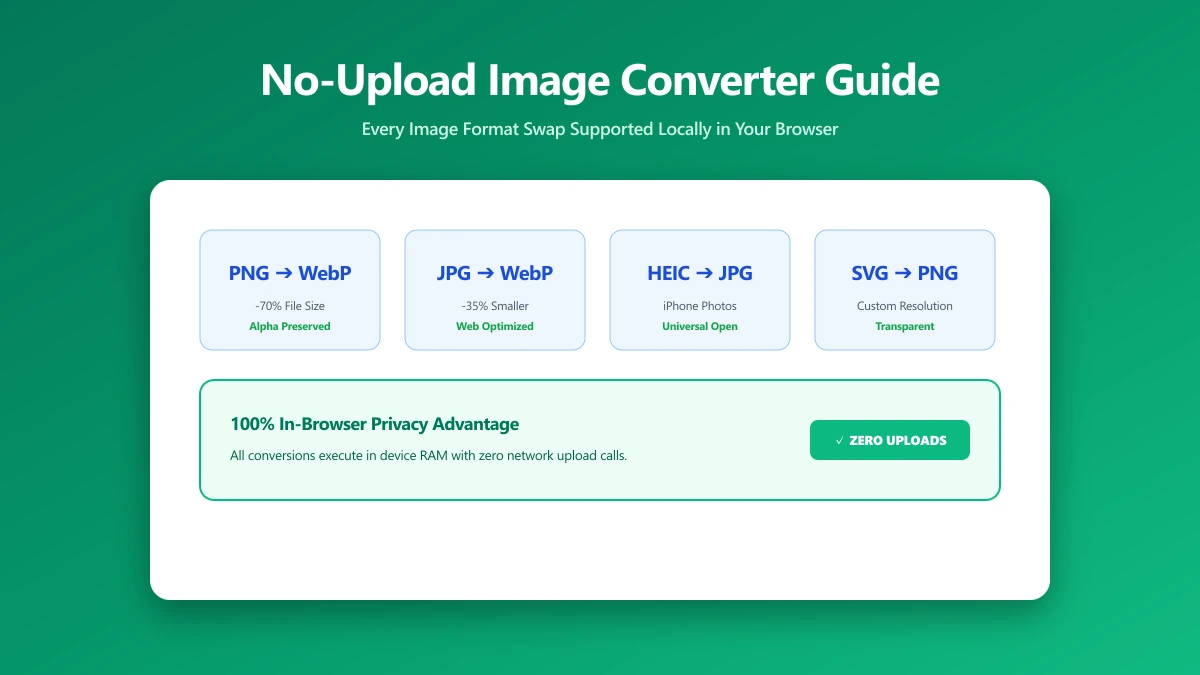
Compression is one thing, format conversion is another, and "no-upload image converter" is specifically about the second: turning a JPG into a WebP, a PNG into a JPG, or an SVG into a raster image, without uploading the original anywhere. Here is exactly which conversions ImagePDF.Tools handles entirely in your browser.
Format Conversions That Run Without an Upload
| Conversion | Tool |
|---|---|
| JPG to PNG | JPG to PNG |
| PNG to JPG | PNG to JPG |
| JPG to WebP | JPG to WebP |
| WebP to JPG | WebP to JPG |
| PNG to WebP | PNG to WebP |
| WebP to PNG | WebP to PNG |
| SVG to PNG, JPG, or WebP | SVG to PNG |
| HEIC to JPG | HEIC to JPG guide |
| Image to PDF | Image to PDF |
| PDF to JPG | PDF to JPG |
Every one of these runs the same way: your browser decodes the original file using the Canvas API, re-encodes it in the target format using WebAssembly where needed, and saves the result, all without the file becoming a network request.
Why This Matters Beyond Privacy
Skipping the upload also means no file size cap imposed by a server, no daily conversion limit, and no wait for a queue. Convert one image or a hundred, one after another, limited only by your own device.
Verify It Yourself
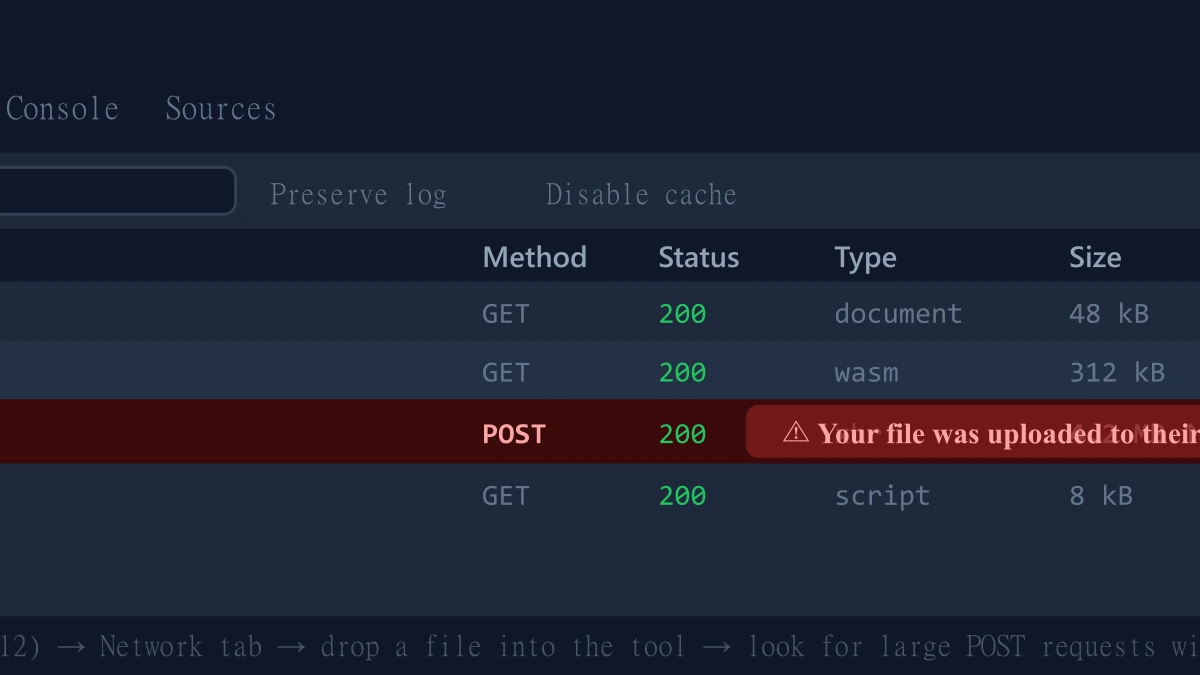
- 1.Open the relevant converter, press F12, and click the Network tab in DevTools.
- 2.Tick "Preserve log" so nothing clears between steps.
- 3.Convert a test image.
- 4.Look for a large outbound
POSTrequest the size of your file. There is not one.
The Bottom Line
Format conversion does not require an upload any more than compression does. ImagePDF.Tools handles the everyday format swaps entirely in your browser, free, with no daily limit and no file ever leaving your device.
Try it now: convert a JPG to WebP or a PNG to WebP, then check DevTools yourself.
Frequently asked questions
What is a no-upload image converter?
Which image formats can I convert without uploading?
Is there a file size or batch limit for no-upload image conversion?
Does converting an SVG without uploading also remove security risks?
How do I check that an image converter is not uploading my file?
Sources & references
This article was researched and written by Nikola, drawing on the following primary sources and documentation:
More in Privacy & Security
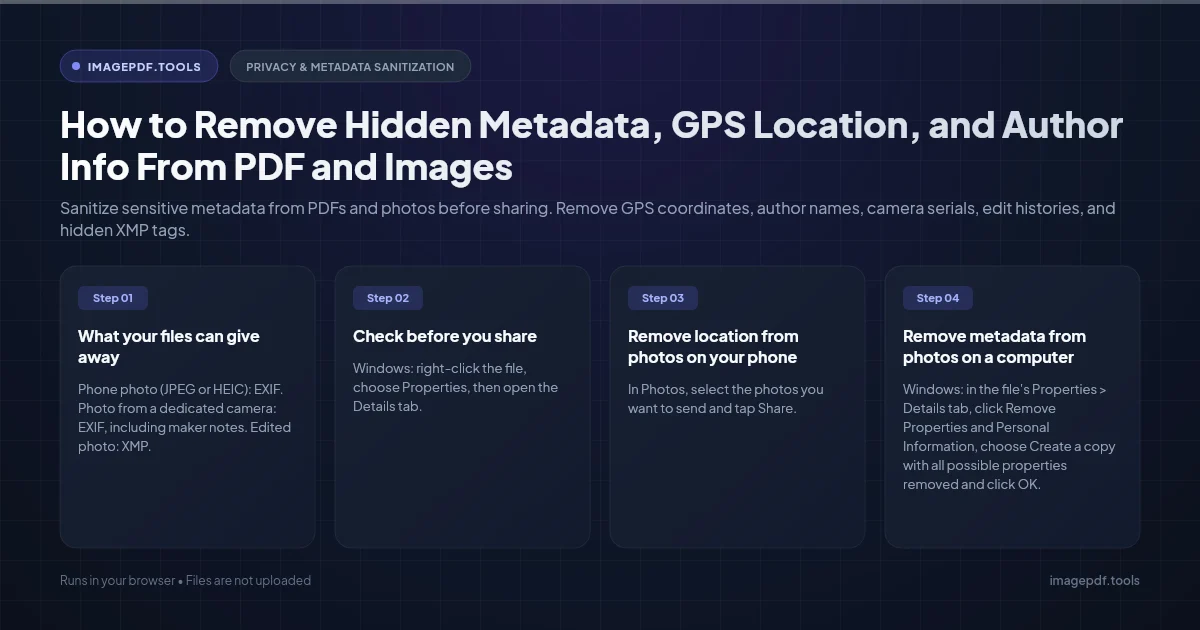
How to Remove Hidden Metadata, GPS Location, and Author Info From PDF and Images
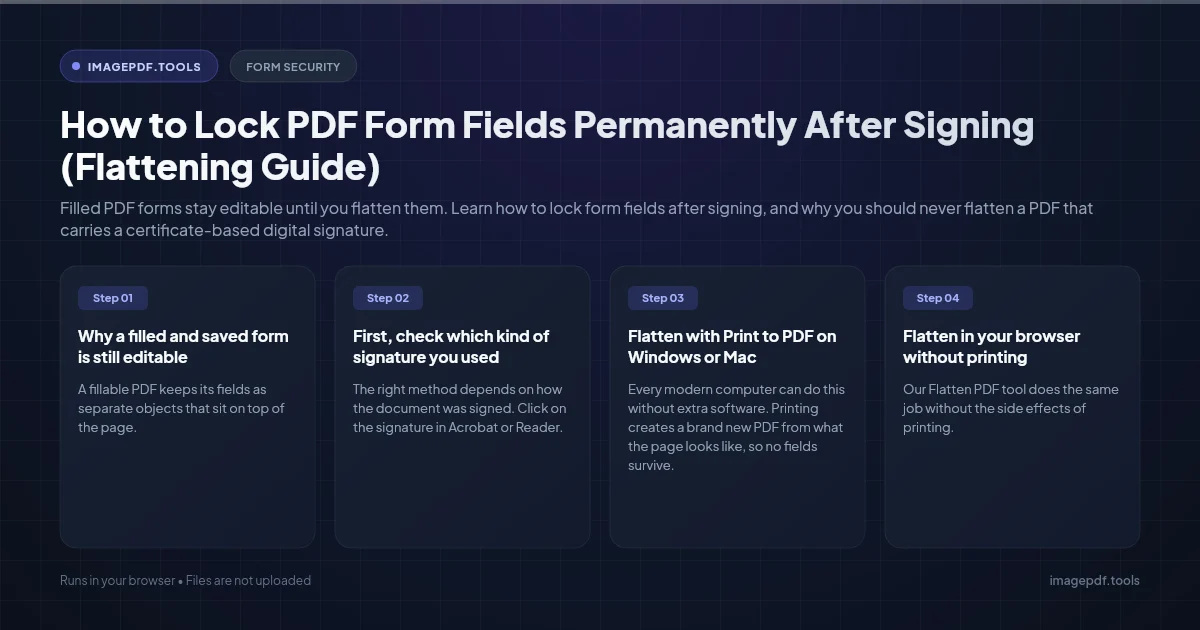
How to Lock PDF Form Fields Permanently After Signing (Flattening Guide)
How to Fix "At Least One Signature Has Problems" Error in Adobe Acrobat