How to Convert HEIC Photos to JPEG (A Simple Guide)
Summary
iPhone HEIC photos won't open on Windows or most web platforms. Here is every way to convert HEIC to universally compatible JPEG, and the iPhone setting that avoids it.
Since iOS 11, every iPhone has shot photos in HEIC (High Efficiency Image Container) format by default. HEIC files are roughly 40–50% smaller than equivalent JPEGs at the same perceived quality, a genuine win for storage. The problem surfaces the moment you try to use those photos outside the Apple ecosystem.
Windows cannot open HEIC natively without a paid codec. Android devices don't support it. Web browsers don't accept HEIC uploads. Most CMS platforms reject it. Email clients on Windows and Android display HEIC photos as file attachments rather than inline images. For anyone who shares photos, for work, for social media, for a website, HEIC is a format that requires conversion before it can be used.
This guide covers every conversion method available, the format comparison to help you choose JPEG vs. WebP as the target, and the one iPhone setting that prevents the problem from occurring in the first place.
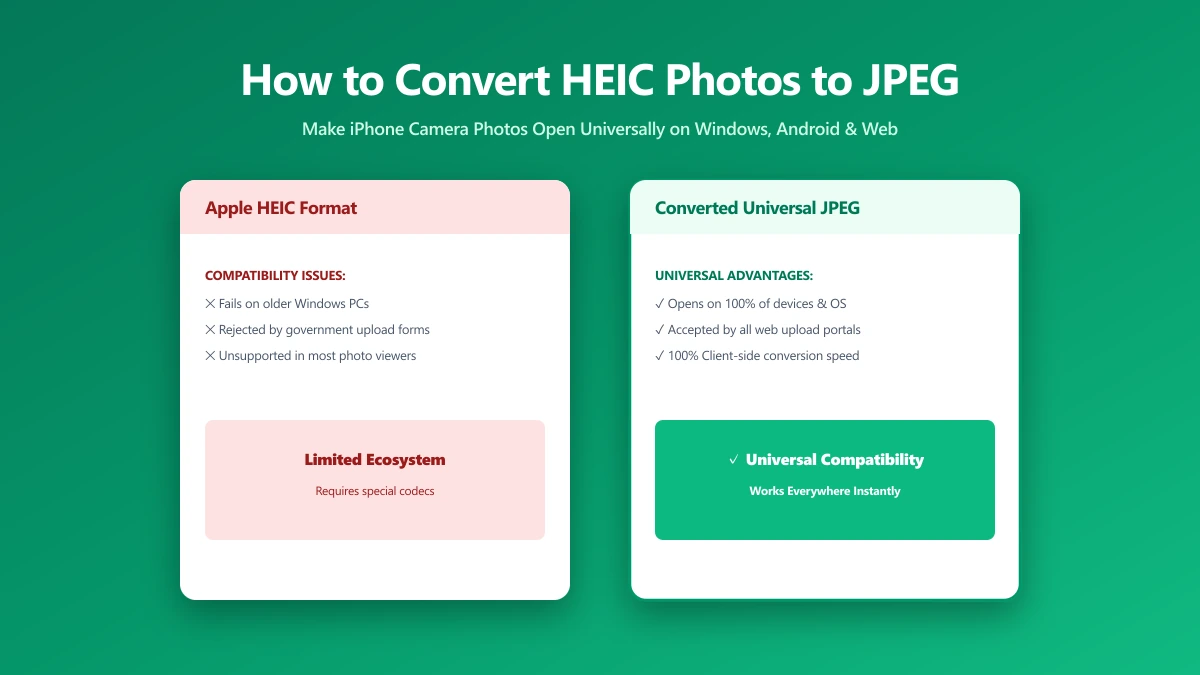
HEIC is Apple's implementation of the HEIF (High Efficiency Image Format) standard, using HEVC (H.265) video compression for still images. Windows 10 and 11 require the "HEVC Video Extensions" codec ($0.99 in the Microsoft Store) to open HEIC natively. Most web browsers, CMS platforms, and non-Apple image editors do not support it.
Where HEIC Breaks Compatibility
- ●Windows: Photo Viewer, Photos, File Explorer thumbnails, and most Windows apps cannot open HEIC without the paid Microsoft codec. Even with the codec, many third-party apps do not use it.
- ●Web browsers: Chrome, Firefox, and Edge do not support HEIC for uploads or display. Safari on macOS and iOS supports HEIC (Apple ecosystem only).
- ●Social media and platforms: Instagram, Facebook, Twitter/X, LinkedIn, and most platforms reject HEIC uploads with an "unsupported format" error.
- ●CMS platforms: WordPress, Shopify, Squarespace, and most CMS platforms block HEIC uploads by default.
- ●Google services: Google Drive can preview HEIC files, but Google Docs, Google Photos (on Android), and the web interface cannot natively edit or export them.
- ●Email clients: Outlook, Gmail, and most email clients on Windows and Android display HEIC as a downloadable attachment, not an inline image.
Method 1: Prevent HEIC at the Source (iPhone Setting)
The most permanent fix is to configure your iPhone to shoot JPEG directly. This affects all future photos but does not convert existing HEIC files.
Settings → Camera → Formats → Most Compatible. This switches the camera to JPEG for photos and H.264 for video. The files are larger on your phone's storage, but universally compatible without any conversion step.
Method 2: Transfer to PC Automatically as JPEG
If you want to keep shooting HEIC on your iPhone (for the storage savings) but always receive JPEG when transferring to a computer:
Settings → Photos → Transfer to Mac or PC → Automatic. When you connect via cable, iOS converts HEIC to JPEG automatically before transferring. This is the best of both worlds: HEIC storage on the phone, JPEG in your Windows file system.
Method 3: Convert on Mac Using Preview
- 1.Open the HEIC file in Preview (double-click or right-click → Open With → Preview)
- 2.File → Export
- 3.Set Format to JPEG
- 4.Adjust quality slider (80 is recommended)
- 5.Click Save
For batch conversion on Mac: select multiple HEIC files in Finder → right-click → Quick Actions → Convert Image → JPEG. This uses the system's built-in sips command-line tool via a Finder integration.
Method 4: Convert Online, and What to Check First
For Windows users or anyone without Mac access, an online converter is often the quickest route. The important distinction is whether the tool uploads your files to a server (common, because decoding HEIC needs the HEVC codec) or processes them locally in your browser. For personal photos this is a minor concern; for photos that include faces, locations, or private contexts, it matters a great deal, so read the privacy policy before dropping a whole camera roll in.
To be straight with you: our tools do not decode HEIC. HEVC decoding is not something a browser exposes to a web page outside Safari, so our image tools accept JPEG, PNG, WebP, and SVG. Use Method 1, 2, or 3 above to get a JPEG out of the HEIC first, then bring that JPEG to imagepdf.tools/convert-image-to-webp to convert it to WebP or shrink it, entirely in your browser with nothing uploaded.
HEIC vs. JPEG vs. WebP: Which Target Format Should You Use?
| Format | Browser support | File size vs HEIC | Best for |
|---|---|---|---|
| JPEG | Universal (100%) | +40–50% larger | Maximum compatibility, email, CMS, any platform |
| WebP | 97% of browsers | Similar or smaller | Web use, matches HEIC quality at similar size, far better support |
| PNG | Universal | +200–300% larger | Not recommended for HEIC conversion, much larger with no quality benefit |
| HEIC | Apple only (~20%) | Baseline | iPhone local storage only, convert before sharing anywhere |
If the converted photo is going onto a website, aim for WebP rather than JPEG. WebP is supported by 97% of browsers, produces files 25–35% smaller than JPEG at comparable quality, and is the format Google's PageSpeed Insights recommends as the "serve images in modern formats" optimisation. Once your HEIC is a JPEG, convert that JPEG to WebP here, in-browser, nothing uploaded.
Quality Settings When Converting from HEIC
HEIC files are typically captured at the equivalent of JPEG quality 85–90 by the iPhone's camera processor. When converting to JPEG, use quality 80–85 to match the original's visual fidelity while keeping file sizes reasonable. Converting at quality 95+ produces a larger file than the original HEIC with no perceptible quality improvement. Converting below quality 75 introduces visible artifacts.
The Bottom Line
For most people: set your iPhone to "Most Compatible" in camera settings and never deal with HEIC again. For photos you've already taken in HEIC: use the iPhone transfer setting or Preview on a Mac to get a JPEG, which covers email and CMS uploads. For web publishing where you want the smallest file, take that JPEG to imagepdf.tools/convert-image-to-webp and convert it to WebP in your browser, no upload, no account.
Frequently asked questions
Why does Apple use HEIC instead of JPEG?
Can I open HEIC files on Windows without converting them?
Does converting HEIC to JPEG lose quality?
Should I convert HEIC to JPEG or WebP for my website?
How do I convert many HEIC files at once?
Sources & references
This article was researched and written by Nikola, drawing on the following primary sources and documentation:
Ready to try it?
All tools run entirely in your browser, no uploads, no account required.
Convert Image