
5 Ways to Shrink a PDF for Email Attachments
Summary
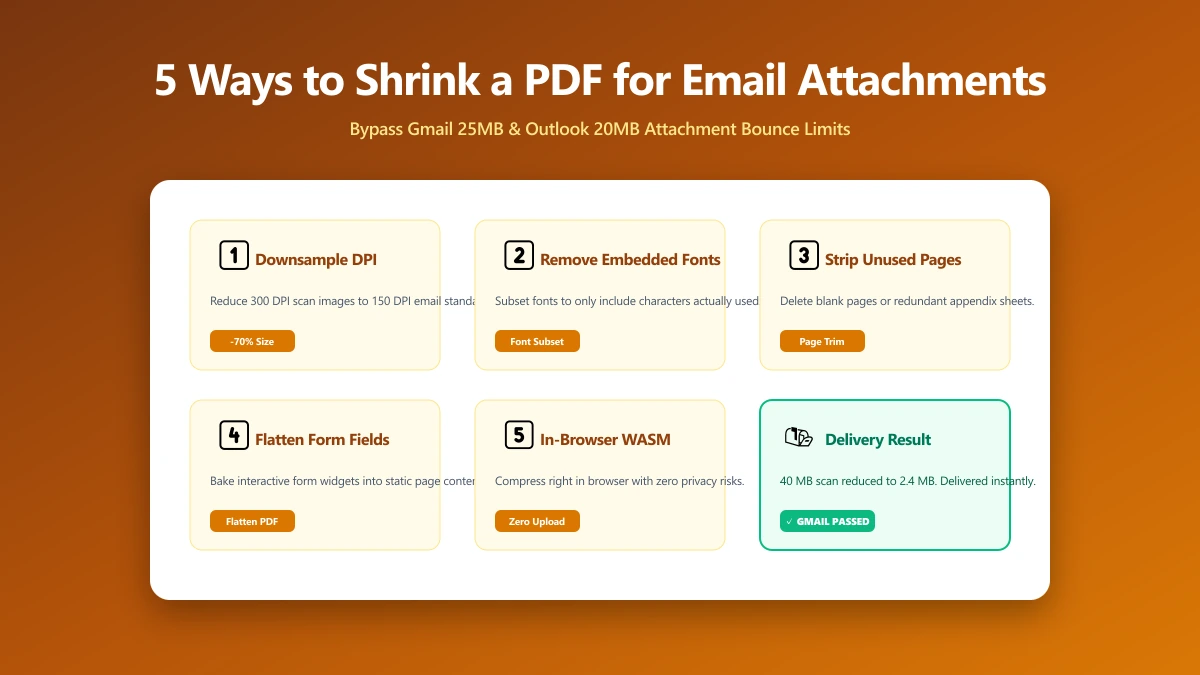
Gmail caps at 25 MB, Outlook at 20 MB, corporate servers often at 10 MB. Five proven techniques to get any PDF under the limit, from browser tools to CLI.
Your email bounced. Or you hit the "file too large" error before you could even send. You have a PDF that needs to go out today, and it's 40 MB.
Email attachment limits exist everywhere: Gmail caps at 25 MB, Outlook at 20 MB, and corporate mail servers, the ones that handle contracts and client deliverables, often cap at 10 MB or lower. A high-resolution scan, a presentation with embedded graphics, or a design PDF from a client can easily exceed all of these.
This guide covers five techniques for shrinking a PDF to a sendable size, ordered from fastest to most thorough. For most situations, the first or second method will get you under the limit in under a minute.
Email Attachment Limits by Provider (2026)
| Provider | Attachment Limit | Notes |
|---|---|---|
| Gmail | 25 MB | Total per email including all attachments |
| Outlook / Hotmail | 20 MB | Microsoft 365 accounts may vary by admin policy |
| Apple Mail (iCloud) | 20 MB | Mail Drop kicks in above this, auto cloud link |
| Yahoo Mail | 25 MB | Total per email |
| Corporate Exchange | 10–50 MB | Set by IT admin; often 10 MB for inbound/outbound |
| ProtonMail | 25 MB | Per email; encrypted attachments count as larger |
| Zoho Mail | 20 MB | Free plan; paid plans vary |
Corporate mail servers often set lower limits than the sender's provider, your 24 MB attachment that sent fine from Gmail may bounce at the recipient's 10 MB corporate inbox. When in doubt, target under 10 MB for professional PDF deliverables.
Method 1: Browser-Based PDF Compressor (Fastest)
For a one-off file, a client-side browser tool is the fastest option, no software installation, no account, no upload if the tool processes locally. For most scanned PDFs (the most common case), this method achieves a 50–80% size reduction in under 30 seconds.
Our PDF compressor runs entirely in your browser, your file never leaves your device. This matters if you're compressing contracts, financial statements, medical documents, or any sensitive content. See our guide to safe file converter tools for what to look for.
- ●Best for: scanned PDFs, quick one-off compression, sensitive documents
- ●Typical reduction: 50–80% for image-heavy PDFs; 10–30% for text/vector PDFs
- ●Limitation: less control than CLI tools over exact DPI and quality targets
Method 2: Re-Export from the Source Application (Best Quality)
If you have access to the original file, the Word document, PowerPoint, InDesign project, or Illustrator file, re-exporting at a lower quality setting is always the cleanest approach. You compress from original data, not from a PDF that has already been through compression.
- ●Microsoft Word / PowerPoint: File → Save As → PDF → Options → "Minimum size (publishing online)"
- ●Google Docs / Slides: File → Download → PDF, Google applies automatic optimisation at export
- ●Adobe InDesign: File → Export PDF → Compression tab → Downsample images to 150 DPI, JPEG quality Medium
- ●macOS (any app): File → Print → PDF → Save as PDF → select "Reduce File Size" as the Quartz filter
- ●LibreOffice: File → Export as PDF → Images tab → set JPEG quality to 70% and reduce image resolution
Re-exporting from source always beats recompressing a PDF. Each compression pass on an existing PDF adds generation loss, you're compressing already-compressed data. Go to the source when you can.
Method 3: Ghostscript (Free, Maximum Control)
Ghostscript is the industry-standard open-source PDF processor. It is free, runs on Windows, macOS, and Linux, and gives you precise control over the compression preset. For bulk jobs, dozens of PDFs from a scanner, it is the most practical tool.
# /ebook preset, 150 DPI, JPEG quality ~60, 50–70% reduction
# Recommended for most email use cases
gs -sDEVICE=pdfwrite -dCompatibilityLevel=1.5 \
   -dPDFSETTINGS=/ebook -dNOPAUSE -dQUIET -dBATCH \
   -sOutputFile=compressed.pdf input.pdf

# /screen preset, 72 DPI, maximum compression, smallest file
# Use when file size is the only constraint and print quality doesn't matter
gs -sDEVICE=pdfwrite -dCompatibilityLevel=1.5 \
   -dPDFSETTINGS=/screen -dNOPAUSE -dQUIET -dBATCH \
   -sOutputFile=compressed.pdf input.pdf

# Batch compress an entire folder
for f in *.pdf; do
  gs -sDEVICE=pdfwrite -dCompatibilityLevel=1.5 \
     -dPDFSETTINGS=/ebook -dNOPAUSE -dQUIET -dBATCH \
     -sOutputFile="compressed_\${f}" "$f"
done
Choose /ebook for most professional email attachments. Choose /screen only when file size is the sole constraint, it produces visible artefacts at zoom and prints poorly. See our full guide to PDF compression presets for details on each level.
Method 4: Remove Hidden Content (Often Overlooked)
Large PDFs often carry significant weight in hidden elements that don't affect visible content: unused colour profiles, embedded attachments, hidden annotation layers, form field data, and XMP metadata blocks. Removing these can shrink a file by 5–30% without touching image quality at all.
# qpdf, strip access restrictions, flatten annotations, linearise for web
qpdf --linearize --remove-restrictions input.pdf output.pdf

# ExifTool, remove all PDF metadata (author, keywords, creation app, etc)
exiftool -all= -overwrite_original document.pdf

# Combine: strip metadata then linearise
exiftool -all= -overwrite_original document.pdf
qpdf --linearize document.pdf output-lean.pdf
Method 5: Share a Cloud Link Instead
When a PDF is genuinely too large to compress acceptably, large-format architectural drawings, high-resolution photography portfolios, multi-hundred-page reports, bypass attachment limits entirely. Upload to Google Drive, Dropbox, or OneDrive and share a link.
This approach preserves 100% quality, works for files of any size, and gives you the added benefit of tracking whether the recipient opened the file. For ongoing collaboration on a document, a shared cloud folder is a better workflow than email attachments regardless of file size.
| Situation | Recommended Method |
|---|---|
| Scanned PDF, one-off | Method 1: Browser compressor |
| Office document (Word, PPT) | Method 2: Re-export from source |
| Batch of PDFs from scanner | Method 3: Ghostscript /ebook |
| PDF compressed but still too large | Method 4: Strip hidden elements first, then recompress |
| File too large to compress acceptably | Method 5: Cloud link |
| Sensitive document | Method 1: Client-side browser tool (no upload) |
What Compression Will and Won't Do
PDF compression works most dramatically on image-heavy content, scans, photo portfolios, slide decks with embedded graphics. A 40 MB scanned invoice can easily compress to 3–5 MB at eBook quality with no visible quality loss at reading zoom.
For PDFs that are already mostly vector content, a Word document exported to PDF, a contract with no embedded photos, compression gains are modest: typically 10–25%. The text, paths, and fonts are already efficiently encoded. If a text-heavy PDF is still too large after compression, the right solution is to strip metadata and hidden elements (Method 4) or share via cloud link (Method 5).
The Bottom Line
For 90% of cases, a browser-based PDF compressor at eBook quality gets the job done in under a minute. For sensitive documents, use a client-side tool that processes locally. For batch jobs, Ghostscript with the /ebook preset is the most reliable and controllable option.
Frequently asked questions
What is the maximum email attachment size for Gmail and Outlook?
How much can a scanned PDF be compressed?
Is it safe to compress a PDF in a browser tool?
Can I compress a PDF multiple times to make it smaller?
Why didn't my PDF get smaller after compression?
Sources & references
This article was researched and written by Nikola, drawing on the following primary sources and documentation:
Ready to try it?
All tools run entirely in your browser, no uploads, no account required.
Compress PDFMore in Productivity
What Is the Best YouTube Thumbnail Size, Resolution, and Aspect Ratio? (2026 Specs)
How to Compress Huge Photoshop PSD Files for Client Email Preview (Export Guide)
How to Convert Scanned PNG Receipts to Searchable PDF With OCR (Tax & Expense Guide)