
How to Convert Scanned PNG Receipts to Searchable PDF With OCR (Tax & Expense Guide)
Summary
Turn PNG and JPG receipt photos into one searchable PDF: combine the images, run OCR, then find any vendor, date or total with Ctrl+F. Free methods, no uploads.
A receipt photo is only pixels. Your computer sees a picture of the word "Shell" and the number 42.50, not the text itself, so searching for either finds nothing. To fix that you need two steps: put the images into a PDF, then run OCR (optical character recognition) on it. OCR reads the printed characters and adds them to each page as an invisible text layer, lined up with the words you see.
Once that layer exists, Ctrl+F (Cmd+F on a Mac) in any PDF reader jumps straight to a vendor name, a date or a total. The quickest free route is to combine your receipts with Image to PDF and then add the text layer with OCR PDF. Both run in your browser. If you already own Adobe Acrobat Pro, or you are comfortable in a terminal, those routes are below too.
What "searchable" means inside a PDF
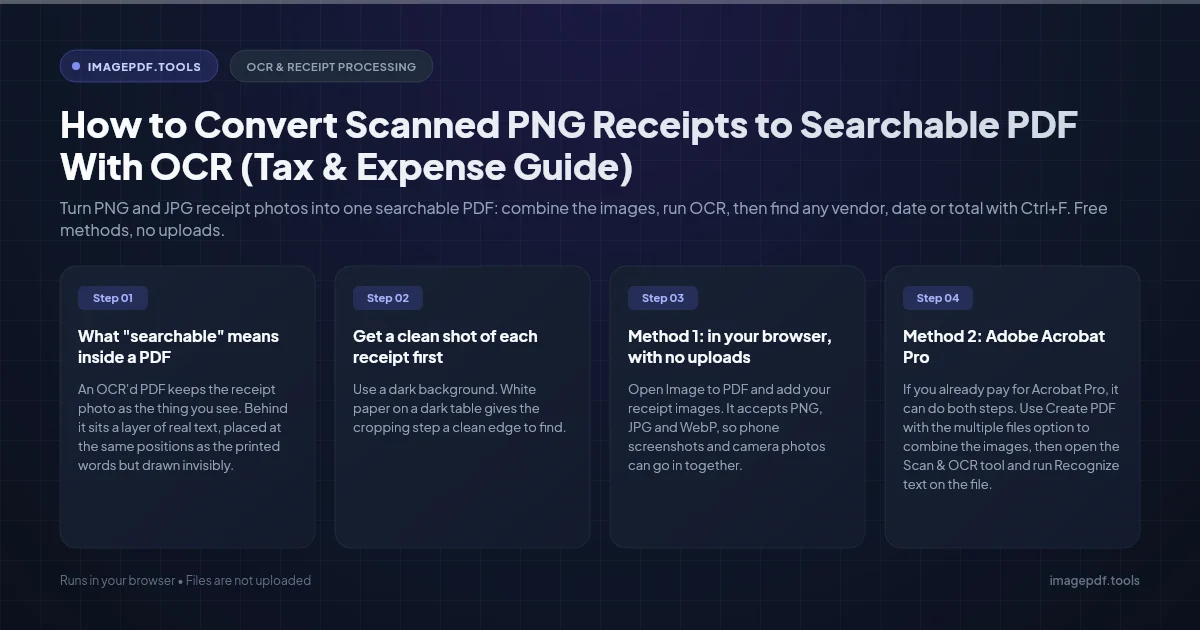
An OCR'd PDF keeps the receipt photo as the thing you see. Behind it sits a layer of real text, placed at the same positions as the printed words but drawn invisibly. That is why you can drag across a total on what looks like a photo and copy the number. Without that layer, the page is just an image wrapped in a PDF.
There is a simple test. Open the saved PDF, press Ctrl+F and type a word you can clearly see on the receipt. No match means no text layer. Run this test in a different viewer from the app that created the file. Some scanning apps let you search receipts inside the app itself without writing any text into the PDF you export, and you only discover this months later at tax time.
Get a clean shot of each receipt first
OCR accuracy depends far more on the photo than on the software. A few habits make a big difference:
- ●Use a dark background. White paper on a dark table gives the cropping step a clean edge to find.
- ●Light it evenly. Your phone's own shadow across the bottom half is the most common reason totals come out as gibberish. Stand with the light behind the receipt, not behind you.
- ●Hold the phone parallel to the paper. Shooting at an angle makes the lines slope, and characters at the far end shrink.
- ●Fill the frame. The receipt should take up most of the photo. Small text on a tiny receipt in the middle of a wide shot is hard to read for any OCR engine.
- ●Use your phone's document scanner if it has one. The scanner in Apple Notes or in the Google Drive app crops and straightens the page for you, which helps OCR later.
- ●Photograph thermal receipts soon. Most till receipts are printed on thermal paper, which fades with heat, light and time. A receipt that is crisp in March can be pale grey by the following April.
For a very long receipt, take two photos with a small overlap instead of one tiny one. Keep them next to each other when you combine the images so the pages stay in reading order.
Method 1: in your browser, with no uploads
- 1.Open Image to PDF and add your receipt images. It accepts PNG, JPG and WebP, so phone screenshots and camera photos can go in together.
- 2.Drag the thumbnails into the order you want, for example by date.
- 3.Pick a page size. Fit makes each page the shape of its receipt, which suits long, narrow slips. Choose A4 or Letter if you plan to print the file.
- 4.Save the PDF.
- 5.Open OCR PDF, drop in the PDF you just made and set Document language. It starts on your browser's language when that is one of the 12 it supports, and you can change it for receipts printed in another language.
- 6.Wait while it works through the pages. On a computer each page is rendered at 300 DPI; on a phone it uses 150 DPI to stay within the browser's memory. Each page is converted to clean black and white and then read by Tesseract, an open-source OCR engine.
- 7.Click Save Searchable PDF. If you want the recognized text on its own, for pasting into a spreadsheet, use Save as .txt as well.
Everything happens on your device, which matters for receipts. They carry your card's last digits, your address on delivery slips and a map of where you spend money. OCR PDF rebuilds each page as an image plus the text layer, so keep your original photos as the master copies.
Method 2: Adobe Acrobat Pro
If you already pay for Acrobat Pro, it can do both steps. Use Create PDF with the multiple files option to combine the images, then open the Scan & OCR tool and run Recognize text on the file. Adobe has moved these tools between toolbar layouts over the years, so if you cannot see them, type "recognize text" into the tool search box. The free Acrobat Reader does not include OCR.
Method 3: batch OCR from the command line
For hundreds of receipts, the Tesseract command-line tool can write a searchable PDF straight from each image. The last word, pdf, selects PDF output, and the second argument is the output name without its extension:
# one receipt
tesseract 2026-04-12-shell.png 2026-04-12-shell -l eng pdf

# every PNG in the folder
for f in *.png; do tesseract "$f" "${f%.png}" -l eng pdf; done
If your receipts are already in one PDF, OCRmyPDF adds the text layer to the whole file and can straighten crooked pages on the way through:
ocrmypdf --deskew --rotate-pages receipts-april.pdf receipts-april-ocr.pdfWhy OCR misreads receipt totals
Receipts are a hard case. The print is small, often low-contrast, and the layout puts item names on the left and prices far over on the right. Expect a few of these errors:
- ●Look-alike characters swapped: 0 and O, 1 and l, 5 and S, 8 and B.
- ●Decimal points lost or doubled on faded print, so 42.50 becomes 4250 or 42..50.
- ●A price attached to the wrong line when the receipt was curled or photographed at an angle.
- ●Handwritten tips and signatures ignored or turned into random characters. Tesseract is built for printed text.
Treat the text layer as a finding aid, not as bookkeeping. It gets you to the right receipt in seconds; you then read the amount off the image. When a search misses, try a shorter string, such as "42.5" or the first few letters of the store name, or search the date in the format the till printed it.
Name files by date, vendor and amount, such as 2026-04-12_shell_42.50.pdf, and keep one PDF per month or per trip. File names still work when search does not, and they sort correctly in any folder.
Do scanned receipts count for US taxes?
The IRS set out its rules for electronic records in Revenue Procedure 97-22. In short, your storage method must transfer the original accurately and completely, guard against records being altered or deleted, and include an indexing system that lets you find and reproduce a record. The procedure says that requirement is met if the index works about as well as a reasonable paper filing system.
It also sets a legibility bar: someone viewing the image or a printout must be able to identify every letter and numeral "positively and quickly." So the photo quality matters more than the OCR. A searchable but blurry receipt fails that test; a sharp, well-named image without OCR may not. The procedure's recommended practices even suggest keeping the paper original when a receipt cannot be captured legibly. This is general information, not tax advice, and rules differ outside the US, so ask your tax preparer what they need from you.
Frequently asked questions
Can I OCR a single receipt image without making a PDF first?
Does OCR change how the receipt looks?
Why can Ctrl+F not find an amount I can see on the receipt?
How many receipts can go into one PDF?
What should I do with receipts that have already faded?
Sources & references
This article was researched and written by Nikola, drawing on the following primary sources and documentation:
- ●Internal Revenue Service, Revenue Procedure 97-22 on electronic storage of books and records (Internal Revenue Bulletin 1997-13)
- ●Tesseract OCR, open-source OCR engine on GitHub
- ●Tesseract documentation, command-line usage including PDF output
- ●OCRmyPDF documentation, adding an OCR text layer to scanned PDFs
More in Productivity
What Is the Best YouTube Thumbnail Size, Resolution, and Aspect Ratio? (2026 Specs)
How to Compress Huge Photoshop PSD Files for Client Email Preview (Export Guide)
Why Do Instagram Photos Look Blurry After Uploading and How to Prevent Compression