
Split PDF Files Online for Free
or drop files here
Pull individual pages or split into multiple parts by range. Preview every page before you save, all inside your browser.
Three steps. Exactly the pages you need.
Upload your PDF
Drop your PDF onto the tool or click Browse. Thumbnails of every page render automatically in your browser.
Choose pages or ranges
Click thumbnails to pick pages, or drag to select a range. Switch to Split by Range and type ranges like 1-5, 8, 12-15.
Save your files
Click Extract or Split. Single results save immediately. Multiple parts are bundled into a ZIP file.
When splitting a PDF is the answer.
PDFs often bundle more than you need. Splitting lets you share only what matters, submit exactly what portals require, and keep your file storage organised.
Extracting a signed page
Pull just the signature page from a contract to attach to an email without sending the full document.
Splitting a scanned book
Divide a 300-page scan into chapters for easier reading or distribution among collaborators.
Isolating individual invoices
When your accounting software generates one PDF for 12 months of invoices, split them into separate files per month.
Sharing a specific section
If a PDF is too large to email, extract only the relevant pages and send that portion instead.
Separating appendices
Pull supporting annexes from a main report so each can be stored and referenced independently.
Preparing application packets
Extract specific pages from a multi-section form to submit only the parts required by each recipient.
How splitting works under the hood.
When you drop a PDF, PDF.js reads the file in your browser and renders a thumbnail of each page onto a canvas at low resolution, fast enough to show previews for a 100-page document in seconds.
When you click Extract or Split, pdf-lib copies the selected page objects from the source PDF into a new output document without re-rendering or recompressing anything. Text remains selectable, images keep their original resolution, and embedded fonts are preserved exactly.
The resulting files are created as Blobs in browser memory and offered via a save dialog. Multiple output files are bundled into a ZIP. Your original PDF never leaves your device.
Questions answered.
Can I extract just a few pages from a large PDF?
Can I split a PDF into multiple separate files?
Does splitting affect the PDF quality?
Is my PDF uploaded to a server?
Can I split a password-protected PDF?
Can I preview pages before extracting?
What happens to the original PDF after splitting?
Is there a page count limit?
More tools you might need.
Related Guides & Tutorials
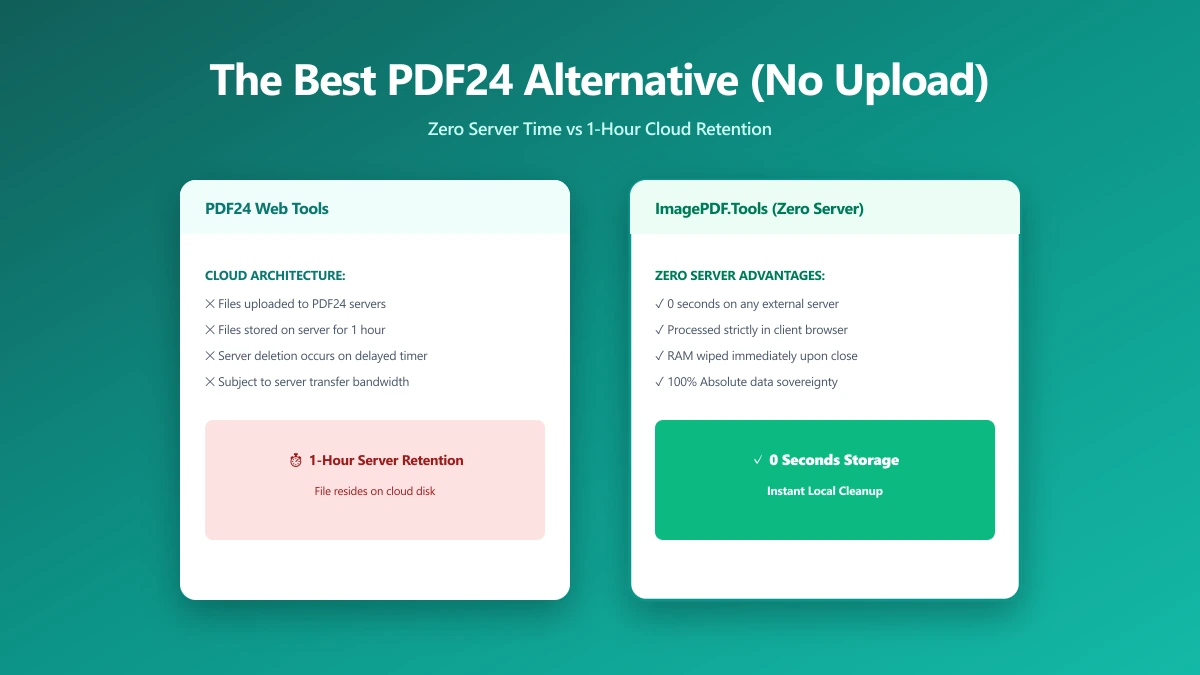
The Best PDF24 Alternative If You Want Zero Server Time, Not Just One Hour (2026)
PDF24 is unlimited and free, rare among PDF tools, but its own FAQ confirms files are uploaded and held on its servers for up to an hour. ImagePDF.Tools processes PDFs with zero upload, ever.
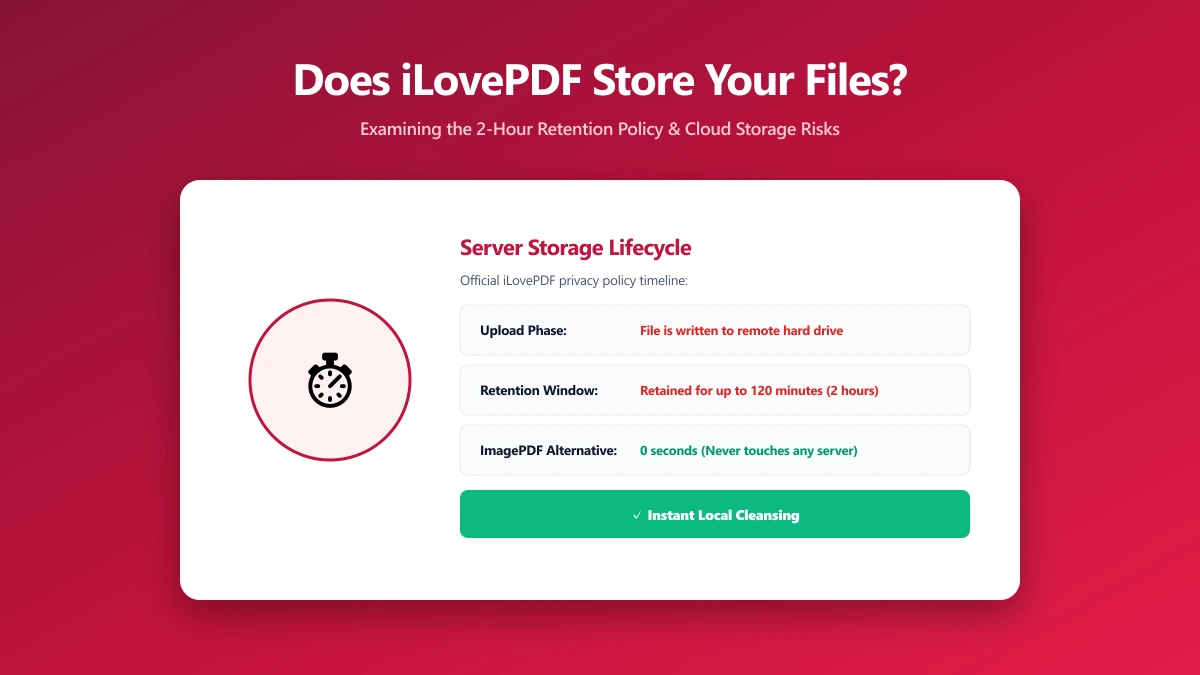
Does iLovePDF Store Your Files? Here Is Exactly How Long
Does iLovePDF store your files? Yes, standard tools for up to 2 hours, but e-signed documents are kept for 5 years. Here is exactly what iLovePDF's own policy says, and how ImagePDF.Tools avoids the question entirely.
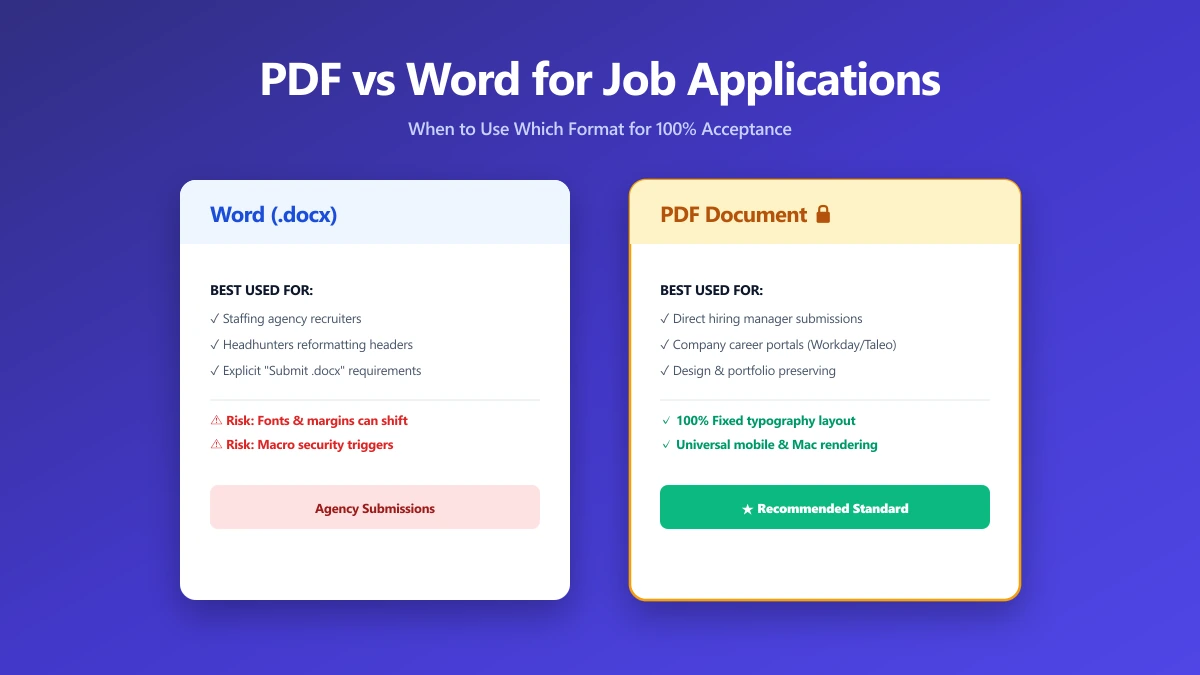
Should I Use PDF or Word for Job Applications?
PDF protects your layout, Word is sometimes required. A decision guide by employer type, plus what to do when the posting does not say either way.