
Reduce Image File Size Online for Free
or drop files here
Compress JPEG, PNG, and WebP images for web, email, or social media. Everything runs in your browser, nothing uploaded.
Three steps. Done in your browser.
Drop your image
Drag any JPEG, PNG, or WebP onto the zone or click to browse. No file size limit, all processing stays local.
Adjust the quality
The slider controls how aggressively image data is reduced. Quality 80 is a reliable starting point for most images.
Save the result
Compare sizes with the before/after slider, then save your smaller image. No data leaves your device at any point.
Situations where image size creates real friction.
A modern smartphone photo is 4-10 MB. For most destinations, it is 10x larger than needed. Reducing image size eliminates the friction that oversized files cause at every step.
Email attachments
Gmail caps attachments at 25 MB, Outlook.com at 20 MB, and many corporate mail servers at 10 MB. A 2 MB compressed image is universally easier to send than an 8 MB original.
Website and CMS uploads
WordPress, Squarespace, and most CMS platforms enforce upload size limits, often 2-10 MB. Reducing image size before uploading avoids rejected uploads and speeds up page load times.
Social media
Instagram, Facebook, and LinkedIn recompress images on upload. Pre-compressing at your chosen quality gives you more control over the final result rather than letting the platform decide.
Messaging apps
WhatsApp compresses images automatically, often significantly. Sharing a pre-compressed image preserves more detail than letting the app crush it, and uses far less mobile data.
Web performance and SEO
Google uses page speed as a ranking factor. The largest images on a page directly affect Largest Contentful Paint (LCP). Smaller images improve Core Web Vitals scores and search rankings.
Cloud storage management
Backing up photos to Google Photos, iCloud, or Dropbox? Reducing sizes before backup can save gigabytes of storage over time, and speeds up syncing across devices.
How image size reduction works under the hood.
Unlike most online tools that upload your file to a remote server, this compressor runs entirely in your browser tab. For JPEG and WebP, it re-encodes the image at your chosen quality level with MozJPEG and libwebp, both compiled to WebAssembly. For PNG, it uses UPNG.js to apply lossy palette quantisation, reducing 16.7 million possible colours down to a palette of at most 256.
Your file never leaves your device. There is no upload, no server, and no risk of your images being stored or accessed by anyone else. Closing the tab immediately clears all image data from browser memory.
Questions answered.
How much can you reduce image size without losing quality?
What is the difference between reducing image size and resizing an image?
Which format gives the smallest file size?
Is my image uploaded to a server?
Can I reduce multiple images at once?
Does reducing image size change the pixel dimensions?
What quality setting should I start with?
Can I preview the quality before saving?
More tools you might need.
Related Guides & Tutorials
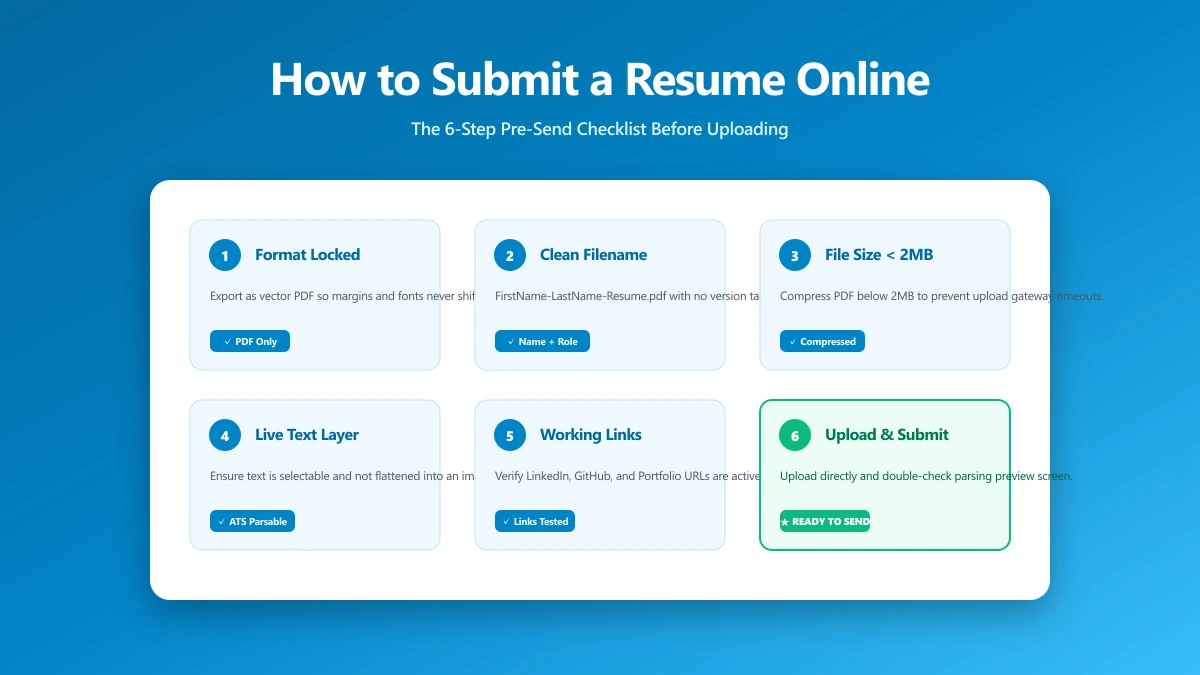
How to Submit a Resume Online: The 6-Step Pre-Send Check
A 6-step check to run before you upload: format, filename, file size, portal rules, hidden metadata, and a test send. Takes about a minute.
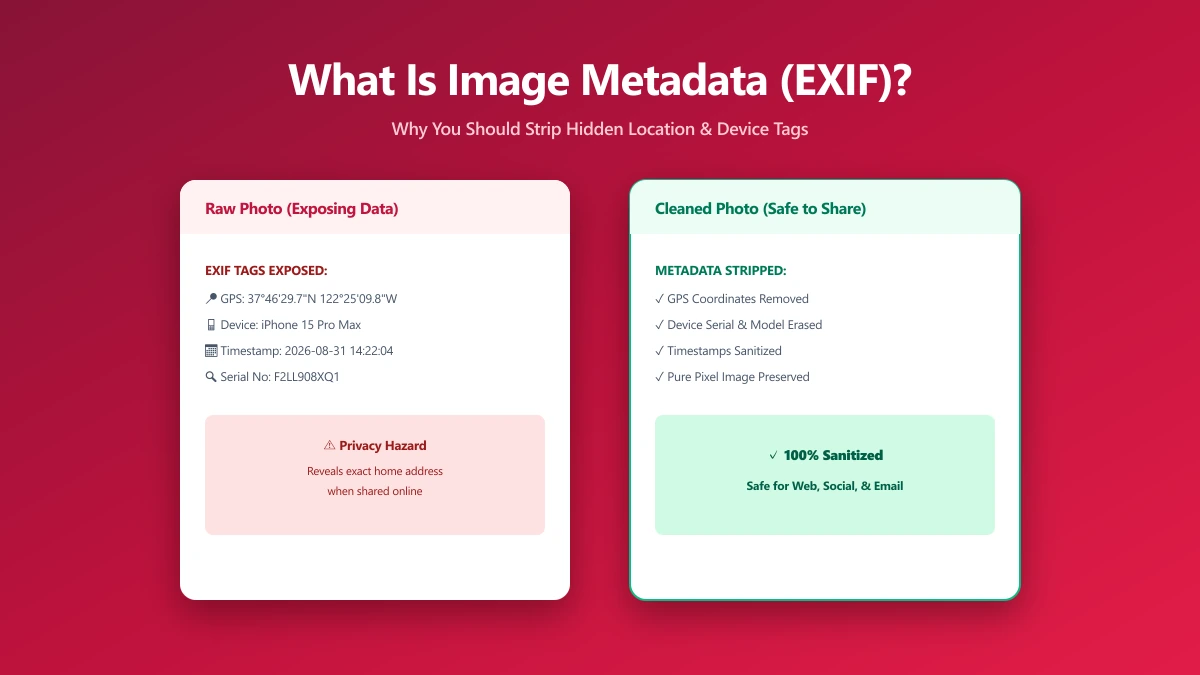
What Is Image Metadata? (And Why You Should Remove It Before Sharing)
Every JPEG you share embeds hidden EXIF data, GPS location, device model, timestamp. Learn what image metadata reveals and how to strip it in seconds.
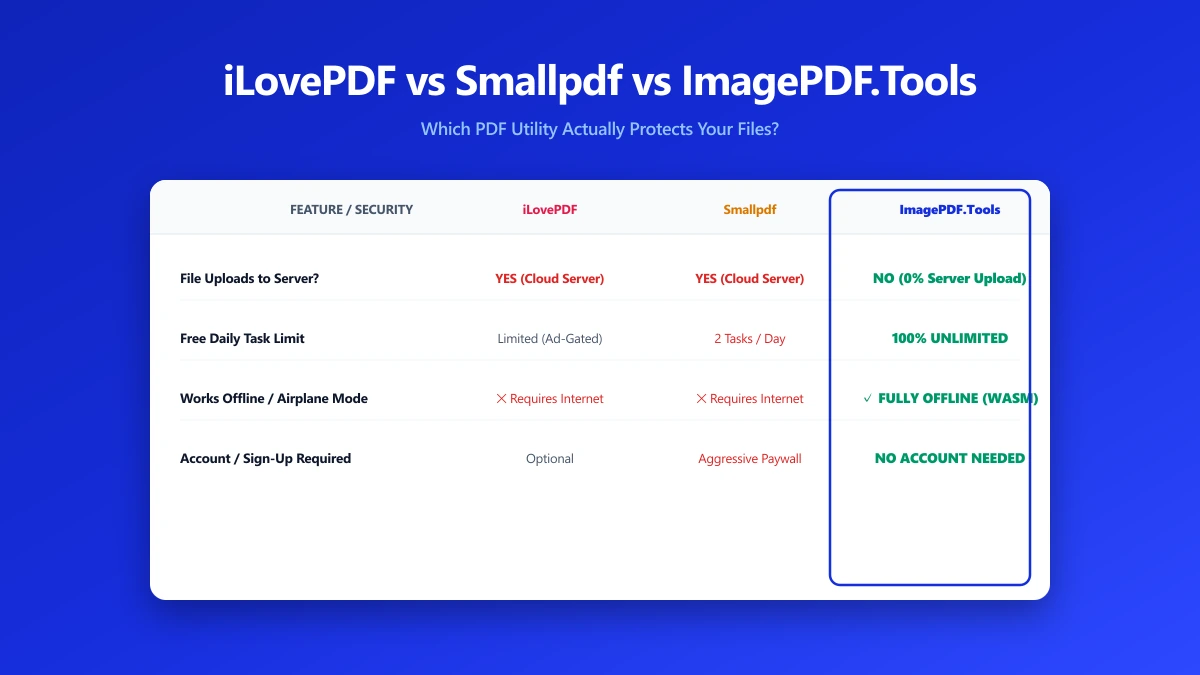
iLovePDF vs Smallpdf vs ImagePDF.Tools: Which One Actually Protects Your Files?
iLovePDF vs Smallpdf vs ImagePDF.Tools compared on price, watermarks, and what happens to your file. See why ImagePDF.Tools is the only one that never uploads it.