
Convert PDF to JPG Online for Free
or drop files here
Convert every page of your PDF to a high-quality JPEG. Adjust quality, save individually or as a ZIP, entirely in your browser.
Three steps. PDF pages as images.
Drop your PDF
Drop your PDF file onto the tool or click Browse PDF to select it from your device.
Choose quality
Set JPEG quality using the slider or Low / Medium / High presets. Higher quality means sharper images and larger files.
Save your images
Click Convert to JPG. Save individual pages or use Save All as ZIP to grab every image in one go.
Why convert a PDF to JPG?
Image formats are more universally compatible than PDFs for sharing, editing, and embedding. These are the situations where converting makes sense.
Social media sharing
Share a report, certificate, or infographic as an image post. Platforms like Instagram and LinkedIn do not accept PDFs directly.
Presentation slides
Import specific PDF pages into PowerPoint, Keynote, or Google Slides as image slides without needing a PDF viewer plugin.
Thumbnails and cover images
Generate a cover image from the first page of a document for a blog post, landing page, or product listing.
Email when PDFs are blocked
Some email clients and spam filters block PDF attachments. A JPG attachment passes through every filter and renders inline in the preview pane.
Document archiving
Convert scanned PDFs back to individual image files for ingestion into image management systems or digital asset libraries.
Product mockups and design tools
Use rendered PDF pages as high-quality images inside Figma, Canva, or other design tools for mockups, demos, and prototypes.
How it works under the hood.
The tool uses PDF.js(Mozilla's open-source PDF rendering engine) to parse your PDF entirely in the browser. Each page is rendered onto an HTML5 canvas element at 2x scale for crisp output, equivalent to roughly 144 DPI for a standard A4 document.
The canvas is then exported to JPEG at your chosen quality setting using the browser's built-in image encoder. For multi-page documents, all JPGs are bundled into a ZIP using JSZip.
No file data is ever sent to a server. Everything happens inside your browser tab and is cleared from memory when you close it.
Questions answered.
Does converting a PDF to JPG upload my file?
What resolution are the output JPGs?
Can I convert a multi-page PDF?
Can I control the JPG quality?
Will text in the PDF be sharp in the JPG?
Can I convert a password-protected PDF?
Is there a page count limit?
Can I choose which pages to convert?
Related Guides & Tutorials
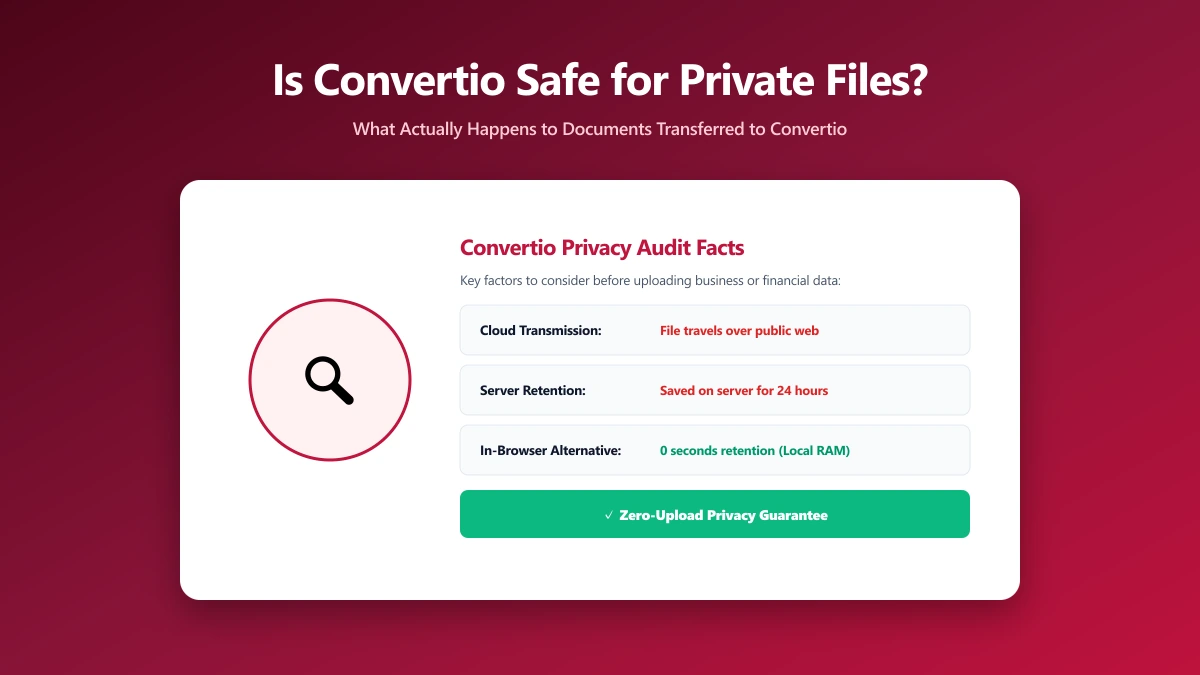
Is Convertio Safe? What Actually Happens to Your Files When You Convert Them
Is Convertio safe to use? Here is exactly what happens when you upload a file, where it goes, how long it is kept, and how ImagePDF.Tools does the same PDF and image jobs without ever uploading anything.
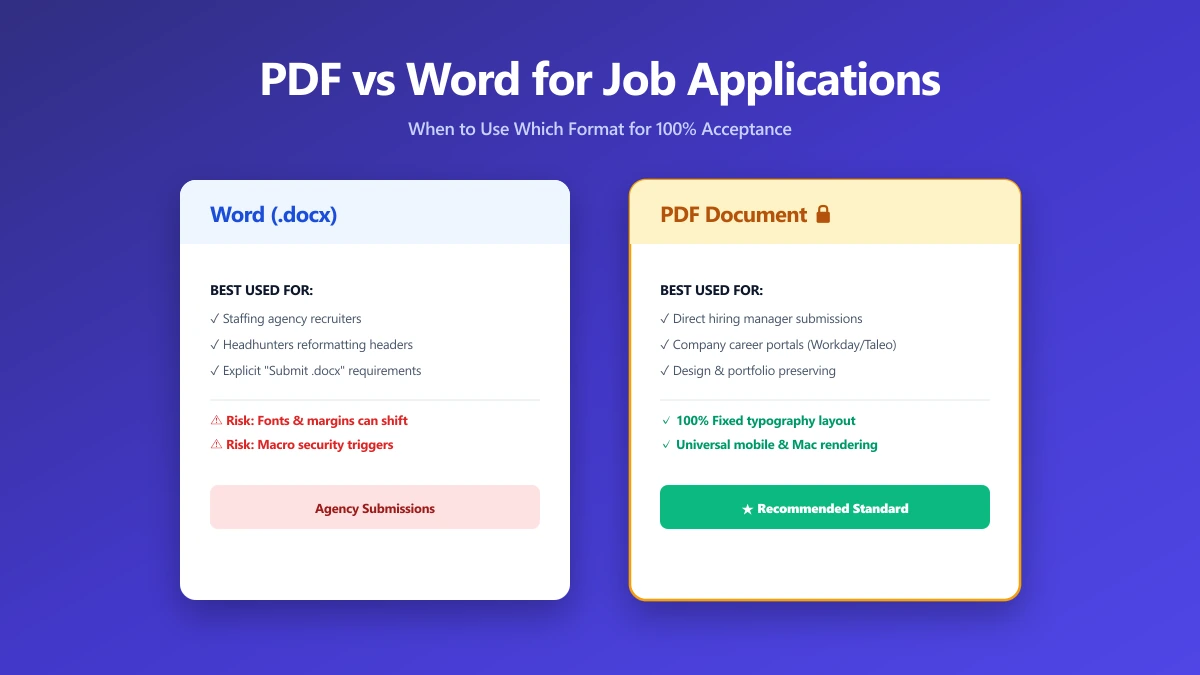
Should I Use PDF or Word for Job Applications?
PDF protects your layout, Word is sometimes required. A decision guide by employer type, plus what to do when the posting does not say either way.
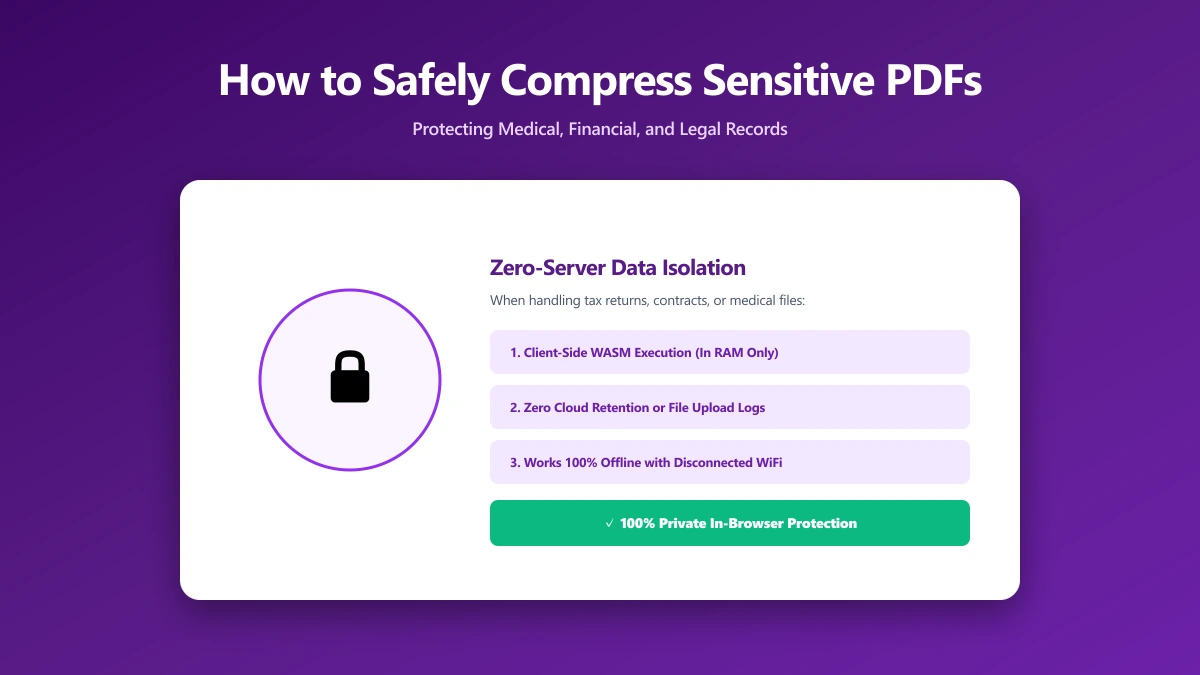
How to Safely Compress Sensitive PDF Documents
Compress sensitive PDFs, bank statements, contracts, medical records, without uploading them. Learn how to shrink them safely, right in your browser.