
Flatten a PDF and Lock Its Contents
or drop files here
Fold form answers, comments and stamps into the page itself. The document looks the same, but nothing on it can be changed, and your file never leaves this tab.
Fill it, flatten it, send it.
Add your PDF
Drop in a filled form, a reviewed draft full of comments, or any PDF with fields. Password-protected files ask for the password once.
Choose what to lock
Flatten form fields, comments, or both. Keep links working, strip scripts, or turn every page into an image for the strongest lock.
Save the flat copy
The result looks exactly like your filled document, but every answer and note is now part of the page and cannot be edited.
When a PDF should stop being editable.
Interactive PDFs are great while a document is being filled in. Once it is finished, the same interactivity becomes a liability.
Sending a completed form
Visa applications, rental forms and HR paperwork arrive intact only if the answers are part of the page. Flattening stops them showing up blank or being edited in transit.
Freezing review comments
A draft marked up by legal or a teacher can be flattened so the highlights and notes print and archive exactly as they were made.
Printing forms correctly
Print drivers and print shops sometimes skip field values and annotations. A flat file prints what you see on screen, every time.
Merging filled forms
Combining several filled copies of the same form can make their fields collide, because they share names. Flatten each one first and they merge cleanly.
Publishing final versions
Price lists, certificates and signed agreements should not invite edits. A flat PDF signals that the document is final.
Removing hidden behaviour
Forms often carry scripts that recalculate totals or validate input. Flattening with scripts removed leaves a plain, predictable document.
Standard or Image-only: which one?
Standardis right for almost everything. Each field's appearance is regenerated from its value, then the field and its widget are removed and the appearance is drawn into the page. Comments, highlights, stamps and ink drawings are handled the same way: their saved appearance is placed exactly where the annotation sat, and the annotation is deleted. Text stays real text, so the file stays small, sharp at any zoom, and searchable.
Image-only renders every page to a picture and rebuilds the PDF from those pictures. Hidden layers, invisible text and anything tucked underneath other objects are gone for good, because only what is visible is kept. Choose it for documents you are publishing and never want copied, and pick 300 DPI if the file will be printed.
| Standard | Image-only | |
|---|---|---|
| Fields editable afterwards | No | No |
| Text selectable and searchable | Yes | No |
| Sharp when zoomed | Yes | Up to the DPI chosen |
| File size | About the same | Usually larger |
| Hidden or covered text kept | Yes | No |
| Links still clickable | Optional | No |
Questions answered.
What does flattening a PDF actually do?
Why did my filled form arrive blank for the other person?
Is the text still searchable after flattening?
When should I use Image-only instead of Standard?
Can a flattened PDF be unflattened?
Does flattening remove a digital signature?
What happens to links and bookmarks?
Is my PDF uploaded anywhere?
More tools you might need.
Related Guides & Tutorials
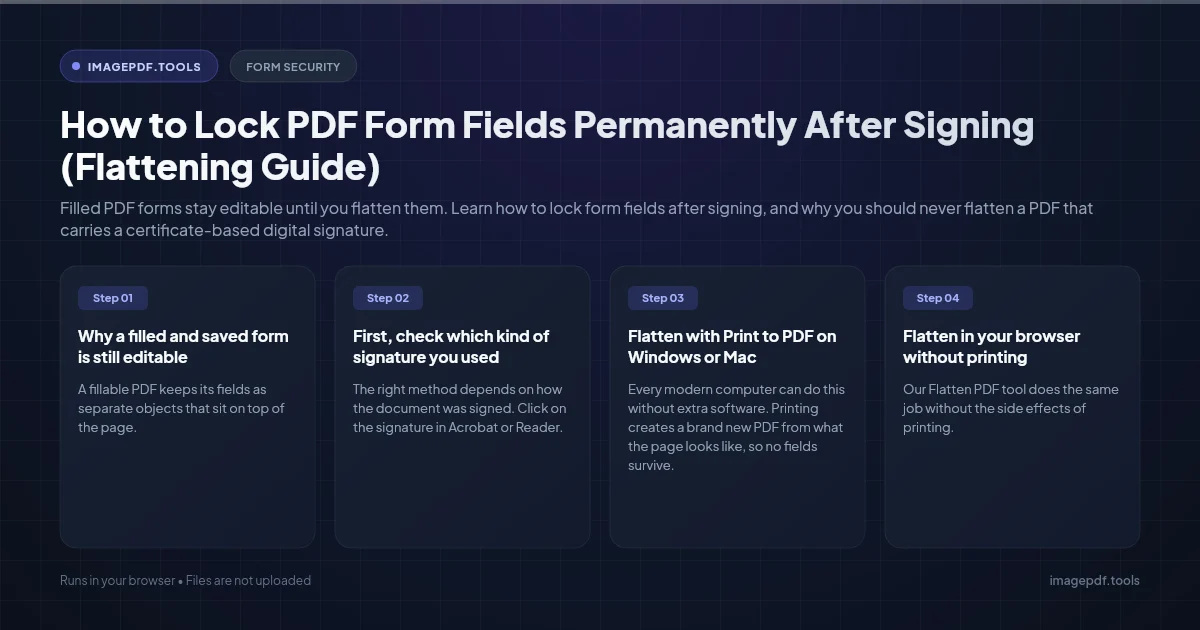
How to Lock PDF Form Fields Permanently After Signing (Flattening Guide)
Filled PDF forms stay editable until you flatten them. Learn how to lock form fields after signing, and why you should never flatten a PDF that carries a certificate-based digital signature.
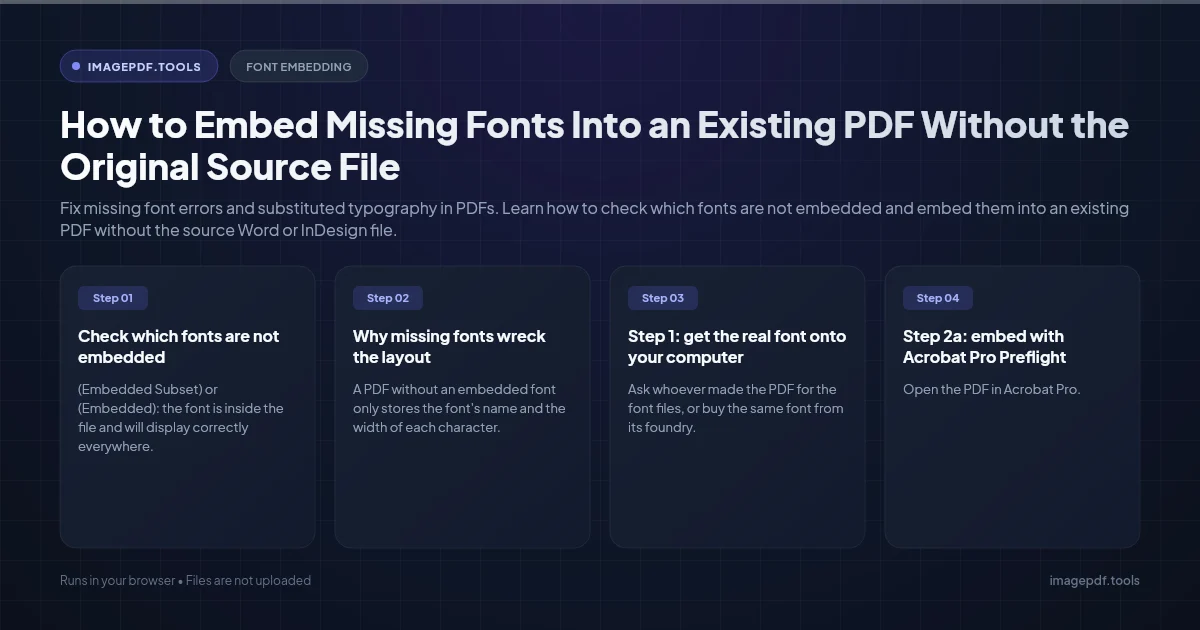
How to Embed Missing Fonts Into an Existing PDF Without the Original Source File
Fix missing font errors and substituted typography in PDFs. Learn how to check which fonts are not embedded and embed them into an existing PDF without the source Word or InDesign file.

How to Repair and Recover Corrupted PDF Files That Won't Open (Recovery Guide)
Why PDFs get damaged, how to tell whether a broken file can be saved, and how to rebuild a missing cross-reference table or end marker to get the pages back.