How to Lock PDF Form Fields Permanently After Signing (Flattening Guide)
Summary
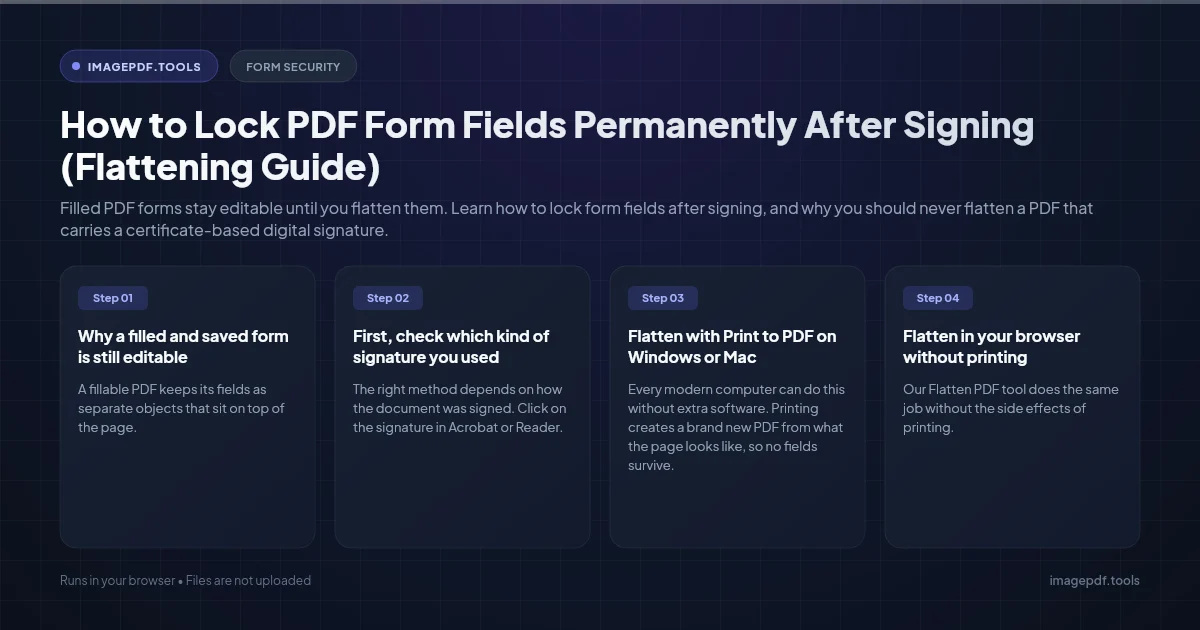
Filled PDF forms stay editable until you flatten them. Learn how to lock form fields after signing, and why you should never flatten a PDF that carries a certificate-based digital signature.
To lock a filled PDF form so nobody can change the answers, you flatten it: the field values are drawn into the page itself and the fields are deleted. After that there is nothing left to click into. You can flatten with any "Print to PDF" printer, with the Preflight fixups in Adobe Acrobat Pro, or in your browser with a flatten tool.
There is one important exception. If you signed with a certificate-based digital signature (the kind Acrobat validates with a blue "Signed and all signatures are valid" bar), do not flatten afterwards. Flattening rewrites the file and the signature will no longer verify. For those documents you lock the fields as part of signing, which this guide also covers.
Why a filled and saved form is still editable
A fillable PDF keeps its fields as separate objects that sit on top of the page. The text you typed is stored as the value of each field, not as part of the page. Saving the file does not change that. Anyone who opens it in Acrobat Reader, Mac Preview, Chrome or Edge can click a field, type a new amount or date, and save again.
Signatures added with "Fill & Sign" style tools behave the same way. A drawn or typed signature is usually an annotation placed on the page, so it can be moved, deleted or copied onto another document in a few clicks. Flattening merges both the field values and those annotations into the page.
First, check which kind of signature you used
The right method depends on how the document was signed. Click on the signature in Acrobat or Reader. If a panel opens with certificate details, signer identity and a validity status, it is a digital signature. If you can simply drag or resize it, it is a visual signature.
| Visual signature (drawn, typed or image) | Digital signature (certificate based) | |
|---|---|---|
| How it was added | Fill & Sign, Preview markup, a signature image, most free sign tools | Acrobat "Use a certificate", DocuSign or another service, a smart card or ID card |
| What flattening does | Locks the signature and all answers into the page | Breaks the signature: it no longer validates |
| How to lock fields | Flatten after signing | Lock fields at signing time, or flatten first and sign second |
Flatten with Print to PDF on Windows or Mac
Every modern computer can do this without extra software. Printing creates a brand new PDF from what the page looks like, so no fields survive.
- 1.Fill in every field and add your signature, then save a copy of the fillable version for your records.
- 2.Open the print dialog with
Ctrl + P(Windows) orCmd + P(Mac). - 3.On Windows, choose Microsoft Print to PDF as the printer. On a Mac, open the PDF menu at the bottom left of the dialog and choose Save as PDF. In Chrome or Edge, set the destination to Save as PDF.
- 4.If you print from Acrobat or Reader, set Comments & Forms to Document and Markups. Otherwise your signature annotation and some answers can be left out of the printout.
- 5.Save the new file under a different name and open it to confirm that no field reacts to a click.
The trade-off: printing also throws away links, bookmarks and accessibility tags, and some printer drivers turn text into images, which makes it harder to search. For a one-page contract that rarely matters. For a long report it might.
Flatten in your browser without printing
Our Flatten PDF tool does the same job without the side effects of printing. In Standard mode it draws each field's current value and every comment, highlight or stamp into the page, then removes the fields. Text stays selectable and links can stay clickable. You can choose to flatten only form fields, only comments and markup, or both, and it removes JavaScript that runs when the file opens. Image-only mode goes further and turns each page into a picture at 150, 200 or 300 DPI, so nothing can be selected or extracted at all.
If you have not filled the form yet, Fill PDF Form has a "Lock the answers into the page" option that fills and flattens in one step. Both tools run inside your browser, so the contract is never uploaded anywhere.
Flatten in Adobe Acrobat Pro
Acrobat Pro does not have a plain "Flatten" button, but its Preflight tool includes a fixup that does it. The menu location moves between Acrobat versions, so search for Preflight in the tools list if you cannot find it.
- 1.Open the filled, signed PDF in Acrobat Pro.
- 2.Open the Print Production tools and choose Preflight.
- 3.Switch to the PDF Fixups list (the wrench icon) and type flatten in the search box.
- 4.Select Flatten annotations and form fields and click Analyze and fix.
- 5.Save under a new file name, then reopen it and check that the fields are gone.
Locking fields when you use a digital signature
A digital signature already protects the document in a different way: if anyone changes a field after signing, Acrobat reports that the document was modified since it was signed. To stop the changes from happening in the first place, set the lock on the signature field itself.
- 1.In Acrobat Pro, open the form in Prepare a Form mode and double-click the signature field to open its properties.
- 2.On the Signed tab, choose Mark as read-only, then pick All fields, All fields except these or Just these fields.
- 3.Save the form and send it for signing. When the signature is applied, the chosen fields become read-only.
- 4.If you are the last person to sign, tick Lock document after signing in the signing dialog. That locks every remaining field, including the signature.
When several people sign, use Just these fields on the first signer's signature field so their answers lock while later signers can still fill in their parts.
Want a file that is both flat and verifiably signed? Fill the form, flatten it, then apply the digital signature to the flattened copy. The signature covers a file that has no fields left to change.
Flattening many forms from a script
If you receive signed forms in bulk, two free command line options handle it. qpdf can rebuild field appearances and merge annotations into the pages:
qpdf --generate-appearances --flatten-annotations=all signed.pdf locked.pdfIn Python, PyMuPDF's Document.bake() converts annotations and widgets into permanent page content and the file stops being a form PDF:
import pymupdf

doc = pymupdf.open("signed.pdf")
doc.bake()
doc.save("locked.pdf")
What flattening does not protect you from
Flattening removes the easy way to change answers. It does not make a PDF tamper proof. Someone with a full PDF editor can still cover a number with a white box and type a new one, or edit the page text directly. Keep these limits in mind for anything with real money or legal weight attached:
- ●Keep your own copy. Save the flattened file you sent, with the date, so you can compare it with whatever comes back.
- ●Use a digital signature for proof. Only a certificate-based signature can show that the file changed after signing.
- ●Do not rely on the read-only flag. Marking a field read-only in a form editor is a setting that any other form editor can switch off again.
Frequently asked questions
Can I unflatten a PDF to edit the answers again?
My answers disappeared after flattening. What happened?
Does adding a password do the same thing as flattening?
Should I flatten before or after the other party signs?
Will a flattened form still be readable by screen readers?
Sources & references
This article was researched and written by Nikola, drawing on the following primary sources and documentation: