
What Is the Best YouTube Thumbnail Size, Resolution, and Aspect Ratio? (2026 Specs)
Summary
YouTube now recommends 3840 x 2160 pixel thumbnails at 16:9, with a 640 pixel minimum width and a 50 MB limit on desktop (2 MB from mobile). What to use and how to get there.
Make your video thumbnail 16:9. YouTube's help page currently recommends 3840 x 2160 pixels, with a minimum width of 640 pixels, saved as a JPG or PNG. The file has to stay under 50 MB when you upload from a computer, but under 2 MB when you upload a video thumbnail from the YouTube app on a phone.
The size most guides still quote, 1280 x 720, is also 16:9 and is still accepted. Shorts are the other way round: YouTube suggests 2160 x 3840 at 9:16. Podcast playlists use a 1:1 square. Whatever the format, custom thumbnails only appear as an option once your channel is verified.
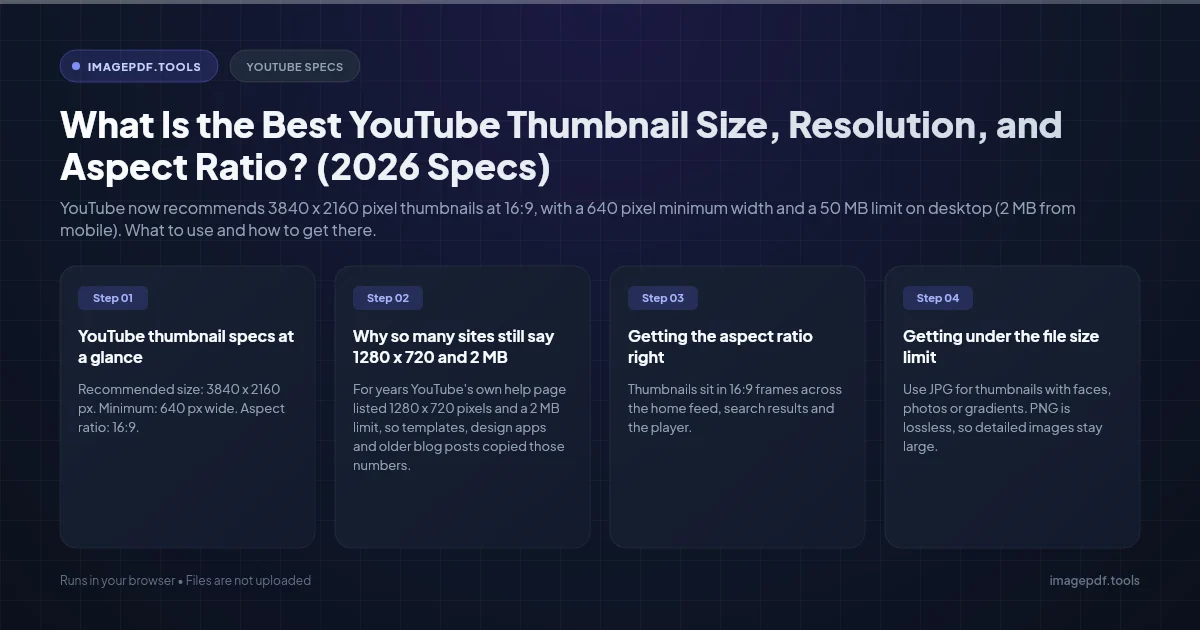
YouTube thumbnail specs at a glance
| Setting | Videos | Shorts | Podcast playlists |
|---|---|---|---|
| Recommended size | 3840 x 2160 px | 2160 x 3840 px | Square |
| Minimum | 640 px wide | 640 px tall | Not stated |
| Aspect ratio | 16:9 | 9:16 | 1:1 |
| Limit, upload from computer | 50 MB | 50 MB | 50 MB |
| Limit, upload from phone | 2 MB | Computer only | 10 MB |
| Formats | JPG or PNG | JPG or PNG | JPG or PNG |
Why so many sites still say 1280 x 720 and 2 MB
For years YouTube's own help page listed 1280 x 720 pixels and a 2 MB limit, so templates, design apps and older blog posts copied those numbers. YouTube has since raised its recommendation to 4K and lifted the desktop limit to 50 MB. The 2 MB cap still exists, but only for video thumbnails uploaded from a phone.
So which size should you use? It depends on where your viewers watch:
- ●1280 x 720 looks fine on phones and laptops, where thumbnails are shown far smaller than that. It is quick to export and easy to keep under 2 MB.
- ●1920 x 1080 is a good middle ground if your design app or stock templates already work at full HD.
- ●3840 x 2160 stays sharp on large 4K TVs, where a thumbnail can fill a big part of the screen. Use it if a lot of your watch time comes from TVs and your computer handles the larger canvas comfortably.
All three are exactly 16:9, so you can design big and export smaller later without cropping anything.
Getting the aspect ratio right
Thumbnails sit in 16:9 frames across the home feed, search results and the player. An image in another shape will not fill the frame, so expect black bars or a crop depending on where it is shown, and text near the edges is the first thing to suffer.
Common 16:9 sizes are 640 x 360, 1280 x 720, 1920 x 1080, 2560 x 1440 and 3840 x 2160. To check any other size, divide the width by the height. The answer should be about 1.78.
If your starting point is a screenshot, a photo or a still from a vertical video, crop it to 16:9 before you add text. Crop Image has a 16:9 preset and runs in your browser, so you can frame the shot and save it in a few seconds.
Getting under the file size limit
At 50 MB, uploads from a computer rarely hit the limit. The 2 MB cap for phone uploads is the one that catches people, especially with a 4K PNG, which can easily run to several megabytes. These steps keep files small without visible loss:
- 1.Use JPG for thumbnails with faces, photos or gradients. PNG is lossless, so detailed images stay large. Keep PNG for flat graphics with few colors.
- 2.Export JPG at a quality of about 80 to 90. Text edges stay clean and the file shrinks a lot compared with 100.
- 3.If you upload from your phone, export a 1280 x 720 copy. At that size a JPG is usually a few hundred kilobytes.
- 4.Check the final size in your file manager before you upload.
If your design app has no quality setting, run the export through Compress Image. You set the JPEG quality, see the new size before you save, and the image is processed on your device, so a thumbnail for an unreleased video is never uploaded anywhere.
What covers parts of your thumbnail
- ●The duration stamp. The video length sits in the bottom-right corner on most surfaces. Keep faces, logos and words out of that corner.
- ●The progress bar. For videos a viewer has partly watched, a red bar runs along the bottom edge.
- ●Hover previews. On some surfaces, hovering or pausing over a video plays a short preview instead of showing your still image.
- ●Small tiles. In search and suggested lists on a phone, the thumbnail is a small tile next to the title. If your words are unreadable when the image is about 2 inches wide, use fewer words in a bigger font.
- ●Dark and light themes. A thumbnail with a near-black or near-white border can blend into the page. A clear edge or contrasting background helps it stand out in both themes.
Before uploading, view the thumbnail on your own phone at the size it will actually appear. It is the quickest way to spot text that is too small.
Testing which thumbnail works
YouTube Studio has a Test & compare feature that lets you add up to three thumbnails to one video. YouTube shows them to different viewers and picks a winner by watch time share, not by clicks alone. A thumbnail that earns clicks but disappoints viewers will not win. The full report is under the Reach tab in YouTube Analytics.
How to upload a custom thumbnail
- 1.Sign in to YouTube Studio on a computer.
- 2.Select Content in the left menu.
- 3.Click the edit icon next to the video.
- 4.Under Thumbnail, click Upload file and choose your image.
- 5.Click Save.
If there is no option to upload a file, your account is not verified yet. Verification is done once, by phone, from the verification page in your YouTube account settings.
Frequently asked questions
Why does my thumbnail look blurry after uploading?
Can I upload a WebP or GIF as a thumbnail?
Why can't I change the thumbnail of a Short from my phone?
Does the thumbnail's pixel size affect how my video ranks?
Why did the YouTube app say my thumbnail is too large?
Sources & references
This article was researched and written by Nikola, drawing on the following primary sources and documentation:
More in Productivity
How to Compress Huge Photoshop PSD Files for Client Email Preview (Export Guide)
How to Convert Scanned PNG Receipts to Searchable PDF With OCR (Tax & Expense Guide)
Why Do Instagram Photos Look Blurry After Uploading and How to Prevent Compression