
Why Do Instagram Photos Look Blurry After Uploading and How to Prevent Compression
Summary
Why Instagram makes sharp photos look soft, and how to stop it: the 1080 px width limit, 4:5 and 3:4 sizes, the Upload at highest quality setting, and clean export settings.
Instagram resizes and re-compresses every photo you post. A photo wider than 1080 pixels is scaled down to 1080, a photo in an unsupported shape is cropped, and the result is saved again as a JPEG at a quality Instagram chooses. On top of that, the app can shrink uploads further when its Upload at highest quality setting is off. You cannot switch compression off, but you can hand Instagram a file it barely needs to change.
The short version: crop to a supported shape, export at exactly 1080 pixels wide in sRGB, turn on Upload at highest quality, and move the file to your phone without a chat app in between. The rest of this post explains each step and why it works.
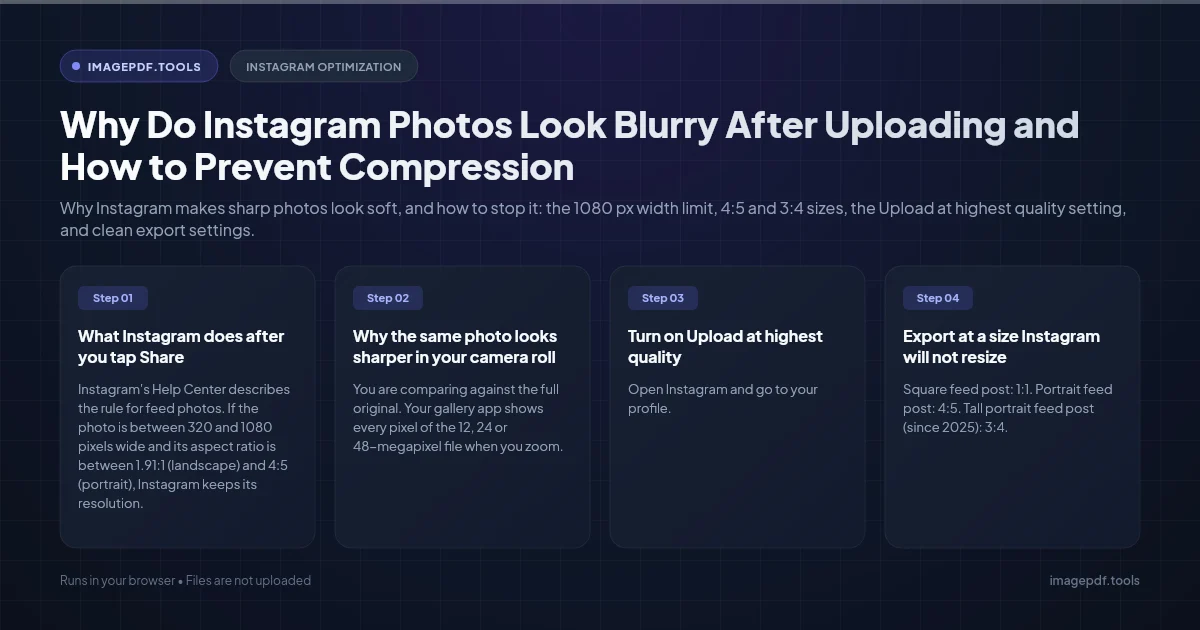
What Instagram does after you tap Share
Instagram's Help Center describes the rule for feed photos. If the photo is between 320 and 1080 pixels wide and its aspect ratio is between 1.91:1 (landscape) and 4:5 (portrait), Instagram keeps its resolution. Wider photos are scaled down to 1080 pixels wide, narrower ones are enlarged to 320, and other shapes are cropped to fit. In mid-2025 Instagram also started accepting 3:4 portrait photos, 1080 x 1440, for single posts and carousels.
Think about what that means for a modern phone or camera file. A 24-megapixel photo is 6000 pixels wide. Instagram shrinks it to less than a fifth of that width with its own resizing method, then compresses the result. Fine detail suffers most: hair, leaves, fabric texture and small text go soft or blocky, and smooth gradients such as a clear sky can break into visible bands.
Why the same photo looks sharper in your camera roll
- ●You are comparing against the full original. Your gallery app shows every pixel of the 12, 24 or 48-megapixel file when you zoom. Instagram only ever stores a 1080-pixel copy.
- ●Your screen may be wider than 1080 pixels. Many recent phones have screens around 1170 to 1290 physical pixels across, so the 1080-pixel copy is stretched slightly to fill the width.
- ●The upload quality setting is off. With it off, or with data saving switched on, the app may send a smaller version to save mobile data.
- ●The file was already compressed before you posted it. Photos sent through WhatsApp or Messenger, saved from another app, or screenshotted have already lost detail. Instagram then compresses them a second time.
- ●Low-light noise. Grain looks like detail to a compressor, so it spends its limited file size on noise instead of on edges. Noisy night shots fall apart fastest.
- ●You zoomed inside Instagram's cropper. Pinching in to reframe a photo in the app crops away pixels, then Instagram enlarges what is left.
Turn on Upload at highest quality
- 1.Open Instagram and go to your profile.
- 2.Tap the menu icon (three lines) in the top right to open Settings and activity.
- 3.Tap Data usage and media quality.
- 4.Turn on Upload at highest quality.
- 5.If Data saver is switched on on the same screen, turn it off while you post photos you care about.
Instagram renames and moves settings from time to time. If you cannot find the screen, type "quality" into the search bar at the top of the settings page. Uploads take a little longer with this setting on, especially over mobile data.
Export at a size Instagram will not resize
| Post type | Aspect ratio | Export size in pixels |
|---|---|---|
| Square feed post | 1:1 | 1080 x 1080 |
| Portrait feed post | 4:5 | 1080 x 1350 |
| Tall portrait feed post (since 2025) | 3:4 | 1080 x 1440 |
| Landscape feed post | 1.91:1 | 1080 x 566 |
| Story | 9:16 | 1080 x 1920 |
In Lightroom Classic, these are the export settings that matter:
- 1.Crop to the aspect ratio first, using the crop tool's ratio presets, so Instagram has nothing to cut off.
- 2.Under Image Sizing, tick Resize to Fit and choose Short Edge for portrait or Width & Height for landscape, set to 1080 pixels.
- 3.Under File Settings, choose JPEG and set Color Space to sRGB. Wide-gamut profiles such as Adobe RGB or ProPhoto RGB can look dull if the profile is dropped or misread anywhere between your computer and someone else's phone.
- 4.Set Quality to somewhere around 85 to 90. Going to 100 only makes a bigger file that Instagram will compress anyway.
- 5.Under Output Sharpening, tick Sharpen For: Screen with the amount on Standard. A small dose of sharpening after resizing survives Instagram's compression better than sharpening applied to the full-size file.
No desktop editor? Use Crop Image, which has 4:5, 3:4 and 9:16 presets, then Resize Image to set the width to exactly 1080 pixels. Both work in Safari or Chrome on your phone as well as on a computer, and the photo is processed on your device rather than uploaded.
Get the file to your phone without losing quality
Many blurry posts are ruined before Instagram ever sees them. Messaging apps shrink photos to save bandwidth, so a carefully exported 1080-pixel JPEG can arrive smaller and blockier.
- ●Good: AirDrop from a Mac to an iPhone, a USB cable, or a file saved to iCloud Drive, Google Drive or Dropbox and opened on the phone.
- ●Avoid: sending the photo to yourself as a photo in WhatsApp, Messenger or a text message.
- ●If you must use WhatsApp: send it as a document instead of as a photo. Documents are delivered as the original file.
Carousels, Stories and reposts
Every image in a carousel is shown in the same aspect ratio, so export the whole set at one size. If one photo is a different shape, Instagram crops it to match the others.
Stories are 9:16. A landscape photo placed in a Story is shown small with space around it, and pinching to make it fill the screen enlarges it, which is where Story blur usually comes from. If a photo matters, make a 1080 x 1920 version for the Story instead of zooming in the app.
Never repost a photo you saved back from Instagram. That copy has already been resized and compressed once, and uploading it again compresses it a second time. Always post from your original export.
Frequently asked questions
Does Instagram compress photos on Wi-Fi too?
Is PNG better than JPEG for Instagram?
Should I upload larger than 1080 pixels just in case?
Why do my colors look different after posting?
Why does my photo look sharp in the preview and soft once posted?
Sources & references
This article was researched and written by Nikola, drawing on the following primary sources and documentation:
Ready to try it?
All tools run entirely in your browser, no uploads, no account required.
Resize ImageMore in Productivity
What Is the Best YouTube Thumbnail Size, Resolution, and Aspect Ratio? (2026 Specs)
How to Compress Huge Photoshop PSD Files for Client Email Preview (Export Guide)
How to Convert Scanned PNG Receipts to Searchable PDF With OCR (Tax & Expense Guide)