How to Remove Hidden Metadata, GPS Location, and Author Info From PDF and Images
Summary
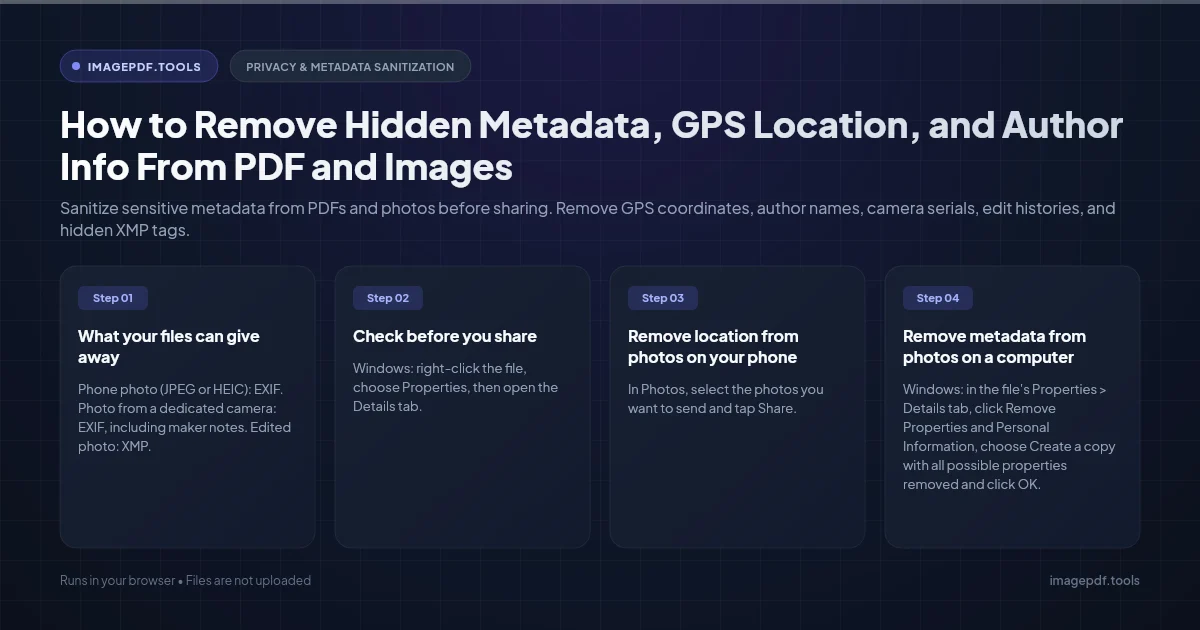
Sanitize sensitive metadata from PDFs and photos before sharing. Remove GPS coordinates, author names, camera serials, edit histories, and hidden XMP tags.
Photos taken on a phone usually carry the GPS position where they were taken, the exact date and time, and the phone model, stored in a block called EXIF. PDFs carry the author's name, the software that made them and creation dates, stored twice: once in the document properties and once in an XML packet called XMP. Neither shows up when you look at the photo or read the pages, but anyone who opens the file's properties can see it.
To remove it from a photo, turn off location when you share from your phone, or run the file through a metadata stripper before you send it. To remove it from a PDF, clear both the properties and the XMP, and make sure the result is saved as a fresh file rather than as an edit on top of the old one. Here is how to check what your files reveal, then how to clean them on each platform.
What your files can give away
| File | Where the data lives | What it can reveal |
|---|---|---|
| Phone photo (JPEG or HEIC) | EXIF | GPS coordinates, date and time to the second, phone make and model, lens and exposure settings |
| Photo from a dedicated camera | EXIF, including maker notes | Camera body and lens, and on many models the camera's serial number |
| Edited photo | XMP | Editing software and, for some editors, a history of saves and edits |
| PDF exported from Word or similar | Document properties and XMP | Author name (often your account name), company, title, creating software, dates |
| PDF edited several times | Incremental updates | Earlier versions of the properties, and sometimes of the content, still inside the file |
| PDF with attachments | Embedded files | Whole spreadsheets or documents that travel inside the PDF without appearing on any page |
The GPS position in a phone photo is usually close enough to identify the building. Share a picture of something you are selling, taken at home, and you may be sharing your address along with it.
Check before you share
- ●Windows: right-click the file, choose Properties, then open the Details tab. GPS appears under its own heading for photos; Authors appears for documents.
- ●Mac: open the photo in Preview, choose Tools > Show Inspector and look for a GPS tab. A map there means the location is embedded.
- ●iPhone: open the photo in Photos and swipe up. A map under the photo means it has a location.
- ●Android: open the photo in Google Photos and swipe up to see its details and location.
- ●PDF: in Acrobat Reader press Ctrl+D (Cmd+D on a Mac) to open Document Properties and look at Author, Creator and Producer. For a fuller picture, the PDF Privacy Scanner lists properties, XMP editing history, attachments, scripts, locations in embedded photos and personal data printed on the pages.
Remove location from photos on your phone
iPhone
- 1.In Photos, select the photos you want to send and tap Share.
- 2.Tap Options at the top of the share sheet.
- 3.Turn off Location, tap Done, then share as usual.
This applies only to that one share, and only when you share from the Photos app. To stop the camera recording location at all, go to Settings > Privacy & Security > Location Services > Camera and choose Never.
Android
Most Android camera apps have a setting called something like Location tags or Save location; turn it off to stop new photos being tagged. Google Photos can remove a location it estimated, but not GPS coordinates the camera wrote into the file. Recent Android versions strip location by default when an app picks photos through the system photo picker, but files you attach to an email or send as a document can still carry it, so strip those first.
Remove metadata from photos on a computer
- ●Windows: in the file's Properties > Details tab, click Remove Properties and Personal Information, choose Create a copy with all possible properties removed and click OK. It handles the common JPEG fields but does not see every tag a file can hold.
- ●Mac: in Preview's Inspector, open the GPS tab and click Remove Location Info, then save. When exporting from the Photos app, leave the location information option unticked in the Export dialog.
- ●Any browser: Remove Metadata strips EXIF, XMP and text chunks from JPEG, PNG and WebP files. It cuts the metadata out of the file directly instead of re-saving the image, so the pixels stay identical. If you want to keep some fields, such as the date, and drop only the GPS, use the Metadata Editor instead.
iPhone photos are often saved as HEIC, which these browser tools do not open. Sharing from Photos to most places converts them to JPEG, or you can set Settings > Camera > Formats to Most Compatible so the camera saves JPEG from the start.
Remove author and hidden data from a PDF
PDFs make this harder in two ways. First, the author and title are stored in two places, and many tools clear only one of them. Acrobat shows the XMP values first, so clearing only the older properties dictionary can look as if nothing happened. Second, many editors save changes by appending them to the end of the file. The old values stay inside, readable by anyone with the right tool.
Fix it at the source in Word
Before exporting, go to File > Info > Check for Issues > Inspect Document, click Inspect, and choose Remove All next to Document Properties and Personal Information. When you save as PDF, click Options in the save dialog and untick Document properties. Comments and tracked changes are worth checking in the inspector too, because they can end up in the PDF.
Clean a PDF you already have
Acrobat Pro has Remove Hidden Information and Sanitize Document in its Redact tool; the free Reader does not. Without Acrobat, the PDF Privacy Scanner removes document properties and XMP history, attached files, JavaScript, and location data in embedded JPEG photos. It rebuilds the PDF from scratch, which also drops older versions hidden in earlier incremental saves. If you only need to change or clear the title and author, Edit PDF Metadata writes both copies together.
Command line with ExifTool
ExifTool removes metadata from photos in one command. For PDFs there is a catch: ExifTool's own documentation says its PDF edits are reversible, because the old data is never actually deleted. Its suggested fix is to rewrite the file with qpdf afterwards:
# photos: remove all metadata in place
exiftool -all= -overwrite_original *.jpg

# PDFs: clear the metadata, then rewrite so the old values are really gone
exiftool -all:all= report.pdf
qpdf --linearize report.pdf report-clean.pdfMetadata is not the only leak. Check the visible content too: a street sign or house number in the background, a reflection, a file name such as smith-settlement-draft3.pdf, or black boxes drawn over PDF text that leave the words selectable underneath. Drawing a shape is not redaction.
Frequently asked questions
Does removing metadata reduce photo quality?
Do Instagram and Facebook remove GPS data from my photos?
Is taking a screenshot a safe way to drop metadata?
Can stripped metadata be recovered?
Should I strip metadata from photos I might need as evidence?
Sources & references
This article was researched and written by Nikola, drawing on the following primary sources and documentation:
- ●Library of Congress, the Exif file format family, including Exif 2.32
- ●Adobe Developer, XMP documentation
- ●ExifTool by Phil Harvey, reading and removing metadata
- ●ExifTool, PDF tags and why PDF metadata edits are reversible
- ●Microsoft Support, remove hidden data and personal information by inspecting documents
Ready to try it?
All tools run entirely in your browser, no uploads, no account required.
Remove Metadata