
How to Check If an Online File Converter Is Safe
Summary
Are online file converters safe? Many upload your files to a server. Learn to spot the risk, verify in-browser processing, and pick a private tool.
You need to compress a batch of images or convert a PDF. You find a free online file converter, drag your files in, and download the result in seconds. Simple, but in those few seconds, your file may have been uploaded to a server in an unknown jurisdiction, processed by code you can't inspect, and stored in a temp directory you have no control over.
For holiday photos that's a minor inconvenience. For a bank statement, medical record, or signed contract, it's a serious privacy risk that most people never consciously evaluate.
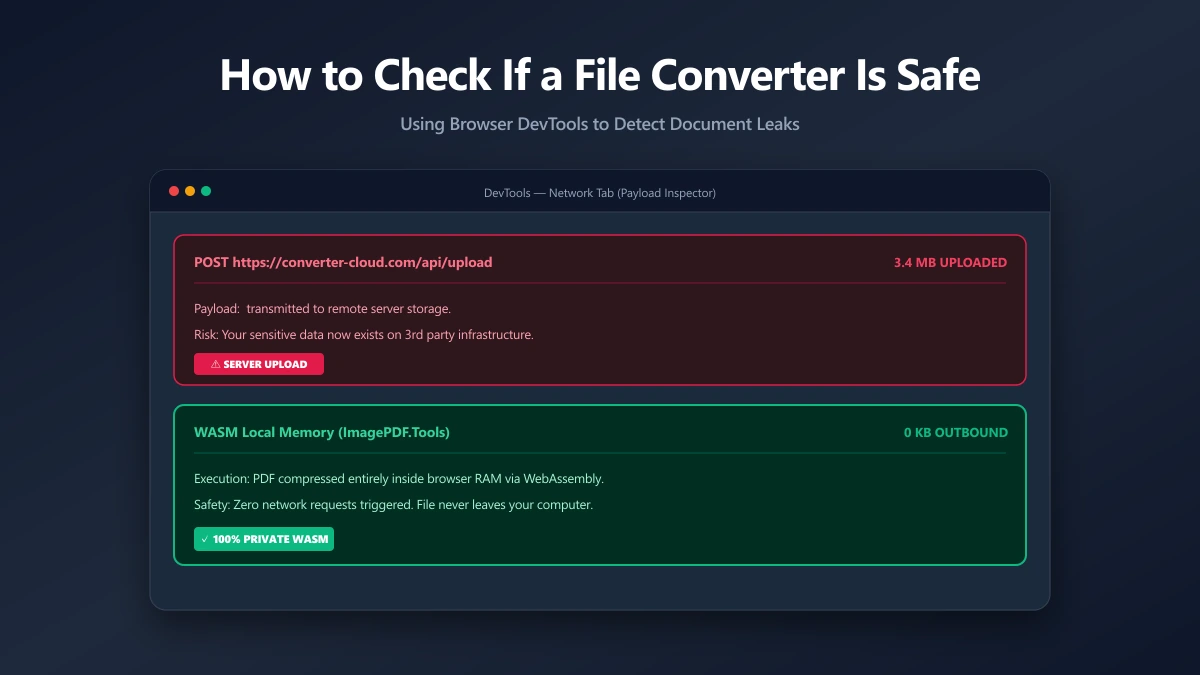
What "Online Processing" Really Means
When a web app converts your file, the computation has to happen somewhere. For the vast majority of tools, that somewhere is a remote server, your browser uploads the raw file over HTTPS, the server does the work, and returns the result. This is server-side processing, and you lose custody of your file the moment you press upload.
The terms of service you skipped almost certainly grant the platform a broad licence to store, analyse, and use uploaded content. Whether they exercise that right is irrelevant, the legal and technical capability exists.
The Jurisdiction Problem: Where Your File Physically Lands
When you upload a file, it doesn't vanish into "the cloud", it lands on a physical server in a specific country, governed by that country's laws. A converter hosted abroad may be legally compelled to disclose stored files to local authorities, regardless of where you live or work.
For anyone handling regulated data, health records, or personal data under the EU's GDPR, uploading a document to a server in an unknown location can itself be a compliance problem. Browser-based processing sidesteps the entire question: if the file never moves, there is no cross-border transfer to justify.
What the Privacy Policy Actually Permits
Most people click "Accept" without reading. But the fine print of a free converter usually reserves rights that would surprise you. Watch for clauses that let the service:
- ●Retain uploads for a stated period "to improve the service", often with no hard deletion guarantee
- ●Share content with third parties, which can include analytics vendors or model-training pipelines
- ●Transfer data internationally to wherever their infrastructure happens to live
- ●Disclaim liability for any breach of the files you handed over
None of these clauses are necessarily sinister. The point is that they describe capability, and once your file is on their server, that capability is real whether or not it is ever exercised.
The Real Risks
- ●Data breaches: If the provider's servers are compromised, every file you uploaded is exposed. Breach databases routinely contain documents from "free" services.
- ●Retention beyond stated policy: Many tools keep uploaded files for 24–72 hours for debugging. Some have no deletion mechanism at all, and verifying deletion is impossible.
- ●Metadata leakage: JPEG and PNG files embed EXIF data, GPS coordinates, device model, timestamps, that gets transmitted alongside your image without you realising.
- ●Content monetisation: Ad-funded tools have financial incentives to analyse content. Models trained on user-uploaded contracts are not a hypothetical.
Verify any "processed in your browser" claim by opening DevTools → Network tab. Drop a file into the tool and watch for outbound requests. If you see a large upload request during processing, your file just left your device.
Why "We Delete After 1 Hour" Isn't Enough
Plenty of tools advertise automatic deletion as a privacy feature. It sounds reassuring, but it quietly concedes the core problem: your file was uploaded, stored, and processed on someone else's machine first. Deletion is a promise made after the risk has already been taken.
You also can't verify it. There is no way for you to confirm a file was actually purged, that no backup snapshot retained it, or that it wasn't copied during processing. A deletion policy asks for trust. Client-side processing removes the need for trust entirely, because nothing is ever uploaded to delete.
Which Files Are Most at Risk?
- 1.Financial documents, bank statements, tax returns, pay slips
- 2.Identity documents, passports, driving licences, utility bills
- 3.Legal documents, contracts, NDAs, court filings
- 4.Medical records, prescriptions, lab results, referral letters
- 5.Business materials, pitch decks, financial models, HR records
Each of these carries more than its visible content. A scanned passport leaks the document and the scanner model and timestamp. A photographed pay slip can carry the GPS coordinates of where it was taken. A PDF contract often embeds the author's name, organisation, and full revision history in its metadata layer, none of which appears on the printed page.
A Real-World Pattern: "Temporary" Storage That Outlives the Task
Security researchers have repeatedly found free file services exposing uploaded documents through misconfigured storage buckets, predictable download URLs, and temp folders that ended up indexed by search engines. The files were meant to be temporary; the exposure wasn't. Once a document leaves your device, its lifespan is no longer in your hands, and the cheaper the service, the weaker the incentive to secure it properly.
Client-Side Processing: The Safe Alternative
There is a fundamentally different way to build a file tool, one where the computation happens on your machine instead of theirs. This is client-side, or in-browser, processing, and for privacy it changes everything. With nothing uploaded, there is nothing to breach, nothing to log, nothing to retain, and nothing for a court to subpoena. The file simply stays where it started. A decade ago this wasn't practical for heavy work like PDF or image compression; today, thanks to WebAssembly, the browser is powerful enough to do it natively, which is exactly why a growing number of privacy-first tools have abandoned the upload entirely.
Modern browsers expose powerful APIs, Canvas, WebAssembly, OffscreenCanvas, FileReader, that allow complex file manipulation to run entirely inside the browser tab. No upload required. These are the same standards-track APIs documented by MDN, not proprietary tricks.
// Client-side compression, the file never leaves your browser
const file = inputElement.files[0];
const bitmap = await createImageBitmap(file);

const canvas = new OffscreenCanvas(bitmap.width, bitmap.height);
canvas.getContext('2d').drawImage(bitmap, 0, 0);

// Compress in-browser, get a local Blob
const compressed = await canvas.convertToBlob({ type: 'image/jpeg', quality: 0.8 });

// Create a local download link, still never hits a server
const url = URL.createObjectURL(compressed);
const a = Object.assign(document.createElement('a'), { href: url, download: 'compressed.jpg' });
a.click();
What Browser-Based Tools Can, and Can't, Do
Client-side processing is more capable than most people expect. In the browser, a tool can compress and convert images between JPEG, PNG, and WebP, resize and crop, strip EXIF metadata, merge and split PDFs, and even run optical character recognition, all without a single byte leaving your device. WebAssembly makes this possible by running near-native code (often the very same engines used server-side) directly in the tab.
The honest limits are worth knowing too. Very large files are bounded by your device's available memory rather than a server farm, and the first visit downloads the processing engine, cached on every visit after, so it can feel marginally slower to start. For everyday documents and images, neither limit is noticeable, and the privacy trade-off runs entirely in your favour.
Server-Side vs. Browser-Based: A Quick Comparison
| Factor | Server-side tools | Browser-based (client-side) |
|---|---|---|
| Where your file goes | Uploaded to a remote server | Never leaves your device |
| Privacy risk | Breaches, retention, logging | None, nothing is transmitted |
| Works offline | No | Yes, once the page has loaded |
| Speed | Limited by upload/download | Instant, no round-trip |
| How to verify | You have to trust the policy | DevTools shows zero uploads |
How to Verify a Converter Is Safe in 30 Seconds
You don't need to read source code to test a tool's privacy claim. This works in any modern browser:
- 1.Open the tool's page, press F12 to open DevTools, and click the Network tab.
- 2.Tick "Preserve log" so requests aren't cleared, then drop in a small test file, never a real sensitive one.
- 3.Watch the request list as the tool processes the file.
- 4.Look for a large outbound
POSTorPUTrequest whose size matches your file, that is your file being uploaded. - 5.See only small script and asset requests, with nothing matching your file size? The tool is processing locally.
How to Choose a Safe Online File Converter
- ●Verify "processed in your browser" claims with DevTools → Network tab
- ●Read the privacy policy for the words "retain" and "delete"
- ●Prefer open-source tools where the code is publicly auditable
- ●For highly sensitive files, use a local desktop app (LibreOffice, GIMP, Ghostscript)
The same logic applies to documents: never drop a contract or bank statement into the first result you find. See how to safely compress sensitive PDFs for a document-specific walkthrough, or read exactly how ImagePDF.Tools processes files in your browser.
When Is a Server-Side Converter Acceptable?
Server-side processing isn't evil, it's just the wrong default for private files. There are cases where it's perfectly reasonable: converting a meme, optimising a stock photo, or processing any file that is already public and contains nothing you wouldn't post openly. If a leak would cost you nothing, the convenience is a fair trade.
The decision comes down to one question: would you be comfortable emailing this file to a stranger? If the answer is no, because it's a contract, an ID, a medical result, or anything tied to your identity or finances, then it belongs nowhere but your own device. Match the tool to the sensitivity of the file, not to whatever happens to rank first in search.
Don't Overlook Converter Apps and Browser Extensions
The risk isn't limited to websites. Plenty of free converter mobile apps and browser extensions quietly upload your files to their own servers too, and they're harder to audit, because you can't simply open DevTools and watch the network tab. Extensions in particular often request broad permissions to read page content and local files.
Before installing one, check exactly what permissions it asks for and whether the developer states where processing happens. When in doubt, a reputable browser-based tool you can verify in 30 seconds is safer than an app whose internals are invisible to you.
The Bottom Line
A safe online file converter is one that never takes custody of your file. Browser-based tools give you that guarantee by design, the work happens on your device, not a stranger's server. When privacy matters, verify before you upload: open DevTools, watch the Network tab, and pick the tool that sends nothing.
ImagePDF.Tools processes everything locally. Open DevTools → Network tab, drop an image, and confirm: zero file upload requests. Try the metadata remover to see what your images expose, or compress a PDF privately right now.
Frequently asked questions
Are online file converters safe?
Can an online converter steal my files?
How do I know if a converter uploads my files?
What is the safest way to convert sensitive files?
Are browser-based converters as good as server tools?
Sources & references
This article was researched and written by Nikola, drawing on the following primary sources and documentation:
Ready to try it?
All tools run entirely in your browser, no uploads, no account required.
Remove Image MetadataMore in Privacy & Security
How to Remove Hidden Metadata, GPS Location, and Author Info From PDF and Images
How to Lock PDF Form Fields Permanently After Signing (Flattening Guide)
How to Fix "At Least One Signature Has Problems" Error in Adobe Acrobat