How to Convert a PDF to Word Without Wrecking the Formatting
Summary
PDF to Word conversions fall apart for a reason rooted in how PDF stores text. Here is why, which setting decides the outcome, and what to fix afterwards.
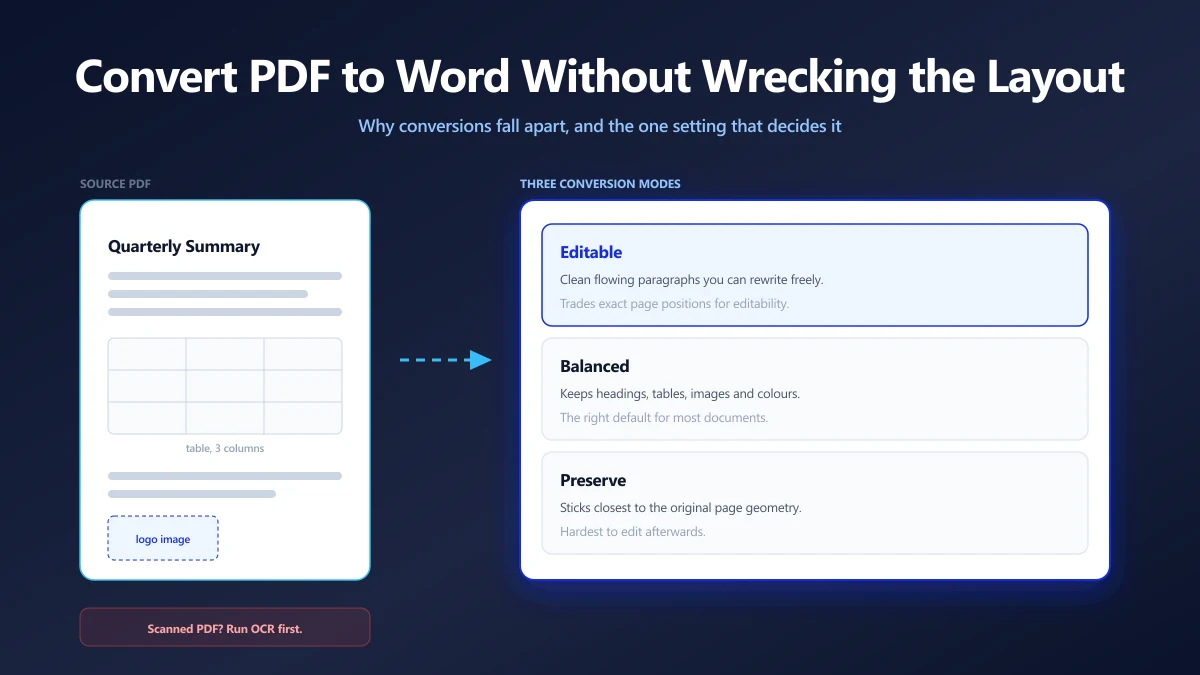
You convert a clean two page PDF to Word. What opens is a mess of text boxes, a table that has become four paragraphs, and a heading that is now body text with a manual size override.
This is not a bug in the converter. It is a direct consequence of what a PDF is, and once you understand that, you can pick a conversion setting on purpose instead of hoping.
Why the Formatting Falls Apart
Word and PDF disagree about what a document is, at the most fundamental level.
A Word file is a description of structure. It says: this paragraph uses Heading 1, this is a three column table, this list is numbered. Word works out the pixels when it renders.
A PDF is a description of appearance. It says: draw the string Quarterly at coordinate 72, 690 in 17 point bold. Then draw Summary at coordinate 148, 690. There is no paragraph. There is no heading. There are positioned glyphs.
| Concept | In a Word file | In a PDF |
|---|---|---|
| A heading | A paragraph with a Heading 1 style | Text drawn at a larger size |
| A paragraph | A block that reflows on resize | A set of independently placed lines |
| A table | Rows, cells and headers | Text at coordinates, plus drawn lines |
| A bullet list | A list with numbering rules | A bullet glyph, then text, per line |
| A page break | Implicit, from content flow | Explicit, a page object |
So a converter is not translating structure. It is inferring structure that was thrown away when the PDF was made. It groups glyphs into words by spacing, words into lines by baseline, lines into paragraphs by leading, and guesses at headings from relative size.
Every one of those steps is a judgement call, and each is where a conversion can go wrong.
This also explains why the original Word file, if you can find it, always beats any conversion. The structure is still in it. Once a document has been through PDF, that information is genuinely gone, not merely hidden.
First, Check Which Kind of PDF You Have
This single check decides whether conversion will work at all, and it takes three seconds.
Open the PDF and try to select one word. If you can highlight just that word, the file contains real text and conversion will work. If the entire page highlights as one block, it is a scan, and there is no text to convert.
A scanned PDF put through a converter produces a Word file containing a picture and nothing else. The fix is to run OCR first to generate a text layer, then convert. Our guide to making a scan searchable walks through it.
A PDF that has been through an image based compressor is effectively a scan, even though it started as text. If find in page used to work on a document and no longer does, compression flattened it. Convert from the pre-compression original if you still have it.
The Setting That Decides Everything
Fidelity and editability pull in opposite directions, and no converter can maximise both. The mode you choose is really a decision about which one you are willing to give up.
Editable Mode
Prioritises a document you can actually work in. Text arrives as ordinary flowing paragraphs with minimal positioning scaffolding, so editing a sentence reflows the rest as you would expect.
The cost is that exact page positions are not reproduced. Choose this when you intend to rewrite the content and the original layout is not the point.
Balanced Mode
Keeps heading levels, detected tables, embedded images, font families and text colours, while still producing paragraphs you can edit normally.
This is the right default for the overwhelming majority of documents, and it is where you should start unless you have a specific reason not to.
Preserve Mode
Stays as close to the original page geometry as the format allows. Use it for forms, certificates, and anything where a shifted element is a real problem.
The cost is real: heavier positioning means editing one line can push things around in ways that feel fragile. Pick this when you need to change a few words in a document that must still look identical.
| Your goal | Mode | Expect to fix |
|---|---|---|
| Rewrite the content entirely | Editable | Heading styles, spacing |
| Update a report and re-export | Balanced | Table edges, a few line breaks |
| Change a name on a certificate | Preserve | Very little, if anything |
| Reuse the text somewhere else | Editable | Nothing, you only want the words |
What Survives, and What Rarely Does
Realistic expectations save you from fighting a converter that is already doing its best.
| Element | How it usually fares | Why |
|---|---|---|
| Body text | Excellent | Characters and positions are explicit |
| Bold and italic | Good | Detectable from font names |
| Text colour | Good | Set explicitly in the content stream |
| Headings | Good | Inferred from relative font size |
| Embedded images | Good | Stored as discrete objects |
| Simple tables | Fair | Inferred from column alignment |
| Merged or nested tables | Poor | The cell structure was never recorded |
| Multi column layouts | Poor | Reading order has to be guessed |
| Headers and footers | Poor | They look like ordinary page text |
| Footnote links | Poor | The relationship is not stored |
The Font Problem
A PDF can embed a subset of a font: only the glyphs the document actually uses. That is excellent for file size and hopeless for reuse, because the subset is not a font you can install and type with.
So a converter reads the font name and maps it to the nearest font on your system. If the original used a licensed typeface you do not have, Word substitutes, and substitution changes character widths. Line breaks move, and a table that fitted on one page now runs onto two.
Nothing is broken. The text is correct. It simply has different metrics, which is the most common reason a conversion feels worse than it is.
A Five Minute Cleanup That Fixes Most of It
Do these in order. They resolve the large majority of complaints about converted documents.
- 1.Turn on formatting marks so you can see paragraph breaks, tabs and spaces. You cannot fix what you cannot see.
- 2.Find the manual line breaks inside paragraphs, a classic conversion artifact, and remove them so the text reflows properly.
- 3.Reapply real heading styles. The converter gave you text that looks like a heading. Word needs it to be a Heading style for navigation, the table of contents and accessibility to work.
- 4.Rebuild anything the converter turned into tab separated text but you need as a real table.
- 5.Set a consistent body font across the document, which fixes the substitution mismatch in one move.
- 6.Check the last page. Trailing artifacts and empty paragraphs collect there more than anywhere else.
Step three is the one people skip and the one that pays back most. Styled headings drive the navigation pane, automatic contents, and the tags in any PDF you export later. Manually bolded text does none of that, which matters if the document has to be <a href="/blog/pdf-accessibility-european-accessibility-act" class="text-violet-600 dark:text-violet-400 hover:underline font-medium">accessible</a>.
When Not to Convert at All
Conversion is sometimes the long way round to something simpler.
- ●You only need the words. Select the text in the PDF and copy it. No conversion required.
- ●You need to reorder or remove pages. That is page organising, done directly on the PDF.
- ●You need to add a note or a stamp. Annotate the PDF in the PDF editor instead of round tripping through Word.
- ●You have the original source file. Always start there. A converted PDF is a lossy reconstruction of it.
- ●You need it smaller, not editable. That is compression.
Doing It Without Uploading
PDF to Word is one of the most frequently searched file conversions, and also one of the most sensitive, because the documents people want to edit are contracts, reports, invoices and CVs.
Our PDF to Word converter does the whole job in the browser. The page content is parsed locally, the .docx is assembled locally, and the file is never transmitted. There is no queue, no account and no upload limit.
Going the other direction works the same way with our Word to PDF converter, which is the better choice when you want a final document rather than an editable one.
Start in Balanced mode, spend five minutes on the cleanup list, and you will get a document you can genuinely work in rather than fight.
Frequently asked questions
Why does my PDF lose formatting when converted to Word?
What is the most accurate way to convert PDF to Word?
Can I convert a scanned PDF to Word?
Why do the fonts change after conversion?
Do tables survive PDF to Word conversion?
Is it safe to convert confidential PDFs online?
Should I convert to Word or just edit the PDF?
Sources & references
This article was researched and written by Nikola, drawing on the following primary sources and documentation: