How to Make a Scanned PDF Searchable (Free OCR, No Upload)
Summary
A scanned PDF is a picture of a page, so find in page returns nothing. How OCR adds a real text layer, and how to check that it worked.
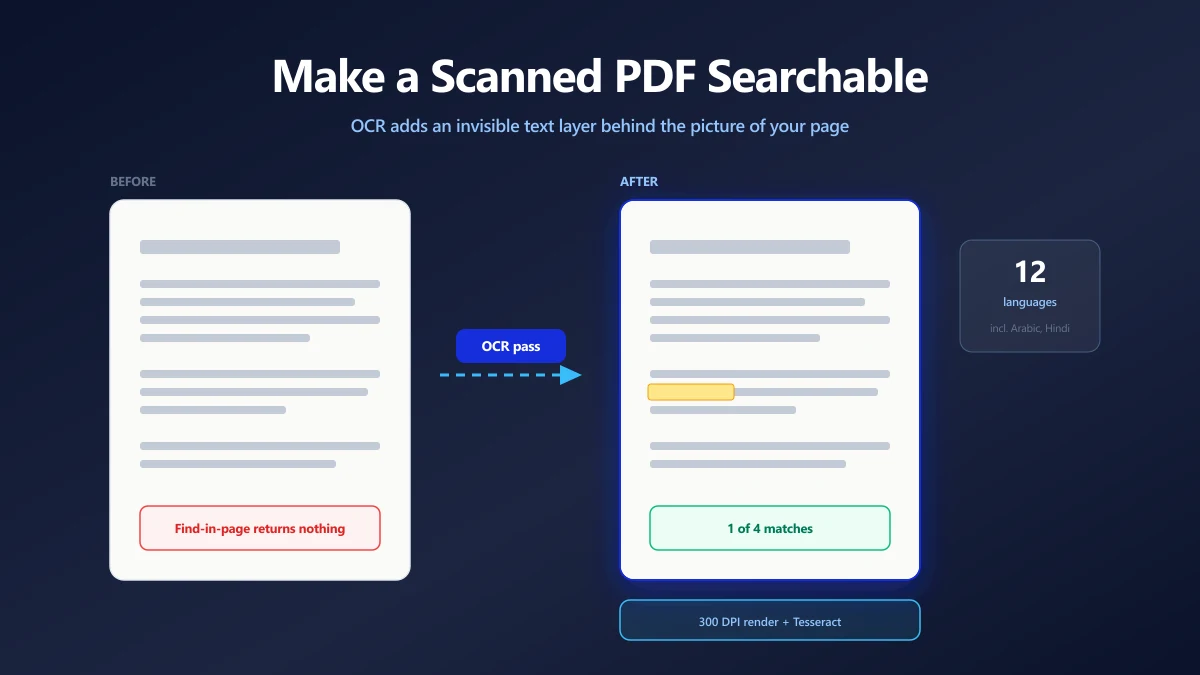
You have a 90 page scanned contract and you need the one clause that mentions termination. You press find in page. Zero results.
The document is not broken and your search is not wrong. The file simply contains no text. It contains photographs of text, and a photograph of the word termination is, as far as your computer is concerned, just a pattern of dark pixels.
OCR, optical character recognition, is the process that fixes this. Here is what it actually does to your file, what makes it succeed or fail, and how to check the result before you trust it.
Why a Scanned PDF Has No Text in It
PDF is a container format. It can hold text objects, vector drawings, and images, and it does not much care which.
When you export a document from Word, every character goes in as a text object with a font, a size and a position. Find in page works because the characters are genuinely in the file.
When you scan a page, the scanner produces one image and the PDF wraps it. The page looks identical to a human. To software it is a single rectangle of pixels with no internal structure at all.
| Capability | Text PDF | Scanned PDF |
|---|---|---|
| Find in page | Works | Returns nothing |
| Select and copy a sentence | Works | Selects the whole image |
| Screen reader can read it aloud | Works | Silent |
| Indexed by search on your drive | Works | Filename only |
| Converts cleanly to Word | Works | Produces an empty document |
| Typical file size, 20 pages | Around 200 KB | Several MB |
Quick test: open the PDF and try to select a single word with your cursor. If the whole page highlights as one block, it is a scan.
What OCR Actually Adds to the File
This is the part most guides skip, and it explains why a searchable PDF still looks exactly like the scan you started with.
OCR does not replace the image. It reads the image, works out where each word sits, and writes those words back into the page as invisible text positioned precisely over the pixels they came from.
The text is rendered in white, or with a rendering mode that draws nothing at all, so you never see it. But it lives in the page content stream, which means find in page, copy and paste, screen readers and desktop search indexers can all reach it.
- 1.Each page is rendered to a high resolution bitmap, typically 300 DPI on a desktop.
- 2.The recognition engine finds text regions, segments them into lines and then into individual words.
- 3.Each word is classified into characters, with a confidence score attached.
- 4.A new PDF is assembled: the original page image as the visible layer, and an invisible text object for every recognised word, placed at the coordinates where that word appeared.
That last step is why word level positioning matters. If the invisible text is laid down as one blob per page rather than per word, search will find the page but highlighting will land in the wrong place, and copy and paste will come back scrambled.
How to Make a Scanned PDF Searchable
- 1.Open the OCR PDF tool and drop your scan in. It runs in the browser, so the document is never uploaded.
- 2.Set the document language. This matters more than anything else you can control, so do not leave it wrong.
- 3.Start the run. Every page is rendered, then recognised, so expect it to take a few seconds per page.
- 4.Save the output, which arrives with a searchable suffix so you can tell it apart from the original.
Keep the original scan. OCR is not perfect, and the original is the record. The searchable copy is a convenience layer on top of it.
On a phone, pages are rendered at a lower resolution to stay within memory limits. For a difficult or dense document, run the OCR on a desktop and you will get noticeably better accuracy.
Getting the Language Right
An OCR engine does not just recognise shapes. It weighs each guess against a language model, which is how it decides that a smudged word is more likely to be modern than rnodern.
Point it at the wrong language and you lose that correction entirely. Accented characters get stripped, and non Latin scripts fail outright because the engine is not even looking for those glyph shapes.
Our tool ships models for English, Hindi, Spanish, French, German, Italian, Portuguese, Russian, Chinese, Japanese, Arabic and Korean, and it preselects one based on your browser language. Check that guess before you run a long document.
Mixed Language Documents
A document that is mostly English with a page of French will still come out mostly usable, because most of the character shapes overlap. A document that genuinely mixes scripts, such as English and Arabic on the same page, is better handled by splitting it first and running each part in its own language.
Our PDF splitter will pull out the relevant pages, and you can merge the results afterwards.
What Decides Whether OCR Works
Recognition accuracy is set almost entirely by the quality of the input. You cannot recover detail the scan never captured.
| Factor | What helps | What hurts |
|---|---|---|
| Scan resolution | 300 DPI or better | 150 DPI, where thin strokes disappear |
| Contrast | Black text on white | Grey text, coloured or textured backgrounds |
| Page alignment | Straight lines | Skew of more than about two degrees |
| Typeface | Plain serif or sans body text | Script, decorative or condensed faces |
| Layout | Single column prose | Dense tables, multi column, footnotes |
| Capture method | Flatbed scanner | Phone photo at an angle, with shadows |
If your source is a compressed PDF whose pages were flattened to JPEG at a low quality setting, the compression artifacts around letter edges will hurt recognition. Run OCR on the cleanest copy you have, not on the version you shrank for email.
What OCR Cannot Do
Being honest about the limits saves you from trusting an output you should have checked.
- ●Handwriting. Standard OCR targets printed type. Cursive and hand printed notes come back as noise.
- ●Rebuild tables reliably. A table may be read row by row or column by column depending on spacing. The words will be findable, the structure usually is not preserved.
- ●Fix a bad scan. If a word is illegible to you at full zoom, the engine will not do better.
- ●Guarantee accuracy. Even good OCR on a clean page makes occasional errors, and it does not flag them in the output.
- ●Make a document accessible on its own. A text layer is necessary for accessibility but nowhere near sufficient, which is covered in our guide to PDF accessibility.
How to Verify the Result Before You Rely on It
Never assume a searchable PDF is accurate just because it opened. Spend two minutes on these four checks.
- 1.Search for a common word that you know appears on many pages, such as the, and confirm hits spread across the document rather than clustering on page one.
- 2.Search for a term that matters to you specifically: a name, an invoice number, a clause heading.
- 3.Select a paragraph and paste it somewhere. Check that the words arrive in reading order rather than jumbled.
- 4.Look at any page that had a table or a stamp on it. Those are where errors concentrate.
Numbers deserve extra care. A misread digit in an invoice total or an account number is far more damaging than a misread word in a sentence, and it is far less obvious when you skim.
Why This Should Happen on Your Own Machine
Think about what actually gets scanned. Passports, bank statements, medical letters, signed contracts, tax paperwork, ID cards. Scanning is overwhelmingly something we do to sensitive documents.
A server based OCR service needs the full document to do its job, which means every page of it lands on infrastructure you do not control, governed by a retention policy you have probably not read.
Browser based OCR removes that question rather than answering it. The recognition engine is compiled to WebAssembly and runs inside your tab. The language model downloads to your browser cache once. Your pages never leave the machine, so there is nothing to retain and nothing to breach.
The trade is speed. Local OCR is slower than a datacentre GPU, and you will feel that on a 200 page document. For most people that is a fair price for the file never leaving the room.
After OCR: What Becomes Possible
A text layer unlocks several things that were simply unavailable before.
- ●Converting to Word now returns real editable paragraphs instead of an empty file.
- ●Desktop search indexes the contents, so the document turns up when you search your drive for a phrase in it.
- ●Screen readers can read the page aloud instead of announcing an unlabelled graphic.
- ●Pulling text out of a single image works the same way if you only need one page.
If a 90 page scan has been sitting in your drive unsearchable for a year, it is a few minutes of work to fix permanently. Open the OCR tool and start with the document you look things up in most.
Frequently asked questions
What does OCR do to a PDF?
How do I know if my PDF is scanned or text based?
Is free OCR accurate enough for real work?
Does OCR make my PDF file bigger?
Can OCR read handwriting?
Which languages can be recognised?
Is it safe to OCR confidential documents online?
Does making a PDF searchable make it accessible?
Sources & references
This article was researched and written by Nikola, drawing on the following primary sources and documentation: