PDF Accessibility and the European Accessibility Act: What Actually Changed
Summary
The EU Accessibility Act has applied since 28 June 2025. Here is what it asks of the PDFs you publish, which standards it points at, and how to check a file.
Most accessibility advice stops at websites. Meanwhile the terms of service, the price list, the user manual and the contract are all PDFs, and for a lot of organisations those documents carry more legal weight than any page on the site.
The European Accessibility Act has applied since 28 June 2025. If your documents are part of how customers in the EU access a covered service, they are in scope.
This is a practical read on what that means for PDFs: which standards actually govern, what a compliant file contains, and what the common quick fixes genuinely achieve.
This is engineering guidance on document structure, not legal advice. Scope, exemptions and penalties are set by each member state's implementing law, so check your own jurisdiction before making compliance decisions.
The Law, in Plain Terms
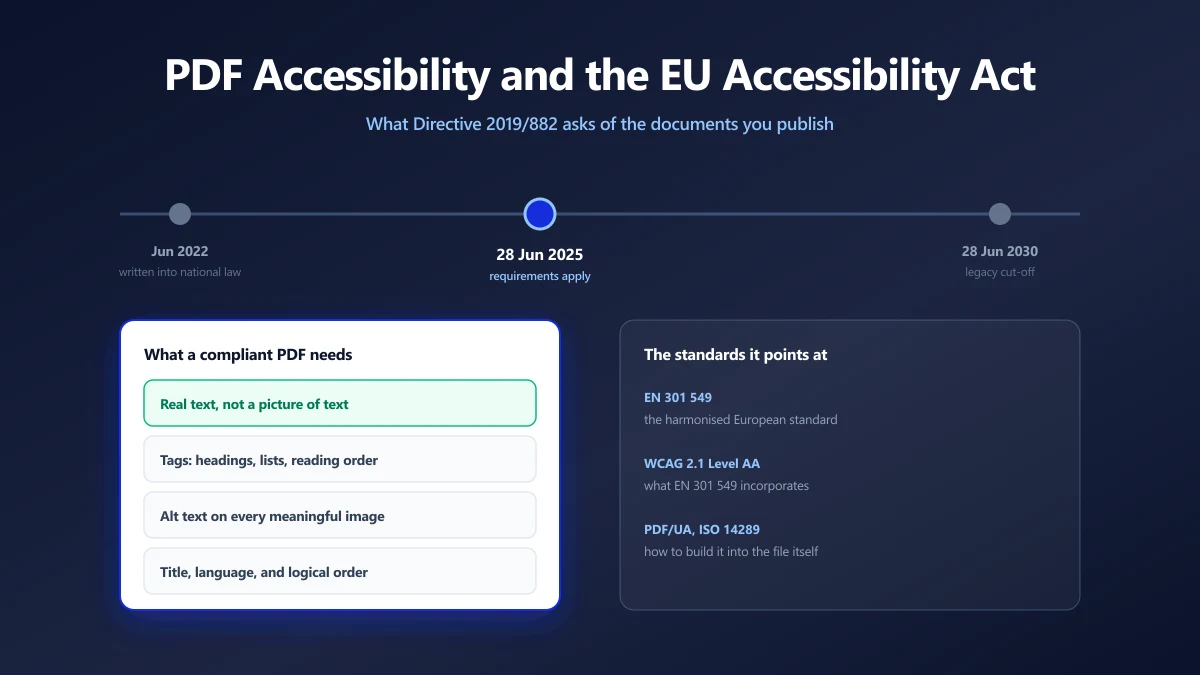
The European Accessibility Act is Directive (EU) 2019/882. Member states had to write it into national law by June 2022, and the requirements have applied to products and services placed on the market since 28 June 2025.
There is a transition tail. Service contracts agreed before that date can continue unchanged until 28 June 2030, and certain self service terminals get a similar grace period tied to their service life. That tail is narrower than people hope, and it does not cover new documents.
The scope is services and products, not organisations in the abstract. E-commerce, banking, e-books, transport and telecoms services are explicitly covered, and so are the electronic documents that form part of delivering them.
| Document | Likely in scope | Why |
|---|---|---|
| Terms and conditions on a shop | Yes | Part of the e-commerce service |
| Bank statements and account documents | Yes | Consumer banking is named in the directive |
| Product manual for a covered product | Yes | Information accompanying the product |
| E-book files and their reader software | Yes | E-books are named explicitly |
| Internal HR policy on an intranet | Generally no | Not consumer facing, though other law may apply |
| Archived PDF from 2014, unchanged | Generally no | Legacy content is treated differently |
Which Standard Actually Applies
The directive states functional requirements rather than technical ones. It says information must be perceivable, operable, understandable and robust. It does not say which file format features to use, and that is deliberate.
The technical detail lives one layer down, in a stack that is worth understanding because the three parts are often confused with each other.
EN 301 549
This is the harmonised European standard for accessibility of ICT products and services. Meeting it gives you a presumption of conformity with the directive, which is the practical route most organisations take. It contains a clause specifically covering non web documents, which is where PDFs land.
WCAG 2.1 Level AA
EN 301 549 incorporates the Web Content Accessibility Guidelines at Level AA. So when someone says the EAA requires WCAG 2.1 AA, that is shorthand for the chain above, and it is accurate enough in practice.
WCAG was written for web content, so some criteria need translating for documents. The W3C publishes PDF specific techniques showing how each criterion maps onto PDF features, and those techniques are the most useful document you can read on this subject.
PDF/UA, ISO 14289
PDF/UA is the format level standard for universal accessibility. It defines how tags, structure and metadata must be built into the file itself. The directive does not name it, but it is the most reliable way to satisfy the WCAG criteria in a PDF, because it describes the mechanism rather than the outcome.
If you want one target to build against, PDF/UA plus WCAG 2.1 AA is the defensible combination.
What a Compliant PDF Actually Contains
Strip away the standards language and a handful of concrete properties are doing all the work.
1. Real Text, Not a Picture of Text
This is the floor. A scanned PDF is an image, and a screen reader announces it as an unlabelled graphic. Nothing else you do matters until the file contains characters.
For born digital documents, export from the source application rather than printing to PDF, which can flatten the page. For scans, run OCR to add a text layer, and read how OCR works so you know what it does and does not give you.
2. Tags That Describe Structure
Tags are the invisible outline that tells assistive technology what each piece of content is: this is a level two heading, this is a list item, this is a table header cell, this is a caption.
Without tags, a screen reader gets a flat stream of characters with no way to jump between sections or understand a table. Text that is merely large and bold looks like a heading to you and reads as an ordinary sentence to a screen reader.
3. A Logical Reading Order
Visual position on the page and order in the content stream are two different things, and they diverge constantly in multi column layouts, pull quotes and sidebars.
A reader that follows the content stream can jump from the end of column one into a caption and then back, producing something that sounds like nonsense. The tag tree defines the intended order, independently of where things sit on the page.
4. Alternative Text on Meaningful Images
Every image that carries information needs a text alternative that conveys the same information. A chart needs its finding described, not the word chart.
Decorative images need the opposite treatment: mark them as artifacts so assistive technology skips them entirely, rather than announcing a meaningless filename.
5. Document Metadata
Two small properties with outsized effects. A document title is what a screen reader announces when the file opens, and without it users hear the filename. A declared language tells the reader which pronunciation rules to apply, and a French document read with English phonetics is close to unintelligible.
You can inspect and correct document level fields with a PDF metadata editor.
6. Contrast and Colour Independence
WCAG 2.1 AA asks for a contrast ratio of at least 4.5 to 1 for body text, and 3 to 1 for large text. Light grey body copy on white, a staple of print design, usually fails.
Colour must also not be the only carrier of meaning. Red figures for losses need a minus sign or a label alongside the colour.
The Quick Fixes, and What They Really Achieve
This is where a lot of budget gets spent on things that do not move the needle, so it is worth being blunt.
| What you do | What it gives you | What it does not |
|---|---|---|
| Run OCR on a scan | A text layer, searchable and readable aloud | No tags, no reading order, no alt text |
| Auto tag in an editor | A starting structure, quickly | Reliable table structure or reading order |
| Add a title and language | Two genuine wins, in seconds | Anything about the content itself |
| Compress the PDF | A smaller file | Nothing, and it can destroy the text layer |
| Publish an HTML version alongside | Often the most accessible outcome overall | It does not fix the PDF |
Be careful with compression. Many PDF compressors work by rasterising each page to an image and re-embedding it. That shrinks the file and simultaneously destroys the text layer, the tags and the alt text. A compressed brochure can go from compliant to unreadable by a screen reader without anything looking different on screen.
If you need a smaller file for an accessible document, compress the images inside the source document before you export, rather than flattening the finished PDF.
How to Check a Document
You do not need a compliance suite to find the majority of problems. Five minutes with the file gets you most of the way.
- 1.Try to select one word with your cursor. If the whole page highlights, it is an image and you start with OCR.
- 2.Open the document properties and confirm the title field is filled and the language is set.
- 3.Use the tags or structure panel in a PDF editor. If it says there are no tags, the file is not accessible regardless of anything else.
- 4.Reflow the document, or open it on a narrow phone screen. Content that jumbles is telling you the reading order is wrong.
- 5.Run the accessibility checker in your PDF editor. Treat its pass as a floor, not a finish line, because no automated checker can judge whether alt text is meaningful.
The single most revealing test is to turn on a screen reader and listen to one page. Problems that look abstract in a checker report become obvious within thirty seconds of listening.
Where Browser Based Tools Fit
Being straightforward about this: a browser toolkit does not make a PDF PDF/UA compliant. Full tagging is authoring work, and it belongs in the tool that produced the document.
What browser based tools do well is the preparation around that work, on documents you may not want to upload anywhere.
- ●OCR to get a text layer onto a scan, which is the prerequisite for everything else.
- ●Convert to Word so you can rebuild the document properly with real heading styles, then export a tagged PDF from there.
- ●Edit document metadata to set the title and language.
- ●Split a large document so remediation can be shared out and reviewed in pieces.
The honest path for a badly structured legacy PDF is usually to rebuild it rather than patch it. Converting to Word, applying real styles, and exporting a tagged PDF produces a better result than hand tagging a flattened file, and it takes less time.
Where to Start
Nobody remediates an entire back catalogue. Sort by what people actually open.
- 1.List the PDFs that are part of delivering a service to customers.
- 2.Rank them by how many people open them, using your own analytics rather than assumptions.
- 3.Fix the top ten properly, all the way to tags and alt text, rather than fixing fifty superficially.
- 4.Change the authoring process so new documents come out tagged, which is the only step that stops the backlog regrowing.
If your documents are scans, the first move is the same regardless of jurisdiction: get real text into them. Start with OCR, then work up the list.
Frequently asked questions
When did the European Accessibility Act start applying to documents?
Does the EAA require WCAG 2.1 AA for PDFs?
Is a searchable PDF an accessible PDF?
What is the difference between PDF/UA and WCAG?
Can compressing a PDF break its accessibility?
Do I have to fix every old PDF on my site?
Is an automated accessibility checker enough?
Sources & references
This article was researched and written by Nikola, drawing on the following primary sources and documentation: