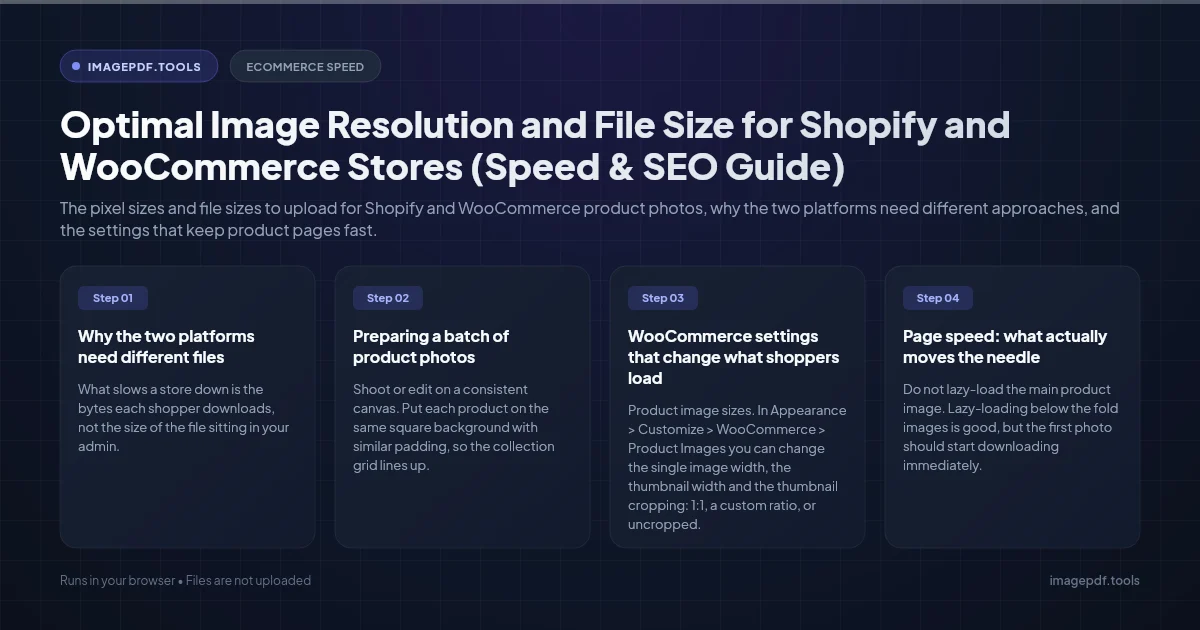
Optimal Image Resolution and File Size for Shopify and WooCommerce Stores (Speed & SEO Guide)
Summary
The pixel sizes and file sizes to upload for Shopify and WooCommerce product photos, why the two platforms need different approaches, and the settings that keep product pages fast.
For both platforms, use square product photos of 2048 x 2048 pixels, all at the same aspect ratio. That is Shopify's own suggestion for square product images and gives sharp zoom on high density screens. The file size advice differs. On Shopify, upload a good quality JPEG or PNG, typically 300 KB to 1 MB, and let Shopify's CDN shrink and convert it for each shopper. On WooCommerce, WordPress serves resized copies of your file with much less help, so compress before uploading, aiming for roughly 150 to 300 KB at 2048 pixels, or 1600 pixels if your theme never shows images that large.
Why the two platforms need different files
What slows a store down is the bytes each shopper downloads, not the size of the file sitting in your admin. The platforms differ in how far they get from one to the other.
Shopify stores your upload and creates whatever size a theme asks for through its image CDN, then picks the best format each browser can display, such as WebP for current browsers. A heavier upload costs you nothing at checkout speed, as long as your theme uses Shopify's image filters. Pre-compressing hard actually hurts here, because Shopify re-encodes your already compressed file and the artifacts stack.
WooCommerce runs on WordPress, which makes a fixed set of resized copies when you upload: the WordPress sizes plus WooCommerce's own. By default those are a 600 pixel wide single product image, 300 pixel square grid thumbnails and 100 pixel gallery thumbnails. WordPress saves resized JPEG copies at a quality of 82 and serves them in the format you uploaded, unless a plugin converts them. Whatever you put in is close to what shoppers get.
| Shopify | WooCommerce | |
|---|---|---|
| Dimensions | 2048 x 2048 px square | 1600 to 2048 px square |
| Format | JPEG for photos, PNG for flat graphics | JPEG or WebP |
| Upload file size | About 300 KB to 1 MB, quality 85 to 90 | About 150 to 300 KB |
| Hard limits | 20 MB, 5000 x 5000 px or 25 megapixels | Set by your host's upload limit |
| Conversion to WebP or AVIF | Automatic | Only with a plugin, or upload WebP yourself |
Preparing a batch of product photos
- 1.Shoot or edit on a consistent canvas. Put each product on the same square background with similar padding, so the collection grid lines up. Shopify's help also recommends a consistent aspect ratio for images shown side by side.
- 2.Export at 2048 pixels square in sRGB. Camera files at 6000 pixels or more only add upload time. Shopify will refuse anything above 25 megapixels anyway.
- 3.Compress to the target for your platform. Compress Image handles JPEG, PNG and WebP files in your browser with a quality slider and a before and after preview, so you can check fabric texture and edges before you save. For WooCommerce, quality around 75 to 82 usually lands near 200 KB for a 2048 pixel photo on a plain background.
- 4.Name files descriptively. linen-shirt-navy-front.jpg beats IMG_4471.jpg for image search and for your own sanity. On Shopify, avoid names ending in words like large or medium, which its CDN can mistake for resize requests.
- 5.Write alt text in the product editor. Describe the item the way a shopper would search for it: color, material, view.
WooCommerce settings that change what shoppers load
- ●Product image sizes. In Appearance > Customize > WooCommerce > Product Images you can change the single image width, the thumbnail width and the thumbnail cropping: 1:1, a custom ratio, or uncropped. If your theme declares its own sizes, only the cropping option appears.
- ●Regenerate after changing sizes. New sizes apply only to new uploads. Run a thumbnail regeneration plugin, or
wp media regeneratewith WP-CLI, so older products get the new copies. - ●The 2560 pixel cap. Since WordPress 5.3, JPEG uploads larger than 2560 pixels on either side are scaled down to a copy ending in -scaled, which becomes the largest size used. The original is kept on the server, taking space but not slowing pages.
- ●WebP. WordPress has accepted WebP uploads since version 5.8. To have JPEG uploads converted automatically, you need a plugin such as the WordPress Performance Team's Modern Image Formats, or your host's image optimizer.
Page speed: what actually moves the needle
On a product page, the main photo is usually the Largest Contentful Paint element, the moment Google measures when it judges loading speed. A good LCP is 2.5 seconds or less for at least 75 percent of visits. Three things matter far more than squeezing the last 10 KB out of a file:
- ●Do not lazy-load the main product image. Lazy-loading below the fold images is good, but the first photo should start downloading immediately. Most current themes get this right; check yours in PageSpeed Insights.
- ●Serve the right size. A 2048 pixel file inside a 300 pixel grid card is the classic waste. Responsive srcset markup, which Shopify themes and WordPress add automatically, solves it if the theme uses them.
- ●Set width and height. Images with declared dimensions or a fixed aspect ratio box do not push the page around while loading, which keeps Cumulative Layout Shift low.
Keep your original high resolution photos outside the store. If a theme change later needs bigger or differently cropped images, you can export new ones instead of upscaling the compressed copies.
Frequently asked questions
Should I upload WebP files to Shopify?
Are transparent PNG product images a good idea?
Is 1000 x 1000 pixels enough for product photos?
Why does PageSpeed Insights still flag my product images?
Sources & references
This article was researched and written by Nikola, drawing on the following primary sources and documentation:
Ready to try it?
All tools run entirely in your browser, no uploads, no account required.
Compress Image