How to Add Bates Numbering to Legal PDF Documents for Court Filing
Summary
How to Bates number PDFs for a production or court filing: choosing the prefix, digits and position, stamping in Acrobat Pro or a free browser tool, and continuing a series later.
A Bates number is a unique label stamped on every page of a set of documents, such as ACME000001, ACME000002 and so on, running continuously across all the files in a production. To add one, put your PDFs in the order they should be numbered, choose a prefix, a number of digits and a starting number, and stamp the label in a corner where it covers nothing. Acrobat Pro has this built in. Our free Bates Numbering tool does the same in your browser without uploading the files, which matters for privileged or confidential material.
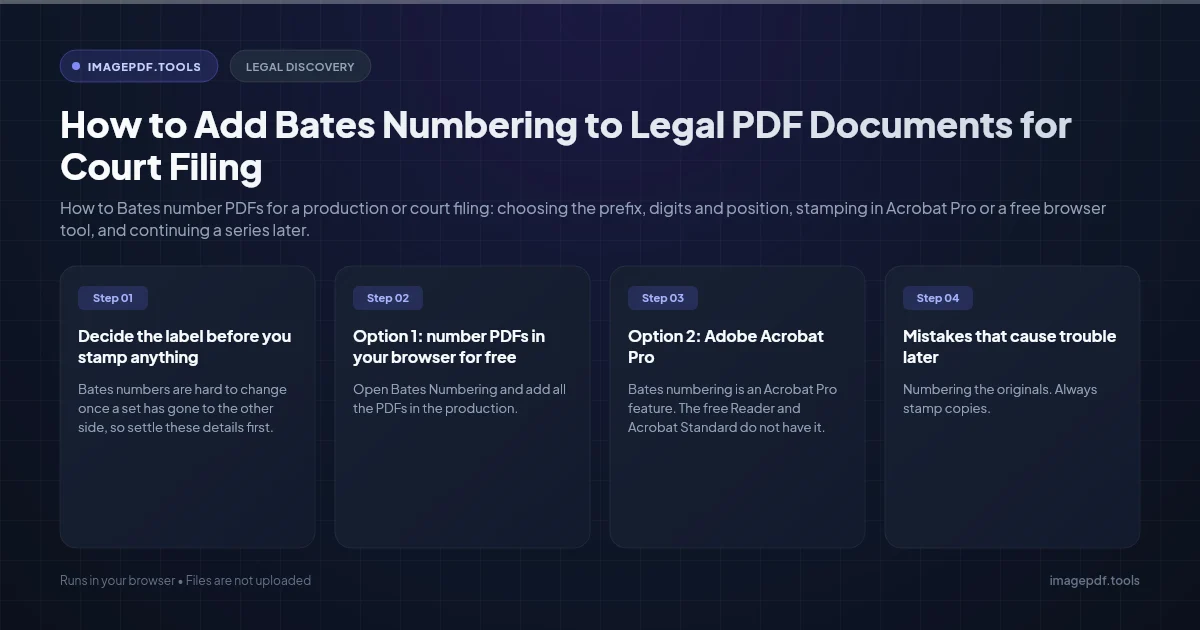
Decide the label before you stamp anything
Bates numbers are hard to change once a set has gone to the other side, so settle these details first. Check your ESI protocol, any case management order and the court's local rules, which sometimes specify the format or placement. Where nothing is specified, the following is common practice.
| Choice | Common practice | Notes |
|---|---|---|
| Prefix | Party or client name, e.g. ACME or SMITH | Some firms add a matter code. Keep it short and plain. |
| Separator | None, hyphen or underscore | ACME000001, ACME-000001, ACME_000001 |
| Digits | 6 for most cases, 7 or 8 for very large productions | Zero padding keeps every label the same width and sorts correctly. |
| Start number | 1 for a first production | Later productions continue from the last number used. |
| Position | Bottom right | Leaves the top clear for the court's filing header and the left clear for binding. |
| Font | Bold sans-serif or Courier, 8 to 12 pt | Readable on a printout without competing with page text. |
The position point matters for anything that ends up on a docket. Federal courts' CM/ECF system adds a header line across the top of every filed page with the case number, document number and page count. A Bates label in the top margin can end up underneath it.
Option 1: number PDFs in your browser for free
- 1.Open Bates Numbering and add all the PDFs in the production.
- 2.Put them in production order with the arrows. Files are numbered top to bottom, and the list shows the range each file will get.
- 3.Enter the Prefix, choose the separator, and set Digits and Start at. If a later label would need more digits than you chose, the tool warns you.
- 4.Pick the Position from the six corners and edges, and adjust the distance from the edges in millimeters if your pages have narrow margins.
- 5.Turn on White box behind the number for dark or busy scans. It keeps the label readable but hides whatever is directly under it, so look at the preview first.
- 6.Choose Helvetica, Times or Courier, the size and the color, then click Add Bates numbers. Save the numbered files individually or together as a ZIP.
Make a note of the next unused number the tool shows after the run. That is where your next production should start. The labels use the standard PDF fonts, so stick to plain letters, digits, hyphens and underscores in the prefix; symbols outside Western European character sets print as question marks.
Option 2: Adobe Acrobat Pro
Bates numbering is an Acrobat Pro feature. The free Reader and Acrobat Standard do not have it.
- 1.Open the Edit PDF tools and choose More > Bates Numbering > Add.
- 2.Add the files or folders in the production and arrange them in order. Acrobat numbers them in the order listed.
- 3.Click Output Options if you want the numbered copies saved to a separate folder or with a changed file name. Keep the originals untouched.
- 4.In the header and footer dialog, click in the box where the label belongs, usually the right footer box, and click Insert Bates Number.
- 5.Set the Number of Digits (3 to 15, default 6), Start Number, Prefix and Suffix. Avoid the # character in the prefix or suffix.
- 6.Set the font, size and margins, check the preview and click OK.
Acrobat cannot add Bates numbers to encrypted or password-protected files. If you have the right to remove the protection, do that first on a copy. To continue an earlier series, enter the next number as the Start Number and reuse exactly the same prefix and suffix.
Mistakes that cause trouble later
- ●Numbering the originals. Always stamp copies. You will need clean files for privilege review, redaction changes or a reproduction.
- ●Renumbering documents that already have numbers. A document produced by the other side keeps their Bates numbers when you use it as an exhibit. Adding a second sequence makes citations ambiguous.
- ●Gaps and duplicates. If a document is withdrawn after stamping, do not reuse its numbers. Note the gap in your production log or privilege log so nobody thinks pages are missing.
- ●Stamping before redacting. Redact first, then number, and make sure the redaction tool removes the underlying text rather than drawing a box over it.
- ●No production log. Record the first and last number of every file and which production it went out in. Our tool and Acrobat both show the ranges, so copy them while they are in front of you.
Confidentiality legends required by a protective order, such as CONFIDENTIAL or ATTORNEYS' EYES ONLY, usually go in a different corner from the Bates number, often bottom left. Add them in the same pass with Acrobat's header and footer boxes, or with a header and footer tool before numbering.
Frequently asked questions
Is Bates numbering required by the Federal Rules of Civil Procedure?
Can Bates numbers be searched in the PDF?
How do I number a spreadsheet or video that is produced in its native format?
Where does the name Bates come from?
Sources & references
This article was researched and written by Nikola, drawing on the following primary sources and documentation:
Ready to try it?
All tools run entirely in your browser, no uploads, no account required.
Bates Numbering