Why Do RAW Photos Look Dull Compared to JPEG Previews in Viewer? (Color Matrix Guide)
Summary
Why camera RAW files look flatter in Lightroom or other viewers than on the camera: the embedded JPEG preview, picture styles, dynamic range settings, and how Camera Matching profiles bring the look back.
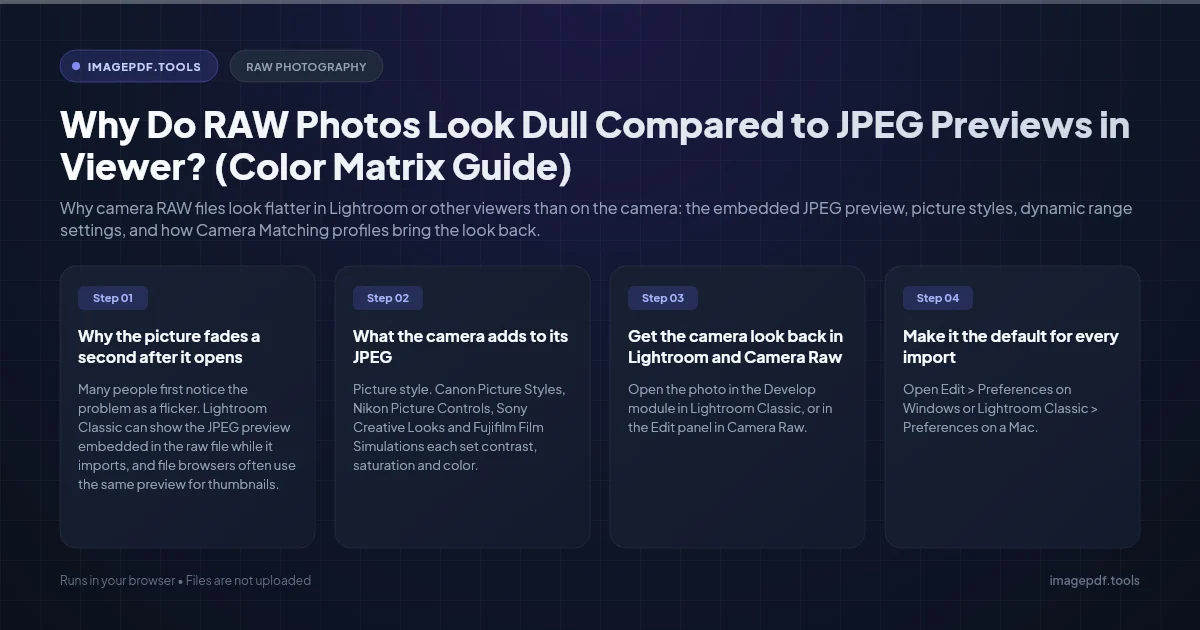
The bright, punchy version you saw on the camera screen is not the raw data. It is a JPEG the camera built from the raw data using your picture style, its own contrast curve, sharpening, noise reduction and any dynamic range setting you had switched on. That JPEG is stored inside the raw file as a preview. When Lightroom, Camera Raw or another converter develops the raw data itself, it ignores most of those in-camera choices and applies its own, usually gentler, default. Nothing has been lost.
In Lightroom and Camera Raw the quickest fix is to change the profile from Adobe Color to one of the Camera Matching profiles, which imitate your camera's picture styles. If the photo also looks darker, a dynamic range feature such as Active D-Lighting or Highlight Tone Priority is the likely reason, and an exposure correction fixes it.
Why the picture fades a second after it opens
Many people first notice the problem as a flicker. Lightroom Classic can show the JPEG preview embedded in the raw file while it imports, and file browsers often use the same preview for thumbnails. When you open the photo in the Develop module, or zoom in, Lightroom renders the raw data with its own settings and the image visibly changes. You are watching one recipe being replaced by another, not the file degrading.
What the camera adds to its JPEG
A raw file records how much light reached each photosite, in a straight linear relationship with no look applied. Every converter has to add a tone curve and color rendering before the picture looks normal. The camera's JPEG engine makes these choices for you:
- ●Picture style. Canon Picture Styles, Nikon Picture Controls, Sony Creative Looks and Fujifilm Film Simulations each set contrast, saturation and color. Settings such as Vivid or Landscape push all three hard.
- ●A stronger tone curve. Camera JPEGs usually have deeper shadows and brighter highlights than a converter's neutral starting point, which reads as more contrast.
- ●Sharpening and noise reduction. The camera sharpens noticeably for a crisp look on its small screen. Lightroom applies only light default sharpening.
- ●Lens corrections. Many cameras correct vignetting and distortion in the JPEG. A converter does this only when a lens profile is enabled, otherwise the corners look darker.
- ●Dynamic range features. Active D-Lighting (Nikon), Auto Lighting Optimizer and Highlight Tone Priority (Canon), DRO (Sony) and the DR settings on Fujifilm protect highlights, in some cases by exposing darker and then brightening the JPEG. Adobe's software does not interpret these settings, so the raw opens darker than the camera preview.
Shooting with a picture style does not change the raw sensor data itself. The style is saved as a note in the file and used to make the preview, and converters other than the manufacturer's own are free to ignore it.
Get the camera look back in Lightroom and Camera Raw
- 1.Open the photo in the Develop module in Lightroom Classic, or in the Edit panel in Camera Raw.
- 2.At the top of the panel, find Profile. New imports usually show Adobe Color.
- 3.Click the four-squares icon to open the profile browser and expand Camera Matching.
- 4.Pick the profile named after the style you shot with, for example Camera Standard, Camera Vivid or Camera Landscape. Fujifilm users see film simulation names such as Camera PROVIA/Standard or Camera Classic Chrome.
- 5.If the photo still looks darker than the camera's preview and you used a dynamic range feature, raise Exposure until the midtones match. Start with about +0.7 to +1 and judge by eye.
- 6.Turn on Enable Profile Corrections in the Lens Corrections panel if the corners look dark or straight lines bow.
If the Camera Matching group is missing, Adobe has not made matching profiles for that model. Adobe Vivid or Adobe Landscape give a punchier start than Adobe Color.
Make it the default for every import
- 1.Open Edit > Preferences on Windows or Lightroom Classic > Preferences on a Mac.
- 2.Go to the Presets tab and find Raw Defaults.
- 3.Set Master to Camera Settings. Lightroom then picks the Camera Matching profile that corresponds to the style recorded in each file. For cameras it has no matching settings for, it falls back to Adobe Default.
- 4.To treat different bodies differently, tick Override master settings for specific cameras and choose a setting per model.
Raw defaults apply to new imports. For photos already in the catalog, select them in Develop and click Reset, which applies the current defaults and also clears any edits you made, so try it on a few copies first.
Other converters behave the same way
Capture One, darktable, RawTherapee and the raw support built into operating systems all make their own starting choices, so none of them will match the camera exactly. The exception is the manufacturer's own software, such as Canon Digital Photo Professional, Nikon NX Studio, Sony Imaging Edge or Fujifilm X RAW Studio. These read the picture style stored in the file and reproduce the camera's JPEG closely, which makes them useful as a reference when you are trying to match a look.
Just want the camera's JPEG? Pull it out of the raw file
If the in-camera version is what you wanted, you can extract the embedded preview without developing anything. ExifTool, a free command-line program, does this in one line. This example from its documentation saves every preview image from the raw files in a folder, adding the preview type to each file name:
exiftool -a -b -W %d%f_%t%-c.%s -preview:all DIRNikon users can save the large JpgFromRaw preview from every NEF in the current folder and its subfolders with:
exiftool -b -JpgFromRaw -w _JFR.JPG -ext NEF -r .Preview size depends on the camera. Some embed a full-resolution JPEG, others a smaller one meant for the screen, so check the pixel dimensions before relying on it for prints. If you regularly want both versions, set the camera to RAW + JPEG.
Preparing the finished photo for sharing
Once you have exported a JPEG from your converter, Compress Image or Convert to WebP can shrink it for a website or email, and Remove Metadata strips the camera serial number, lens data and any GPS position before you post it. These tools work on JPEG, PNG and WebP files in your browser and do not open raw formats such as CR3, NEF or ARW, so export first.
Frequently asked questions
Is the raw file lower quality than the JPEG?
Should I turn off Active D-Lighting or Highlight Tone Priority when shooting raw?
Why do my raws look different in Lightroom and in Canon Digital Photo Professional?
Does my monitor affect how dull the raw looks?
Sources & references
This article was researched and written by Nikola, drawing on the following primary sources and documentation:
Ready to try it?
All tools run entirely in your browser, no uploads, no account required.
Compress Image