
What to Look for in a Private Image Compression Tool
Summary
Most "free" online image tools upload your files to their servers. Here's how to verify in 30 seconds whether a tool is genuinely private and client-side.
You take a photo of a confidential document, a medical record, or a passport. The file is too large for an email attachment. You search for "compress image online," click the first result, drop the file in, and save the compressed version. You've just sent that file to a server you know nothing about, controlled by a company whose privacy policy you didn't read, with no certainty about what they logged, retained, or did with the content.
This isn't a theoretical privacy concern. Your photos embed EXIF metadata including GPS coordinates, the make and model of your device, the timestamp, and sometimes lens information. When a file leaves your browser to a server, all of that metadata travels with it, even if the tool tells you files are "deleted after 24 hours." The exposure happened at transmission, not storage.
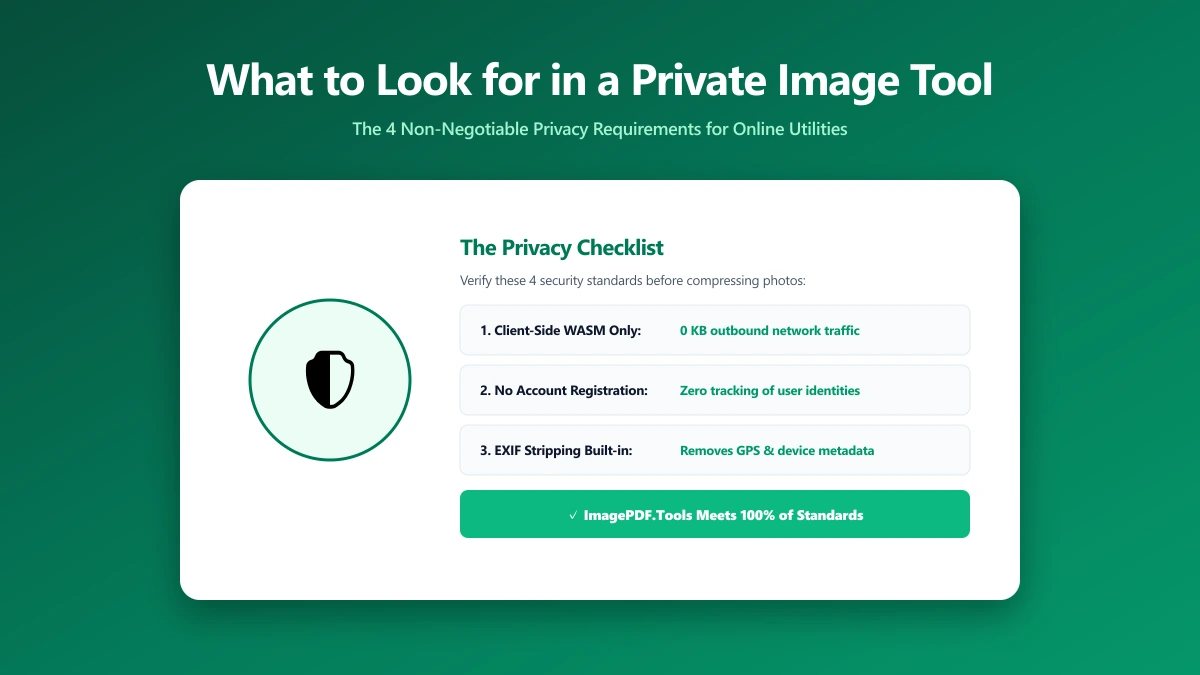
The Core Trust Question: Where Does Processing Happen?
There are exactly two options for any online image tool:
- ●Client-side (in your browser): The compression runs in JavaScript (or WebAssembly) inside your browser. Your file is read from your device into browser memory, processed there, and written back to your device. It never leaves your computer. No server involved.
- ●Server-side (on their infrastructure): Your file is uploaded over the internet to their server, processed there, and sent back to you. The server has full access to your file's content and metadata during this process.
Many tools claim to be "browser-based," "no upload required," or "files never leave your device" while actually uploading files to a server for processing. The claim is easy to make and rarely verified by users. Verifying it yourself takes thirty seconds.
How to Verify Any Tool in 30 Seconds
- 1.Open the tool in Chrome or Firefox
- 2.Press F12 to open Developer Tools → click the "Network" tab
- 3.Clear the existing network log (the circle-slash icon)
- 4.Filter requests to "Fetch/XHR" or leave on "All"
- 5.Drop a file into the tool and watch the network log
- 6.Any request that appears with a payload size close to your file size = your file was uploaded
File size is your fingerprint. If your image is 3 MB and you see a network POST request with ~3 MB of data transfer immediately after dropping the file, that file was uploaded, regardless of what the tool's homepage says. Legitimate client-side tools show only small API requests (analytics, ad scripts), never a request matching your file size.
What EXIF Metadata Reveals in Your Photos
Most photos taken on a smartphone include EXIF metadata that most users never see but image tools always receive. Depending on your device settings and apps, a single photo can contain:
| EXIF field | What it contains | Privacy implication |
|---|---|---|
| GPS coordinates | Latitude and longitude where photo was taken | Reveals home address, workplace, or visited locations |
| Timestamp | Date and time of capture (device local time) | Establishes patterns of movement and activity |
| Device manufacturer / model | iPhone 15 Pro, Samsung Galaxy S24, etc. | Identifies you if correlated with other data |
| Camera serial number | Unique hardware identifier (in some cameras) | Links multiple photos from the same device |
| Software version | iOS 18.2, Android 15, Lightroom 7.3, etc. | Reveals apps used and software versions |
| Copyright / artist | Name or identifier set in camera or editing app | Directly identifiable in professional workflows |
Red Flags in Tool Design
Several design patterns reveal that a tool processes on a server even when it claims otherwise:
- ●A progress bar with an "Uploading..." label before "Processing...", this is explicit confirmation of upload
- ●Processing speed that correlates with your internet speed, client-side processing speed is CPU-bound, not network-bound. If a larger file takes longer on a slow connection, it's being uploaded.
- ●Result URLs pointing to a CDN or external domain (e.g. cdn.tool.com/file/abc123) instead of a local
blob://URL - ●"Files deleted after X hours" notices, this confirms files are stored on their servers. Deletion doesn't undo the transmission.
- ●"Secure upload with 256-bit encryption" badges, genuine client-side tools have no upload to secure; this badge is evidence of server-side processing
- ●An account requirement or file history, persisting your files requires server storage
Green Flags: Signs of Genuine Client-Side Processing
- ●Works offline after the page loads, open the tool, disconnect from the internet, drop a file. If it works, the processing is local.
- ●Result URL is blob:// format, this is a temporary URL created in your browser's memory, not a link to their server
- ●Source maps or open-source code, verifiable implementations can be audited. Look for a GitHub link or open-source license.
- ●WASM or large JavaScript bundles loaded at page start, client-side image processing requires downloading significant code (compression algorithms) upfront
- ●No network activity during file drop in DevTools, the definitive test
What Server-Side Tools Have Access To
When your file reaches a server-side tool, the server operator has access to:
- ●Your IP address and approximate geographic location
- ●The filename of every file you process (often contains identifying information)
- ●The full content of the file, including all embedded EXIF metadata
- ●Your browser fingerprint, User-Agent string, and referrer
- ●Usage patterns: file types, sizes, processing times, and frequency
For most non-sensitive images, this is an acceptable trade-off. For documents, medical images, location-tagged personal photos, or anything that could be personally identifying, it is not.
When Server-Side Is Acceptable
Not all server-side tools are untrustworthy. Large providers with published privacy policies, data processing agreements (DPAs), and audited infrastructure, Adobe Express, Google Squoosh, Cloudinary, have legal accountability and reputational incentives to handle your data appropriately. The risk calculus is different for a service backed by a public company with GDPR and CCPA obligations versus an anonymous "free converter" hosted on a no-name domain with no identifiable owner or privacy policy.
Stripping EXIF Before Sharing: An Extra Layer
Even when you're using a client-side tool, EXIF data in your images is still shared when you send the compressed file to someone else. GPS coordinates, timestamps, and device information are embedded in the file itself, not just transmitted to the tool. Before sharing photos publicly or sending to contacts whose systems you don't control, strip the EXIF.
Our metadata remover strips EXIF from images entirely in your browser. Verify it: open DevTools → Network, use the tool, confirm no file-size network requests. The image compressor also strips EXIF automatically as part of compression, a single step that reduces file size and removes location data simultaneously.
Bottom Line
The most important thing you can do before using any online image tool with sensitive photos is open DevTools → Network and drop a test file. If you see a large outbound network request, your file is being uploaded regardless of what the tool claims. Client-side tools, verified by watching the network tab, not just reading their privacy claims, are the only category safe for sensitive images. For non-sensitive images, server-side tools from accountable providers are an acceptable trade-off if you've read their data handling policies.
Frequently asked questions
How do I know if an image compression tool uploads my files?
Is it safe to compress passport photos or medical documents online?
What is EXIF metadata and why does it matter for privacy?
Does "files deleted after 24 hours" mean the tool is safe?
Can I verify that ImagePDF.Tools doesn't upload my files?
Sources & references
This article was researched and written by Nikola, drawing on the following primary sources and documentation:
Ready to try it?
All tools run entirely in your browser, no uploads, no account required.
Remove Image MetadataMore in Privacy & Security
How to Remove Hidden Metadata, GPS Location, and Author Info From PDF and Images
How to Lock PDF Form Fields Permanently After Signing (Flattening Guide)
How to Fix "At Least One Signature Has Problems" Error in Adobe Acrobat