Converting PNG to WebP: Why Every Website Owner Should Do It
Summary
PNG files are 2–5× larger than WebP at equivalent quality. Learn when to switch, when to keep PNG, and how to migrate your entire image library in minutes.
PNG became the default format for web graphics in the early 2000s, lossless compression, alpha transparency, wide browser support. It was a good choice for its era. But it predates Core Web Vitals, Lighthouse audits, and the reality that 60%+ of web traffic now comes from mobile devices on variable connections.
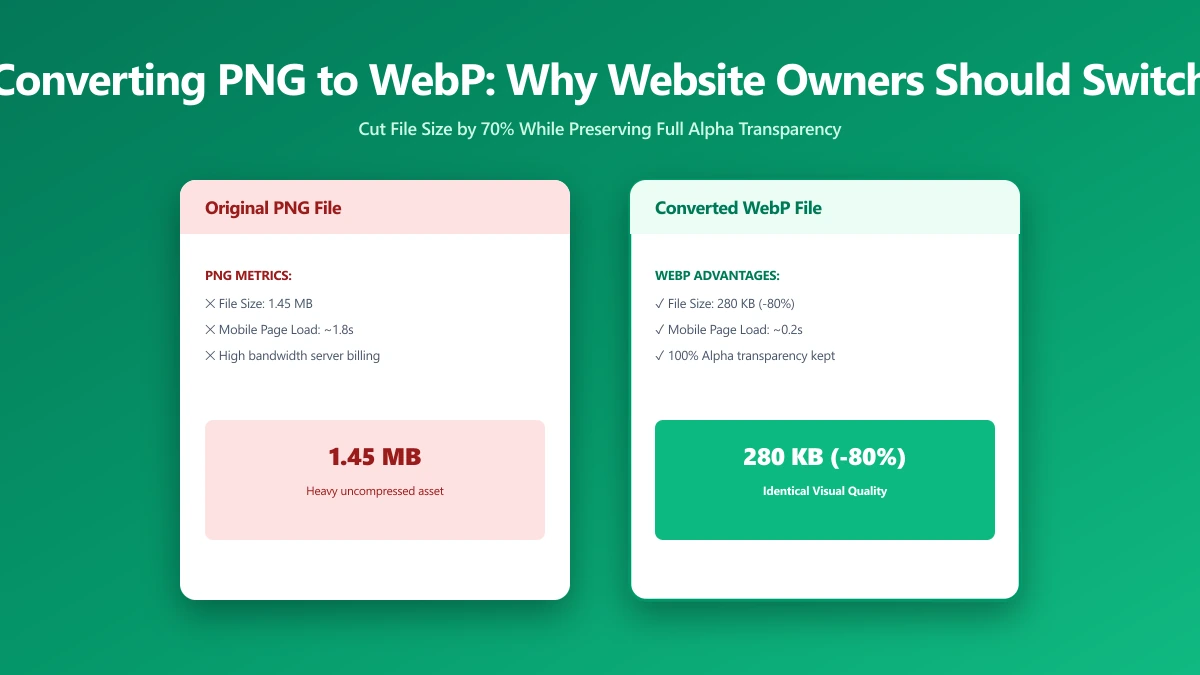
In 2026, serving PNG where WebP would do is leaving a measurable performance gain on the table. WebP is not a new format, it has had near-universal browser support since Safari 14 in 2020. The migration is mature, well-tooled, and the file size savings are consistent: 25–70% depending on image type. On an image-heavy site, that translates directly to faster LCP, lower bounce rates, and less data consumed by your users.
This guide tells you exactly which images to convert, which to leave as PNG, how to migrate your existing library in a single command, and how to measure the impact before and after. If you want to start immediately, our PNG to WebP converter handles it in the browser with no upload required.
PNG vs WebP: The Size Difference by Image Type
The savings vary significantly by content type. Photographic PNGs see the largest gains; graphic/icon PNGs see more modest but still meaningful reductions:
| Content Type | PNG Size (typical) | WebP Lossy | WebP Lossless | Best Option |
|---|---|---|---|---|
| Photo (1200×800) | 900 KB – 2.5 MB | 80–150 KB (−85%) | 350–700 KB (−50%) | WebP lossy q80 |
| Screenshot (1440×900) | 500 KB – 1.5 MB | 80–200 KB (−75%) | 200–600 KB (−55%) | WebP lossless |
| Icon / logo (200×200) | 8–40 KB | 4–15 KB (−60%) | 6–25 KB (−40%) | SVG (if vector) or WebP lossless |
| Illustration (800×600) | 150–600 KB | 40–120 KB (−70%) | 80–300 KB (−50%) | WebP lossy (soft content) or lossless |
| Transparent graphic | 50–300 KB | 15–80 KB (−70%) | 35–200 KB (−40%) | WebP lossy with alpha |
PNG's lossless compression means no quality degradation, but also means no quality-vs-size tradeoff. WebP lossy gives you that tradeoff: at quality 80, it is visually indistinguishable from lossless PNG to the human eye at screen resolution, and consistently 60–80% smaller.
When to Switch to WebP, and When to Keep PNG
| Use Case | Recommended Format | Reason |
|---|---|---|
| Hero photos, banners, product images | WebP lossy (q 75–85) | Maximum size savings; photographic content tolerates lossy compression |
| Blog post images, thumbnails | WebP lossy (q 75–80) | High traffic pages; every KB matters for LCP |
| Illustrations with transparency | WebP lossy with alpha | Smaller than PNG with alpha at same perceived quality |
| Screenshots, UI documentation | WebP lossless or PNG | Hard edges and text must be pixel-accurate |
| Icons and logos | SVG (if vector) | SVG is infinitely scalable; beats both raster formats |
| Logos that must be raster | WebP lossless | Smaller than PNG lossless; same quality |
| Print-quality images (for download) | PNG | PNG lossless is the safe archive format |
| OG/meta images | WebP (check platform support) | Facebook and most crawlers support WebP OG images in 2026 |
Browser Support in 2026
WebP is supported by 97.8% of browsers globally as of 2026. The unsupported cohort is primarily users on iOS 13 and earlier, less than 2% of global traffic, concentrated in markets with older device cycles. For virtually every production website, WebP is safe to serve without a fallback.
If you serve an audience where older iOS versions are a measurable portion of your traffic (check your analytics under Platform → iOS version), serve WebP with a PNG fallback via the <picture> element. Otherwise, plain <img src="image.webp"> is fine.
How to Migrate: Batch Convert with cwebp
Google's open-source cwebp encoder converts PNG to WebP in a single command. Install it once and you can migrate an entire image directory in seconds:
# Install
# macOS: brew install webp
# Ubuntu/Debian: apt install webp
# Windows: download from developers.google.com/speed/webp/download

# Lossy WebP for photographic PNGs (most common case)
for f in images/*.png; do
  cwebp -q 80 "$f" -o "\${f%.png}.webp"
done

# Lossless WebP for graphics, icons, screenshots
for f in icons/*.png; do
  cwebp -lossless "$f" -o "\${f%.png}.webp"
done

# Compare sizes, verify savings before deleting originals
du -sh images/*.png images/*.webp | sort -h

# Batch with quality 80, showing compression stats
find . -name "*.png" -exec sh -c \
  'cwebp -q 80 "$1" -o "\${1%.png}.webp" && echo "Converted: $1"' _ {} \;
Framework Integration: Serve WebP Automatically
The cleanest long-term solution is to let your framework or CDN serve the right format automatically based on the browser's Accept header, no manual <picture> elements needed.
- ●Next.js: the
next/imagecomponent automatically serves WebP or AVIF based on the browser's Accept header. Store one PNG; the optimizer handles format negotiation. - ●Nuxt / Vite: the
@nuxt/imagemodule offers the same automatic format negotiation. - ●Cloudflare Images / Cloudinary / Imgix: pass
f_autoor set format to Auto and the CDN serves WebP to supporting browsers automatically. - ●Apache / Nginx: use content negotiation to serve .webp files when the Accept header includes image/webp. Requires storing both the PNG and WebP versions.
Measuring the Impact
Run PageSpeed Insights on your most image-heavy pages before and after migration. Switching from PNG to WebP typically moves the "Serve images in next-gen formats" Lighthouse audit from red to green and is one of the top three opportunities on most sites.
For the LCP image specifically, your hero image or above-the-fold product shot, the byte savings translate directly into faster load time. On a 4G mobile connection (typical download speed: 25 Mbps), saving 400 KB on the hero image saves approximately 128 ms of transfer time. Combined with a preload hint, this is often enough to move LCP from "Needs Improvement" to "Good".
Migration Checklist
- 1.Audit your image directory, identify all PNGs served in the browser (exclude print-download and archive files)
- 2.Classify each as photographic (use lossy WebP) or graphic (use lossless WebP) or vector (use SVG)
- 3.Batch convert with cwebp at quality 80 for photos, -lossless for graphics
- 4.Compare sizes, verify savings. Spot-check visual quality at 100% zoom
- 5.Update src attributes in HTML/CSS (or enable framework format auto-negotiation)
- 6.Run PageSpeed Insights before and after to confirm improvement
- 7.Archive original PNGs for 30 days before deleting, revert if any edge cases appear
The Bottom Line
PNG served as WebP is the highest-leverage, lowest-risk image optimisation available to most websites. It requires no visual changes, works in every modern browser, and consistently delivers 50–80% file size reduction for photographic content. It is one of those rare improvements that is purely beneficial, faster load, lower bandwidth cost, better Lighthouse score, no downside for 98% of your audience.
Start with your LCP image. Convert it to WebP, update the src, measure the improvement. If the result is good, and it will be, convert the rest. Our PNG to WebP converter handles individual conversions in-browser for quick checks, and bulk PNG to WebP is available for batch jobs.
Frequently asked questions
Is WebP better than PNG for all images?
Does converting PNG to WebP reduce image quality?
Do all browsers support WebP in 2026?
How do I convert a PNG folder to WebP in bulk?
Should I delete PNG files after converting to WebP?
Sources & references
This article was researched and written by Nikola, drawing on the following primary sources and documentation:
Ready to try it?
All tools run entirely in your browser, no uploads, no account required.
Convert Image to WebP