How to Shrink a PDF Under 12MB for USCIS and Other Government Upload Portals
Summary
USCIS and other government portals reject oversized or encrypted PDFs. Here is how to shrink your document under the size limit without losing legibility.
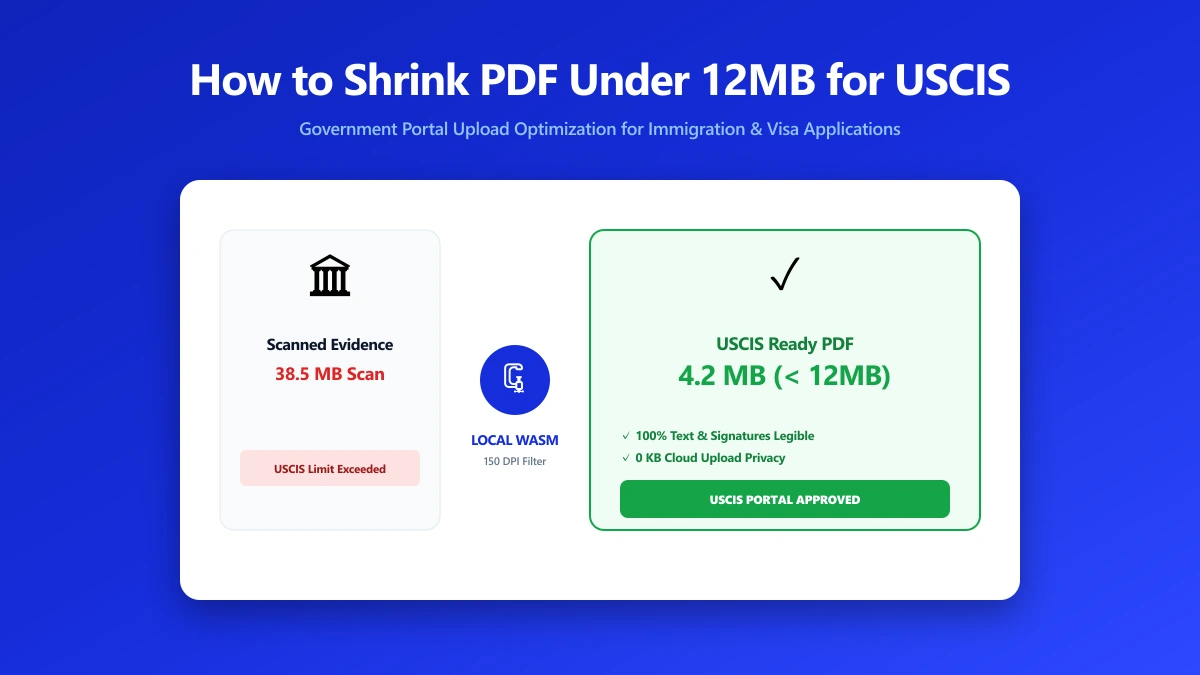
Government upload portals are unforgiving about file size. USCIS enforces a hard cap around 12MB per file, and a scanned supporting document, especially one scanned as a photo rather than through a proper scanner, can easily blow past that.
Here is how to get a document under the limit without making it illegible.
Why Government Portals Reject Large Files
Upload caps on portals like USCIS exist for infrastructure reasons, high-volume government systems need predictable file sizes to handle millions of submissions reliably. The caps are usually strict and non-negotiable, an oversized file is rejected outright rather than accepted and processed slowly.
How to Compress a Document for a Government Portal
- 1.Open the Compress PDF tool and drop in your document.
- 2.Choose a moderate compression setting first, most forms and scanned text documents lose no meaningful legibility at moderate compression, and the size reduction is often dramatic.
- 3.Check the result. If it is still over the portal's stated limit, apply a stronger compression pass, checking legibility again afterward.
- 4.Confirm the file is not encrypted or password-protected before submitting, most government portals reject protected files even if they meet the size limit.
If your document was scanned as a photo (using a phone camera app rather than a proper scanning app or scanner), it is often 5 to 10 times larger than it needs to be for the same visible quality. Compression on these files is usually dramatic with no visible loss.
Typical Government Portal Limits
| Portal type | Typical cap |
|---|---|
| USCIS online filing | Around 12 MB per file, varies by form |
| Federal court e-filing (CM/ECF) | Varies by district, commonly 10–50 MB |
| General state/local government portals | Often 5–25 MB, check the specific portal |
Verify Nothing Was Uploaded
Immigration and legal paperwork is about as sensitive as documents get. Press F12, open the Network tab, compress a test file, and confirm there is no outbound POST request the size of your document.
The Bottom Line
A rejected government upload over a file-size technicality is an entirely avoidable delay. Compress the document, confirm it is under the portal's limit, and submit with confidence. Try it now: compress a PDF, free, with no upload.
Frequently asked questions
What is the USCIS file size limit for online filing?
Why was my document rejected by a government upload portal?
Will compressing my document make it illegible?
Can I submit a password-protected PDF to a government portal?
Is it safe to compress sensitive immigration or legal documents online?
Sources & references
This article was researched and written by Nikola, drawing on the following primary sources and documentation:
Ready to try it?
All tools run entirely in your browser, no uploads, no account required.
Compress PDF