How to Compress a Resume PDF for ATS Without Breaking the Formatting
Summary
Most ATS platforms cap resume uploads near 1MB and reject oversized files outright. Here is how to shrink your resume without breaking the formatting.
A surprising number of rejected applications never get read by a human at all, they get stuck on file size. Most applicant tracking systems (ATS) cap resume uploads somewhere around 1MB.
A resume exported from a design tool with embedded fonts, a headshot, or a background graphic can easily land at 2 to 5MB. Compress it the wrong way, though, and you get blurry text or a layout that reflows badly.
Here is how to shrink a resume PDF without either problem.
Why Resume PDFs Get So Large
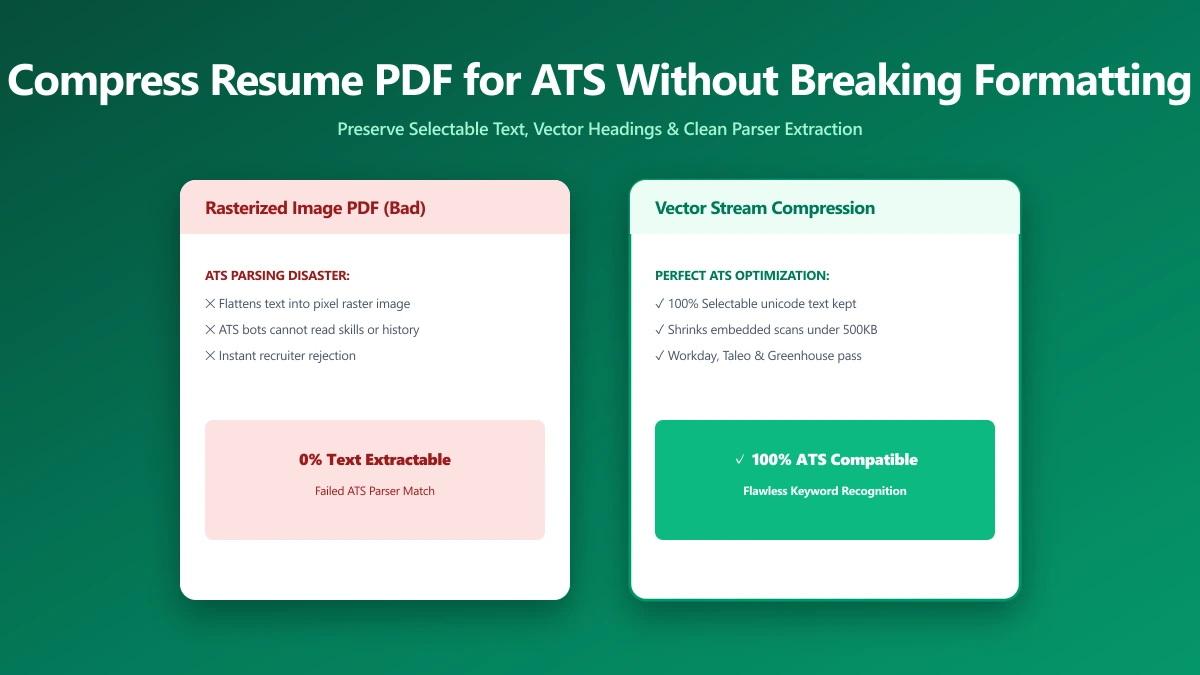
Three things typically bloat a resume PDF: embedded fonts (especially if the template uses several custom typefaces), a photo or headshot saved at full camera resolution, and background images or textured graphics some templates add for visual flair.
None of that adds value an ATS can use. ATS software reads text, not design, and a bloated file just increases the odds of an upload failure.
How to Compress a Resume Without Losing Formatting
- 1.Open the Compress PDF tool and drop in your resume.
- 2.Choose a moderate compression level rather than the most aggressive one. Resumes are mostly text, a light-to-medium setting shrinks embedded images without touching text sharpness at all.
- 3.Save the result and open it to check the layout. Because processing happens in your browser, this takes seconds, so it costs nothing to try two settings and compare.
- 4.If a headshot or photo is still the biggest contributor, consider whether it needs to be there at all, many ATS systems strip images anyway, and some hiring guidance now recommends against including one.
Text-based PDF compression barely touches file size, because text is already compact. If your resume is still large after compressing, the weight is almost always coming from an image or an embedded font, not the words themselves.
What Actually Happens During Compression
PDF compression works primarily by re-encoding embedded images at a lower quality and, depending on the tool, subsetting or compressing font data.
None of this touches the actual text content of your resume, the words, the layout structure, and the selectable text an ATS parser reads stay exactly as they were.
This is why a moderate compression setting is safe for a document that is mostly text and only lightly touched by decorative graphics.
A Quick Size Target
| Platform type | Typical cap | Safe target |
|---|---|---|
| Most corporate ATS portals | ~1–2 MB | Under 1 MB |
| Job boards (LinkedIn, Indeed) | ~2–5 MB depending on format | Under 1 MB regardless |
| Email application (attachment) | Varies by recipient's inbox | Under 1 MB, some mail servers reject larger |
Verify Nothing Was Uploaded
Resumes carry your name, contact details, and work history, exactly the kind of file worth double-checking. Press F12, open the Network tab, compress your resume, and look for a large outbound POST request. There is not one, the file is processed entirely on your device.
The Bottom Line
A bloated resume file is an easy, invisible way to get filtered out before a human ever sees it. Compress it with a moderate setting, keep the text sharp, and confirm the file lands comfortably under 1MB. Try it now: compress a PDF, free, with no upload.
Frequently asked questions
What is the maximum resume file size for most ATS systems?
Will compressing my resume PDF make the text blurry?
Should I include a photo on my resume?
Does compressing a resume PDF change the layout?
Is it safe to compress a resume online given it has my personal details?
Sources & references
This article was researched and written by Nikola, drawing on the following primary sources and documentation:
Ready to try it?
All tools run entirely in your browser, no uploads, no account required.
Compress PDF