How to Convert SVG to PNG Without Losing Transparency or Going Blurry
Summary
Converting SVG to PNG the wrong way can blur your logo or fill transparency with solid white. Here is how to convert it correctly, free, in your browser.
SVG files are vector graphics, infinitely scalable, often used for logos and icons specifically because they stay crisp at any size.
Converting one to PNG, a pixel-based format, needs to happen carefully, get it wrong and you end up with a blurry result, or a transparent background that suddenly turned solid white.
Why This Conversion Can Go Wrong
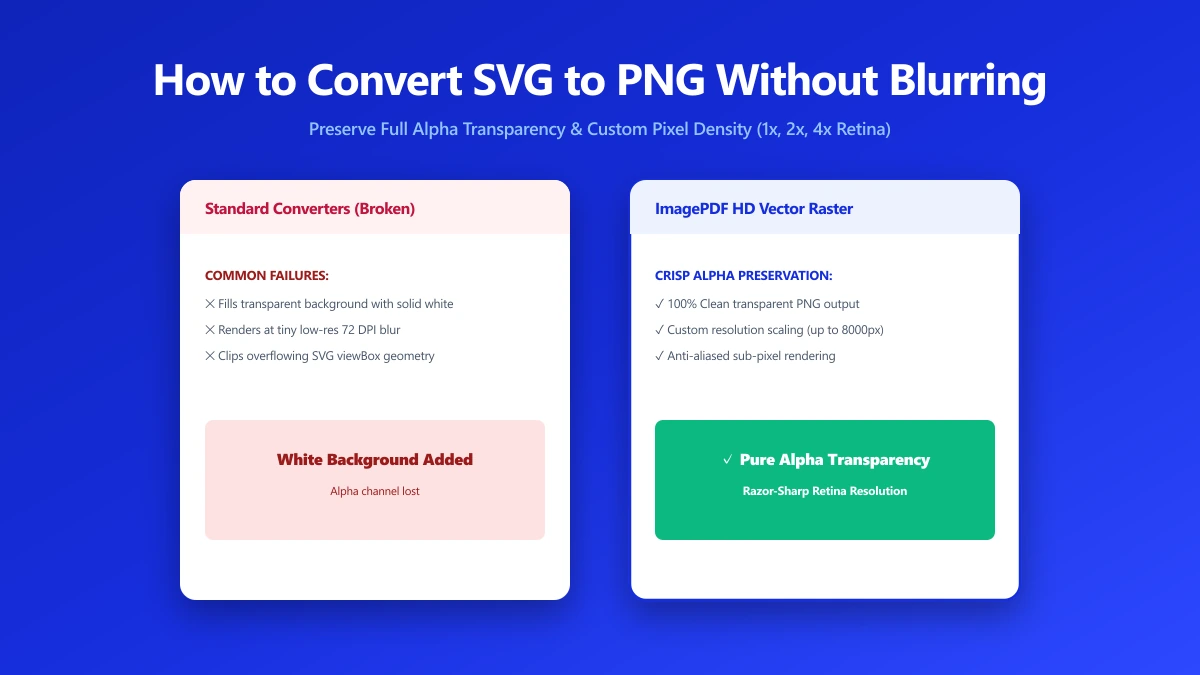
Two things commonly break during an SVG to PNG conversion. First, rendering the vector at too low a pixel resolution produces a soft or blurry result, since PNG is a fixed-resolution raster format and has to "bake in" a specific size.
Second, some converters do not properly preserve the SVG's transparent background, flattening it to solid white or black instead of keeping it transparent.
How to Convert Correctly
- 1.Open the SVG to PNG tool and drop in your SVG file.
- 2.Choose an output size large enough for your intended use, since PNG is fixed-resolution, larger is safer if you are not sure of the final size.
- 3.Save the result and check it against a colored background, not just white, to confirm the transparency was actually preserved and not flattened.
When checking a converted PNG for transparency, open it against a colored or patterned background rather than a plain white page. A flattened-to-white background is invisible against white and only shows up once you place the image somewhere with actual contrast.
Why Resolution Matters More for SVG-to-PNG Than Other Conversions
Because SVG has no fixed pixel size to begin with, the converter has to choose one during export.
Pick too small a target, and the PNG will look soft the moment it is displayed larger than that size, there is no way to recover detail that was never rendered in the first place.
When in doubt, export larger than you think you need, a big PNG can always be resized down without quality loss, but a small one cannot be scaled up cleanly.
Verify Nothing Was Uploaded
Press F12, open the Network tab, convert a test SVG, and confirm there is no outbound POST request the size of your file.
The Bottom Line
Converting SVG to PNG correctly means exporting at a large enough resolution and confirming transparency actually survived. Try it now: convert an SVG to PNG, free, entirely in your browser.
Frequently asked questions
Why does my PNG look blurry after converting from SVG?
Why did my transparent SVG background turn white in the PNG?
What size should I export my PNG at?
Can I convert SVG to PNG without uploading the file?
Is SVG to PNG conversion free on ImagePDF.Tools?
Sources & references
This article was researched and written by Nikola, drawing on the following primary sources and documentation: