DPI vs PPI Explained: Why a "300 DPI" Image Looks Fine Online but Blurry When Printed
Summary
DPI and PPI measure different things, and mixing them up is why sharp on-screen images print blurry. Here is the actual difference, explained clearly.
"DPI" and "PPI" get used as if they mean the same thing, and most of the time that confusion is harmless. It stops being harmless the moment you send a file to print, or wonder why a "300 DPI" image still looks soft on a screen.
Here is what each term actually measures, and why the mix-up causes real problems.
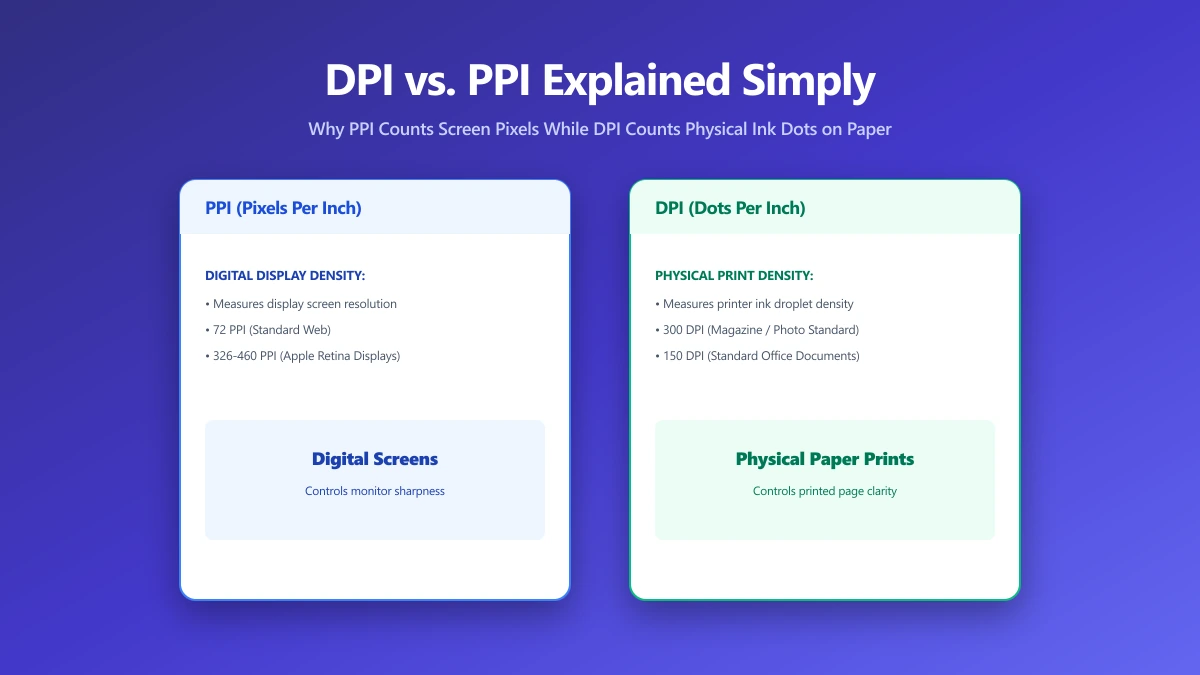
PPI: Pixels Per Inch, a Property of the File
PPI (pixels per inch) describes how densely an image's actual pixels are packed when printed at a given physical size. A 3000×2000 pixel photo printed at 10×6.67 inches is 300 PPI.
Print the same file at 20×13.3 inches instead, and it drops to 150 PPI, half the density, because the same pixel count is now spread over four times the area.
DPI: Dots Per Inch, a Property of the Printer
DPI (dots per inch) is a hardware specification, how many physical ink or toner dots a printer can lay down per inch.
It has nothing to do with your image file directly. A printer's DPI and an image's PPI interact to determine final print quality, but they are not interchangeable numbers.
| Term | What it measures | Where it lives |
|---|---|---|
| PPI | Pixel density of an image at a given print size | A property of the file and the print size you choose |
| DPI | Physical dots a printer can produce per inch | A hardware specification of the printer |
Screens do not use either measurement in the way print does. A 'DPI' setting embedded in an image file is completely ignored by web browsers, on screen, what matters is the pixel dimensions relative to the display, not any DPI metadata.
Why This Causes Real Problems
An image can look perfectly sharp on a screen at any PPI value, screens display exact pixels regardless of embedded metadata.
Send that same file to a printer at a large physical size, though, and if the underlying pixel count is too low for that size, it prints soft or blocky, no matter what DPI number is stamped in the file's metadata.
The metadata is not the problem, the actual pixel count relative to the print size is.
How to Check and Fix This
- 1.Decide the physical print size you need, in inches.
- 2.Multiply by 300 (a standard print-quality target) to get the minimum pixel dimensions required. An 8×10 inch print needs roughly 2400×3000 pixels.
- 3.If your source image is smaller than that, open the Resize Image tool to check its actual pixel dimensions before sending it to print.
- 4.Upscaling a too-small image will not truly fix the problem, it can only stretch existing pixel data, so the safest fix is capturing or exporting at a higher resolution in the first place.
The Bottom Line
PPI is about your image's pixel density at a chosen print size. DPI is about what your printer's hardware can physically produce.
Confusing the two is why a file that looks great on screen can print blurry, the fix is checking actual pixel dimensions against your intended print size, not chasing a DPI number in the file's metadata.
Check your image's dimensions with the Resize Image tool, free, entirely in your browser.
Frequently asked questions
What is the difference between DPI and PPI?
Does DPI matter for images displayed on a screen?
Why does my '300 DPI' image look blurry when printed?
How many pixels do I need for a sharp 8x10 inch print?
Can I fix a low-resolution image by changing its DPI setting?
Sources & references
This article was researched and written by Nikola, drawing on the following primary sources and documentation:
Ready to try it?
All tools run entirely in your browser, no uploads, no account required.
Resize Image