How to Rotate a PDF So the Rotation Actually Sticks
Summary
You rotated the PDF, sent it, and it arrived sideways again. Why viewers rotate the view instead of the file, and how to rotate the document itself.
You opened the scan, hit rotate, read it happily, and emailed it. The reply comes back: why is this sideways?
You did rotate it. The rotation simply never made it into the file, and this catches people out often enough that it deserves an explanation rather than a workaround.
Here is why rotating a PDF in a viewer usually does not stick, what changes when you rotate the document itself, and how to check you actually saved it.
Why Your Rotation Did Not Stick
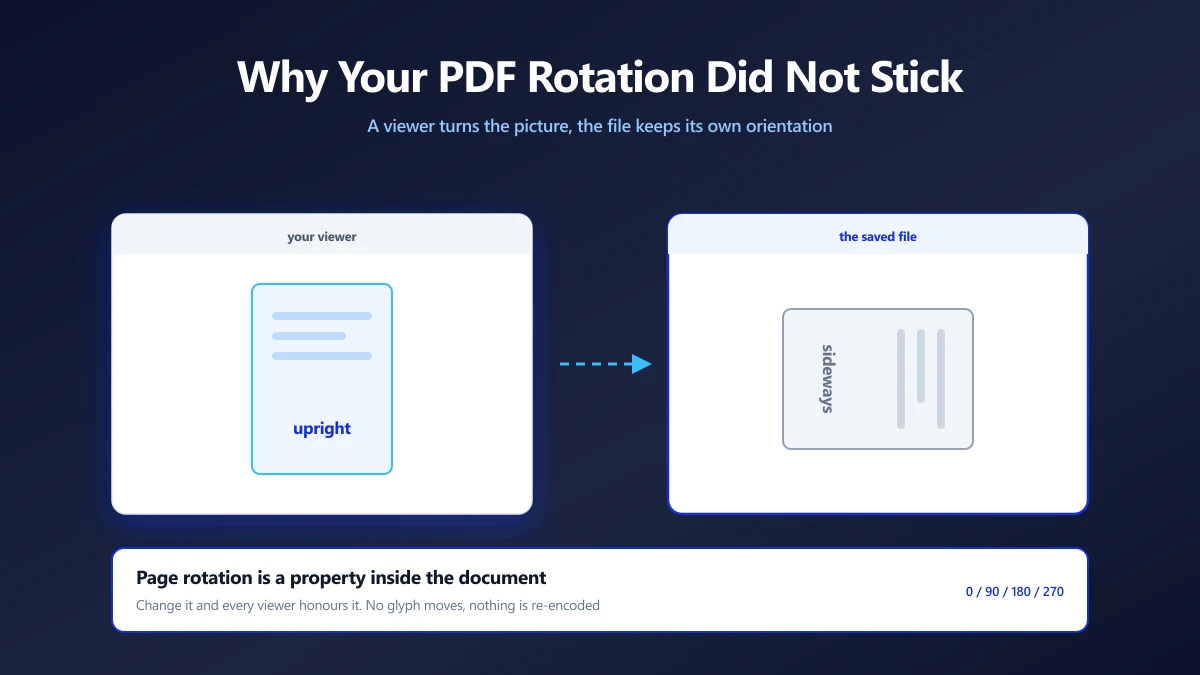
There are two different things a rotate button can mean, and most viewers pick the harmless one.
| Rotation type | What it changes | Who sees it |
|---|---|---|
| View rotation | How the page is drawn on your screen, right now | Only you, until you close the file |
| Page rotation | A property stored inside the document | Everyone who opens it, in every viewer |
Chrome's PDF viewer, most mobile readers and the quick rotate in many desktop apps do view rotation. It is a display preference, not an edit, and nothing is written back to the file.
Quick test: rotate the page, close the file completely, then open it again. If it is sideways once more, you were rotating the view. Nothing was saved because nothing was changed.
What Page Rotation Actually Changes
This is the pleasant surprise. Rotating a PDF properly is one of the cheapest edits in the format.
Each page carries a rotation property, set to 0, 90, 180 or 270 degrees. Viewers are required to honour it when drawing the page. Changing it does not move a single glyph or re-encode a single image: the content stays exactly where it was, and the page is simply presented turned.
- ●No quality loss. Nothing is re-rendered, so text stays selectable and images keep their original encoding.
- ●Effectively no size change. You are changing a number, not the page content.
- ●Universally honoured. The property is part of the PDF specification, so Acrobat, Preview, Chrome and mobile viewers all respect it.
- ●Reversible. Rotate back and you are exactly where you started, with no accumulated damage.
Compare that with rotating a JPEG, where a re-encode can cost quality on every pass unless the tool does a lossless transform. PDF rotation has no such trap.
How to Rotate the Document Itself
- 1.Open the rotate PDF tool and drop your file in.
- 2.Choose the angle: 90 degrees clockwise, 90 degrees anticlockwise, or 180 degrees for a page that is upside down.
- 3.Save the rotated file.
- 4.Close it, reopen it, and confirm it is still upright. That reopen is the step people skip.
This tool rotates every page by the same angle, which is what a whole scan taken sideways needs. For a document where only some pages are wrong, see the next section.
When Only Some Pages Are Sideways
Mixed orientation documents are common: a portrait report with two landscape tables dropped into the middle, or a scan where one sheet went through the feeder the wrong way.
Rotating everything would fix those pages and break all the others. The route through is to separate, rotate and recombine:
- 1.Split out the pages that need turning.
- 2.Rotate that extract on its own.
- 3.Merge everything back together.
- 4.Reorder if the merge left anything out of sequence.
It is three steps rather than one, and all three are lossless, so the document that comes out the far end is no worse than the one that went in.
The Page That Looks Upright But Prints Sideways
This one confuses people for a good reason: two separate things can be rotated, and they can disagree.
A scanner may save a landscape sheet as a portrait page with the image turned inside it, then set the page rotation to make it appear correct. On screen it looks fine. Send it to a printer and you may get the underlying orientation instead, which is why a page can look right and print wrong.
If a page prints sideways no matter what, try rotating it 90 degrees each way and printing a test sheet. One of the two will agree with the printer. Scanning the sheet again in the correct orientation is the cleaner long term fix.
Rotating a Protected PDF
An encrypted document cannot be modified until it is decrypted. If your PDF asks for a password before it opens, remove the password first, using the password you already have, then rotate the unlocked copy.
Why Do This in the Browser
The documents that arrive sideways are scans, and scans are passports, bank letters, signed contracts and medical forms. It is a category worth keeping on your own machine.
Rotating in the browser means the file is read locally, the rotation property is changed in memory, and the new file is written to your downloads folder. For an edit this small, uploading a whole document would be an odd trade.
Rotate the File, Not the View
If a rotation keeps disappearing, you were changing how a viewer displays the page rather than the page itself. Rotating the document writes a property that every viewer honours, costs no quality, and barely touches the file size.
Rotate, save, then close and reopen to confirm. Open the rotate tool and drop your sideways scan in.
Frequently asked questions
Why does my PDF rotation not save?
Does rotating a PDF reduce quality?
How do I rotate only one page of a PDF?
Will a rotated PDF display correctly everywhere?
Why does my PDF look upright on screen but print sideways?
Does rotating change the file size?
Can I rotate a password protected PDF?
Sources & references
This article was researched and written by Nikola, drawing on the following primary sources and documentation: