Why Your PNG Gets a White Background When You Convert It to PDF (and How to Fix It)
Summary
Convert a transparent PNG to PDF and get a solid white box instead? PDF has no native alpha channel like PNG. Here's why it happens and how to fix it.
A transparent PNG logo looks perfect until you convert it to PDF, and suddenly there is a solid white (or occasionally black) box where the transparency used to be.
This is not a conversion bug, it is a real structural difference between how PNG and PDF handle transparency, and understanding it is the only way to actually work around it.
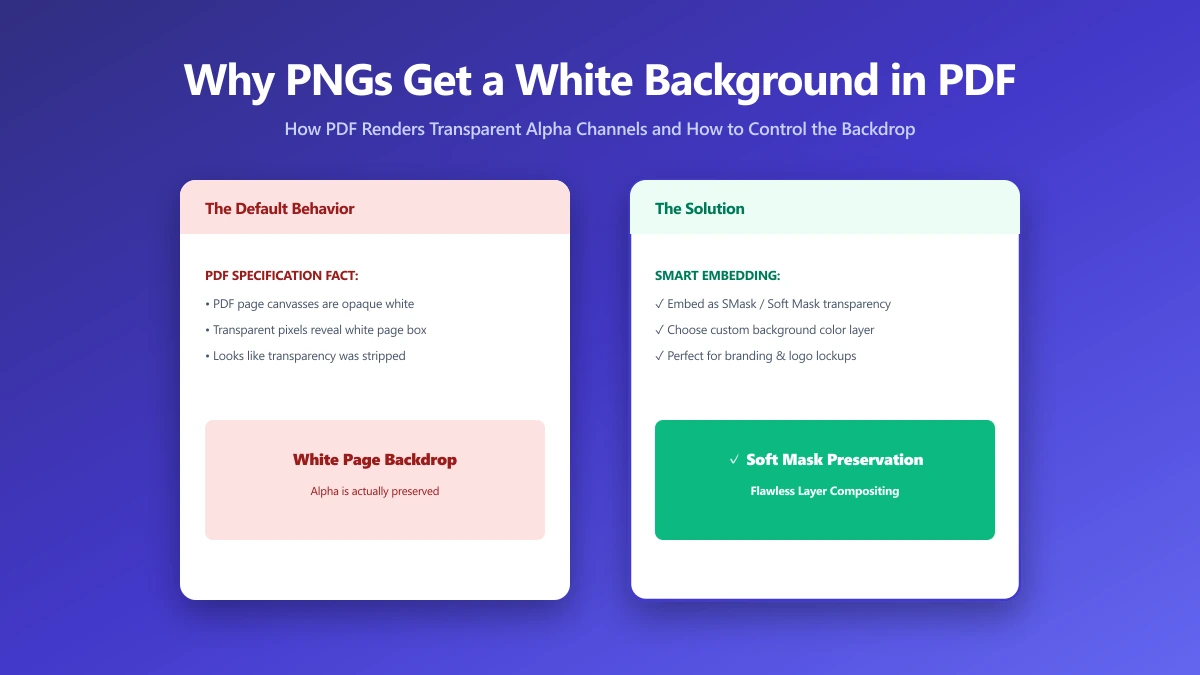
Why PDF Handles Transparency Differently
PNG has a genuine alpha channel, per-pixel transparency data baked into the file format itself. PDF's page content model is fundamentally different.
A PDF page is a flat, printable canvas, and while modern PDF does support transparency in limited ways, converting an image into a PDF page frequently flattens any alpha channel onto a solid background, because the conversion process is built around producing a printable, opaque page.
This is not unique to any one tool, it is a structural mismatch between the two formats' core design. A PDF page assumes a solid, printable surface, PNG assumes a possibly-transparent layer meant to sit on top of something else.
How to Work Around It
- 1.If the PDF only needs to be viewed on screen, place the PNG onto a matching solid background color yourself before converting, so the flattening happens intentionally rather than defaulting to white.
- 2.If you need the transparency preserved for further editing, keep the file as a PNG rather than converting it, and only convert to PDF at the final step, once the artwork is complete.
- 3.For a PDF containing a logo on a colored page background, add the background color as part of the PDF layout itself, rather than relying on the PNG's own transparency to show through.
When This Actually Matters
This shows up most often with logos, icons, and graphics being combined into a PDF report, proposal, or letterhead.
Converting a logo with a transparent background using the Image to PDF tool and expecting it to sit cleanly over an existing colored page design is the most common place this issue appears.
The Bottom Line
A white background appearing where transparency used to be is not a bug, it is PDF's page model asserting itself. Plan for it by compositing onto the intended background before conversion, rather than assuming transparency will carry through automatically.
Try it now: convert an image to PDF, free, entirely in your browser.
Frequently asked questions
Why does my transparent PNG turn white when converted to PDF?
Can I keep transparency when converting PNG to PDF?
Is this a bug in the conversion tool?
How do I add a logo with a transparent background to a PDF cleanly?
Does this happen with JPG too?
Sources & references
This article was researched and written by Nikola, drawing on the following primary sources and documentation:
Ready to try it?
All tools run entirely in your browser, no uploads, no account required.
Image to PDF