Should I Send My Resume as a PDF or Word Doc?
Summary
PDF or Word for your resume? Most recruiters and applicant tracking systems prefer PDF, but a few situations still call for a Word document.
It's a small decision with real consequences: send your resume as a Word document and your carefully aligned formatting can shift on someone else's computer. Send it as a PDF and, on rare older systems, it can be harder to parse.
For most applications in 2026, one format is the safer default. Here's when to use it, and when Word is still the better call.
Why Most Experts Recommend PDF
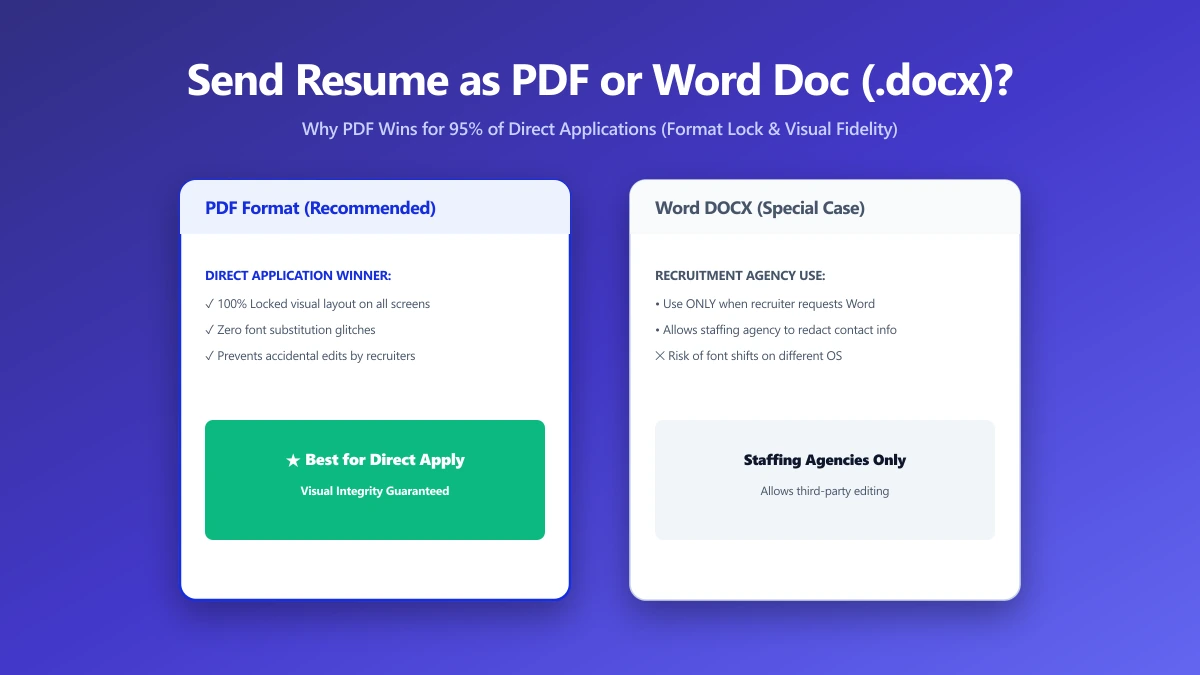
A PDF locks in your layout exactly as designed, fonts, spacing, and columns look identical no matter what device or software opens it. A Word document depends on the reader having the same fonts installed, and can reflow unpredictably between Word versions.
Modern applicant tracking systems, including Workday, Greenhouse, and Lever, parse PDF resumes reliably. The old advice to always use Word for ATS compatibility is largely outdated for current versions of major platforms.
When Word Might Still Be the Right Call
- ●The job posting explicitly requests a .doc or .docx file, some do, and it's worth following exactly.
- ●A recruiter or staffing agency asks to edit your resume directly before submitting it to a client.
- ●You're applying through a government or older enterprise portal that specifies Word format in its instructions.
When in doubt, check the job posting or application form for explicit instructions first, they override any general rule of thumb.
PDF vs Word for a Resume
| Factor | Word (.docx) | |
|---|---|---|
| Formatting stays consistent | Yes, on any device | Can shift between versions and fonts |
| Modern ATS compatibility | Yes, for major platforms | Yes |
| Easy for a recruiter to edit | No | Yes |
| Looks polished when opened | Consistently | Depends on the reader's software |
| Default recommendation | Use unless told otherwise | Use only if specifically requested |
How to Convert Your Resume to PDF
- 1.Finish formatting your resume in Word, exactly as you want it to appear.
- 2.Open the Word to PDF tool and drop in your .docx file.
- 3.Save the converted PDF and open it once to confirm the layout, fonts, and spacing all look right.
- 4.Attach the PDF version to your application, keeping the original .docx saved for any edits later.
The Bottom Line
Default to PDF unless a job posting specifically asks for Word, it protects your formatting and is fully compatible with modern applicant tracking systems. Keep an editable .docx copy on hand in case a recruiter requests one.
Ready to convert? Turn your Word resume into a PDF free, entirely in your browser.
Frequently asked questions
Should I send my resume as a PDF or Word document?
Do applicant tracking systems read PDF resumes correctly?
Why does my resume look different when someone else opens it?
Can I convert my resume from Word to PDF for free?
Is it safe to convert a resume online?
Sources & references
This article was researched and written by Nikola, drawing on the following primary sources and documentation: