sRGB vs Adobe RGB: Why Your Photos Look Dull the Moment You Upload Them
Summary
Edit in Adobe RGB and your photos can look dull the moment they're uploaded, since the web assumes sRGB. Here is the one export setting that fixes it.
A photo can look rich and saturated in your editing software and then turn noticeably flatter the second it is uploaded to the web.
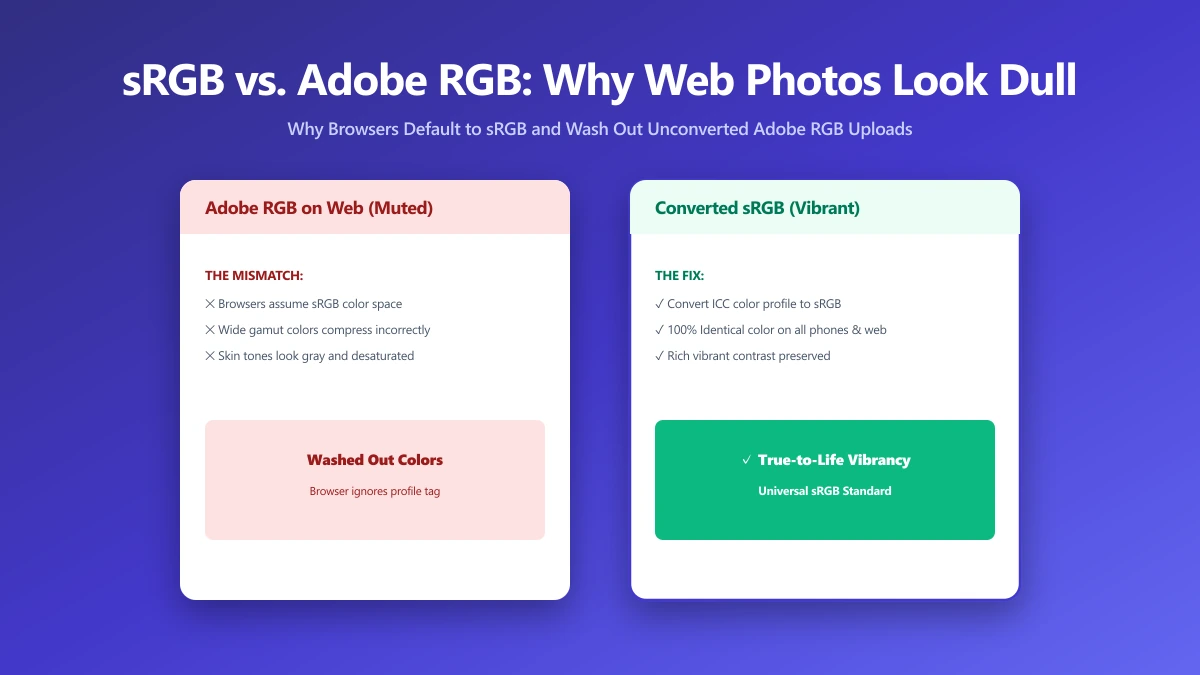
This is not a compression artifact or a display problem, it is almost always a color space mismatch: the image was edited in Adobe RGB, but the browser is interpreting it as sRGB.
What a Color Space Actually Is
A color space defines the range of colors, the gamut, that a file can represent.
Adobe RGB covers a wider gamut than sRGB, particularly in greens and cyans, which is why photographers and print professionals often prefer it while editing, it captures more of what a camera sensor can actually see.
Why the Web Assumes sRGB
The web has effectively standardized on sRGB. Most browsers, most displays, and most platforms render images assuming sRGB unless a file explicitly embeds a different, correctly-tagged profile, and even then, support for wide-gamut display is inconsistent.
Upload an untagged or Adobe RGB file to a platform that assumes sRGB, and colors get reinterpreted incorrectly, typically reading as duller and less saturated than intended.
| Color space | Gamut | Best for |
|---|---|---|
| sRGB | Narrower, universally supported | Web, social media, most digital display |
| Adobe RGB | Wider, especially greens and cyans | Print workflows, professional photo editing |
This is not a myth or a placebo, it is a real, measurable shift in how colors render. The fix is not a display setting, it is exporting your file in the color space the destination actually expects.
The Fix: Convert to sRGB Before Uploading
Most photo editors offer a 'convert to sRGB' or 'export for web' option specifically for this reason. Use it before uploading anywhere, social media, a website, an online marketplace.
This converts the actual pixel values so the image displays as intended under the color space the destination assumes, rather than leaving that interpretation to chance.
If you are unsure whether an image is already tagged correctly, the safest move is to re-export it through your editor's sRGB conversion before using the image compressor or any other web-facing tool.
The Bottom Line
Dull-looking web photos are frequently a color space problem, not a compression or display issue. Convert to sRGB before export, and the richness you saw in your editor carries through to the web.
Once your image is in sRGB, compress it with ImagePDF.Tools, free, entirely in your browser.
Frequently asked questions
Why do my photos look dull after uploading them online?
What is the difference between sRGB and Adobe RGB?
How do I fix a photo that looks dull online?
Should I always shoot and edit in sRGB?
Does compressing an image change its color space?
Sources & references
This article was researched and written by Nikola, drawing on the following primary sources and documentation:
Ready to try it?
All tools run entirely in your browser, no uploads, no account required.
Compress Image