How to Combine Multiple JPGs into One PDF (Free, No Sign-Up)
Summary
Need to combine several JPG photos into one ordered PDF with no sign-up required? Here is exactly how, entirely inside your browser, in just a few seconds.
Scanned receipts, photographed pages of a document, a batch of product shots, there are a lot of everyday reasons to turn several JPG images into one PDF instead of sending them as separate files.
Here is the fastest way to do it, in the order you choose, without an account or an upload.
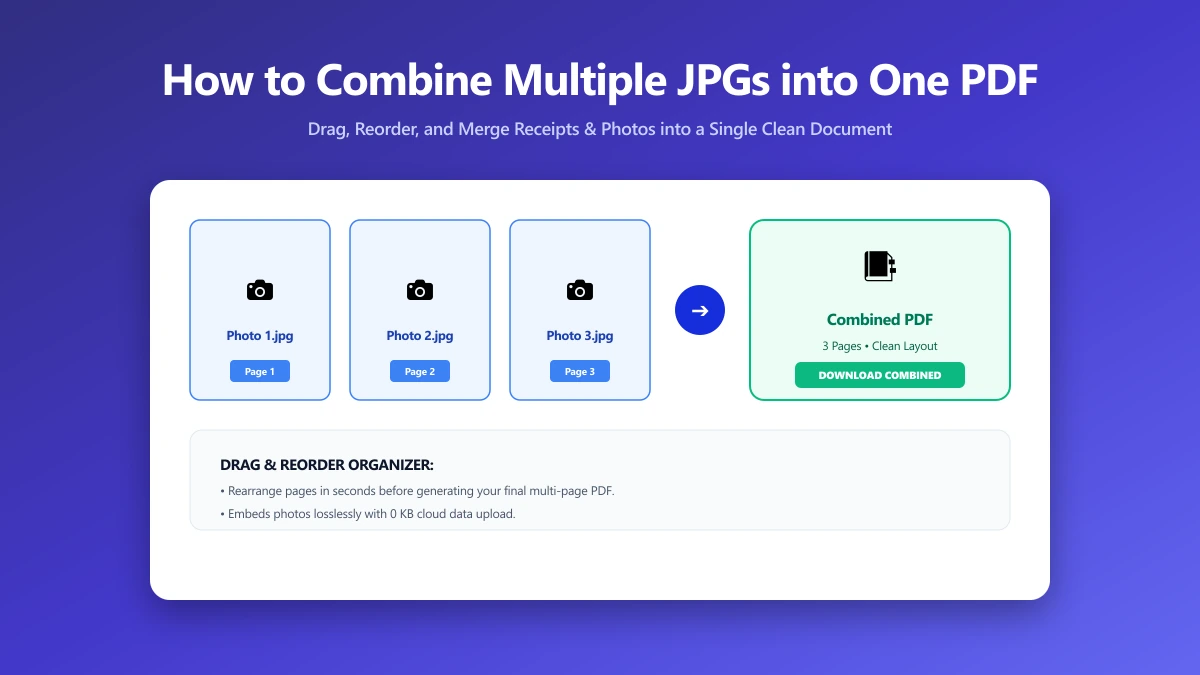
How to Combine JPGs into One PDF
- 1.Open the Image to PDF tool.
- 2.Drop in all the JPG files you want combined, or select them at once from a folder.
- 3.Drag to reorder the thumbnails into the sequence you want in the final document.
- 4.Click to generate the PDF. Every image becomes its own page, in the order you set.
- 5.Save the file. It is a standard PDF that opens anywhere, no special software required to view it.
If the images vary in size or orientation, the tool fits each one to its own page automatically, so a mix of portrait and landscape photos does not need to be pre-cropped to match.
This vs. Converting a Single JPG to PDF
This is a different job from converting one image to one PDF with the original quality preserved exactly, that specific case, and the compression trade-offs involved, is covered in detail in our guide on converting JPG to PDF without losing quality.
This guide is about the multi-file case: several separate images, combined and reordered into a single document.
Common Reasons to Combine Images into a PDF
- ●Scanned or photographed paperwork, several pages photographed with a phone, combined into one document to submit or file.
- ●Receipts and expense reports, a stack of receipt photos turned into a single PDF for reimbursement.
- ●Portfolios and lookbooks, a sequence of product or work photos assembled into one shareable file.
- ●Printing, most printers and print shops expect a single PDF rather than a folder of loose images.
Verify Nothing Was Uploaded
Press F12, open the Network tab, combine a few test images, and confirm there is no outbound POST request sized anywhere close to your files.
The Bottom Line
Combining JPGs into a PDF should not require installing anything or creating an account for a task that takes ten seconds. Try it now: combine your images into a PDF, free, with no upload.
Frequently asked questions
How do I combine multiple JPG images into one PDF for free?
Can I control the order of the images in the final PDF?
Do the images need to be the same size or orientation?
Is combining JPGs into a PDF different from converting one JPG to PDF?
Are my photos uploaded anywhere when I combine them into a PDF?
Sources & references
This article was researched and written by Nikola, drawing on the following primary sources and documentation:
Ready to try it?
All tools run entirely in your browser, no uploads, no account required.
Image to PDF