How to Compress an Image to 20KB (Signatures and Thumbnails)
Summary
20KB is a signature box, not a photograph. What actually fits, the dimensions that get you there, and why scanning at 600 DPI is working against you.
The upload box says maximum 20KB. Your scanned signature is 1.4MB. The form will not budge, and it will not tell you why your file keeps bouncing.
20KB is one of the tightest limits still in common use. It is almost always a signature field, a thumbnail, or a small ID photo on a government or university form, and the number is a legacy of a time when storage was priced very differently.
The good news is that 20KB is entirely achievable for the things that ask for it. Here is what actually fits, and how to get there without a grey smear where your signature used to be.
What 20KB Will and Will Not Hold
File size is driven by pixel count first and quality second. Before touching a quality slider, it is worth knowing what is physically plausible.
| Content | Dimensions that fit | Comfortable? |
|---|---|---|
| A scanned signature | 600 x 200 px | Yes, with room to spare |
| A passport style head and shoulders photo | About 300 x 400 px | Yes, at quality 70 to 80 |
| A full page scanned document | Not realistically | No, the text goes to mush |
| A photograph with background detail | About 320 x 240 px | Tight, expect visible artefacts |
If a form asks for a full page document under 20KB, read it again. It almost always means a signature or photo field, or it accepts a PDF for the document and a small image for the photo.
The Real Problem Is Usually the Scan, Not the Compression
Most people arrive at this problem holding a file that was never going to compress well, and no amount of quality reduction fixes the underlying choice.
A signature scanned at 600 DPI on A4 is roughly 5000 x 7000 pixels. That is 35 million pixels to describe a few pen strokes. Even squeezed hard, the file stays large, and the compression has to work so aggressively that the strokes break up.
The fix is to reduce the pixels before reducing the quality. A signature needs to be legible, not archival. 600 x 200 pixels is plenty, and at that size 20KB is easy rather than desperate.
Getting to 20KB Without Wrecking It
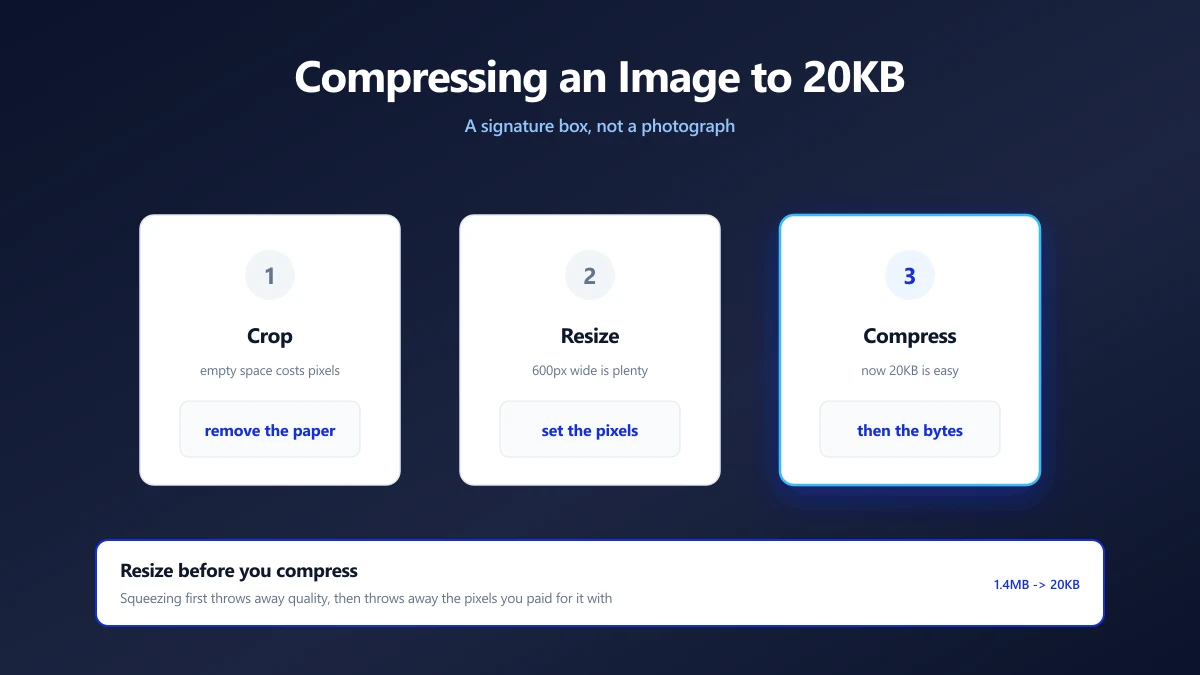
- 1.Crop first. Remove the white paper around the signature or the background around the face. Empty space still costs pixels.
- 2.Resize to what is needed. Use the resize tool to bring the longest edge down to 600px for a signature, or 400px for a photo.
- 3.Then compress. Open the 20KB compressor, which is already set to that target, and check the result.
- 4.Check it at full size. Open the result and look at it properly. A signature that is illegible is a rejected form, whatever its file size.
The Order Matters More Than the Settings
Compressing first and resizing afterwards wastes the compression: you throw away quality, then throw away the pixels you paid for it with. Resize, then compress, and you keep more of what is left.
For Signatures Specifically
A signature is not a photograph, and treating it like one is why it goes grey and fuzzy.
- ●Increase the contrast before compressing. Dark strokes on a white background compress far better than grey strokes on a cream background, because there is less detail to encode.
- ●Crop tight to the strokes. A 20% margin is generous. Paper is not information.
- ●Consider PNG if the form allows it. A high contrast signature with few colours can compress smaller as a PNG than a JPEG, and without the smearing.
- ●Do not scan at 600 DPI. 200 DPI on a cropped signature is more than enough, and starts you ten times closer to the target.
Some portals check dimensions as well as file size, for example 140 x 60 pixels for a signature. Read the whole requirement before optimising for the byte count alone, or you will pass one check and fail the other.
When 20KB Genuinely Is Not Possible
If the form wants a readable full page document under 20KB, you cannot win it with compression. A page of text needs enough pixels to resolve the letterforms, and below that threshold the text stops being readable at any quality setting.
Two honest routes out. Convert the page to a PDF, where text stays as text and the file can be tiny, using image to PDF and then compressing it. Or split the requirement, because many forms have a separate, larger allowance for documents than for photos.
Why Do This in the Browser
The images that need to hit these limits are ID photos, signatures and scans of personal documents, submitted to government portals and universities. They are exactly the files worth not scattering across other people's servers.
A browser based compressor reads the file on your machine, re-encodes it there, and hands you the result. Nothing is uploaded, so there is no copy of your signature sitting in a queue somewhere.
Resize First, Then Squeeze
20KB is a small number but a reasonable one for what usually asks for it. Crop away the paper, bring the pixel count down to what the field actually needs, and only then reach for quality. Do it in that order and the result stays legible.
Check the dimension requirement as well as the size limit before you start. Open the compressor and drop your file in to see where it lands.
Frequently asked questions
How do I compress an image to 20KB?
Can a full page document fit in 20KB?
Why is my scanned signature so large?
Should a signature be a JPEG or a PNG for a 20KB limit?
Does 20KB mean the image will look bad?
The form rejects my file even though it is under 20KB. Why?
Sources & references
This article was researched and written by Nikola, drawing on the following primary sources and documentation:
Ready to try it?
All tools run entirely in your browser, no uploads, no account required.
Compress Image