Email Attachment Limits, and How to Get a PDF Under Them
Summary
Gmail says 25MB but bounces at about 18MB, and the recipient's server may refuse far less. The real numbers, and how to get under the strictest one.
The attachment is 23MB, Gmail's limit is 25MB, and the message bounces anyway. Or it sends, and three days later you learn the recipient never got it.
Email attachment limits are more complicated than the number your provider advertises, and the number that actually matters is usually not yours.
Here is what the real ceilings are, why the advertised figure is optimistic, and how far a PDF can sensibly be compressed to clear them.
Why 25MB Does Not Mean 25MB
Attachments are not sent as files. They are encoded into the message body as text, using a scheme called base64, because email was designed to carry text and never fully grew out of it.
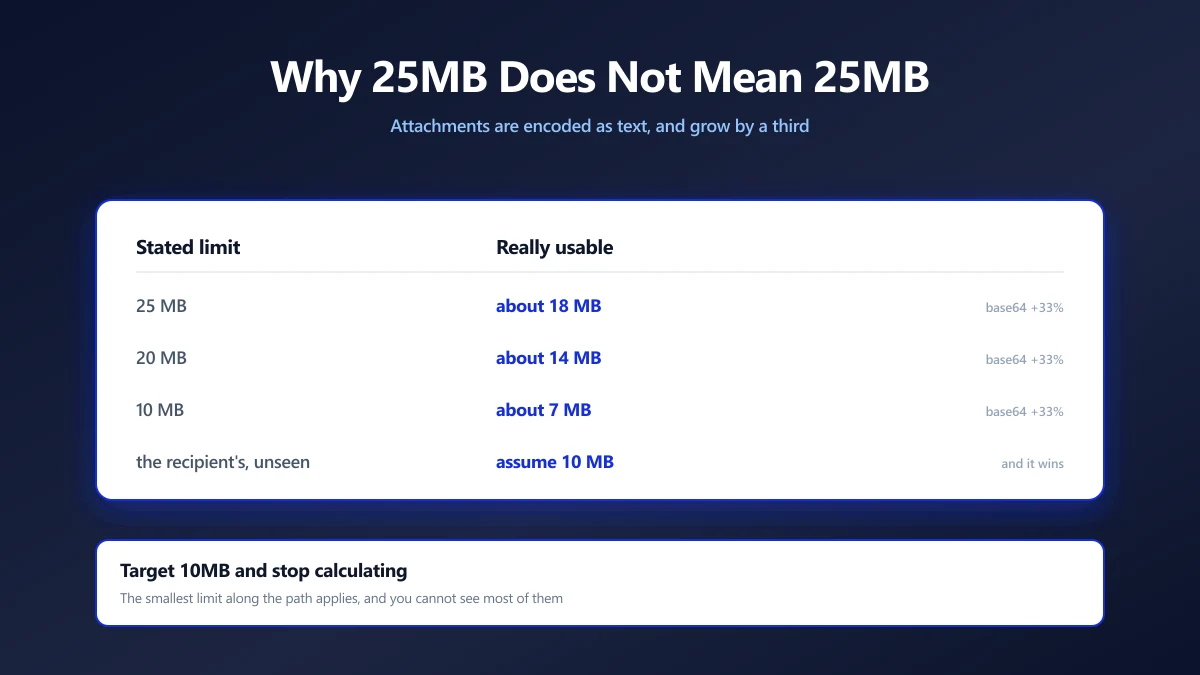
Base64 represents three bytes using four characters, so an attachment grows by roughly a third on the way out. A 19MB PDF becomes about 25.3MB of message, and the 25MB limit applies to the message rather than to your file.
| Stated limit | Roughly usable for real files | Why |
|---|---|---|
| 25MB | About 18MB | Base64 adds around 33%, plus headers |
| 20MB | About 14MB | Same encoding overhead |
| 10MB | About 7MB | Common on corporate mail servers |
| The recipient's unknown limit | Assume 10MB | You cannot see it, and it wins |
The limit that applies is the smallest one along the path: yours, your employer's gateway, the recipient's gateway and their mailbox quota. A message can pass your provider and be silently dropped later, which is why some attachments simply never arrive.
Aim for 10MB and Stop Worrying
Rather than working out whose limit applies, target a size that clears essentially all of them. 10MB is the practical number: it survives a 20MB corporate gateway, a 25MB consumer provider, and most older systems.
For a text based PDF this is usually trivial. For a scanned document it takes real compression, because a scan is a stack of photographs rather than text.
Getting There
- 1.Check what the file actually is. Open it and try find in page. If search works it is text based and will compress easily. If not, it is scanned images and the weight is in the pixels.
- 2.Compress it. Open the PDF compressor and try a medium level first. Most documents lose more than half their size with no visible change.
- 3.If it is still too big, look at the pages. A 200 page scan may not need to be sent whole. Split out the pages the recipient asked for.
- 4.Check the result opens properly before you send it, particularly if you compressed heavily.
Compress once, from the original. Compressing an already compressed PDF a second time costs quality and saves very little, because the expensive detail has already been discarded.
What Compression Can and Cannot Recover
It helps to know where the weight is before deciding how hard to push.
- ●Scanned pages. Almost all the size. Big savings available, and the trade is sharpness of the text.
- ●Embedded photographs. Usually the second largest cost, and they compress well with little visible loss.
- ●Embedded fonts. Small, a few hundred KB at most. Not where the problem is.
- ●Actual text and vector graphics. Tiny. A 500 page text document can be under 2MB.
- ●Duplicated resources. A logo embedded once per page rather than once per document, which good compression consolidates.
If a text based PDF is enormous, something unusual is embedded in it. That is worth investigating before compressing, since the fix may be removing one oversized image rather than degrading the whole document. Our guide to compression levels covers what each setting gives up.
When Not to Compress at All
Some documents should be sent at full quality even if that means not sending them by email.
- ●Anything for print. A printer needs the resolution you are about to throw away.
- ●Signed or certified documents. Recompressing changes the bytes and invalidates a digital signature.
- ●Legal or medical records where fine detail may matter later and you cannot know which detail.
- ●Archival copies. Compress a copy for sending and keep the original.
For those, a link to shared storage is the better route, with the sensible caveat that the storage should be one you and the recipient both trust.
Doing It Without Uploading
The documents people struggle to email are contracts, medical scans, financial statements and legal bundles. Uploading one to a compression service to make it small enough to email is a strange trade: you have transmitted the whole document to a third party in order to avoid transmitting it to the intended recipient.
Compression in the browser sidesteps that. The file is read, re-encoded and written back on your own machine, and the only place it goes afterwards is the email you meant to send.
Target 10MB, Send Once
Advertised limits apply to the encoded message, not your file, so knock about a quarter off any number you are given. The recipient's limit is invisible and usually stricter than yours, which is why 10MB is the sensible target rather than a calculated maximum.
Check whether your PDF is text or scans before choosing a compression level, and keep the original. Open the compressor and see how far your file drops.
Frequently asked questions
What is the real Gmail attachment limit?
Why did my email bounce when the attachment was under the limit?
What size should I aim for to be safe?
Why is my scanned PDF so much bigger than a text one?
Should I compress a PDF twice to make it smaller?
When should I not compress a PDF?
Sources & references
This article was researched and written by Nikola, drawing on the following primary sources and documentation:
Ready to try it?
All tools run entirely in your browser, no uploads, no account required.
Compress PDF