Best PDF Merger Online: How to Combine PDFs for Free in 2026
Summary
Looking for the best PDF merger online? See what makes one trustworthy, a step-by-step how-to guide, and a free browser-based option with no page limit.
Combining a stack of invoices, scanned forms, or report chapters into one PDF sounds like a trivial task, until the tool you picked caps you at three pages, stamps a watermark across the result, or asks for an account first.
A genuinely good PDF merger is almost invisible: you drop files in, reorder them, and get one clean document back. Here's what separates a trustworthy merger from the rest, and how to merge PDFs the right way.
What Makes a PDF Merger Trustworthy
Before you drop a batch of documents into any merger, check it against a short list. Most free tools fail at least one of these quietly.
- ●No upload required, or at minimum, a clearly published, short retention window if it is server-side.
- ●No page or file-count limit hidden behind a paywall after the first two or three documents.
- ●Keeps order and quality, merging shouldn't recompress your pages or silently reorder them.
- ●No watermark stamped across the merged output on the free tier.
- ●No forced sign-up just to combine a handful of files.
A tool that fails several of these at once usually isn't dishonest, it's just built around a freemium model where merging is the hook and the limits are the upsell.
Checking this list takes thirty seconds and saves you from discovering a watermark or a page cap only after you've already spent time reordering a stack of files.
How to Merge PDFs Online
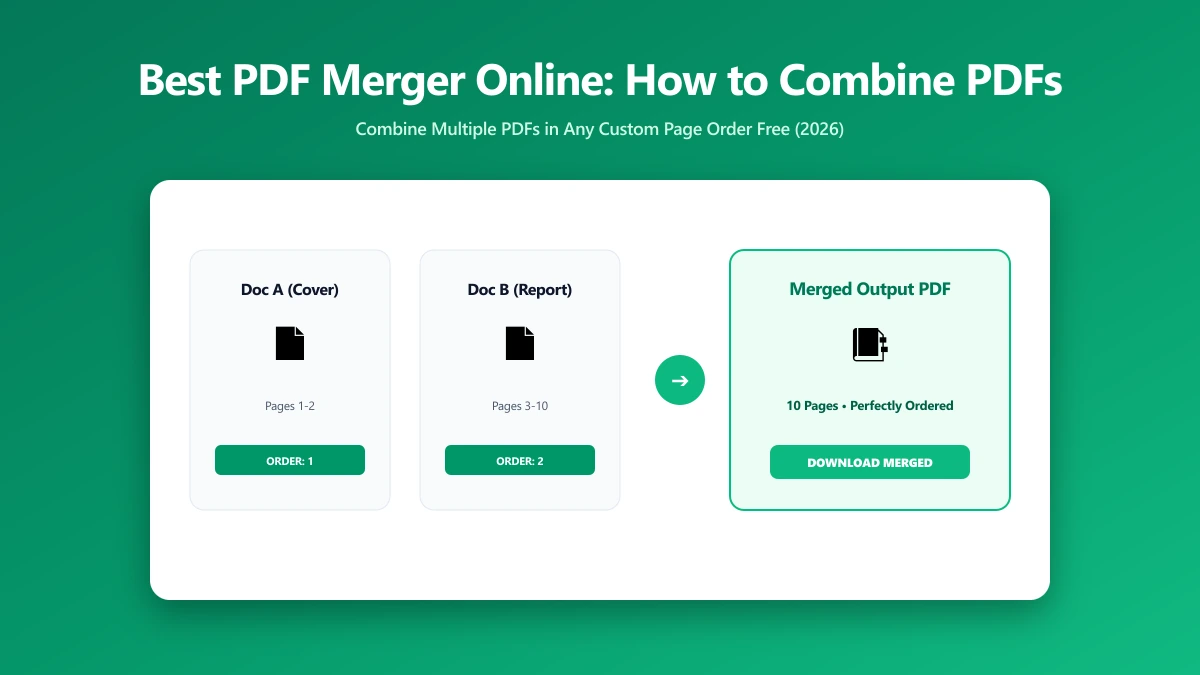
- 1.Open the Merge PDF tool and drop in every file you want combined.
- 2.Drag the thumbnails into the exact order you want them to appear in the final document.
- 3.Remove or add a file at any point before merging, no need to start over.
- 4.Click to merge, then save the combined PDF. It opens as one standard file, in the order you set.
Because processing happens in your browser, there's no per-merge delay waiting on a server queue. Reordering, adding a forgotten file, and re-merging costs nothing but a few seconds.
How PDF Merging Actually Works
Merging doesn't re-render your pages. It takes the existing page objects from each PDF and appends them into one document's page tree. That's why a well-built merger doesn't lose quality, nothing is being redrawn or recompressed.
This differs from combining separate images into a PDF, where each photo becomes a new page from scratch. If your starting files are already PDFs, merging preserves the original text and embedded image quality exactly.
Merging vs Compressing: Two Different Jobs
Merging changes how many documents you have, not their size. A merged file's total size lands close to the sum of its parts. If the combined file also needs to be smaller, that's a separate step.
Run the PDF compressor after merging if the combined file is too large for an email attachment or an upload portal with its own size cap.
Comparison: Best Free PDF Mergers in 2026
| Tool | Upload required | Page limit (free) | Watermark | Price |
|---|---|---|---|---|
| iLovePDF | Yes | None on core merge tool | No | Free, paid tiers from $9/mo |
| Smallpdf | Yes | 2 tasks per day | No | Free, paid tiers from $15/mo |
| PDF24 | Yes (web), local via desktop app | None stated | No | Free |
| ImagePDF.Tools | No, browser only | None, ever | Never | Free, permanently |
Page limits aren't usually the problem with free mergers, most handle unlimited pages. The real differentiator is what happens to your file to make that merge happen: uploaded and processed remotely, or handled entirely on your device.
Where ImagePDF.Tools' Merge Tool Fits Honestly
ImagePDF.Tools merges any number of PDFs entirely inside your browser, no upload, no account, no watermark, and no cap tied to a paid plan. For combining invoices, reports, scanned forms, or chapters, it does exactly that one job well.
It doesn't do everything a full document platform does. There's no cloud folder sync, no team collaboration, and no e-signature collection built in. If you need those specifically, a server-side suite is the more complete answer.
The same toolset includes a split tool for the reverse job, pulling specific pages back out of a merged document without uploading anything, either.
When a Server-Side Merger Still Makes Sense
If you're merging dozens of files as part of an automated workflow, or need an API endpoint rather than a browser tab, a server-side platform with a documented API is genuinely the more practical tool.
For the occasional merge, an invoice, a report, a signed contract, that trade-off rarely pays off. A browser handles a handful of files just as capably, without the account and without the upload.
Common Reasons to Merge PDFs
- ●Invoices and receipts, combining several billing documents into one file for expense reporting.
- ●Reports and proposals, assembling separately-authored sections into one final document before sending.
- ●Scanned paperwork, joining multiple scanned pages of a signed contract or form into a single PDF.
- ●Portfolios and applications, merging a resume, cover letter, and references into one attachment for a job application.
- ●E-books and manuals, joining separate chapter files into one document before sharing or printing.
Each of these has one thing in common: the source files are usually already final. Merging should be the last step before sending, not a place where new compression artifacts or a stray watermark show up.
If your starting point is a set of photos rather than existing PDFs, that's a related but different job, covered in our guide on combining JPGs into one PDF.
Verify Nothing Was Uploaded
Merged documents are often more sensitive than any single page in them, a full contract, a complete financial history. Press F12, open the Network tab, merge a test file, and confirm there's no outbound POST request the size of your files.
For a broader look at how free PDF tools compare on privacy, price, and features beyond merging, see our iLovePDF vs Smallpdf vs ImagePDF.Tools comparison.
The Bottom Line
The best PDF merger is the one that never makes you think about page limits, watermarks, or where your files went. Combine as many documents as you need, in the order you choose, without an account. Try it now: merge a PDF, free, with no upload.
Frequently asked questions
What is the best free PDF merger?
Is there a limit to how many PDFs I can merge for free?
Does merging PDFs reduce their quality?
Can I reorder pages while merging PDFs?
Is it safe to merge sensitive documents online?
Sources & references
This article was researched and written by Nikola, drawing on the following primary sources and documentation: