The Best WebP Converter Online: What Actually Matters (2026)
Summary
Comparing WebP converters? See what separates the best from the rest: batch limits, quality control, transparency, and whether your files get uploaded.
Search for a WebP converter and you will find dozens of tools promising the same thing: fast, free, high quality. Scratch the surface and most share the same tradeoffs, a hidden daily cap, a forced server upload, or a quality setting you cannot actually control.
The differences only show up once you hit them: a sixth file that gets blocked, a logo that loses its transparent background, or a batch job that silently stops partway through.
Here is what actually separates a good WebP converter from a mediocre one, and where a browser-based tool fits into that picture.
What Makes a WebP Converter Actually Good
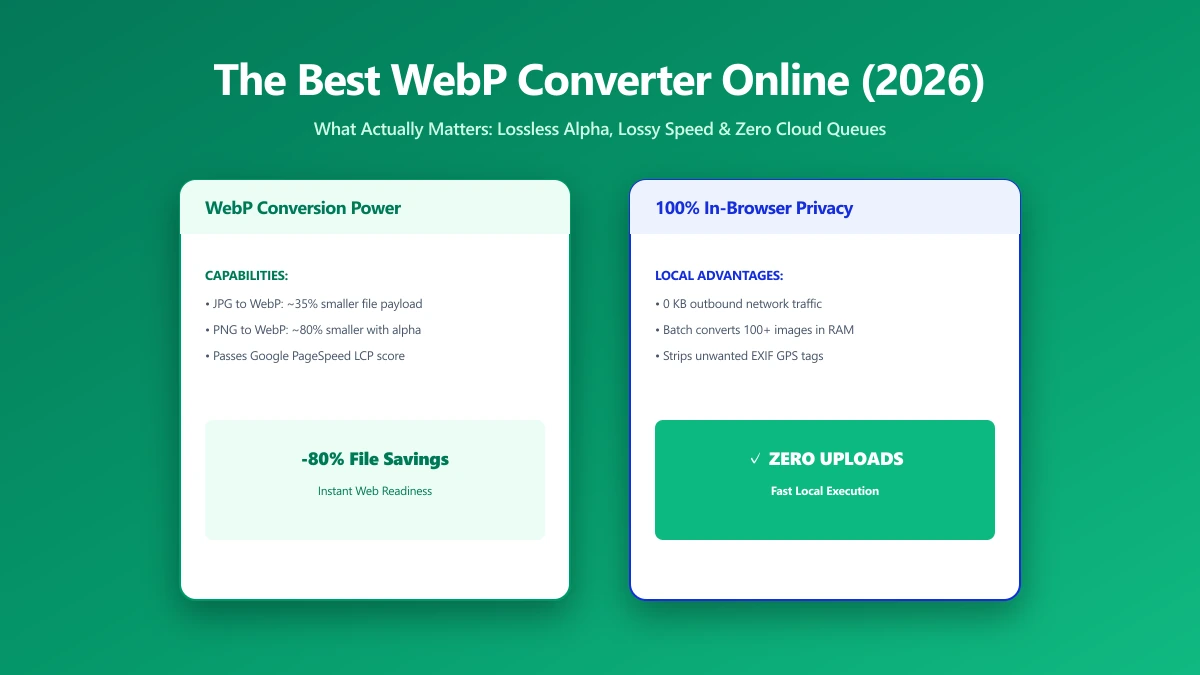
Four things determine whether a converter is worth using regularly: how it handles batches, how much control you get over quality, whether it preserves transparency, and whether your files ever leave your device.
- ●Batch support without a hard cap. A converter that blocks you after five or ten files is not built for a real workflow.
- ●A real quality slider. A single fixed setting with no control over the size tradeoff means guessing and redoing the conversion until it looks right.
- ●Transparency preserved for PNG sources. WebP supports alpha transparency, but not every converter handles it correctly, some flatten transparent backgrounds to solid white.
- ●No upload requirement. If a tool needs your file on a server to convert it, that is a privacy tradeoff you are accepting for convenience.
- ●A live output size preview. Seeing the resulting file size before you commit saves a cycle of trial and error.
The Feature Checklist
| Feature | Why it matters | What to look for |
|---|---|---|
| Batch limit | Determines whether you can convert a full folder in one pass | Unlimited, or a limit high enough for your typical batch |
| Quality control | Balances file size against visual quality | A slider, not a single fixed setting |
| Transparency handling | PNG logos and icons rely on alpha transparency | WebP output that keeps transparency intact |
| Where processing happens | Determines whether your files are ever uploaded anywhere | Browser-based processing, verifiable in DevTools |
| Cost | Determines whether frequent conversion adds up over time | Free, with no per-conversion or subscription cost |
Who Actually Needs to Convert to WebP
Ecommerce sellers converting product photos see the most dramatic size drops, since product shots are often large, unoptimized JPEGs straight from a camera. Bloggers and photographers get faster page loads without a visible quality hit.
Developers migrating a whole image library benefit most from no daily cap, a batch of hundreds of files should not require reloading the page every ten conversions.
If your source files are all PNG, the dedicated PNG to WebP tool skips the format-selection step entirely.
Common Mistakes to Avoid
- ●Converting an already-compressed JPEG at maximum quality and expecting file size to shrink further, there is little left to compress once an image has already been through lossy encoding.
- ●Using one fixed quality setting for every image type, a busy photo and a flat-color logo need different settings to look their best.
- ●Skipping the transparency check on PNG sources, only to discover a solid background where there should have been none.
- ●Assuming a browser-based tool is slower, a modern WebAssembly encoder processes a batch of images in seconds, with no upload wait added on top.
Where ImagePDF.Tools Fits
ImagePDF.Tools converts JPEG, PNG, and SVG sources to WebP entirely inside your browser. There is no daily cap, no account, and no file ever reaches a server, the conversion runs on your device using libwebp, Google's own WebP encoder, compiled to WebAssembly and loaded into the page.
The quality slider is a real slider, not a fixed preset, and PNG transparency carries through to the WebP output correctly, so icons and logos keep their transparent backgrounds intact.
There is also no account requirement and no signup wall between you and a finished file, drop your images in and the conversion starts immediately.
WebP typically produces files 25 to 34% smaller than JPEG at equivalent visual quality, and for PNG sources with transparency, the savings can reach 60 to 70%, without a visible quality drop at reasonable settings.
WebP vs Other Formats
AVIF compresses slightly smaller than WebP in many cases, but it encodes far slower and still has patchier tooling support across editing software. For most sites, WebP remains the more practical default, see our WebP vs AVIF comparison for the full breakdown.
If your site still serves PNG for photos or icons that do not need transparency, converting to WebP is one of the highest-impact, lowest-effort changes available, our guide on why website owners should switch from PNG to WebP covers exactly when it is worth it.
Compared to plain JPEG, WebP's advantage is more consistent: roughly 25 to 34% smaller at equivalent quality, with no real format-support gap left to worry about, since every modern browser decodes WebP natively.
How to Convert to WebP in Your Browser
- 1.Open the Convert to WebP tool and drop in your image, or a whole batch of images at once.
- 2.Adjust the quality slider and watch the live size estimate update, there is no need to guess.
- 3.If your source is a PNG with a transparent background, check the preview, transparency should carry through automatically.
- 4.Save each file individually, or process the whole batch in one pass, up to 20 images per session on the free tier and unlimited on Pro.
Typical File Size Savings
A JPEG converted to WebP at a comparable quality setting typically drops 25 to 34% in file size. A PNG with transparency converted to lossy WebP can shrink by 60 to 70%, since PNG's lossless compression leaves far more room to save.
Actual savings depend on image content, a photo with fine texture compresses differently than a flat-color graphic, which is why a live size preview while adjusting quality matters more than any fixed percentage claim.
WebP Browser Support in 2026
WebP support is no longer a real concern for most sites. Every major browser, Chrome, Firefox, Safari, and Edge, decodes WebP natively, and has for years, so the old format-support objection no longer holds up.
Verify Nothing Was Uploaded
Press F12, open the Network tab, convert an image, and look for a large outbound POST request. There is not one, the conversion happens entirely on your device, not on a remote server.
The Bottom Line
The best WebP converter is the one that does not make you choose between quality control, batch size, and privacy. Try it now: convert an image to WebP, free, with no upload and no limit.
Frequently asked questions
What is the best free WebP converter online?
Does converting an image to WebP reduce its quality?
Will a transparent PNG stay transparent after converting to WebP?
Is it safe to convert images online?
Can I convert a large batch of images to WebP at once?
Sources & references
This article was researched and written by Nikola, drawing on the following primary sources and documentation:
Ready to try it?
All tools run entirely in your browser, no uploads, no account required.
Convert to WebP