Instagram Image Size Guide 2026: The Exact Dimensions for Every Format
Summary
The exact Instagram image sizes for 2026: square posts, portrait posts, Stories, Reels, and profile photos, plus how to resize without losing quality.
Post a photo at the wrong pixel dimensions and Instagram will crop, letterbox, or recompress it for you, rarely in a way that looks intentional.
The fix is simple once you know the exact targets: a handful of dimensions cover almost everything a creator or brand posts, from a square grid photo to a full-screen Story.
The Dimensions That Actually Matter
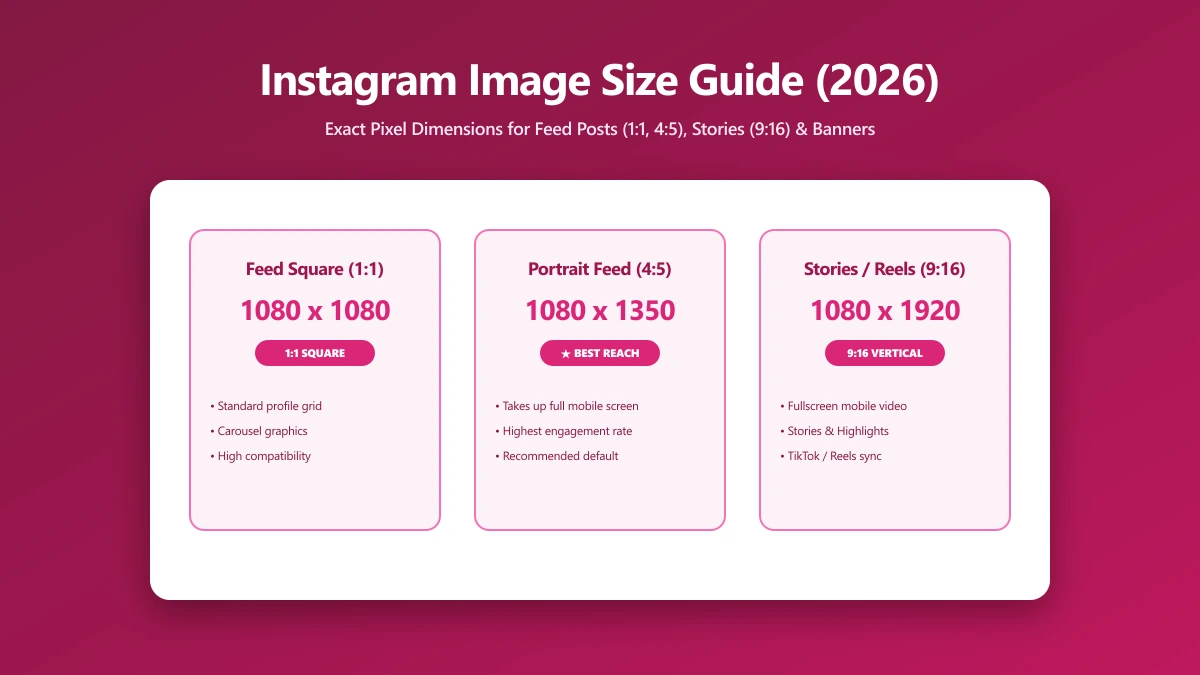
Instagram's current defaults favor vertical formats. A 1080×1350 portrait post takes up more scroll space than a square, which is why it is now the platform's recommended default for feed posts.
| Format | Dimensions | Aspect ratio |
|---|---|---|
| Square post | 1080×1080 px | 1:1 |
| Portrait post (recommended) | 1080×1350 px | 4:5 |
| Landscape post | 1080×608 px | 1.91:1 |
| Stories / Reels | 1080×1920 px | 9:16 |
| Profile photo | 320×320 px | 1:1 (circular crop) |
Instagram displays profile photos at 320×320, but uploading exactly that size risks a soft result on high-density screens. Upload at least 320×320 and let Instagram scale down, never scale a small image up.
How to Resize a Photo to Hit the Target
- 1.Open the Resize Image tool and drop in your photo.
- 2.Set the target to 1080×1350 for a standard feed post, 1080×1080 for square, or 1080×1920 for a Story or Reel cover.
- 3.Check the preview crop before saving, especially for portrait posts where the top and bottom can get trimmed in grid view.
- 4.Save the resized image, then run it through the image compressor if the file is still large, keeping it well under Instagram's upload cap speeds up posting.
Common Sizing Mistakes That Hurt Quality
- ●Uploading a square photo when the grid defaults to a 3:4 crop, this trims the top and bottom off every square image automatically.
- ●Exporting at less than 1080px wide, Instagram upscales a smaller image on its end, and upscaling always looks softer than starting at full resolution.
- ●Ignoring safe zones on Stories and Reels, Meta's own interface covers roughly the top 14% and bottom 35% with UI elements.
- ●Saving as a low-quality JPEG before upload, Instagram already compresses on its end, so starting from an already-compressed file compounds the quality loss.
Square vs Portrait: Which Should You Use
Square (1080×1080) still works and is simpler to plan a grid around, but some grid views crop it to 3:4. Portrait (1080×1350) is Instagram's current recommended default, since it claims more vertical scroll space and more time on screen per post.
If your profile relies on a cohesive grid layout, plan photos in sets of three. Because the grid can crop slightly differently across devices, it is worth previewing a batch together rather than checking each photo in isolation before posting.
Carousel Posts
Carousel posts should use one consistent aspect ratio across every card. Mixing square and portrait cards in the same carousel creates an inconsistent, jarring scroll experience, pick either 1080×1080 or 1080×1350 and stick with it for the whole set.
Instagram Ad Image Sizes
If you also run Instagram ads, the safe specs are nearly identical to organic posts. Feed ads use 1080×1080 or 1080×1350, Stories and Reels ads use 1080×1920, and each carousel ad card is 1080×1080.
Aspect Ratio Range Instagram Supports
Instagram's feed accepts aspect ratios between roughly 1.91:1 and 4:5. Anything outside that range gets cropped automatically to fit, which is the single most common cause of an unexpectedly cropped feed photo.
Reels Cover Images
A Reels cover image should stay within the same 1080×1920 safe zone as the video itself, since it previews on your profile grid and gets cropped to match the grid's aspect ratio there too.
Getting Stories and Reels Right
For Stories and Reels, keep text, logos, and calls-to-action inside the center safe zone. Meta's own creative guidance recommends leaving roughly the top 14% and bottom 35% of the frame clear, since the profile icon, caption, and UI controls sit there.
For photos, export as JPEG, it produces smaller files than PNG at visually identical quality for photographic content. Save PNG for graphics with sharp text or transparency, like a logo overlay.
Keeping File Size in Check
Beyond pixel dimensions, keep the file itself reasonably small, a multi-megabyte photo uploads slower and gains nothing in quality once it is past Instagram's own compression ceiling. Compress after resizing, not before, so you are not compressing twice.
Why Getting This Right Actually Matters
An image posted at the wrong dimensions gets auto-cropped or letterboxed by Instagram's own processing, which frequently cuts off faces, product edges, or text you placed deliberately near the border.
Consistent, correctly sized photos also compress less aggressively on Instagram's end, since the platform re-encodes every upload, starting from the right dimensions keeps more of your original detail after that pass.
What Changed From Previous Years
Instagram's defaults have shifted from square toward vertical formats as more browsing happens full-screen on mobile. A portrait post simply occupies more of that screen than a square one, which is why it is now the recommended default rather than an option.
Resizing a Batch of Photos at Once
Creators preparing a week of content, or a full carousel, rarely want to resize one photo at a time. See our guide on batch resizing images for social media for a faster, one-pass workflow across dozens of files.
Other Platforms, Other Dimensions
Instagram is not the only platform with its own pixel targets. If you also sell on Etsy, see our Etsy listing photo size guide, its zoom-resolution requirements differ significantly from Instagram's own defaults.
Quick Reference Cheat Sheet
- ●Square post: 1080×1080 px, 1:1
- ●Portrait post (recommended): 1080×1350 px, 4:5
- ●Landscape post: 1080×608 px, 1.91:1
- ●Story or Reel: 1080×1920 px, 9:16
- ●Profile photo: 320×320 px minimum, uploaded larger and scaled down
Verify Nothing Was Uploaded
Press F12, open the Network tab, resize a photo, and confirm there is no outbound POST request the size of your file, the resize happens entirely on your device before you ever post it anywhere.
The Bottom Line
Instagram sizing is a fixed, known target, not a guessing game. Hit 1080×1350 for feed posts and 1080×1920 for Stories and Reels, and every photo posts sharp. Try it now: resize a photo, free, entirely in your browser.
Frequently asked questions
What is the best image size for an Instagram post in 2026?
What size should Instagram Stories and Reels be?
What is the correct Instagram profile picture size?
Why does Instagram crop my photos differently than I expect?
Is it safe to resize photos online before posting them?
Sources & references
This article was researched and written by Nikola, drawing on the following primary sources and documentation:
Ready to try it?
All tools run entirely in your browser, no uploads, no account required.
Resize Image