The Best Online Image Compressor in 2026: What to Actually Look For
Summary
Looking for the best online image compressor? Here is what actually matters: where processing happens, format support, quality control, and batch limits.
Search "best online image compressor" and you get a dozen listicles ranking the same five tools by vague vibes. None of them tell you what actually separates a good compressor from a mediocre one.
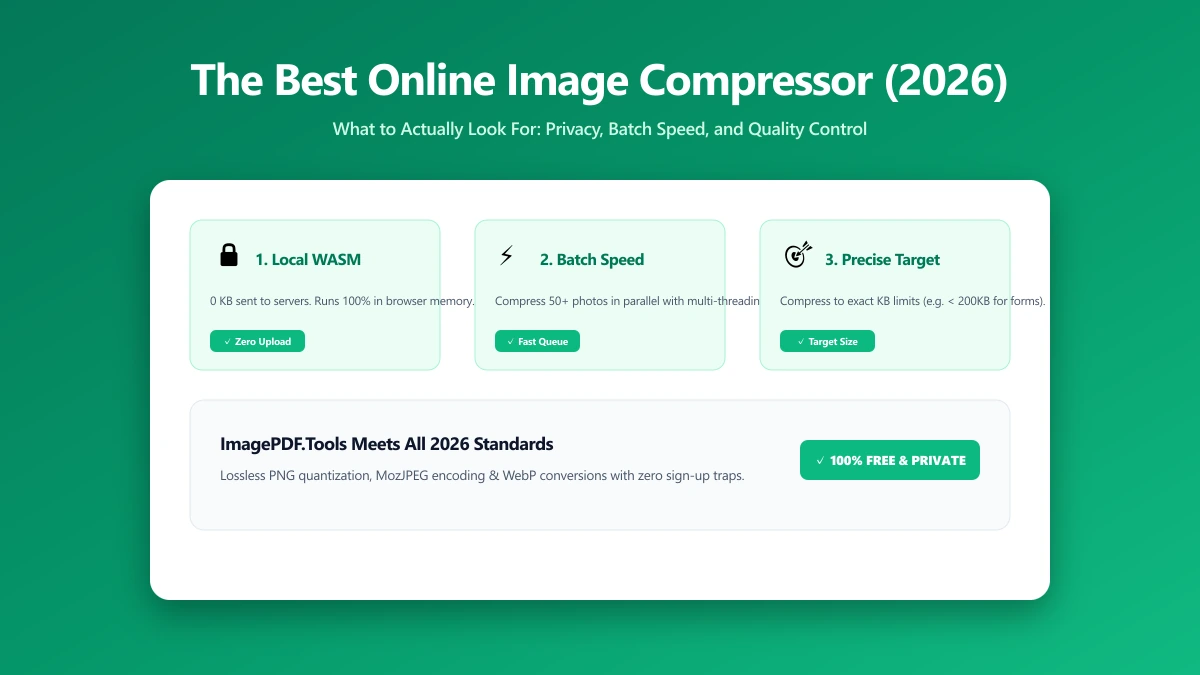
Here is the actual criteria worth checking, so you can evaluate any tool, including this one, on the things that matter: where processing happens, format support, quality control, and batch handling.
Browser-Based vs Upload-Based: The First Filter
Every image compressor falls into one of two categories. Upload-based tools send your file to a server, compress it there, and send back a result. Browser-based tools do the entire job on your own device using the Canvas API or WebAssembly.
The output quality can be identical either way, since both use the same lossy techniques. What differs is speed on a slow connection and whether your file ever left your device. Our local compression breakdown covers the practical difference in detail.
Latency also compounds with batch size. Uploading twenty photos one at a time to a server adds real, noticeable wait time, save time for each result included. A browser-based tool processes the same twenty images with no network round trip at all, once the page has loaded.
Privacy Is a Side Effect Worth Caring About
Image compressors are often used on genuinely private material: ID photos, scanned documents, screenshots of private messages, real estate listings before they go public. An upload-based tool sends all of that to a server, no matter how mundane a single photo seems in isolation.
This does not mean upload-based compressors are unsafe, most reputable ones publish clear retention policies. It means the question is worth asking before you send something you would not want stored anywhere, even briefly.
Format Support Actually Matters
A compressor that only handles JPEG is fine for photos and useless for a screenshot you want as a clean PNG or a WebP for faster page load. Look for a tool that supports JPEG, PNG, and WebP at minimum, with conversion between them.
AVIF offers meaningfully smaller files than JPEG or WebP for photographic images, according to Google's own web.dev guidance, but tool and browser support is still less universal. See our format comparison guide for when each format actually wins.
PNG deserves a specific note. It is lossless by default, ideal for screenshots and graphics with sharp edges, but lossy PNG quantization can shrink file size dramatically for photos saved as PNG, often without a visible quality hit.
Quality Control: Slider vs Fixed Presets
Some tools give you three buttons: low, medium, high. Others give you a 1 to 100 slider with a live size estimate as you drag it. The second kind gives real control, especially if you need to hit an exact file size cap for a form or upload portal.
If you regularly need a file under a specific limit rather than just "smaller", our guide on compressing to an exact file size walks through the process.
Batch Handling and Limits
Check three things before committing to a tool for regular use: how many files it accepts at once, whether there is a daily task cap, and whether a batch save is bundled into one file or handled one at a time.
| Criterion | Why it matters |
|---|---|
| Processing location | Determines whether your file is ever uploaded to a server |
| Format support | JPEG, PNG, and WebP cover almost every real use case |
| Quality control | A slider with a live estimate beats fixed presets for precision |
| Batch limit | Some free tiers cap daily tasks or the files allowed per batch |
| Price | Free tools with no account are common; paid tiers should add real capability |
Watch for Hidden Limits
A tool marketed as "free" can still cap you in ways that only show up mid-task: a daily task limit, a maximum file size well under what your camera actually produces, or a watermark stamped onto results beyond a set number of free compressions.
None of these are dealbreakers on their own. They matter if you compress images regularly rather than once, so check the fine print before building a workflow around a tool that changes on you at file six or day two.
Compare Before and After, Not Just the Percentage
A tool that only shows "73% smaller" tells you nothing about whether that 73% introduced visible artifacts. Look for a compressor that lets you compare the original and compressed version side by side before you commit to the result.
This matters most at lower quality settings, where blotchy patches and soft edges become visible in smooth areas like skin tones and sky. A quick visual check before saving takes a few seconds and avoids having to redo the job.
Where ImagePDF.Tools Fits
ImagePDF.Tools compresses JPEG, PNG, and WebP entirely in your browser, with a quality slider and a live size estimate, no daily cap, and no account. It does not currently offer AVIF output, which some upload-based competitors do.
No single compressor wins on every criterion. The honest approach is checking the points above against your actual use case, a one-off photo, a recurring batch job, or a form with a strict file size cap, rather than trusting a ranked list.
A Quick Checklist Before You Commit
- ●Where does processing happen? Browser-based means your file is never uploaded, ever.
- ●Which formats does it support? JPEG, PNG, and WebP cover nearly every use case.
- ●Is there a daily or per-batch cap? Check before you rely on it for recurring work.
- ●Does quality control give you a live estimate? A slider beats guessing with fixed presets.
How to Test Any Compressor Yourself
You do not have to take a privacy claim on faith. Run this check on any compressor, including this one.
- 1.Open the tool, press F12, and click the Network tab in DevTools.
- 2.Tick "Preserve log" so nothing clears between steps.
- 3.Compress a test image, never a sensitive one.
- 4.Watch for a large outbound
POSTrequest the size of your file, that is an upload.
The Bottom Line
The best online image compressor is not the one at the top of an affiliate listicle, it is the one that matches processing location, format support, and quality control to what you actually need. Judge any tool, including ours, against that list.
Try it now: compress an image, free, with a live size estimate and nothing uploaded.
Frequently asked questions
What is the best online image compressor?
Is a browser-based image compressor as good as an upload-based one?
Which image format compresses the smallest?
Do I need to pay for a good image compressor?
Is it safe to compress images online?
Sources & references
This article was researched and written by Nikola, drawing on the following primary sources and documentation:
Ready to try it?
All tools run entirely in your browser, no uploads, no account required.
Compress Image