Local Image Compression: Why Processing on Your Device Is Often Faster, Too
Summary
Local image compression runs on your own device instead of a server. Why that is usually faster, what it changes for privacy, and how to verify it.
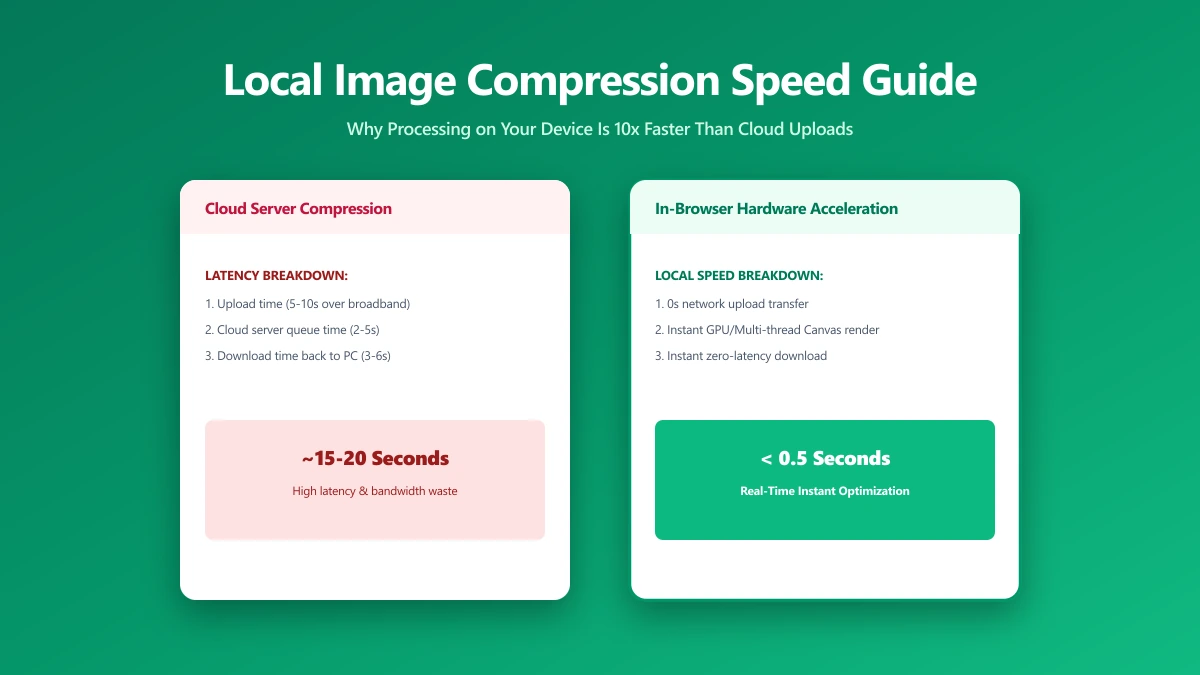
Local image compression means exactly what it sounds like: your photo is compressed using your own device's processing power, not a server somewhere else. The privacy benefit is obvious, no upload. The part people miss is that it is often faster, too, for a simple reason: there is no upload or download time to wait through.
Local vs Server-Side Compression: What Actually Changes
| Factor | Server-side compression | Local compression |
|---|---|---|
| Upload time | Required, scales with file size and connection speed | None |
| Download time | Required for the result | None, the result is already on your device |
| Compression quality | Depends on the algorithm used | Same techniques, quantisation, quality reduction |
| Works on a slow connection | Degraded, upload/download can be the bottleneck | Unaffected once the page has loaded |
| Privacy | File exists on a third-party server temporarily | File never leaves your device |
The compression algorithms themselves are not meaningfully different, quantisation and quality reduction work the same whether they run in a data center or in your browser tab. What changes is everything around the compression: no upload queue, no waiting for a server to pick up your job, no download afterward.
Where Local Compression Genuinely Wins on Speed
For a single photo on a fast connection, the difference is small. For a batch of twenty images, or for anyone on a slow or unreliable connection, mobile data, older Wi-Fi, a shared office network, skipping the round trip for every single file adds up fast. Local compression also keeps working through a dropped connection mid-batch, since nothing was being transmitted to begin with.
How to Compress an Image Locally
- 1.Open the Compress Image tool.
- 2.Drop your image or a batch of images onto the page.
- 3.Adjust the quality slider, a live size estimate updates as you go.
- 4.Save the results. Each file was compressed entirely on your device.
Verify It Yourself
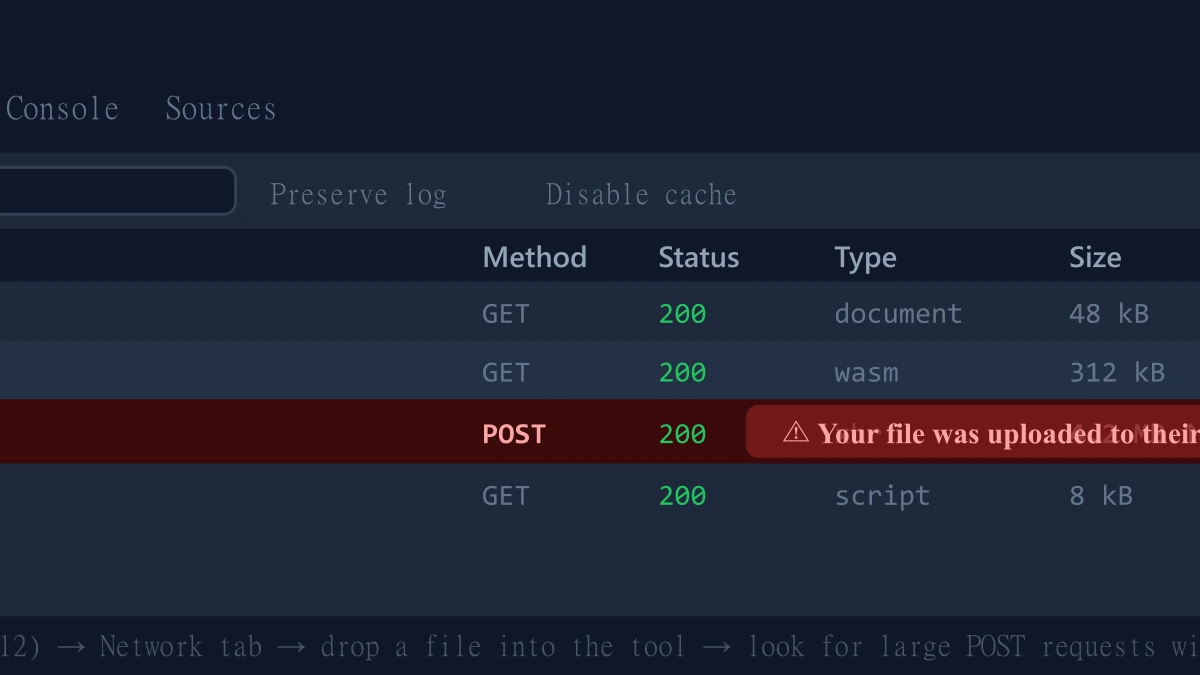
- 1.Open the tool, press F12, and click the Network tab in DevTools.
- 2.Tick "Preserve log" so nothing clears between steps.
- 3.Compress a test image.
- 4.Look for a large outbound
POSTrequest the size of your file. There is not one.
The Bottom Line
Local image compression is not a slower, more cautious version of the server-based kind, it uses the same compression techniques and is often faster overall, once you account for the upload and download time a server-based tool always needs. Try it with ImagePDF.Tools, free, with no batch limit.
Try it now: compress an image, then check DevTools and confirm nothing was uploaded.
Frequently asked questions
What is local image compression?
Is local image compression as good as server-based compression?
Is local compression faster than uploading to a server?
Does local compression work offline?
Is local image compression free?
Sources & references
This article was researched and written by Nikola, drawing on the following primary sources and documentation:
Ready to try it?
All tools run entirely in your browser, no uploads, no account required.
Compress Image