
Choosing the Right Image Format: A Practical Guide From the Compression Side
Summary
JPEG, PNG, WebP, or AVIF? This practical guide explains every format's compression model so you pick the right one every time. Free converter included.
You compress your hero image, shave 60% off the file size, and celebrate, then a colleague sends you the page on their phone and the image looks terrible. Sound familiar? The problem usually isn't compression aggressiveness. It's that the wrong format was used in the first place, making every quality setting a losing trade-off.
Choosing the wrong image format is the most common and most expensive performance mistake on the web. A PNG photograph is 3–5× larger than an equivalent JPEG. A JPEG logo is blurry at the edges. A JPEG fallback set to quality 50 "to save bandwidth" undoes all the good work of the WebP version. Format choice and fallback quality are inseparable decisions, and once you understand how each format's compression model works, the right choice for any situation becomes obvious.
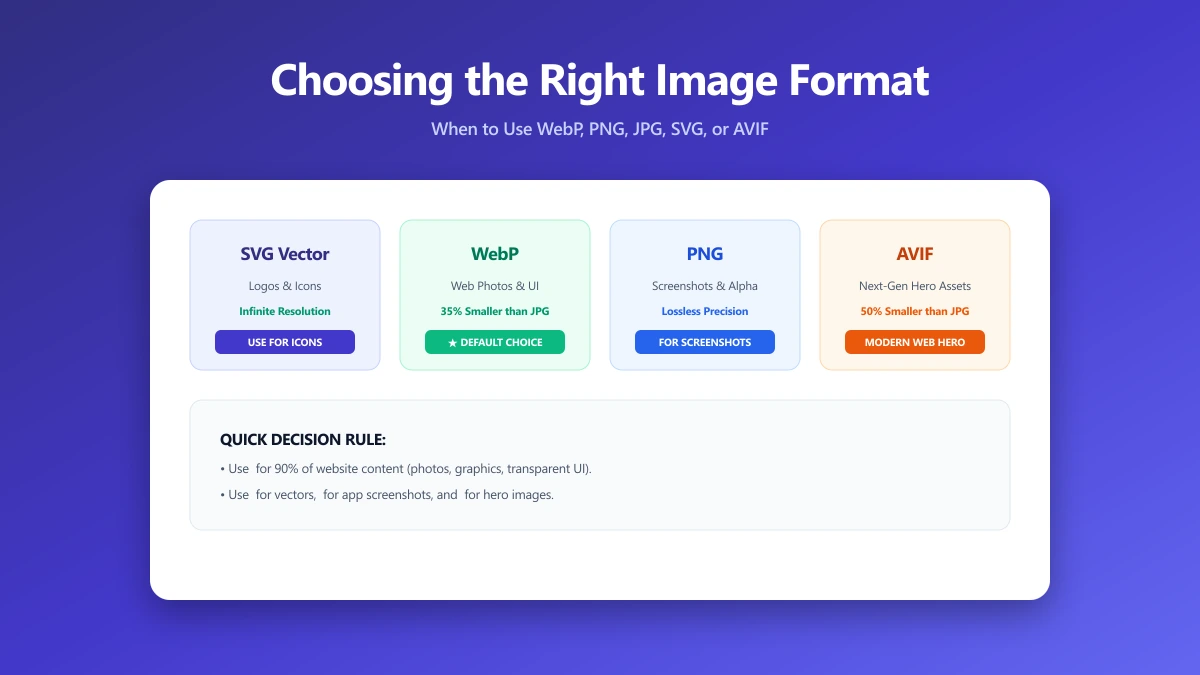
The Four Main Formats and Their Compression Models
JPEG, DCT-Based Lossy Compression
JPEG divides the image into 8×8 pixel blocks and applies the Discrete Cosine Transform to each. High-frequency detail (fine texture, sharp edges) is compressed more aggressively than low-frequency content (gradual gradients, flat colour). The quality slider controls how aggressively high-frequency data is quantised. Quality 80 discards roughly 20–30% of the frequency data, imperceptible at normal viewing distances, but visible at 1:1 zoom on fine detail.
JPEG excels at photographs because natural images are dominated by low-frequency content. A smooth blue sky compresses extremely well; dense forest foliage does not. The format has no alpha channel support and handles hard edges (text, logos, icons) poorly, producing visible ringing artifacts around high-contrast boundaries.
PNG, Lossless DEFLATE Compression
PNG stores every pixel exactly. Compression is achieved through prediction filters (delta-encoding between adjacent pixels) followed by DEFLATE. No information is lost, which makes PNG the correct choice for screenshots, line art, logos with transparency, and UI graphics that need sub-pixel precision. It is almost never the right choice for photographs, a lossless PNG of a photo is typically 3–5× larger than an equivalent-quality JPEG.
PNG supports full alpha transparency (8-bit alpha channel), making it the only option when partial transparency is required in a raster format. PNG-8 (256 colors, indexed) is appropriate for simple graphics with few colors; PNG-24 (true color) handles complex images but produces large files.
WebP, Hybrid Lossy and Lossless
WebP supports both lossy and lossless modes. Lossy WebP uses a prediction-based codec derived from VP8 video compression, fundamentally different from JPEG's DCT approach. At quality 80, WebP produces files roughly 25–35% smaller than JPEG with similar or better visual fidelity. Lossless WebP compresses 15–25% better than PNG for most images, and it also supports transparency in both modes.
Browser support for WebP reached 97%+ in 2025, making it the safe default for web images. The only environments where WebP fails reliably are email clients (Outlook on Windows does not render WebP) and some older image processing pipelines. Always maintain a JPEG or PNG fallback for non-web contexts.
AVIF, AV1-Derived, Best Compression Ratio
AVIF uses the AV1 video codec's intra-frame compression. It achieves 20–40% better compression than WebP at equivalent quality, with better handling of gradients, film grain, and fine detail. AVIF also supports HDR (high dynamic range) and wide color gamut (P3, Rec. 2020), which WebP does not.
The trade-off is encoding speed. AVIF is 5–50× slower to encode than WebP, making it practical for pre-rendered, build-time assets but unsuitable for on-the-fly conversion. Browser support is at ~93% in 2026. Use AVIF as the primary source in a <picture> element with WebP and JPEG fallbacks.
| Format | Typical size | Compression model | Alpha | Browser support | Best for |
|---|---|---|---|---|---|
| JPEG | 150–400 KB | Lossy (DCT) | No | 100% | Photos, hero images, email |
| PNG | 500 KB–2 MB | Lossless (DEFLATE) | Yes | 100% | Screenshots, logos, UI graphics |
| WebP (lossy) | 100–300 KB | Lossy (VP8-derived) | Yes | 97%+ | Photos and graphics on web |
| WebP (lossless) | 350–800 KB | Lossless | Yes | 97%+ | Icons, illustrations with transparency |
| AVIF | 70–200 KB | Lossy/Lossless (AV1) | Yes | 93%+ | Hero images (build-time), HDR |
| SVG | 2–50 KB | Vector (XML) | Yes | 100% | Logos, icons, diagrams |
Format Selection: Decision Rules by Use Case
- ●Photograph for a website: WebP lossy (quality 75–80) with JPEG fallback at quality 80. Serve via
<picture>srcset. - ●Logo or icon (vector source): SVG always. Infinitely scalable, typically 2–10 KB.
- ●Logo or icon (raster, transparency needed): PNG-24 or WebP lossless. Never JPEG.
- ●Screenshot or UI recording: PNG lossless; WebP lossless if file size matters. JPEG will add ringing around text and UI edges.
- ●Hero image for SEO performance: AVIF + WebP + JPEG via
<picture>srcset. AVIF saves 40% vs WebP on typical photos. - ●Email attachment: JPEG quality 80. WebP support in email clients (especially Outlook on Windows) is still unreliable in 2026.
- ●Social media upload: JPEG quality 85 at platform-recommended dimensions. Platforms recompress on upload regardless of your format.
- ●Print file: TIFF or PNG lossless. JPEG generation loss accumulates in print workflows, never use JPEG as a print intermediate.
Never use a social media download as a source file for conversion. Every platform recompresses on upload. A downloaded Instagram JPEG has already been through at least two lossy passes, running it through a compressor again adds a third generation of loss. Always convert from the original source file.
The Fallback Problem: WebP Without a Proper JPEG
The most common format mistake is not choosing the wrong primary format, it's optimising the WebP while treating the JPEG fallback as an afterthought. If the fallback JPEG is exported at quality 50 to save bandwidth, every email client, every WhatsApp forward, and every browser that rejects the WebP (rare but real) shows a degraded image.
The correct approach is to maintain both assets at appropriate quality and use the <picture> element. The fallback <img> tag should be a full-quality JPEG (80+), not a throwaway.
<picture>
  <!-- AVIF for browsers that support it (~93% in 2026) -->
  <source srcset="hero.avif" type="image/avif">
  <!-- WebP for wide compatibility (~97%) -->
  <source srcset="hero.webp" type="image/webp">
  <!-- JPEG fallback, quality 80+, NOT a low-quality throwaway -->
  <img src="hero.jpg" alt="Hero" width="1200" height="630"
       loading="eager" fetchpriority="high" decoding="sync">
</picture>
Format vs. Quality: Which Has More Impact?
Both matter, but format choice creates the larger savings. Consider a 2MP photograph:
| Format + quality | File size | Savings vs JPEG Q85 |
|---|---|---|
| JPEG Q85 (baseline) | 700 KB | - |
| JPEG Q80 | 500 KB | −29% |
| WebP Q80 | 420 KB | −40% |
| WebP Q75 | 320 KB | −54% |
| AVIF Q75 | 200 KB | −71% |
| PNG (lossless) | 2.8 MB | +300%, wrong format for photos |
The format switch from JPEG to WebP at the same quality saved 40%, significantly more than dropping from Q85 to Q80 JPEG (29%). Choosing the right format first, then tuning quality, gives you the most impact for the least visual trade-off.
Quality Reference by Format
- ●JPEG Q85–90: Virtually transparent at screen resolution; suitable for images that will be recompressed by third parties
- ●JPEG Q75–80: Optimal web trade-off; standard for new web builds
- ●JPEG Q60–70: Visible artifacts on close inspection; use only for thumbnails or strict bandwidth budgets
- ●WebP Q75: Roughly equivalent to JPEG Q85 at 25–30% smaller file size
- ●WebP Q60: Roughly equivalent to JPEG Q75; noticeable only on photographic high-frequency detail
- ●AVIF Q60–70: Equivalent to WebP Q80 at 25–35% smaller file; slow to encode
Converting Your Existing Images
The highest-value, lowest-risk first step for most sites is converting existing JPEG and PNG images to WebP. You get 25–40% smaller files with near-identical visual quality, and the conversion is reversible, you keep your originals.
Convert images to WebP directly in your browser, no upload, no account, nothing installed. Or if you need to compress images without changing format, the quality slider gives you live size estimates before you commit.
When migrating from JPEG to WebP: convert at quality 75–78, not 80. WebP's codec is more efficient, so Q78 WebP ≈ Q85 JPEG visually, at around 40% smaller file size. Don't map qualities 1:1 between formats.
Bottom Line
Format choice is not a one-time decision, it's a per-use-case decision. Photographs go WebP or AVIF. Screenshots and logos go PNG or SVG. Email attachments stay JPEG. The moment you stop treating format as "whatever the export dialog defaults to" and start matching format to content type, your image payloads shrink dramatically without touching quality settings. Start with WebP for web photos, keep your JPEG fallback at quality 80+, and use the <picture> element so browsers pick the best option automatically.
Frequently asked questions
Should I use WebP or AVIF in 2026?
Is PNG or JPEG better for screenshots?
Why does my PNG photograph look the same quality as JPEG but is 5× larger?
Can I use WebP in email?
What is the difference between lossless WebP and PNG?
Sources & references
This article was researched and written by Nikola, drawing on the following primary sources and documentation:
Ready to try it?
All tools run entirely in your browser, no uploads, no account required.
Convert Image to WebPMore in Technical

How to Repair and Recover Corrupted PDF Files That Won't Open (Recovery Guide)

How to Convert CMYK PDF to sRGB for Web and Social Media Sharing (True Color Guide)

Why Is My Printer Printing PDF Pages in Landscape Instead of Portrait? (Orientation Fix)