How to Split a PDF Into Separate Files (Without Uploading It)
Summary
Split a PDF by cut points, by page ranges, or by picking pages. Which method fits which job, and how to do all three in the browser with no upload.
You have a 60 page PDF and you need pages 12 to 18. Or you need each chapter as its own file. Or you need everything except the appendix.
All three get called splitting a PDF, and they are genuinely different operations. Most tools expose only one of them, which is why so many people end up splitting twice and merging the leftovers back together.
Here is what each method actually does, when to reach for it, and what happens to your document along the way.
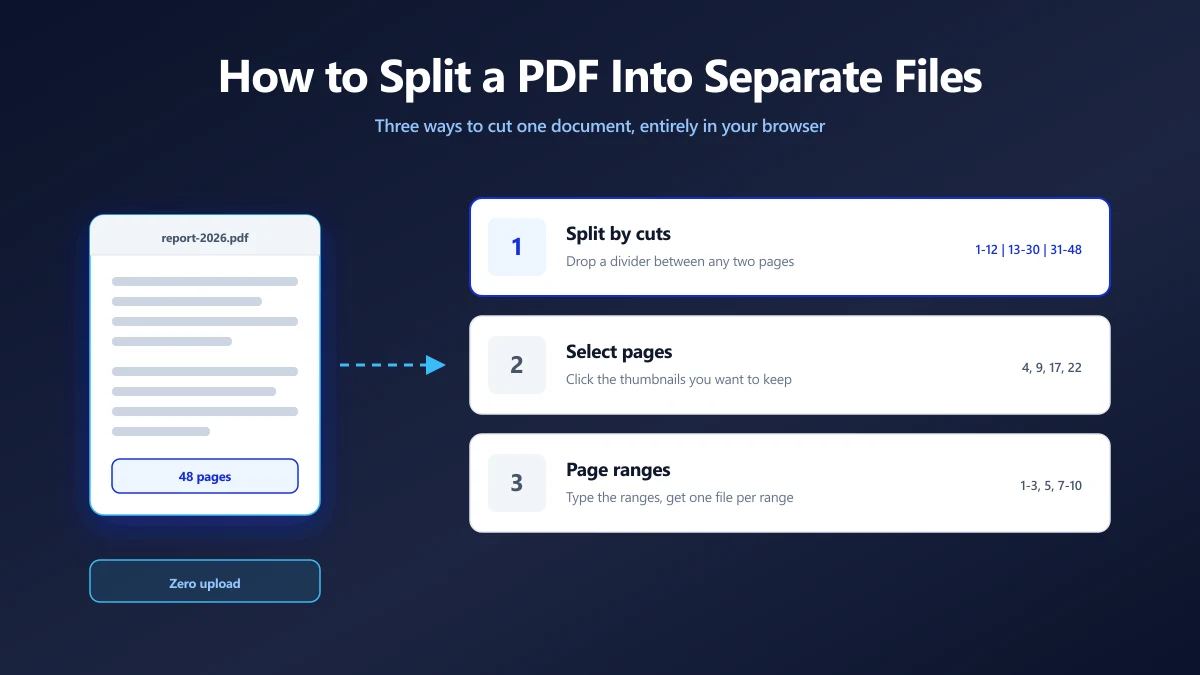
Three Ways to Split a PDF, and When Each One Fits
Before you touch a tool, decide what shape you want the output in. That single decision picks the method for you.
| You want | Method | You get back |
|---|---|---|
| Chapters or sections as separate files | Split by cut points | One PDF per segment, plus a ZIP |
| A handful of scattered pages in one document | Select pages | A single PDF, pages in original order |
| Named ranges you already know | Page ranges | One PDF per range, plus a ZIP |
| Every 10 pages, mechanically | Split interval | One PDF per interval, plus a ZIP |
If you find yourself splitting and then merging two of the pieces back together, you picked the wrong method. Select pages usually solves that case in one pass.
Method 1: Split by Cut Points
This is the closest thing to physically cutting a stack of paper. You put a divider between two pages, and everything before it becomes one file, everything after it becomes the next.
It is the right choice when the document has natural boundaries: chapters, monthly statements, a bundle of scanned invoices, a deck with three sections.
- 1.Open the PDF splitter and drop your file in. Page thumbnails render locally, so nothing is sent anywhere.
- 2.Click the scissors marker that appears between any two pages to place a cut.
- 3.Add as many cuts as you need. Three cuts give you four files.
- 4.Run the split, then save the individual PDFs or the ZIP that holds all of them.
Splitting Every N Pages Instead
If the boundaries are regular rather than meaningful, use the interval option instead of clicking cuts by hand. A 200 page scan of double sided forms split every 2 pages gives you 100 files without a single click of placement.
Method 2: Pick the Pages You Want
Select mode behaves differently from the other two, and the difference matters. It produces one file, not many.
You click the thumbnails you want, and the output is a single PDF containing exactly those pages, in their original order. Pages 4, 9, 17 and 22 come out as one four page document, not as four separate files.
That makes it the fastest route for the most common real task: pulling the pages that matter out of a long document and throwing the rest away. Think extracting the signature page and the schedule from a 40 page contract.
Selection is order independent. Click page 22 before page 4 if you like, the output still reads 4 then 22. If you need a different page order, reorder the pages afterwards instead.
Method 3: Type Page Ranges
When you already know the numbers, typing beats clicking. Range mode takes a comma separated list and gives you one file per entry.
1-3, 5, 7-10

  1-3    pages 1 to 3     one file
  5      page 5 alone     one file
  7-10   pages 7 to 10    one file

  result: 3 PDFs, plus a ZIP containing all of them
A single number is treated as a one page range, so you can mix both forms freely. Ranges are allowed to overlap, which is useful when you want the same cover page at the front of two different extracts.
Entries that do not make sense are skipped rather than throwing an error. A range like 90-95 on a 40 page file simply produces nothing for that entry. If you get back fewer files than you expected, check your numbers against the real page count.
What Actually Happens to the File When You Split It
This is where splitting differs sharply from compressing, and it is worth understanding because it decides what survives.
A good splitter copies the page objects across into a new document. The text stays text. Fonts, vector graphics and embedded images carry over as they were. Nothing is re-rendered, so nothing is re-encoded and nothing loses quality.
Open a split output and try find in page. If the original was a text PDF, the search still works. That is the test that tells you the tool copied rather than rasterised.
Why the Sizes Do Not Add Up
Split a 10 MB file into five parts and the parts will often total more than 10 MB. That surprises people, but it is expected behaviour.
A PDF shares resources across pages. One embedded font, one logo, one colour profile can serve all 48 pages. Give each part its own copy of those shared resources and you have duplicated them five times over.
If a part still needs to be smaller after splitting, run it through a PDF compressor as a separate step, and read what each compression level trades away before you pick a setting.
Splitting a Password Protected PDF
An encrypted PDF cannot be split until it is decrypted, because the page contents are not readable in their encrypted state.
A browser based splitter prompts you for the open password, decrypts the document in memory, and splits from there. The password never travels anywhere, because the decryption happens on your own machine.
If you do not have the password, no tool can help you honestly. If you do have it and want it gone permanently, remove the password first, then split the unlocked copy.
Four Things That Do Not Survive the Split
Splitting is lossless for page content, but a PDF holds document level structures too, and those do not always make the journey.
- ●Bookmarks and the outline tree. These live at the document level and point at page objects. Split the document and most tools drop the outline rather than guess which parts belong where.
- ●Internal links. A cross reference to page 30 breaks if page 30 landed in a different file. External web links are unaffected.
- ●Form field relationships. Interactive forms with calculated fields or shared field names can behave oddly once the fields are spread across several documents.
- ●Digital signatures. Any signature is invalidated the moment the document changes, and splitting is a change. This is by design, not a bug.
If the original is a signed document you may need to keep intact for legal reasons, split a copy and archive the signed original untouched.
Splitting a Scanned PDF
Scanned documents split exactly like any other PDF, because each page is a self contained image. The catch is that you have to read the thumbnails to find your boundaries, since you cannot search for a chapter heading that is not text.
If you will be working with the document repeatedly, it pays to run OCR on it first. Then you can search for the boundary you want instead of scrolling for it.
Why Do This in the Browser
Splitting is a case where the privacy argument is unusually concrete. The documents people split are contracts, bank statements, medical records, tax returns and ID scans. It is exactly the category you would not email to a stranger.
A server based splitter asks you to upload a whole document to extract three pages from it. A browser based one reads the file with JavaScript, builds the output in memory, and hands you a local file. Nothing crosses the network, so there is no retention policy to read and no breach to worry about.
If you want the longer argument, we wrote it up in are online PDF converters safe.
What to Do Next
Splitting is rarely the last step. Most workflows continue into one of these:
- ●Merge PDFs to recombine parts in a different order.
- ●Organize pages to reorder, rotate or delete pages without splitting at all.
- ●Compress a part if it still needs to clear an upload limit.
- ●Add page numbers so the new, shorter document numbers from one again.
Pick the method that matches the shape of the output you need and you will get there in one pass. Open the PDF splitter and drop a file in to see your page thumbnails.
Frequently asked questions
How do I split a PDF into separate pages?
Can I extract specific pages from a PDF without splitting the whole thing?
Does splitting a PDF reduce quality?
Why are my split files bigger than the original?
Can I split a password protected PDF?
Do bookmarks survive when I split a PDF?
Is it safe to split confidential documents online?
Sources & references
This article was researched and written by Nikola, drawing on the following primary sources and documentation: