How to Fill Out a PDF Form Securely (Two Kinds of Form)
Summary
Half of PDF forms have fields you can click and half only look like they do. How to tell which you have, and how to fill either without uploading it.
The form is for a mortgage, a visa, a tax return or a new job. It wants your address, your date of birth, your national insurance or social security number, and a scan of your passport.
You click a field and nothing happens. So you print it, write on it, scan it back crooked, and hope.
There is a better route, and it starts with working out which of the two kinds of form you actually have. Here is how to fill out a PDF form without a printer and without handing the document to anyone.
Two Kinds of Form, One File Extension
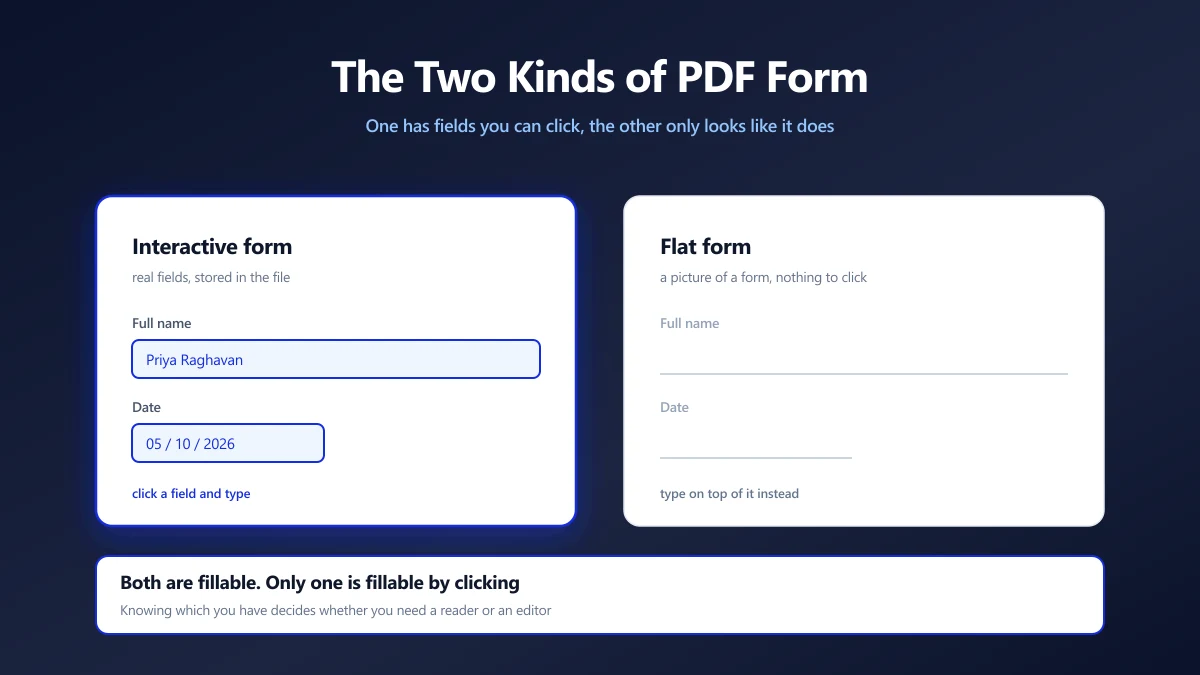
This single distinction explains nearly every frustration people have with PDF forms.
| Interactive form | Flat form | |
|---|---|---|
| What it holds | Real field objects stored in the file | Lines and labels drawn on a page |
| Clicking a box | A cursor appears | Nothing happens |
| How to fill it | Type into the fields | Place your own text on top |
| Where it came from | Built as a form, usually by an agency | A scan, or a design exported to PDF |
An interactive form carries a structure called AcroForm: each box is an object with a name, a type and a value. A flat form has none of that. It is a picture of a form, and the boxes are just rectangles someone drew.
The two second test: open the file and click where an answer should go. A blinking cursor means interactive. Nothing at all means flat, and no tool can change that without rebuilding the form.
Filling an Interactive Form
If the fields are real, use something that understands them. Your operating system already ships with one: Preview on macOS, Edge or Acrobat Reader on Windows, the built in viewer on most phones.
Typing into a real field stores your answer as the field's value, which matters for two reasons. The recipient can extract the answers as data rather than reading them off the page, and the text stays crisp and selectable at any zoom.
Save rather than print to PDF when you are done. Printing to PDF flattens the fields, discarding the values, which is why some agencies bounce a form back saying it arrived empty even though you can see your answers on the page.
Filling a Flat Form
This is the case the printer usually wins, and it does not have to. If there are no fields to type into, you place your own text where the fields would have been.
- 1.Open the PDF editor and drop the form in.
- 2.Choose the text tool and click on the first line. Type your answer.
- 3.Repeat down the page. Keep the size consistent so the finished form does not look ransom noted.
- 4.For tick boxes, place a short text mark, an X or a check character, rather than drawing one by hand.
- 5.Add a signature if the form needs one, then apply and save.
The result is a normal PDF with your answers drawn onto the page. It prints correctly, it emails correctly, and it does not have the grey cast of a document that has been through a scanner twice.
Getting It to Line Up
- ●Sit text on the line, not above it. Letters with descenders, g, y, p, should just touch the rule, the way handwriting does.
- ●Pick one size and keep it. Match the form's own labels rather than the space available in each box.
- ●Zoom in for the small boxes. Date fields and initials are where misalignment shows most.
- ●Check the whole page at 100% before saving. Text that looked aligned at 200% can sit a little high across the page.
A Scanned Form Is a Third Case
If the form arrived as a photograph or a scan, it is a flat form with an extra problem: there is no text in it at all, so you cannot search it and nothing can be copied out of it.
You can still fill it the same way, by placing text on top. If you also need the document to be searchable afterwards, run OCR over it first, then fill it.
The Security Part, Which Is the Whole Point
Look again at what a form like this contains once you have filled it in: full name, date of birth, home address, employer, salary, account numbers, a government identifier. It is, more or less, everything needed to impersonate you.
That is an uncomfortable thing to upload to a service whose retention policy you have not read, and it is a genuinely bad thing to upload to one that has no policy at all.
- ●Prefer local processing. A browser based editor reads the file on your machine and writes the filled copy back to your disk. Nothing crosses the network, so there is no copy anywhere to retain, subpoena or leak.
- ●Watch the email hop. Filling it privately and then emailing it in plain text undoes the care. If the recipient offers a secure upload portal, use theirs.
- ●Mind the filename. passport-scan-and-bank-details.pdf is a label for anyone who later sees the file listing.
- ●Delete the working copies. Half finished versions in a downloads folder are the ones people forget about.
If you want the longer version of the upload argument, it is in are online PDF converters safe.
What This Tool Does Not Do
Worth saying plainly, because it decides which route you take.
The editor places text and marks onto pages. It does not fill AcroForm fields as fields, and it does not build new interactive forms. If you have a real interactive form and the recipient expects the field values back, fill it in a PDF reader rather than here.
For flat forms, which is most of what arrives by email, placing text is not a workaround. It is the same thing you would do with a pen, minus the printer.
Click First, Then Choose Your Route
Click a field before anything else. A cursor means a reader will fill it properly, and you should save rather than print to PDF so the values survive. No cursor means a flat form, and placing your own text beats the print, sign and scan loop every time.
Either way, keep the document on your own machine while it has your details in it. Open the editor and drop your form in to see which kind you have.
Frequently asked questions
How do I fill out a PDF form that will not let me type?
What is the difference between an interactive and a flat PDF form?
Why did my filled PDF form arrive empty?
Is it safe to fill out a PDF form online?
How do I tick a checkbox on a PDF that has no real fields?
Can I fill out a scanned form?
Can this editor fill real form fields?
Sources & references
This article was researched and written by Nikola, drawing on the following primary sources and documentation: