How to Add a Watermark to a PDF Online
Summary
A watermark marks status and establishes ownership on every PDF page. Add CONFIDENTIAL, DRAFT, or your company name in seconds, nothing leaves your browser.
Every document you share outside your organisation is a document you no longer control. A contract sent for signature, a spec sheet shared with a prospect, a financial model forwarded to an investor, once it leaves your inbox, you cannot prevent screenshots, re-saves, or redistribution. A watermark does not technically prevent any of those things, but it does two things that matter: it communicates the document's status clearly (DRAFT, CONFIDENTIAL, SAMPLE), and it creates a paper trail that identifies what was shared and to whom.
Most people think of watermarking as requiring Adobe Acrobat or another paid desktop application. In practice, it's a function that runs perfectly well in a browser using JavaScript PDF libraries, your document stays on your device, no subscription required, and the whole process takes under a minute for a 50-page PDF.
How to Watermark a PDF in Your Browser
- 1.Go to imagepdf.tools/watermark-pdf
- 2.Drag your PDF onto the page or click Choose File to browse. Any PDF up to 50 MB is supported.
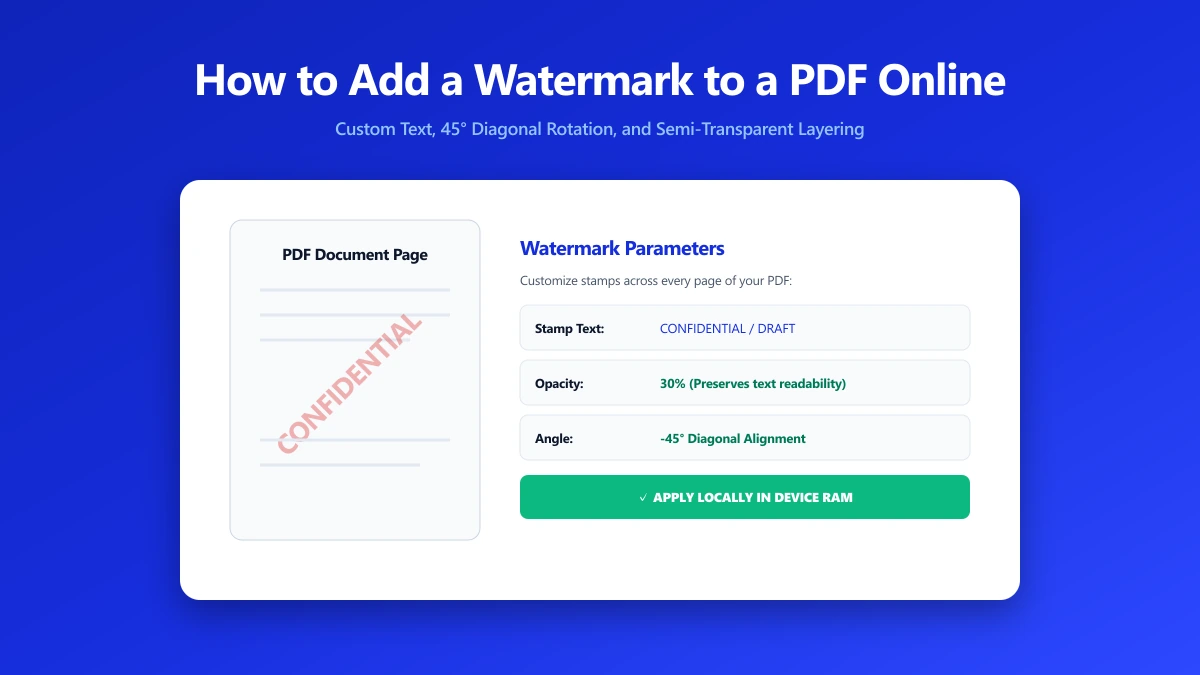
- 3.Type your watermark text, "CONFIDENTIAL", "DRAFT", your company name, your email, or any custom text.
- 4.Adjust the font size, opacity, rotation angle, and position. Diagonal center (45° angle, center of page) is the most visible and hardest to crop out.
- 5.Click Apply Watermark and save the result. The watermark is applied to every page automatically.
The watermark is applied to every page of the PDF in a single operation. A 100-page document takes the same time as a 1-page document, all processing runs locally in your browser.
Choosing the Right Watermark Opacity
Opacity is the most important setting. Too low and the watermark is invisible; too high and the document becomes unreadable. The right level depends on the purpose:
| Opacity range | Visual effect | Best for |
|---|---|---|
| 10–20% | Very subtle, barely visible on screen, clear on print | Ownership marks on publicly distributed PDFs where readability is paramount |
| 20–35% | Subtle, readable behind the watermark, clearly watermarked | SAMPLE marks on content you want prospects to read in full |
| 35–55% | Balanced, watermark is clearly visible, content still readable | CONFIDENTIAL, DRAFT, and DO NOT DISTRIBUTE marks |
| 55–75% | Prominent, dominant watermark, content requires effort to read | Preview documents you do not want copied or reused |
| 75–100% | Bold, watermark dominates, content difficult to use | Placeholder or stub documents; rarely appropriate for shared content |
Watermark Positioning and Rotation
The diagonal center position (45° rotation, centered on the page) is the standard for a reason: it's visible across the entire page regardless of where the recipient zooms in, and it's the hardest to crop out without removing meaningful content. Alternative positions include:
- ●Header (top-center, 0°): Visible but minimally disruptive, good for ownership marks on documents meant to be read
- ●Footer (bottom-center, 0°): Least intrusive, useful for URL or company name watermarks
- ●Tiled (repeating pattern): The most tamper-resistant option, removing the watermark from any one instance leaves visible gaps; available in some tools
- ●Corner mark (top-right, 0°): Small ownership mark, can be cropped on printed output
Common Watermark Use Cases
- ●DRAFT: Applied to working documents sent for review. Prevents recipients from distributing what they received as a final, approved document. Remove the watermark when finalising.
- ●CONFIDENTIAL: Internal documents shared outside the organisation. Sets clear expectations about the recipient's obligations. Combine with a confidentiality notice on the cover page for legal reinforcement.
- ●SAMPLE: Portfolio work, design mockups, or proposal documents shared with prospects. Establishes that the deliverable has not been licensed or paid for yet.
- ●Company name or website URL: Ownership mark on PDFs distributed publicly (guides, white papers, case studies). Survives PDF-to-image conversion and screenshots.
- ●DO NOT DISTRIBUTE: Board presentations, financial models, M&A documents, or unreleased product specs sent to a limited audience. Creates a clear record of what was marked.
- ●Recipient-specific mark: Include the recipient's name or email in the watermark text. This turns every distributed copy into a traceable artifact.
For documents sent to multiple individual recipients, include each recipient's name or email address in the watermark text. If the document leaks, the watermark tells you exactly which copy it came from. Generate one watermarked PDF per recipient.
Does a PDF Watermark Prevent Copying or Removal?
A text watermark embedded in the PDF as a visible overlay does not technically prevent removal. A skilled recipient with access to Acrobat Pro or a PDF editor can potentially remove or obscure a text watermark layer. What a watermark does is:
- ●Create a deterrent: Most recipients are not motivated to spend time removing a watermark. The effort required discourages casual redistribution.
- ●Establish legal standing: A visible "CONFIDENTIAL" or "DO NOT DISTRIBUTE" mark demonstrates the recipient knew the document's status. This matters in any dispute.
- ●Survive most leakage paths: Screenshots, printed copies, and PDF-to-image conversions preserve the watermark even if the PDF structure is edited.
For stronger access control, use PDF password protection in addition to a watermark. Password protection prevents opening without the password; watermarking handles what happens after the document is opened. The two work together.
The Bottom Line
Watermarking is a 60-second step that establishes clear ownership, communicates document status, and creates a traceable paper trail for every copy you distribute. For confidential or sensitive documents, it's a baseline professional practice. Add a watermark to your PDF here, everything runs in your browser, nothing is uploaded to our servers.
Frequently asked questions
Can a PDF watermark be removed?
Does watermarking change the text content of the PDF?
How do I watermark every page of a PDF at once?
Is there a difference between a watermark and a stamp in PDF?
Will the watermark appear when the PDF is printed?
Sources & references
This article was researched and written by Nikola, drawing on the following primary sources and documentation:
Ready to try it?
All tools run entirely in your browser, no uploads, no account required.
Watermark PDF